Free tools Windows power users keep installed
One-click scans. No signup required.
Connect your Vonage phone adapter to an open LAN port on your wireless router using an Ethernet cable; the adapter does not join the router’s Wi-Fi. Once the adapter’s status lights indicate readiness, connect your telephone to its Phone port. First check the model label, because port names and startup indicators vary.
Before you connect: identify the adapter
Vonage support lists several adapter models, including the VDV22/VDV23 and HT802, along with older devices. Find the model number on the device and follow its port labels and startup directions. Vonage’s adapter guide listings can help identify the correct instructions.

As an Amazon Associate I earn from qualifying purchases.
Connect a Vonage Box VDV22 or VDV23
- Connect an Ethernet cable from the adapter’s blue Internet port to an unused LAN port on the router.
- Connect the power supply to the orange Power port and a power outlet.
- Wait for the Telephone LED to turn blue. A slowly blinking Telephone LED can indicate voicemail waiting.
- For one Vonage phone line, connect the telephone cord to the green Phone 1 port. Pick up the handset and check for a dial tone. Phone 2 is for an additional Vonage line or fax line.
These port and light instructions are from Vonage’s VDV22/VDV23 telephone-adapter guide.
Quick wins for a faster PC:
Fix the driver behind crashes, sound loss and screen glitchesFind Drivers →Clear out junk files and repair common Windows errorsFree Scan →If the router has no free LAN port
For this model, Vonage documents a port-sharing arrangement: disconnect a device such as a computer from the router, connect that device’s Ethernet cable to the Vonage Box’s yellow Ethernet port, then connect the adapter’s blue Internet port to the freed router LAN port. Keep the Internet-to-router connection in place.
#1 Best Overall

- The Vonage Service will work with any cable of DSl modem service
- The adapter will support dual voice terminals and fully supports VOIP service
- VT1005v will work with any PC, Mac, or UNIX-based computer
- Offers several optional services such as: Caller ID. 3-Way calling, Call Return, Call Forwarding, Call waiting with Caller ID, and much more
- 24/7 Live Customer Support
Connect a Vonage HT802
- Use the blue Ethernet cable to connect the HT802’s blue Internet port to an open LAN port on the router, router/modem, or managed switch.
- Connect the supplied power adapter to the HT802’s Micro USB 5V 1A power port and plug it in.
- Let the adapter finish starting up. Vonage says this may take several minutes. Do not disconnect power while the Internet and Phone LEDs are blinking in unison.
- Check that the Power LED is blue, then wait for the Internet LED and the LED for the active phone line to turn blue.
- Connect the telephone cord to Phone 1 or Phone 2, according to the line provisioned for your service.
Vonage’s HT802 instructions specify that its power-on cycle may take several minutes. If all router LAN ports are occupied, Vonage recommends using a router to add available LAN ports.
Check the connection if service is not ready
- Inspect the Ethernet link. Make sure the cable is firmly seated in the adapter’s Internet port and a router LAN port, and check that the router itself has working internet access.
- Read the HT802 lights. A steady blue Internet LED means it is connected to the internet; an unlit Internet LED means the internet cable is not connected, while a fast blink indicates an internet issue. A steady blue Phone LED indicates the line is ready to make calls.
- Check the phone and account. Confirm your Vonage service and phone number are active, and that the telephone is plugged into the correct Phone port. A single-line VDV22/VDV23 setup uses Phone 1.
- Restart only after checking the cables and internet service. For the HT802, Vonage’s sequence is to power off the adapter and router/modem-router, restart the modem/router and confirm internet access, then power up the adapter and wait for its startup cycle to finish. Do not unplug the HT802 while its Internet and Phone LEDs blink together.
Do you need to change router or adapter settings?
Usually, no. DHCP is the VDV22/VDV23’s default internet connection type, and Vonage says most customers do not need to change advanced settings. Static IP and PPPoE settings are documented for connections that specifically require them; do not change these options unless your network setup calls for it. See Vonage’s VDV22/VDV23 advanced-options guide.
Rank #2

- Supports 2 SIP profiles through 2 FXS ports and a single 10/100Mbps port
- TLS and SRTP security encryption technology to protect calls and accounts
- Automated provisioning options include TR-069 and XML config files
- LED indicators - POWER, NET, PHONE1, PHONE2 Supports 3-way voice conferencing Failover SIP server automatically switches to secondary server if main server loses connection
- Supports T.38 Fax for creating Fax-over-IP
Connect a phone after the adapter is ready
The router connection carries the adapter’s network connection; the telephone plugs into the adapter’s Phone port, not the router. If you use a cordless phone system, Vonage’s whole-house setup guide describes connecting a DECT 6.0 system’s main base to the active phone port.
Quick Recap
Best Value
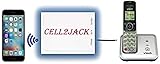
- EXTEND CELL PHONE SERVICE TO HOME PHONES: Transform your traditional landline into a smart communication hub. The CELL2JACK cellphone to home phone adapter allows you to use your existing home phones to make and receive mobile calls and access Siri or Google Assistant, all without needing a new phone setup. This Bluetooth landline adapter is ideal for both corded and cordless models, including rotary and senior-friendly phones with big buttons.
- ELIMINATE CELLPHONE RADIATION: Reduce your exposure to harmful cellphone radiation with CELL2JACK cell phone to landline adapter. This innovative device allows you to use your landline for mobile calls, minimizing your exposure to potential radiation that could have cancer-causing effects. It’s a health-conscious choice for any household aiming to decrease electromagnetic pollution without compromising on connectivity.
- SUPERIOR SIGNAL STRENGTH ANYWHERE: Overcome poor cellphone reception with the cell to jack landline adapter. Place your cellphone where the signal is strongest and use your home phone for clear and reliable communication in any part of your house. Our cell phone to landline converter is perfect for homes with spotty cellular coverage, ensuring you never miss an important call due to weak mobile signals.
- ALL TYPES OF TELEPHONES SUPPORTED: The CELL2JACK Cell phone to landline dock supports all types of analog landline phones, including corded, cordless, desktop, rotary, and caption phones. This cell phone to home phone adapter allows you to make and receive cell phone calls with any home telephone, integrating modern mobile technology into every style of phone in your household, allowing you to make and receive cell phone calls effortlessly.
- SMART HOME INTEGRATION: CELL2JACK cellphone to landline home phone adapter enhances your home automation by enabling control of smart home devices via your landline phone. Easily manage lights, fans, TV, and other smart devices through voice commands or phone controls, integrating with both Siri and Google Assistant. This feature brings home automation capabilities through your existing landline, enhancing user convenience and control.
Rank #3

- UNLIMITED CALLING, NO MONTHLY BILLS: Enjoy 12 months of free local and long-distance calls to the U.S., Canada, Puerto Rico, and the Virgin Islands—plus Caller ID, Voicemail, Call Waiting, Call Forwarding, and Conference Calling—all included with no hidden fees. Save big compared to traditional phone services
- WORK-FROM-HOME READY: Experience crystal-clear calls with upgraded voice quality, even on busy networks. Features a faster CPU (4x speed) and more memory for reliable performance—perfect for remote work or home office needs
- FREE MOBILE APP FOR ON-THE-GO CONVENIENCE: Download the magicJack app to make unlimited calls and send texts to U.S. numbers from your smartphone. Syncs with your home phone to ring both devices simultaneously—stay connected anywhere!
- EASY SETUP, VERSATILE USE: Plug into your high-speed internet and any cordless or landline phone—or use with your computer. Comes with step-by-step instructions, ethernet cord, USB extension, and power adapter for hassle-free installation.
- KEEP YOUR NUMBER & TRUSTED QUALITY: Port your existing number for a one-time $19.95 fee and enjoy free magicJack-to-magicJack calls worldwide, low international rates, and a 1-year warranty. Buy new from magicJack for a guaranteed working unit—avoid used devices!
Product prices and availability are accurate as of the date/time indicated and are subject to change. Any price and availability information displayed on Amazon at the time of purchase will apply.




