Do these 3 things before closing this tab:
1Fix the driver behind crashes, sound loss and screen glitches2Repair Windows errors before they cause bigger problems3Scan for outdated or missing drivers - takes under a minuteThunderbolt can be confusing because the visible port on a laptop or desktop is only one part of the setup. On many desktop motherboards, especially those that support Thunderbolt through an add-in card, there is also a small internal Thunderbolt header that helps the motherboard and expansion card communicate properly.
A Thunderbolt header is not the same thing as a Thunderbolt port. The header sits inside the PC and is used for control and configuration, while the external port is where you connect docks, monitors, storage drives, and other Thunderbolt devices. Understanding the difference is essential when upgrading a desktop, choosing a motherboard, or troubleshooting a Thunderbolt connection.
As an Amazon Associate I earn from qualifying purchases.
This guide explains how Thunderbolt headers and ports work, how different Thunderbolt versions and connector types fit together, what add-in cards require, and what to check before buying Thunderbolt hardware for a laptop, desktop, or custom PC build.
What Is a Thunderbolt Header?
A Thunderbolt header is an internal connector on a motherboard that allows the board to communicate with a Thunderbolt add-in card. It is not the same thing as a Thunderbolt port. The header usually sits on the motherboard PCB near the PCIe slots and is used together with a compatible Thunderbolt expansion card, which provides the external USB-C or Mini DisplayPort-style Thunderbolt ports on the rear of the PC.
#1 Best Overall

- Intel certified Thunderbolt 5 add-on card
- Dual USB Type-C ports support up to 130 watts total of fast charging, and up to 96W for one device
- Up to five Thunderbolt devices can be daisy-chained
- Up to 120 Gbps of bandwidth for superfast data transfers and video output
- DisplayPort 2.1 port supports up to three 8K 60 Hz displays with DSC
In a desktop system, the Thunderbolt header acts as a control and management link between the motherboard firmware and the Thunderbolt controller on the add-in card. The card itself normally uses a PCIe slot for data bandwidth, while the header carries sideband signals needed for proper initialization, device detection, hot-plug behavior, security handshakes, and firmware-level Thunderbolt support. Without that internal header connection, many Thunderbolt add-in cards will not function correctly, even if they physically fit into a PCIe slot.
Motherboard vendors often label these connectors with names such as TB_HEADER, THB_C, Thunderbolt Header, TB1, or similar markings. The exact pin layout varies by manufacturer and generation, so a Thunderbolt header from one board family is not automatically compatible with every Thunderbolt card. For example, an ASUS ThunderboltEX card may require a specific ASUS header, while a Gigabyte GC-Titan Ridge or Maple Ridge card may require the matching Gigabyte header and cable.
What the header does
- Enables motherboard-level Thunderbolt support: The BIOS or UEFI must know that a Thunderbolt controller is present.
- Supports hot-plug behavior: It helps the system recognize Thunderbolt devices when they are connected after boot.
- Handles security and authorization: Older Thunderbolt implementations may require firmware-level device approval settings.
- Coordinates power and wake signals: Some systems use the header for sleep, wake, and power management features.
- Works with the PCIe slot: The header does not replace PCIe; it supplements the PCIe connection used by the add-in card.
A Thunderbolt header is most commonly found on desktop motherboards that advertise Thunderbolt add-in card support. Many boards do not include a Thunderbolt port on the rear I/O panel, but still include a header so the user can add Thunderbolt later. This is especially common on enthusiast, workstation, and creator-focused motherboards where users may need external high-speed storage, audio interfaces, capture devices, docks, or professional displays.
What’s actually slowing this PC down?
Pick the symptom - the matching free tool is one click away.
It is also common for confusion to arise because a motherboard may have a USB-C port without Thunderbolt support, or it may have a Thunderbolt header without any external Thunderbolt ports. A rear USB-C connector only becomes a Thunderbolt port if the system has the required Thunderbolt controller, firmware support, and certified implementation. Likewise, an internal Thunderbolt header is only useful when paired with the correct add-in card, cable, BIOS option, and sometimes DisplayPort input cabling from a graphics card.
In practical terms, the Thunderbolt header is the motherboard-side support connector that makes a desktop Thunderbolt expansion card work as intended. If you are building or upgrading a PC, the presence of this header is a strong sign that the board was designed with Thunderbolt expansion in mind, but it should still be checked against the motherboard manual and the supported add-in card list before buying hardware.
Thunderbolt Ports vs Thunderbolt Headers
A Thunderbolt port is the external connector you plug devices into, such as docks, external SSDs, monitors, audio interfaces, and capture devices. On modern systems it usually looks like a USB-C port and may carry Thunderbolt 3, Thunderbolt 4, or USB4 capability. Older systems may use a Mini DisplayPort-shaped connector for Thunderbolt 1 or Thunderbolt 2. The port is what the user interacts with day to day: it provides data transfer, display output, device charging in some cases, and PCIe tunneling for high-speed peripherals.
A Thunderbolt header, by contrast, is an internal motherboard connector. It is not used for plugging in Thunderbolt accessories directly. Instead, it provides a control and communication link between the motherboard firmware/chipset and a Thunderbolt add-in card. This header helps with functions such as device authorization, power-state management, hot-plug detection, and firmware-level coordination. In a desktop PC, a Thunderbolt add-in card may provide the rear USB-C/Thunderbolt ports, but the internal header allows the card to integrate properly with the motherboard.
Recommended Free Tools
Practical differences
| Feature | Thunderbolt Port | Thunderbolt Header |
|---|---|---|
| Location | External I/O panel, laptop side, dock, or expansion card bracket | Inside the desktop PC on the motherboard |
| Purpose | Connects Thunderbolt devices and cables | Connects the motherboard to a Thunderbolt add-in card |
| Connector type | USB-C on Thunderbolt 3/4, Mini DisplayPort on Thunderbolt 1/2 | Small pin header, often vendor-specific |
| User access | Used directly by the end user | Used during installation or system building |
| Required for laptops | Yes, if the laptop supports Thunderbolt | No, laptops have integrated Thunderbolt hardware |
On laptops, the distinction is mostly hidden because Thunderbolt support is built into the system board. If a laptop has a certified Thunderbolt port, the controller, firmware, power delivery circuitry, and display routing are already integrated. On desktops, the situation is more variable. Some high-end motherboards include Thunderbolt ports directly on the rear I/O panel, while others only include an internal Thunderbolt header and require a separate add-in card. Many motherboards include neither, even if they have USB-C ports.
This difference is a common source of confusion because a USB-C-shaped port does not automatically mean Thunderbolt support. A USB-C port may support only USB 3.2 data, charging, DisplayPort Alt Mode, or a combination of those features without supporting Thunderbolt at all. Similarly, a motherboard Thunderbolt header does not create a usable Thunderbolt connection by itself. It normally needs a compatible add-in card, the correct PCIe slot, DisplayPort input cabling from the graphics card or motherboard, BIOS support, and the proper internal header cable.
Rank #2

- Ports: 2 x Thunderbolt 3 (USB Type-C)
- PCIe and Lanes: PCIe Gen3 x 4
- Bracket: Low-profile pre-installed; full-height
- Form factor: Low-profile
How they work together in a desktop
- The Thunderbolt add-in card is installed into a PCIe slot for high-speed data connectivity.
- An internal cable connects the add-in card to the motherboard’s Thunderbolt header.
- DisplayPort cables may be connected from the GPU or motherboard video outputs to the add-in card’s DisplayPort inputs.
- The add-in card exposes one or more external Thunderbolt ports on the rear of the PC.
- The BIOS and operating system recognize the Thunderbolt controller and manage connected devices.
In short, the port is the external interface for devices, while the header is an internal support connector used mainly in desktop expansion scenarios. When checking a motherboard or PC case, look for both the physical ports and the specifications behind them. A rear USB-C connector, an internal Thunderbolt header, and true Thunderbolt support are related, but they are not interchangeable.
Thunderbolt Versions and Connector Types
Thunderbolt has gone through several major versions, and the connector shape can change depending on the generation. This is where many compatibility questions begin: a motherboard may have a Thunderbolt header for an add-in card, but the ports exposed to the user may be Mini DisplayPort-shaped or USB-C-shaped depending on the Thunderbolt version and card design. The version affects bandwidth, display support, PCIe tunneling capability, cable requirements, and the type of devices you can connect.
PC Slower Than It Used to Be?
A free scan shows the junk files, broken settings and background clutter dragging Windows down - then fixes them in one click.Free scan · Windows 10 & 11Outdated Drivers Are Slowing You Down
One free scan finds every outdated or missing driver and matches the right update for your exact hardware.Free scan · exact hardware matchThunderbolt 1 and Thunderbolt 2 used the Mini DisplayPort connector. These versions were common on older Macs, some workstations, and a limited number of PC motherboards or expansion cards. Thunderbolt 1 offered up to 10 Gbps per channel, while Thunderbolt 2 combined channels for up to 20 Gbps. These ports look like Mini DisplayPort, and they can often carry DisplayPort video, but a regular Mini DisplayPort connector is not automatically a Thunderbolt port. The Thunderbolt lightning-bolt symbol is usually the clearest visual identifier.
Thunderbolt 3 moved to the USB-C connector and raised maximum bandwidth to 40 Gbps. This made Thunderbolt much more common on laptops, docks, external SSDs, capture devices, audio interfaces, and eGPU enclosures. A Thunderbolt 3 port can use the same physical connector as USB-C, but not every USB-C port supports Thunderbolt. Some USB-C ports only support USB data and charging, while others support USB data, DisplayPort Alt Mode, and Thunderbolt. Manufacturer specifications are more reliable than connector shape alone.
Thunderbolt 4 also uses USB-C and keeps the same 40 Gbps maximum bandwidth as Thunderbolt 3, but it tightens the minimum feature requirements. Thunderbolt 4 systems must support PCIe tunneling at defined minimum performance levels, dual 4K display output or one 8K display where supported, wake from sleep through docks, and stronger security requirements on compatible platforms. In practice, Thunderbolt 4 is less confusing than Thunderbolt 3 because certified devices must meet a more consistent baseline.
| Version | Connector | Maximum Bandwidth | Common Uses |
|---|---|---|---|
| Thunderbolt 1 | Mini DisplayPort | 10 Gbps | Older displays, storage, professional peripherals |
| Thunderbolt 2 | Mini DisplayPort | 20 Gbps | External drives, video capture, older docks |
| Thunderbolt 3 | USB-C | 40 Gbps | Docks, SSDs, eGPUs, displays, audio gear |
| Thunderbolt 4 | USB-C | 40 Gbps | Modern docks, high-end laptops, multi-display setups |
Connector type also affects cables. Mini DisplayPort Thunderbolt cables are not the same as ordinary Mini DisplayPort display cables. With USB-C-based Thunderbolt 3 and Thunderbolt 4, passive USB-C cables may work only at shorter lengths or lower capabilities, while certified Thunderbolt cables are designed for full-speed data, display, and device chaining. Active Thunderbolt cables can support longer runs, but some may not behave like normal USB-C cables for non-Thunderbolt devices.
Free tools Windows power users keep installed
One-click scans. No signup required.
Backward compatibility depends on both the host and the device. Thunderbolt 4 ports generally work with Thunderbolt 3 devices, while Thunderbolt 3 systems may work with many Thunderbolt 4 peripherals if the required features are supported. Connecting Thunderbolt 1 or 2 devices to a Thunderbolt 3 or 4 USB-C port usually requires an adapter, and DisplayPort-only adapters will not convert Thunderbolt data. For desktop builds using a motherboard header and add-in card, the card’s Thunderbolt generation determines the external connector and capabilities, while the motherboard firmware and chipset determine whether the card can function correctly.
How Thunderbolt Add-In Cards Use Motherboard Headers
A Thunderbolt add-in card, often called a Thunderbolt AIC, is a PCIe expansion card that adds Thunderbolt ports to a desktop motherboard that does not already have them on the rear I/O panel. The card usually installs into a PCIe slot for data connectivity, but the PCIe slot alone is not enough on many systems. A separate cable connects the card to the motherboard’s Thunderbolt header, allowing the motherboard firmware to identify, authorize, and manage Thunderbolt functions during boot.
This header connection is what separates many Thunderbolt cards from ordinary USB or network expansion cards. Thunderbolt needs coordination between the chipset, BIOS/UEFI firmware, PCIe routing, DisplayPort input, and security settings. The motherboard header provides sideband communication for features such as device detection, hot-plug support, wake behavior, and firmware-level Thunderbolt control. Without that connection, the card may appear partially functional, fail to initialize, or not work at all, depending on the card and motherboard design.
Rank #3

- 【7-Ports Expansion Card】Fanblack PCI-E expansion card provides 7 external USB 3.2 Gen 2 Ports (4 USB Type-A and 3 USB Type-C Ports) for your computer. You can connect a keyboard, mouse, external hard drives, CD/DVD drives, webcams, USB printers, scanners, game controllers, USB VR, digital cameras, etc
- 【10Gbps Transmission Rate】One USB Type-C port and three USB Type-A ports share 10Gbps bandwidth, and the rest three ports share another 10Gbps bandwidth, with a total bandwidth of up to 20Gbps. Each port supports transmitting data at a rate of up to 10Gbps when used solely. Note: The USB expansion card only supports data transfer, Not PD fast charging and video signal transfer (DP, HDMI, VGA display conversion) and USB-C Thunderbolt protocol
- 【Widely Compatibility】The card is compatible with Windows 7/8/10/11 (32/64 bit) and Mac OS 10.8.2 and above. Perfect for HP windows 11 desktop,Dell 8950,MacPro 4.1/5.1,Lenovo P520. Note: Windows XP/Vista/7, Server, requires driver installation, Windows 10/11 and Mac OS and Linux don't need drivers. If your computer can not be recognized by windows 11 or Mac os with any driver, Please contact us anytime
- 【Stable and Easy to Use】The internal USB card is provided from the motherboard through the PCI Express slot to ensure a stable connection and improve data transmission speed. Will not lose the connection problem like an external USB Hub. Quick and easy installation, a simple solution for connecting to and using USB 3.2 devices on your standard desktop
- 【No External Power Adapter】 Users do not need to plug any additional power cable on from powersource and get 5V/12A max power supply for high-power consuming device ( NOT support BC 1.2 charging or Power Delivery) , Support device only, Like HDD/SSD enclosure, VR sensor etc
Typical Thunderbolt add-in card connections
- PCIe slot: Carries high-speed PCIe data between the motherboard and the Thunderbolt controller on the card. Many Thunderbolt 3 and Thunderbolt 4 cards use a PCIe x4 slot electrically, even if installed in a physically longer slot.
- Thunderbolt header cable: Links the card to the motherboard’s dedicated Thunderbolt header. This is commonly labeled TB_HEADER, THB_C, TB1, or a similar name in the motherboard manual.
- DisplayPort input cable: Routes video from the graphics card or motherboard DisplayPort output into the Thunderbolt card, allowing the Thunderbolt port to carry display signals to monitors, docks, and USB-C displays.
- Power connector: Some cards require a 6-pin PCIe power connector, SATA power connector, or other auxiliary power input to support bus-powered Thunderbolt devices and higher charging output.
- USB header connection: Certain models also use an internal USB 2.0 header for firmware tools, device management, or vendor-specific functions.
Installation usually begins by confirming the exact card model supported by the motherboard vendor. For example, an ASUS ThunderboltEX card is generally intended for selected ASUS motherboards, while a Gigabyte GC-Titan Ridge or GC-Maple Ridge card is designed for selected Gigabyte boards. Even if the physical header looks similar, pinouts and firmware expectations can differ between brands and generations. A matching connector shape does not guarantee compatibility.
After the card is installed, Thunderbolt support often has to be enabled in the BIOS or UEFI setup. Settings may include Thunderbolt mode, security level, pre-boot support, USB4 support, PCIe tunneling, or wake from Thunderbolt devices. Some boards also require a BIOS update before the add-in card is detected correctly. In Windows, the system may then need Thunderbolt Control Center, Intel Thunderbolt drivers, chipset drivers, or vendor utilities, depending on the platform and Thunderbolt generation.
Example installation flow
- Check the motherboard manual for a supported Thunderbolt add-in card list and the location of the Thunderbolt header.
- Install the card into the recommended PCIe slot, often one connected to the chipset or CPU with at least four PCIe lanes available.
- Connect the Thunderbolt header cable from the card to the motherboard header in the correct orientation.
- Connect DisplayPort output from the GPU or motherboard to the DisplayPort input on the Thunderbolt card if display output over Thunderbolt is needed.
- Attach any required power cable to the add-in card.
- Enable Thunderbolt-related settings in BIOS/UEFI, then install the required operating system drivers or management software.
When everything is configured properly, the add-in card’s USB-C shaped Thunderbolt ports can support fast external storage, docks, PCIe expansion chassis, capture devices, audio interfaces, and one or more displays, depending on bandwidth and version. If the header cable is missing, connected to the wrong header, or paired with an unsupported board, the same card may behave like an inactive controller rather than a usable Thunderbolt upgrade.
Compatibility Requirements for Thunderbolt Support
Thunderbolt support depends on more than having a USB-C-shaped port or an empty PCIe slot. A desktop motherboard, add-in card, firmware, chipset, and operating system all need to support the same Thunderbolt implementation. This is especially true for Thunderbolt add-in cards, which often require a specific motherboard Thunderbolt header plus BIOS-level support for device authorization, hot-plug behavior, and PCIe tunneling.
Motherboard and BIOS support
For desktop PCs, the motherboard is usually the first compatibility checkpoint. Many Thunderbolt add-in cards are not universal PCIe cards; they are designed for specific motherboard families from the same vendor. For example, an ASUS ThunderboltEX card typically needs a compatible ASUS motherboard with the correct Thunderbolt header, while a Gigabyte GC-Titan Ridge or Maple Ridge card is commonly intended for supported Gigabyte boards. Even if the card physically fits into a PCIe x4, x8, or x16 slot, it may not initialize without the required header connection and firmware support.
The BIOS or UEFI must also include Thunderbolt options. These settings may include Thunderbolt security level, GPIO support, PCIe tunneling, USB4 support, wake from Thunderbolt, and pre-boot device support. On some boards, a BIOS update is required before a newer Thunderbolt card will work correctly. Without the right firmware, symptoms can include missing devices, no hot-plug detection, limited USB-only behavior, or the Thunderbolt controller not appearing in the operating system.
Header, PCIe, and DisplayPort requirements
A Thunderbolt header is commonly used for low-level control between the motherboard and a Thunderbolt controller on an add-in card. Header types are not always interchangeable. Older boards may use a 5-pin Thunderbolt header, while newer implementations may use a 14-pin or vendor-specific connector. The cable must match both the motherboard and the card, and the manual should explicitly list support for that card model.
- PCIe slot: Most Thunderbolt add-in cards need a PCIe slot with enough lanes, commonly PCIe x4 electrically or better.
- Thunderbolt header: Required on many desktop add-in cards for authorization, power management, and hot-plug signaling.
- DisplayPort input: Many cards need a DisplayPort cable from the graphics card to the Thunderbolt card to carry video over Thunderbolt.
- Internal USB connection: Some cards also need a USB 2.0 header for auxiliary functions or USB fallback behavior.
- Power connector: Certain cards require PCIe auxiliary power to deliver enough power to connected devices.
Operating system and driver support
Modern versions of Windows, macOS, and Linux can support Thunderbolt, but the level of support depends on the controller, firmware, and security model. Windows systems may require Intel Thunderbolt drivers, Intel Thunderbolt Control Center, or USB4 drivers depending on the platform. Linux support is generally strongest on recent kernels with tools such as Bolt for device authorization. macOS supports Thunderbolt widely on Macs, but Hackintosh-style desktop configurations are highly dependent on firmware, controller generation, and system configuration.
| Requirement | What to verify |
|---|---|
| Motherboard support | Manual lists Thunderbolt or USB4 support and names compatible add-in cards |
| Correct header | Header pin count and cable match the Thunderbolt card |
| BIOS options | Thunderbolt settings are present and BIOS is updated |
| PCIe resources | Slot provides enough lanes and is not disabled by other devices |
| Video routing | DisplayPort input is connected if monitor output over Thunderbolt is needed |
Laptops are different because Thunderbolt support is built into the platform rather than added through a header. A laptop USB-C port may support Thunderbolt, USB4, DisplayPort Alt Mode, charging, or only basic USB, so the exact model specifications matter. Look for official Thunderbolt 3, Thunderbolt 4, Thunderbolt 5, or USB4 certification rather than relying on connector shape alone.
Quick wins for a faster PC:
Fix the driver behind crashes, sound loss and screen glitchesFind Drivers →Clear out junk files and repair common Windows errorsFree Scan →Scan for outdated or missing drivers - takes under a minuteDriver Scan →Rank #4
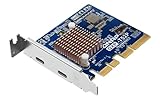
- Ports: 2 x Thunderbolt 5 (USB Type-C)
- Dual Thunderbolt 5 ports provide up to 40 Gbps unidirectional and 80 Gbps bidirectional bandwidth for fast file transfers, 4K editing, and large project backups.
- The QXP‑T52P Thunderbolt 5 card is compatible with Thunderbolt 4 and 3 devices for seamless integration with existing equipment.
Common Thunderbolt Header and Port Problems
Thunderbolt problems usually come from one of three areas: motherboard header wiring, BIOS or firmware configuration, or confusion between Thunderbolt-capable USB-C ports and ordinary USB-C ports. A system may have a USB-C connector that charges devices and transfers USB data, but that does not automatically mean it supports Thunderbolt displays, docks, external GPUs, or PCIe storage. On desktop PCs, issues are especially common when a Thunderbolt add-in card is installed without the correct internal header cable, DisplayPort input cable, PCIe slot placement, or BIOS support.
One frequent symptom is that the Thunderbolt device is not detected at all. On a desktop, this often means the add-in card is receiving PCIe power but is not communicating with the motherboard’s Thunderbolt header. The small internal cable may be missing, connected to the wrong header, reversed, or incompatible with the card. Some boards use different header layouts, such as 5-pin, 14-pin, or proprietary connectors, so a cable that physically fits one product line may not work with another. The card may also need to be installed in a specific PCIe slot listed in the motherboard manual.
Another common problem is partial functionality. A dock may provide USB ports but no display output, or an external monitor may remain blank even though the Thunderbolt device appears in the operating system. For many Thunderbolt add-in cards, the card must be fed video from the graphics card or motherboard graphics output using a DisplayPort-to-Mini DisplayPort or DisplayPort-to-DisplayPort input cable. Without that connection, the Thunderbolt port can still carry data but cannot pass video to a monitor. Laptops usually handle this internally, but desktops with add-in cards often require this extra step.
Typical symptoms and likely causes
- Device not appearing: Missing Thunderbolt header connection, unsupported add-in card, disabled BIOS setting, or outdated firmware.
- USB works but Thunderbolt does not: The port may be USB-C only, or Thunderbolt security approval may be required in software.
- No display from a dock or monitor: Missing DisplayPort input to the add-in card, unsupported display mode, bad cable, or limited GPU routing.
- External SSD runs slowly: Device connected through USB fallback mode, non-Thunderbolt cable, older Thunderbolt version, or a shared PCIe bandwidth limitation.
- Random disconnects: Low-quality cable, insufficient power delivery, firmware bugs, sleep-state issues, or dock overheating.
- External GPU not detected: BIOS setting disabled, Thunderbolt security blocked, unsupported laptop firmware, or inadequate enclosure power supply.
BIOS settings are another major source of trouble. Many desktop motherboards require Thunderbolt support to be enabled manually before the card works properly. Settings may include Thunderbolt controller enablement, USB4 support, security level, PCIe tunneling, wake from Thunderbolt, and pre-boot support. Some systems also need a BIOS update before newer Thunderbolt cards or USB4 devices behave correctly. In Windows, Thunderbolt Control Center or vendor utilities may be needed to approve devices, update controller firmware, or confirm that a device is connected in Thunderbolt mode rather than USB mode.
Cables also cause many misleading failures. A passive USB-C charging cable may look identical to a Thunderbolt cable but lack the wiring and certification needed for full Thunderbolt bandwidth. For Thunderbolt 3 and Thunderbolt 4, using a certified cable is the safest choice, especially for docks, external NVMe drives, and displays. Longer cables can reduce available bandwidth unless they are active Thunderbolt cables. If a device only works when the cable is flipped, only works at USB speed, or disconnects under load, replacing the cable with a certified Thunderbolt cable is one of the quickest tests.
Power and sleep behavior can create additional problems. Some bus-powered drives or portable docks may need more power than the port provides, while some desktop add-in cards need auxiliary PCIe power connectors for charging or high-power devices. Sleep and resume issues can appear as missing docks, frozen displays, or vanished network adapters after the computer wakes. Updating the BIOS, Thunderbolt firmware, chipset drivers, GPU drivers, and dock firmware often fixes these issues. If problems continue, testing with one device at a time helps separate a faulty port, cable, dock, or motherboard configuration from a broader Thunderbolt compatibility problem.
What to Check Before Buying Thunderbolt Hardware
Before buying Thunderbolt hardware, confirm the exact role of the device you need: a motherboard with native Thunderbolt, a Thunderbolt add-in card, a dock, an external SSD enclosure, an eGPU enclosure, a monitor, or a laptop with built-in ports. Thunderbolt support depends on more than the shape of the connector. A USB-C port can look identical to a Thunderbolt port while lacking Thunderbolt signaling, PCIe tunneling, or display capabilities. Check the specifications page for explicit wording such as Thunderbolt 3, Thunderbolt 4, Thunderbolt 5, or USB4 with Thunderbolt compatibility, rather than relying on the presence of a USB-C connector alone.
For desktop upgrades, start with the motherboard. If you plan to install a Thunderbolt add-in card, the board usually needs a matching Thunderbolt header, a compatible PCIe slot, firmware support, and the correct BIOS options. Headers are not universal: a 5-pin, 9-pin, 14-pin, or proprietary Thunderbolt header may only work with specific cards from the same motherboard vendor. For example, an ASUS ThunderboltEX card is typically intended for selected ASUS boards, while Gigabyte GC-TITAN RIDGE or GC-MAPLE RIDGE cards are intended for selected Gigabyte boards. Even if the PCIe slot fits, the card may not initialize without the correct header cable and BIOS support.
The Tool Desk
Outbyte Driver Updater FREEScan for outdated or missing drivers - takes under a minuteDriver Scan →Outbyte PC Repair FREEClear out junk files and repair common Windows errorsFree Scan →Checklist before purchase
- Thunderbolt version: Match the hardware to your speed and feature needs. Thunderbolt 3 and 4 commonly support up to 40Gbps, while Thunderbolt 5 can offer higher bandwidth on supported systems and devices.
- Connector type: Most modern Thunderbolt devices use USB-C, while older Thunderbolt 1 and 2 devices use Mini DisplayPort-style connectors and may require adapters.
- Motherboard header: For add-in cards, verify the exact Thunderbolt header type and card compatibility list in the motherboard manual.
- PCIe slot requirements: Check whether the card needs PCIe x4, x8, or x16 physical space and whether the slot shares lanes with GPUs, M.2 drives, or chipset devices.
- DisplayPort input: Many desktop Thunderbolt cards need a DisplayPort cable from the graphics card to the Thunderbolt card to pass video through the Thunderbolt port.
- Power delivery: If you want laptop charging, confirm the wattage supported by the dock, monitor, or port. Some ports handle data only, while others provide 60W, 85W, 96W, 100W, or more.
- Cable rating: Use certified Thunderbolt cables for full speed, especially for longer runs. Some USB-C charging cables only support USB 2.0 data speeds.
For laptops and prebuilt desktops, review the manufacturer’s port specifications carefully. Look for the Thunderbolt logo, the listed Thunderbolt generation, supported display count, maximum external resolution, charging support, and whether the port connects to the CPU or chipset. Business laptops may include Thunderbolt security settings in BIOS or UEFI, and some systems require firmware updates for stable dock behavior. If you use Linux, also check kernel support, bolt or Thunderbolt security authorization support, and reports from users with the same laptop model.
Best Value

- HIGH-PERFORMANCE USB CARD: Upgrade or expand a desktop/server's USB connectivity by adding four external USB Type-C 10Gbps ports and one internal USB Type-A 10Gbps port via a single PCI Express x4 connection
- FAST DATA TRANSFER: ASM3142 controller supports USB 3.2 transfer speeds of up to 10Gbps; Ideal for transferring large files or editing high-resolution photos/videos on external storage devices
- OPTIONAL POWER: USB PCIe expansion card with SATA power supplies additional power to the USB ports (when motherboard power is insufficient), providing up to 5V 3A (15W) per USB Type-C port and 5V 1.5A (7.5W) on the USB Type-A port
- COMPATIBILITY: Drivers auto-install in most OS's including Windows 8 & up, macOS, and Linux; Works with all hardware platforms such as Intel, AMD, and Apple Silicon that have a PCI Express x4/x8/x16 slot; Does not support DP-Alt Mode/USB Power Delivery
- THE IT PRO'S CHOICE: Designed and built for IT Professionals, this 5-port USB-C PCIe Card is backed for 2-years, including free lifetime 24/5 multi-lingual technical assistance
When choosing docks, storage, and displays, match the device to the slowest link in your setup. A Thunderbolt 4 dock will usually work on a Thunderbolt 3 system, but some features, such as guaranteed dual 4K display support or certain wake-from-sleep behavior, can vary by host. A Thunderbolt SSD enclosure can be much faster than a USB enclosure, but only if the host port, cable, and internal drive can sustain those speeds. For used hardware, confirm that cables, header leads, DisplayPort passthrough cables, and power adapters are included, because missing proprietary accessories can make an otherwise good purchase difficult or expensive to use.
Frequently Asked Questions
Do I need a Thunderbolt header to use a Thunderbolt add-in card?
In most desktop PCs, yes. Many Thunderbolt add-in cards require both a PCIe slot and a dedicated Thunderbolt header on the motherboard so the card can communicate properly with the system firmware. Without the correct header, the card may not work at all, even if it physically fits into the PCIe slot.
Can I add Thunderbolt to any motherboard?
No, Thunderbolt support depends on the motherboard’s chipset, firmware, PCIe layout, and whether it has the correct Thunderbolt header. You usually need to use an add-in card approved by the motherboard manufacturer. Checking the motherboard’s support page is the safest way to confirm compatibility before buying hardware.
Is a USB-C port the same as a Thunderbolt port?
No, USB-C describes the connector shape, while Thunderbolt describes the data, display, and power standard running through that connector. A USB-C port may support only USB data, or it may also support DisplayPort, charging, or Thunderbolt depending on the device. Look for the Thunderbolt icon or check the device specifications to confirm actual Thunderbolt support.
Can I use a Thunderbolt 4 device with a Thunderbolt 3 port?
Usually, yes. Thunderbolt 4 devices are generally backward compatible with Thunderbolt 3 ports, but performance and features may be limited to what the Thunderbolt 3 system supports. For example, monitor support, dock behavior, wake-from-sleep reliability, and charging capability can vary by laptop or motherboard.
What should I check before buying a Thunderbolt expansion card?
Check that the card is listed as compatible with your exact motherboard model, not just the same brand. Confirm the required Thunderbolt header type, PCIe slot size, DisplayPort input requirements, BIOS settings, operating system support, and power connections. If you plan to connect monitors, also verify how many displays the card supports and what resolution and refresh rate it can handle.
Bottom Line
A Thunderbolt port is the connection you use for high-speed devices, displays, docks, and storage, while a Thunderbolt header is the internal motherboard connector that helps enable Thunderbolt support through a compatible add-in card. Having one does not always guarantee the other, so compatibility between your motherboard, BIOS, Thunderbolt card, cable, and device matters.
Quick wins for a faster PC:
Clear out junk files and repair common Windows errorsFree Scan →Fix the driver behind crashes, sound loss and screen glitchesFind Drivers →Repair Windows errors before they cause bigger problemsFix Now →If you are buying or upgrading, check your motherboard manual first, confirm the required header and PCIe slot support, and choose the Thunderbolt version that matches your needs. For laptops and prebuilt desktops, verify the exact port specs before purchasing docks, monitors, or external drives.
Quick Recap
Product prices and availability are accurate as of the date/time indicated and are subject to change. Any price and availability information displayed on Amazon at the time of purchase will apply.




