mediaplayer.dll errors commonly appear as “This application failed to start because mediaplayer.dll was not found,” “The file mediaplayer.dll is missing or corrupted,” or “Error loading mediaplayer.dll. The specified module could not be found.”
The 60-second answer
mediaplayer.dll is not a Windows system file. It is an old Shareaza Media Services component associated with the Shareaza File Sharing Client and its integrated media player.
As an Amazon Associate I earn from qualifying purchases.
The safest fix is to close Shareaza, check whether Windows Security quarantined the file, then repair or reinstall Shareaza from the project’s official download source. Do not download a loose copy of mediaplayer.dll and place it in System32 or SysWOW64.
What’s actually slowing this PC down?
Pick the symptom - the matching free tool is one click away.
There is an important version detail: Shareaza’s FAQ says the old MediaPlayer.dll was unavailable from Shareaza 2.5.0.0 onward after a major media-player rewrite. Therefore, a current Shareaza installation may not need this file at all. The error can instead point to an incomplete old installation, a stale shortcut, an obsolete plugin registration, or another program using the same generic filename.
#1 Best Overall

- SP】ustd thror Bluetooth headphones.
- croSD, providipace.
- ned for the m
- USB cable, connected ter bank, or wall adapter.
- unctionality m
What is mediaplayer.dll?
mediaplayer.dll is a third-party application DLL associated with Shareaza’s historical Media Player or Media Services functionality. Shareaza documentation describes these components as plugins that provide multimedia playback inside the peer-to-peer client.
It is not supplied by Windows, and it should not normally be copied to:
C:WindowsSystem32C:WindowsSysWOW64- The Windows directory generally
The filename alone is not proof that every copy belongs to Shareaza. Another application could use the same generic name. The full path, file properties, digital signature, and program that reports the error are more useful than the basename.
Older Shareaza release information shows that MediaPlayer.dll was included in historical installations. Public file catalogues also describe a historical file named “Shareaza Media Services,” but catalogue-reported version, size, architecture, and publisher details should not be treated as a current official specification.
Why the error appears
The message may mean different things depending on where it occurs.
The file is genuinely missing
An old Shareaza installation may have been interrupted, partially removed, or damaged. A cleanup utility may also have deleted an application file while leaving the shortcut or registry entries behind.
Antivirus software removed or quarantined it
Security software may have blocked or quarantined an old component. This does not automatically mean the file was malicious, but an old DLL deserves verification before it is restored.
Shareaza no longer uses the old component
Shareaza’s old integrated media player was unavailable beginning with version 2.5.0.0. If you upgraded from an older release, an obsolete shortcut, plugin entry, or leftover configuration may still be trying to load mediaplayer.dll.
The DLL exists but a dependency is missing
“The specified module could not be found” can mean that Windows found mediaplayer.dll but could not load one of the DLL’s dependencies. The named file may be present while another required component is absent.
The architecture is incompatible
The Shareaza executable and its plugin must use compatible architectures. A 32-bit plugin cannot generally be substituted for a 64-bit application component, and a 64-bit plugin cannot be loaded by a 32-bit program.
Do not assume that 64-bit Windows requires every application DLL to be 64-bit. A 32-bit Shareaza installation on 64-bit Windows still needs 32-bit application components.
Free tools Windows power users keep installed
One-click scans. No signup required.
Another application is reporting the error
If the error appears when starting a program other than Shareaza, first identify that program. Repairing Shareaza will not fix an unrelated application that happens to use the same filename.
Rank #2

- Powerful features 16GB Internal Capacity for up to 5000 songs.Built in Audio,flash memory disk,Play music with MP3/Voice record/FM Radio/E-book support TXT format/ photo view /FLAC formats/ video with AMV format.HiFi bass Earphone with Stylish and sophisticated appearance.
- Easily to Operate one key to lock/unlock screen.also designed with Independent Volume Control, Give you a more user-friendly experience.Can also be used as a memory Card reader or for file storage;Built in high speed Mini USB 2.0 cables,Just drag and drop the music file or folder directly when connecting to computer
- Compact and Portable Slim,lightweight,portable MP3 player MP4 player with 3.5mm Audio Jack port.Various Play Modes: Normal,Repeat Once,Repeat All,Random.You can carry Music, Video,Photos and Files wherever you go
- Economy and fashion Noise canceling Voice Recorder; Simple files management.Fashionable and exquisite appearance,Perfect for your entertainment and learning,outdoor and gym fitness.
- One Year Manufacturer's Warranty Buy risk free as we always stand by our products.Any concern about after-sale, please feel free to contact us. We will make every effort to help you
Fix 1: Check the actual application and file path
Before changing Windows files, determine which program is requesting the DLL.
- Read the title bar and full error message.
- Note which shortcut or application you opened.
- Right-click the shortcut and select Properties.
- On the Shortcut tab, inspect Target and Start in.
- Check whether the path points to an old Shareaza directory.
- If Shareaza is installed, open Settings > Apps > Installed apps on Windows 11, or Settings > Apps > Apps & features on Windows 10.
- Search for Shareaza.
If the shortcut points to a folder that no longer exists, delete the obsolete shortcut and launch the currently installed program from the Start menu. If the error appears outside Shareaza, record the calling program before continuing.
Verify the file without trusting the filename
If you find a copy of mediaplayer.dll:
- Right-click it and select Properties.
- Open the Details tab.
- Look for a description associated with Shareaza Media Services.
- Open the Digital Signatures tab if it is present.
- Select a signature and choose Details.
- Check whether Windows reports that the signature is valid.
- Record the complete folder path.
A file in a Shareaza program folder is more plausible than an identical filename in System32, but location alone does not prove that it is safe. If the file has no useful metadata, has an unexpected publisher, or came from an unknown source, do not restore it manually.
Do these 3 things before closing this tab:
1Repair Windows errors before they cause bigger problems2Fix the driver behind crashes, sound loss and screen glitches3Clear out junk files and repair common Windows errorsFix 2: Check Windows Security quarantine
Windows Security may have removed the file during a scan.
- Open Start and search for Windows Security.
- Select Virus & threat protection.
- Under Current threats, select Protection history.
- Review recent detections and quarantined items.
- Expand an entry related to Shareaza or
mediaplayer.dll. - Record the detection name and original file path.
- Do not immediately choose Restore.
Microsoft warns that restoring a real threat puts the file back on the device. Restore the file only when all of the following are true:
- It came from a trusted Shareaza installation.
- The original path was the Shareaza program directory.
- You have verified the installer source.
- A current security scan does not identify a threat.
- You understand that the old component may no longer be required.
If you cannot verify its origin, leave it quarantined and reinstall Shareaza from the official project download source instead. Reinstallation is safer than restoring an isolated DLL.
Fix 3: Repair or reinstall Shareaza
For a genuine Shareaza-related error, repairing the application is the primary fix.
Try the installed repair option
- Close Shareaza.
- Open Settings.
- Select Apps, then Installed apps.
- Search for Shareaza.
- Select the three-dot menu beside it.
- Choose Modify, Repair, or the available installer maintenance option.
- Follow the prompts.
- Restart Windows.
- Launch Shareaza again.
On Windows 10, use Settings > Apps > Apps & features, select Shareaza, and choose Modify if the installer provides that option. You can also open Control Panel > Programs > Programs and Features, select Shareaza, and look for Repair or Change.
If there is no repair option, uninstall Shareaza and reinstall it:
- Close Shareaza and any related background process.
- Back up any downloads, shared folders, or configuration data you need to keep.
- Uninstall Shareaza from Installed apps or Programs and Features.
- Restart Windows.
- Download Shareaza only from the official Shareaza project download page or its official SourceForge project files.
- Choose the installer architecture that matches the Shareaza program you intend to run.
- Install the program.
- Restart Windows again.
- Test Shareaza before restoring optional plugins or custom settings.
The official Shareaza download page lists 32-bit and 64-bit installers. Use the same architecture as the application, not merely the architecture of Windows.
If the current Shareaza build starts normally but an old shortcut still produces the error, remove the obsolete shortcut. Do not install the old DLL solely to satisfy a shortcut for a component that current Shareaza no longer uses.
Quick wins for a faster PC:
Repair Windows errors before they cause bigger problemsFix Now →Scan for outdated or missing drivers - takes under a minuteDriver Scan →How to tell whether this worked
The repair succeeded if Shareaza opens without the DLL message and the rest of the application works normally. If Shareaza starts but media playback alone fails, the problem is probably limited to the old integrated player or its codec/filter chain.
Rank #3
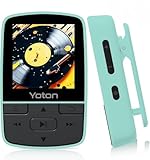
- 【Define your style & Built to Move】Weighing a mere 28g, the Yoton MP3 Player is your perfect gym and running companion. Clipping securely to your bag or workout gear, the lightweight design ensures your music and style go everywhere you do
- 【Shuffle & Rich, Hi-Fi Sound Quality】Immerse yourself in crystal-clear audio. Powered by an advanced decoding chip, it faithfully reproduces the depth and detail in your music, across all genres. Shuffle setting path: in the interface of playing music, click on the upper left corner of the button ( with three horizontal lines), click on Repeat, select Shuffle
- 【Spacious Tunes Hub】 With expandable storage via TF card ( up to 64GB, holds roughly 4000 songs), the Yoton MP3 Player is your pocket-sized music hub. Curate the perfect soundtrack for every moment( TF card is not included, and users must supply one for operation)
- 【Stable & Effortless Bluetooth 5.2】Pair seamlessly and enjoy skip-free audio. The latest Bluetooth technology ensures a reliable connection to your wireless headphones or speakers
- 【 More Than Just Music】Packed with useful features like FM Radio, Voice Recorder, Pedometer, and an Alarm Clock, this versatile player seamlessly integrates into your entire day
If the same message appears immediately after a clean reinstall, check:
- The executable path shown by the shortcut.
- Old Shareaza folders left behind after uninstalling.
- Antivirus Protection History.
- Compatibility settings.
- Old plugin or registry entries.
- Whether a different program is actually displaying the error.
Fix 4: Disable Shareaza’s integrated media player
If Shareaza works but the integrated player causes the error, disable the playback options rather than forcing the obsolete DLL back into Windows.
- Open Shareaza.
- Select Tools.
- Open Shareaza Settings.
- Select General.
- Open Media Player.
- Clear the integrated playback options described there.
- Apply the change and restart Shareaza.
You can then use an external media player for downloaded files. If only video playback fails while Shareaza itself starts, investigate the media format and DirectShow codec/filter configuration rather than treating the issue as a Windows DLL failure.
Windows Errors? Fix Them Before They Spread
Repair common Windows errors and clear accumulated junk for a smoother, more stable PC - no reinstall needed.Free scan · no reinstallOutdated Drivers Are Slowing You Down
One free scan finds every outdated or missing driver and matches the right update for your exact hardware.Free scan · exact hardware matchIf Shareaza cannot open its settings because the media component loads during startup, repair or reinstall it first. If that does not help, uninstall the obsolete build and use the current official installer, where available.
Fix 5: Check dependencies and runtime messages
A DLL can exist and still fail to load because Windows cannot find a dependency. Look for a second error mentioning a Microsoft runtime, codec, or another DLL.
Do not install DirectX, .NET, and every Visual C++ package merely because mediaplayer.dll is missing. The available public evidence does not establish a specific runtime requirement for this historical Shareaza component.
If the error specifically names a Microsoft runtime such as MSVCP*.dll or VCRUNTIME*.dll:
The Tool Desk
Outbyte PC Repair FREERepair Windows errors before they cause bigger problemsFix Now →Outbyte Driver Updater FREEFix the driver behind crashes, sound loss and screen glitchesFind Drivers →- Note the exact runtime name.
- Confirm whether the failing Shareaza executable is 32-bit or 64-bit.
- Use Microsoft’s official Visual C++ Redistributable download page.
- Install the architecture matching the application.
- Restart Windows.
- Test Shareaza again.
Microsoft supports side-by-side Visual C++ runtime installations, so installing a required architecture does not mean removing every other runtime.
If the message names a codec or media filter, repair the media application or codec package that supplied it. Avoid copying individual dependency DLLs from download sites.
Fix 6: Repair wider Windows component corruption
mediaplayer.dll belongs to an application, so System File Checker normally will not restore it. Use Windows repair commands when other Windows features are also failing, system files are damaged, or the error began after broader operating-system corruption.
- Open Start.
- Search for Command Prompt.
- Right-click Command Prompt.
- Select Run as administrator.
- Run:
DISM.exe /Online /Cleanup-image /Restorehealth
- Wait for the command to complete.
- Then run:
sfc /scannow
- Restart Windows.
- Test Shareaza.
Microsoft recommends running DISM before SFC. DISM repairs the Windows component store, while SFC checks and repairs protected Windows system files. Neither command is a substitute for reinstalling an application-owned Shareaza DLL.
Recommended Free Tools
Outbyte PC Repair can reduce the manual work of hunting through system issues and repeating SFC or DISM without knowing what changed; its free scan shows detected problems, while repair is performed by the full version. It is optional, and reinstalling Shareaza remains the definitive fix when the missing file belongs to that application.
Use Windows Features only when the error identifies a feature
Do not enable random Windows components to fix mediaplayer.dll. If a separate error specifically names a Windows feature:
Rank #4

- 【32GB Large Storage】The portable MP3 player comes with a 32 GB memory SD card and support up to 128GB(not included). Play music with MP3/Voice record/FM Radio/E-book support TXT format/ photo view / video with AMV format.
- 【Easily to Operate 】Designed with Independent Volume Control, Give you a more user-friendly experience.Can also be used as a memory Card reader or for file storage;Built in high speed Mini USB 2.0 cables,Just drag and drop the music file or folder directly when connecting to computer.
- 【HIFI Lossless Sound Quality】It adopts professional intelligent digital noise reduction chip and superb circuit optimization technology to reduce noise, ensuring high sound sampling rate and providing high quality sound.
- 【Long Battery Life&Portable and Lightweight】MP3 player allows you enjoy real lossless music up to 10 hours. And it fully charged within 1-2 hours. Economy and fashion Noise canceling Voice Recorder; Simple files management.Fashionable and exquisite appearance,Perfect for your entertainment and learning,outdoor and gym fitness.
- 【12 Month Warranty】We have a professional after-sales service team. If you encounter any problems, please feel free to contact us directly and you will get a quick response and a satisfactory response. Your satisfaction is our only pursuit.
- Press Windows key + R.
- Type
optionalfeatures. - Press Enter.
- Review the named feature.
- Enable only the feature required by the documented application.
- Select OK.
- Restart Windows if prompted.
The Windows Features dialog does not restore a third-party Shareaza plugin. It is relevant only when the full error clearly identifies a missing Windows component.
Fix 7: Check drivers only for broader playback problems
A missing mediaplayer.dll is not normally a graphics-driver problem. However, if Shareaza opens and media playback produces a black screen, crashes, or fails across several applications, update the display and audio drivers from the computer or hardware manufacturer.
To inspect drivers:
- Right-click Start.
- Select Device Manager.
- Expand Display adapters and Sound, video and game controllers.
- Right-click the affected device.
- Select Properties.
- Open the Driver tab.
- Note the provider and version.
- Use Update driver or obtain the driver from the manufacturer.
- Restart Windows and test playback.
Do not replace a working driver merely because mediaplayer.dll is missing. Drivers address hardware and playback symptoms, not an absent Shareaza application file.
Outbyte Driver Updater can save time when you are checking several outdated devices instead of hunting for each driver manually; its free scan identifies driver issues, while installation is handled by the full version. It is optional and does not replace reinstalling Shareaza when the DLL itself is missing.
Independent reader supportYour contribution helps us test, update, and keep practical guides available for everyone.Do not copy the DLL into System32 or SysWOW64
The common advice to copy a downloaded DLL into a Windows system folder is unsafe and incomplete.
It can fail because:
- The file is the wrong architecture.
- The file is from a different Shareaza release.
- The file is altered or malicious.
- The application expects the DLL beside its own executable.
- The missing item is actually a dependency.
- Windows is loading a different copy from an unexpected path.
- The application no longer supports the old component.
System32 and SysWOW64 are not general-purpose storage locations for application DLLs. Keep Shareaza files inside the application’s own installation directory unless the official installer specifies another location.
Does regsvr32 apply?
Usually, do not run regsvr32 automatically for this error.
regsvr32 registers DLLs that expose the appropriate COM registration entry point, commonly DllRegisterServer. Shareaza documentation discusses registered plugin objects, but the available documentation does not verify that this particular historical mediaplayer.dll exports DllRegisterServer.
If the DLL is not registerable, regsvr32 can produce an error such as “The module was loaded but the entry-point DllRegisterServer was not found.” That does not prove the file is corrupt. It may simply mean registration is not how that DLL is used.
Use regsvr32 only when Shareaza’s own documentation or the installer specifically requires it and you know whether the DLL is 32-bit or 64-bit. For a normal missing-file message, repair or reinstall Shareaza instead.
When System Restore makes sense
Use System Restore only if the failure began after a known system or software change and a suitable restore point exists.
- Press Windows key + R.
- Type
rstrui.exe. - Press Enter.
- Select Next.
- Choose a restore point created before the problem began.
- Select Scan for affected programs if available.
- Review the changes.
- Select Finish to start the restore.
System Restore can roll back system files, registry settings, and installed programs. It normally does not change personal files, but review the affected-program list first.
If the problem is simply an incomplete Shareaza installation, reinstalling Shareaza is more direct than rolling back the entire system.
Best Value

- 🎼 【32GB Large Storage】Stores over 5,000 songs and books. You could enjoy all music you loved. Tip: The memory card has been inserted into the player when you receive it, in case of missing. You'd better format the memory card on the computer before using.
- 🎼 【Lossless Sound Quality】Adopts professional intelligent digital noise reduction technology, ensuring high-quality sound effect. Both earphone and speaker effect is super wonderful. Supported audio formats: MP3, WMA, APE, FLAC, WAV, AAC.
- 🎼 【Long Battery Life】Suitable for using while you’re jogging, running, doing yoga, or taking a bus or a train, anywhere anytime.
- 🎼 【Easy to use】Simple button operation, succinct main interface, compact, portable and multi-functional. Upgraded random playing function.
- 🎼 【Package Lists】1* MP3 Player/1* 32GB TF Card/1* Earphone/1* Charging Cable/1* User Manual. 24/7 after-sales perfect customer services.
What to do if reinstalling Shareaza does not help
Work through this checklist in order:
- Confirm that the error names Shareaza and not another application.
- Check the shortcut’s Target for an obsolete installation path.
- Launch the current Shareaza executable directly from its installed folder.
- Check Windows Security Protection history.
- Confirm that the installed Shareaza architecture matches the intended plugin architecture.
- Remove stale shortcuts and obsolete Shareaza remnants.
- Review compatibility settings under the executable’s Properties.
- Check whether the error appears only when integrated playback starts.
- Disable the integrated player if Shareaza itself opens.
- Run DISM and SFC only if Windows has other corruption symptoms.
- Consider System Restore if a recent change clearly triggered the failure.
If the error appears in a different program, stop troubleshooting Shareaza and repair the application shown in that program’s error message.
Do these 3 things before closing this tab:
1Repair Windows errors before they cause bigger problems2Scan for outdated or missing drivers - takes under a minute3Clear out junk files and repair common Windows errorsFrequently asked questions
Is mediaplayer.dll a Windows file?
No. Evidence identifies it as an old Shareaza Media Services component, not a Windows system DLL.
Is mediaplayer.dll safe?
The filename alone cannot establish safety. Check its path, metadata, digital signature, source, and the Shareaza installation it came from. Treat an unknown copy with caution.
Which Shareaza versions used it?
Older Shareaza installations included MediaPlayer.dll. Shareaza’s FAQ says the old media player was unavailable beginning with version 2.5.0.0. A current installation may therefore not use this file.
Should I download mediaplayer.dll from a DLL website?
No. A downloaded copy may contain malware, be the wrong architecture, belong to another release, or fail because the actual problem is a missing dependency. Use the official Shareaza installer instead.
Free tools Windows power users keep installed
One-click scans. No signup required.
Should I install Visual C++, DirectX, or .NET?
Not automatically. Install a Microsoft runtime only when the error specifically identifies it or the application documentation requires it. There is no verified basis for claiming that all three are required for this file.
Will SFC restore mediaplayer.dll?
Normally, no. SFC repairs protected Windows system files, while mediaplayer.dll is an application-owned Shareaza component.
Should I copy the file to System32?
No. Keep application DLLs with the application unless the official installer specifies another location.
Can I fix it with regsvr32?
Not as a general repair step. Its applicability to this historical DLL is unverified, and the file may not export the registration function that regsvr32 requires.
What’s actually slowing this PC down?
Pick the symptom - the matching free tool is one click away.
What if Shareaza starts but playback fails?
Disable Shareaza’s integrated player and use an external player. If other applications also have playback problems, investigate codecs, filters, audio, and display drivers separately.
What is the safest final action?
Remove the damaged or obsolete Shareaza installation and reinstall the matching build from the official Shareaza project source. If the current build no longer uses the old media player, remove stale references instead of restoring the legacy DLL.
Quick Recap
Product prices and availability are accurate as of the date/time indicated and are subject to change. Any price and availability information displayed on Amazon at the time of purchase will apply.




