Outdated Drivers Are Slowing You Down
One free scan finds every outdated or missing driver and matches the right update for your exact hardware.Free scan · exact hardware matchPC Slower Than It Used to Be?
A free scan shows the junk files, broken settings and background clutter dragging Windows down - then fixes them in one click.Free scan · Windows 10 & 11To run a supported action against multiple enrolled devices in Microsoft Intune, open Devices > All devices > Bulk device actions in the Intune admin center. Choose the operating system and action, select eligible devices within the applicable limit, review the request, and select Create. For ordinary Intune device actions, Microsoft documents a maximum of 100 devices at a time; Windows 365 Cloud PCs have a separate limit and workflow.
Submit a bulk action in the Intune admin center
- Go to Devices > All devices > Bulk device actions.
- On Basics, select the operating system and the action. Some actions display additional fields; complete them as needed.
- Select Next to open Devices, then choose the eligible devices. For ordinary Intune device actions, select no more than 100 devices in one operation.
- Continue to Review + create. Check the operating system, action, any entered settings, and selected devices.
- Select Create to submit the request.
Microsoft documents this workflow and the general 100-device limit in its Intune device-actions guidance. The operation sends a management request; it does not guarantee that every device has already completed it when you submit.


As an Amazon Associate I earn from qualifying purchases.
Choose an action supported by the device platform
Available bulk actions depend on the operating system and device configuration. Microsoft’s current platform list includes the following options; it is not a promise that every listed action will appear for every device.
| Platform | Bulk actions listed by Microsoft |
|---|---|
| Windows | Autopilot reset, Collect diagnostics, Delete, Rename, Restart, Retire, Sync, Wipe |
| Apple mobile | Delete, Rename, Restart, Retire, Send custom notification, Sync, Update cellular data plan, Wipe |
| macOS | Delete, Rename, Restart, Retire, Sync, Wipe |
| Android | Activate eSIM, Delete, Rename, Restart, Wipe |
| ChromeOS | Deprovision, Lost mode, Restart, Wipe |
For ChromeOS, Microsoft requires the Chrome Enterprise connector to be configured and devices to be enrolled through Google Admin Console. Consult the platform-specific action table before selecting an operation, particularly if the action is disruptive.
#1 Best Overall
Understand the impact of Wipe, Retire, and Delete
These actions are not interchangeable. Confirm the intended outcome before creating a bulk request.
- Wipe: Restores factory settings and removes all data and settings from the device.
- Retire: Removes company data and settings while leaving personal data on the device.
- Delete: Removes the device record from Intune management. For an MDM device, it also initiates a Retire; removing the record does not itself prove that the device has finished removing company data.
For an MDM device, Delete hides the device from the admin center immediately. A Completed Delete status confirms the server-side process is complete, not that the client device has completed Retire. If your goal is to verify removal of company data, do not treat that server status alone as confirmation. Microsoft also says Retire, Wipe, and Delete take precedence over other pending actions: when a device has multiple pending actions, it performs one of those actions and ignores the others. These details are in Microsoft’s device-action documentation.
Rank #2
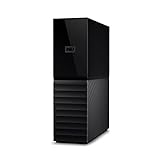
- The My Book is a proven USB 3.0 memory to back up your creations. Reliable desktop storage in an attractive design and proven WD quality secures your data easily and securely
- The external storage includes backup software to back up your important data. Simply set up automatic data backup by determining the time and frequency
- My Book's built-in 256-bit AES hardware encryption with password protection ensures that your content remains confidential and protected at all times
- The My Book external hard drive 22 TB offers you a large amount of storage. Whether to expand your current PC memory or to back up your data, the My Book Destop storage is ideally suited
- Box contents: WD My Book desktop storage 22 TB, USB 3.0 cable, power supply, software for management, backup and password protection of devices, quick installation guide
Account for daily tenant limits
Microsoft documents these daily tenant limits for destructive or record-removal actions:
Quick wins for a faster PC:
Fix the driver behind crashes, sound loss and screen glitchesFind Drivers →Repair Windows errors before they cause bigger problemsFix Now →Scan for outdated or missing drivers - takes under a minuteDriver Scan →| Action | Maximum per tenant per day |
|---|---|
| Wipe | 500 |
| Retire | 1,000 |
| Delete | 1,000 |
These limits include individual actions, bulk actions, and Microsoft Graph API requests; they are not a separate allowance for each method. They are service limits, not a promise of completion time. See Microsoft’s current limits and action notes.
Rank #3

- Hardware-Isolated Android Computing Environment: Powered by the independently developed PlugOS secure operating system, PlugMate features a MediaTek Helio G80 octa-core processor, 4GB RAM, and 128GB of fully encrypted storage, creating a completely independent Android computing environment.Built with its own dedicated processor, memory, and full-disk encrypted storage, PlugMate physically isolates your applications, files, credentials, network data, and sensitive information from the connected host device. Your phone, tablet, or computer functions only as the display and input interface, while all data remains securely stored and processed entirely within PlugMate.
- True Plug & Play Cross-Platform Compatibility: Compatible with Windows, macOS, Linux, Android, and iOS. Simply connect PlugMate to instantly access your independent Android workspace without complicated configuration.Securely manage files, access documents, and work across multiple platforms anytime and anywhere from a single portable device.
- Built for Digital Security & Privacy: Before PlugMate starts, it automatically verifies the trust status of the connected host device in the background, followed by user identity authentication. Access is granted only when both security checks are successfully completed, ensuring that only authorized users can access PlugMate on trusted devices.
- System-Level Network Security Management: An integrated system-level firewall provides comprehensive visibility and control over network traffic, application permissions, and background processes.Monitor network activity, manage application behavior, and maintain greater transparency over your device’s security and privacy status.
- Advanced Anti-Tracking & Privacy Protection: Virtualized sensor technology gives users greater control over location services, device identifiers, and other sensitive information. Combined with PlugMate’s hardware-isolated architecture, it helps reduce device fingerprinting and enhances privacy protection when using public Wi-Fi and other untrusted networks.
Know when devices will act and where to check status
Microsoft states: “Actions take effect immediately for online devices, or at next check-in for offline devices.” A device that is offline may therefore remain pending until it checks in. To monitor submitted requests, go to Devices > Device actions in the Intune admin center and review the action status. A status should be interpreted according to the action: for example, a completed Delete on an MDM device is server-side completion, not proof that client-side Retire has finished. Read Microsoft’s guidance on protecting data and devices alongside its device-action status notes.
Independent reader supportYour contribution helps us test, update, and keep practical guides available for everyone.Keep the Windows 365 Cloud PC exception separate
Windows 365 has a distinct bulk-management path and capacity. Microsoft documents up to 5,000 Cloud PCs per bulk operation, and the target group must be a user group rather than a device group. Available actions differ from ordinary Intune device bulk actions; Windows 365 documentation describes Cloud PC operations such as restore, reprovision, resize, and troubleshooting, with some actions unsupported in bulk. Do not apply the 5,000-Cloud-PC figure to the ordinary Devices > All devices > Bulk device actions workflow. Check Microsoft’s Windows 365 remote-management documentation for the Cloud PC-specific action table and conditions; that page was last updated July 16, 2026.
Quick Recap
Best Value

- Free Up Counter Space: Turn unused outlet space into practical storage for everyday devices and keep bathroom, kitchen, bedside, and living room surfaces cleaner and more organized
- Built-In Cord Storage: Store excess cord length inside the shelf for a tidier setup and reduce visible cable clutter around sinks, counters, and charging areas
- Fits Duplex & Decora Wall Plates: Designed to work with common Duplex and Decora wall plates, making it a flexible wall-mounted storage solution for different rooms throughout the home
- Made for Everyday Essentials: Ideal for small household devices such as Echo Dot, electric toothbrushes, phone charging setups, and network extenders, helping keep frequently used items neat and easy to access
- Easy & Reversible Installation: Installs in just a few steps using the existing outlet plate screw and can be mounted upright or upside down to better fit your space
Rank #4
Product prices and availability are accurate as of the date/time indicated and are subject to change. Any price and availability information displayed on Amazon at the time of purchase will apply.




