Jira Cloud’s built-in time tracking links an original estimate with work logs, time spent, and remaining time. To use it, add an estimate to a work item, log the time spent as work proceeds, and check that the relevant fields and permissions are available in your space. These instructions cover Jira Cloud; Jira Data Center may work differently.
How Jira time tracking works
Estimates and work logs answer different questions. An original estimate is how much time you expect the work to take. A work log records time actually spent. Jira uses those entries to show time spent and, depending on how you log work, update the estimated time remaining.
As an Amazon Associate I earn from qualifying purchases.
Jira accepts weeks, days, hours, and minutes. If you enter a number without a unit, Jira applies the default unit configured by your administrator. A Jira day or week does not have a universal duration: administrators can set working hours per day and working days per week, as well as the time display format and default unit. See Atlassian’s time-tracking configuration guide.
What’s actually slowing this PC down?
Pick the symptom - the matching free tool is one click away.
How to estimate and log work
Set an estimate
- Open the work item you want to track.
- Find the Original estimate field, enter a duration such as
2hor1d, and save the work item. The field may appear when creating or editing the item, or in its time-tracking details, depending on the space and screen configuration.
Record time spent
- Open the work item and choose Log work or use its time-tracking field, if available.
- Enter the time spent, such as
30mor1h. Add a work description if your team uses one. - Set the remaining estimate if Jira asks how to handle it. The available choices can include reducing the remaining estimate, setting a new remaining estimate, or leaving it unchanged.
- Save the work log. The item’s time-tracking details show logged time and time remaining; the available display depends on the fields and configuration in that space.
To correct a work log later, edit or delete it if your permissions allow. Atlassian documents a constraint for items with more than 100 child work items: those children cannot be included in time tracking, and Atlassian recommends keeping the number of child items to 100 or fewer. See Atlassian’s guide to logging time.
#1 Best Overall
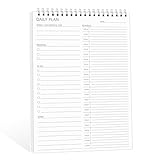
- ✔This daily plan pad features detailed hourly schedule timelines from 12 AM to 11 PM, perfectly segment your morning, afternoon and evening hours. Track meetings, appointments and fixed tasks hour by hour to eliminate procrastination and boost your daily time management efficiency.
- ✔ 1.Put an end to the time black hole: Every hour of activity is recorded, so you always know where your time goes and bid farewell to "being busy yet achieving nothing". 2.Cure procrastination: Visual time grids have an inherent sense of supervision; blank time slots serve as a direct reminder, with more binding power than phone alerts. 3.Gain instant a sense of accomplishment: Check off completed tasks with a simple tick. A filled time axis page by page delivers physical feedback that digital tools cannot match, making it easier to keep going the more you use it.
- ✔ 1.Students & Exam Takers: Plan class, review and practice time; allocate study hours for each subject precisely for targeted exam preparation. 2.Professionals: Schedule meetings, work projects and commute time; prioritize tasks clearly and bid farewell to chaotic overtime. 3.Freelancers & Stay-at-Home Parents: Clearly divide work/childcare/personal time to avoid blurring the boundaries between life and work. 4.Self-Discipline Enthusiasts: Check in on fitness, reading and learning; develop regular routines with hourly scales to build good habits effortlessly.
What to check if time tracking is missing
Jira Cloud time tracking is enabled by default and is always enabled in Cloud spaces, but that does not guarantee that every time-tracking field or action appears on every work item. Space type, field configuration, screens, and permissions affect what users can see and do.
- Check the field and screen: Ask a Jira administrator whether the Time Tracking field and Original estimate field are available on the relevant work-item type and screens. The estimate field may need to be added to the appropriate screens.
- Check the work-item view: Look for the Log work action or time-tracking details on the item. Field visibility and layout vary with space configuration.
- Check permissions: In company-managed spaces, the permission to log work is called Work on work items. Atlassian also requires Browse spaces for the described actions. See Atlassian’s project-permissions guide.
- Check edit and delete access: Changing or removing a work log requires the applicable permission: Edit own work logs or Edit all work logs, and Delete own worklogs or Delete all worklogs. Exact permission wording can vary by space type.
Administrators can review how time tracking is configured in Jira Cloud settings. Atlassian’s documentation says the feature is enabled by default and always enabled in Cloud spaces; when the controls are not visible, check field and screen setup rather than assuming the feature is disabled.
Rank #2

- TASK PLANNER NOTEPAD FOR WORK – Structured task planner and productivity planner designed as a task organizer and workflow planner with expanded layout
- REDUCE OVERWHELM & IMPROVE EXECUTION – Use this task planner, productivity planner, and task tracker to organize workflow and improve execution
- TASK PLANNING + ACTIVITY TRACKING IN ONE FORMAT – Use as a productivity planner, task organizer, and workflow planner to manage tasks and execution
- ANALOG TASK & ACTIVITY SYSTEM THAT WORKS – Writing tasks improves memory and reduces missed steps
- STRUCTURED CHECKLIST + LOG FORMAT – Combines task planning and activity tracking with expanded space for detailed workflow management
How to compare estimates with time spent
The Jira Time Tracking Report shows original estimate, estimated time remaining, and aggregate time spent for work items in a version. It is useful for comparing planned and logged effort within that report’s scope; it does not, by itself, establish that the estimate or work logs measure productivity or project cost accurately. See Atlassian’s Time Tracking Report guide.
Outdated Drivers Are Slowing You Down
One free scan finds every outdated or missing driver and matches the right update for your exact hardware.Free scan · exact hardware matchWindows Errors? Fix Them Before They Spread
Repair common Windows errors and clear accumulated junk for a smoother, more stable PC - no reinstall needed.Free scan · no reinstallBoard estimation and progress tracking are separate configuration choices. A board can estimate work one way and track progress another. In team-managed spaces, estimation must be enabled before selecting time or story points, and using original estimates also requires the Time Tracking field. See Atlassian’s guide to estimating and tracking work.
Rank #3

- Made in USA. Veteran-Owned and Proudly Produced in Ohio.
- THIS IS ESSENTIAL FOR LAWYERS AND CONSULTANTS: BookFactory Time Tracking book is a necessary addition to any attorney’s office, small business or freelance assignment. It’s a fundamental part of any business like. A simple and easy way track your billable hours
- TRACK BILLABLE HOURS BY DAY OR BY CLIENT: For business or personal use, time tracking is shown across a 2-page spread, on the left side, you have days and each hour, where you can write quick details about who you worked for. On the right side of the page you can keep more detailed track of the specific tasks you worked on and what client it was for – what breaks you took, and when, as well as the specific amount of time you spent on each task
- EXCELLENT VISUAL TO SHOW HOW YOU’RE SPENDING YOUR TIME: You may wonder where your day is going, or how you still have so much to do when you’ve already been working for hours. You may just need to be able to give your client an itemized invoice of work provided… either way, this book will be a help to you
- BUS-100-69CW-PP-(Time-Tracker)
Native Jira tracking or a Marketplace app?
| Option | What it provides | What to consider |
|---|---|---|
| Jira Cloud native tracking | Original estimates, work logs, remaining time, time spent, and the Time Tracking Report. | Confirm that the available fields, permissions, board configuration, and report meet your team’s workflow. |
| Marketplace time-tracking app | Potential additional workflows or reporting, depending on the app. | Capabilities, price, security, and fit vary by provider. Review the app’s privacy and data-security statements before using it; Atlassian cautions that third-party providers may hold app data. |
For many teams, native tracking is a sensible starting point when estimates, work logs, and the built-in report meet the need. Consider an extension only for a specific gap, and evaluate the individual app rather than assuming all Marketplace tools behave alike. Atlassian’s overview of time tracking in Jira explains the native feature and extension path.
Quick Recap
Best Value

- Plan Smarter, Stress Less: Our undated planner has 50 daily planning sheets per planning pad to help you keep your notes organized all in one place. Track important projects, tasks, time blocking, and goals with our planner.
- Enhance Your Productivity: The simple solution for managing your daily schedule. Helps you focus, especially those with ADHD. With our daily planner you can track your appointments and meetings throughout the week, organize your tasks in order of priority, jot down thoughts or ideas, and record when projects are due.
- Upgrade Your Office Supplies: The minimal design makes this a stylish and practical addition to your work from home essentials for both women and men. This to-do list notepad looks professional and keeps you organized.
- Give The Gift Of Organization: The sleek design makes this a beautifully practical gift for moms and dads who need a little extra help keeping track of soccer games, field trips, and doctor’s appointments. Also makes a wonderful gift for college students, coworkers, your boss, or the entrepreneur in your life to help them stay on top of busy schedules.
- Cultivate Healthy Habits: Plan and track your meals and water intake each day and use the checkbox as a visual reminder. Take a minute each day to write down something good that happened. Practicing gratitude is proven to increase happiness!
Rank #4

- SIMPLE, ATTRACTIVE DESIGN - The notepad flaunts a design that's both stylish and fun, making it the perfect backdrop to track your daily tasks and other deliverables.
- 8.5" X 11": LETTER SIZE - With ample space for jotting down your activities/tasks, projects and deliverables, this notepad ensures you never miss a beat. The larger size offers room to log all your work.
- DOUBLE-WIRE SPIRAL BINDING - Tear off sheets as needed or keep them intact to be able to look back on your prior tasks. Whether you're at your desk, in a meeting, or on the go, your notepad is ready for you to use as you see fit.
- 50 SHEETS - Created so you can list all your tasks onto one sheet in order to keep track of time stamps as you note how you spend your time each day.
- VERSATILE FOR TRACKING ALL YOUR TASKS - Whether you're a professional who bills for your time, a student recording time spent on studies, or a volunteer tracking your hours, this notepad can help you record your time spent on any and all activities throughout your day.
Product prices and availability are accurate as of the date/time indicated and are subject to change. Any price and availability information displayed on Amazon at the time of purchase will apply.




