To take apart a Logitech G502, first identify its exact version: the procedures below cover the wired G502 Hero and wireless G502 Lightspeed, not every G502 generation. Unplug the Hero or switch off the Lightspeed, then lift the adhesive feet to access the screws. The two models differ slightly in screw length and the Lightspeed also requires battery handling when its shell is opened.
Before you open the mouse
Check the model name on the mouse or its packaging and use the matching procedure. The steps and screw measurements here come from iFixit’s guides for the G502 Hero and G502 Lightspeed; they do not establish that the same instructions apply to every G502 version.
As an Amazon Associate I earn from qualifying purchases.
- Prepare a Phillips precision screwdriver and a plastic opening pick or spudger.
- Work on a soft cloth to protect the mouse’s finish.
- Expect the adhesive feet to bend, tear, or separate during removal. Replacement feet may be needed.
- Use gentle pressure around the shell clips. Forcing the halves apart can break them.
How to take apart a wired Logitech G502 Hero
- Unplug the mouse. iFixit’s G502 Hero opening guide begins by disconnecting it from the computer.
- Warm and lift the feet. The adhesive feet cover the underside screws. Warm them enough to loosen the adhesive, then carefully peel them up.
- Remove the screws. Take out the four 5.5 mm Phillips screws specified in the Hero guide.
- Release the shell clips. Carefully work a plastic spudger between the shell halves. The guide flags the front unclipping step as tricky; pry slowly rather than forcing the shell.
- Separate the shell halves carefully. Once the clips are released, open the shell without pulling hard on any internal connections.
How to take apart a wireless Logitech G502 Lightspeed
- Switch the mouse off. Keep it off throughout the opening process.
- Loosen and lift the feet. Work beneath the adhesive before peeling the feet away; they can bend or tear.
- Remove the weight hatch and screws. Take out the weight hatch, then remove the four 5.4 mm Phillips screws specified in iFixit’s G502 Lightspeed opening guide.
- Unclip the base. Use a plastic opening pick or spudger and work slowly around the clips.
- Hinge the top shell open and disconnect the battery. Follow the guide’s opening sequence and disconnect the battery as shown; do not pull the halves apart abruptly.
What differs between the Hero and Lightspeed?
| Step | G502 Hero (wired) | G502 Lightspeed (wireless) |
|---|---|---|
| Before opening | Unplug the mouse. | Switch the mouse off. |
| Items removed before unclipping | Adhesive feet, then four 5.5 mm Phillips screws. | Adhesive feet, weight hatch, then four 5.4 mm Phillips screws. |
| When the shell opens | Release the clips carefully; the guide highlights the front as tricky. | Hinge the top shell open and disconnect the battery as shown in the guide. |
The screw lengths are specific to the respective iFixit guides, not a claim that all G502 versions use those measurements.
The Tool Desk
Outbyte Driver Updater FREEScan for outdated or missing drivers - takes under a minuteDriver Scan →Outbyte PC Repair FREEClear out junk files and repair common Windows errorsFree Scan →After opening: protect or replace the mouse feet
If you are closing the mouse and the feet have lifted cleanly, check that they still sit flat and adhere securely. If they are bent, torn, or detached from their adhesive pads, replacement feet for the exact model may be necessary. The G502 Hero feet replacement guide describes scraping away adhesive residue, cleaning the recess with isopropyl alcohol and a microfiber cloth, and letting it dry before applying new feet. Check replacement-foot compatibility against your precise G502 version.
#1 Best Overall
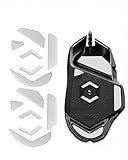
- Premium Glass-Infused PTFE Material: Crafted with advanced glass-polymer PTFE composite for ultra-high smoothness, exceptional wear resistance, and non-stick performance. Reduces friction by up to 40% compared to stock feet for effortless, consistent gliding
- Perfect Compatibility for G502 Wired Series: Precision designed exclusively for G502 Proteus Core, G502 Proteus Spectrum, and G502 Hero Wired mice. NOT compatible with wireless versions – confirm your model before purchase
- Curved Rounded-Edge Design: Integrated molding with smooth rounded edges prevents snagging, scratching, and catching on mouse pads. Maintains ideal contact pressure for stable control and fluid movements during competitive gaming
- Universal All-Surface Performance: Engineered to glide flawlessly on cloth, hard plastic, glass, hybrid, nylon, and metal mouse pads. Delivers stable tracking and consistent responsiveness across all gaming surfaces
- Easy Installation & Strong Adhesive: Replace your worn-out feet quickly with our hassle-free design. The skates come pre-cut with a protective film. Simply remove the original feet, clean the slot, and apply the new skates. The adhesive is strong for a permanent hold—use tweezers for precise placement and press firmly to secure
Opening the shell is not the same as replacing a switch
For basic access, cleaning, or inspection, the opening steps above are the relevant procedure. A switch replacement goes further: iFixit’s G502 Lightspeed switch replacement guide proceeds through additional disconnections and screws and requires soldering. That deeper repair is not necessary just to open the shell.
Quick Recap
Best Value

- HERO Gaming Sensor: Next generation HERO mouse sensor delivers precision tracking up to 25600 DPI with zero smoothing, filtering or acceleration
- 11 programmable buttons and dual mode hyper-fast scroll wheel: The Logitech wired gaming mouse gives you fully customizable control over your gameplay
- Adjustable weights: Match your playing style. Arrange up to five 3.6 g weights for a personalized weight and balance configuration
- LIGHTSYNC technology: Logitech G LIGHTSYNC technology provides fully customizable RGB lighting that can also synchronize with your gaming (requires Logitech Gaming Software)
- Mechanical Switch Button Tensioning: A metal spring tensioning system and metal pivot hinges are built into left and right computer gaming mouse buttons for a crisp, clean click feel with rapid click feedback
Rank #4

- Compatible with G502 Lightspeed Wireless Gaming Mouse. (Not compatible with G502X or G502 X Plus.)
- Includes replacement mouse skates and disassembly tools
- Smooth mouse foot stickers
- Battery with protection board (to prevent overcharge / overdischarge / short circuit / overcurrent protection)
- 3-Year Replacement Warranty
Rank #3
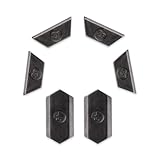
- Only Compatible with Logitech G502 Lightspeed Wireless Gaming Mouse
- Innovation:This is a 100% Original new.
- Function:Adjust the center of gravity of the mouse, help the mouse to restore balance, more comfortable and smooth to use.
Rank #2

- Compatible Model : Replacement for Logitech G502 Lightspeed Wireless Gaming Mouse
- Note : Please Check The Pictures Carefully and Check Your Laptop Model to Ensure That What You Ordered Is Correct
- Package : 1 X Back Cover and Mouse Feet
- Color: Black
- Note : Please Install It Very Professionally and Carefully
Product prices and availability are accurate as of the date/time indicated and are subject to change. Any price and availability information displayed on Amazon at the time of purchase will apply.




