Right-clicking on an iPad works differently than it does on a traditional computer, but the result is usually the same: opening a context menu with extra actions like copy, paste, rename, share, open in new tab, or delete. Depending on what you’re using, the iPad’s right-click equivalent can be a long press on the screen, a two-finger tap on a trackpad, a secondary click on a mouse, or a supported Apple Pencil gesture.
Because iPadOS supports touch, keyboards, trackpads, mice, and Apple Pencil, there are several ways to access these shortcut menus. The exact method can vary by app, accessory, and settings, so it helps to know both the basic gestures and where to adjust secondary click, pointer behavior, and accessibility options when the expected menu does not appear.
As an Amazon Associate I earn from qualifying purchases.
What Right-Click Means on an iPad
On an iPad, “right-click” usually means opening a contextual menu: a small menu of actions related to the item you are pointing at, touching, or selecting. Instead of being tied only to the right button on a mouse, iPadOS treats this as a “secondary click” or context action. The result is similar to right-clicking on a Mac or Windows PC: you might see options such as Copy, Paste, Rename, Share, Delete, Open in New Window, or Get Info, depending on where you are.
Do these 3 things before closing this tab:
1Fix the driver behind crashes, sound loss and screen glitches2Clear out junk files and repair common Windows errors3Scan for outdated or missing drivers - takes under a minuteThe most common iPad equivalent is a touch-and-hold gesture. For example, if you press and hold an app icon on the Home Screen, iPadOS opens a menu with actions like editing the Home Screen, removing the app, or using app shortcuts. In Files, pressing and holding a document can show actions such as duplicate, move, compress, share, tags, or delete. In Safari, pressing and holding a link can open a preview and options such as opening the link in a new tab or copying the link address.
#1 Best Overall

- Pair and Play: With fast, easy Bluetooth wireless technology, you’re connected in seconds to this quiet cordless mouse —no dongle or port required
- Less Noise, More Focus: Silent mouse with 90% reduced click sound and the same click feel, eliminating noise and distractions for you and others around you (1)
- Long-Lasting Battery Life: Up to 18-month battery life with an energy-efficient auto sleep feature, so you can go longer between battery changes (2)
- Comfortable, Travel-Friendly Design: Small enough to toss in a bag; this slim and ambidextrous portable compact mouse guides either your right or left hand into a natural position
- Long-Range: Reliable, long-range Bluetooth wireless mouse works up to 10m/33 feet away from your computer (3)
If you use a trackpad, Magic Keyboard, or mouse, the same idea works through pointer input. A two-finger click on a trackpad, a configured corner click, or a right mouse button can trigger the iPad’s secondary-click behavior. This makes iPadOS feel closer to a desktop environment, especially in apps like Files, Mail, Safari, s, Freeform, and productivity apps that support rich context menus. The menu that appears is still controlled by iPadOS and the app, so it may not be identical to what you would see on a computer.
Context menus on iPad are also app-specific. Some apps use Apple’s standard menus, while others build their own menus or use different gestures. A long press on text may show selection handles and editing commands, while a long press on an image may show sharing or saving actions. In drawing or taking apps, pressing with Apple Pencil may select objects, reveal tool options, or do nothing unless the app supports that interaction. If no menu appears, it does not always mean the gesture failed; it may simply mean that the object, screen area, or app does not offer a context menu there.
Use Touch Gestures to Open Context Menus
The most common right-click equivalent on an iPad is a touch gesture: touch and hold. Apple often calls this a context menu because the options change depending on what you press. For example, touching and holding an app icon on the Home Screen can show actions such as Edit Home Screen, Remove App, or app shortcuts. Touching and holding a link in Safari can show options to open it in a new tab, copy it, share it, or preview the page.
Recommended Free Tools
To use this gesture, place one finger on the item you want to act on and keep it there for about a second. When the menu appears, lift your finger and tap the command you want. If a preview card appears first, look for the menu options above or below it. In many apps, the menu opens with a small animation or haptic-style visual response, so avoid dragging your finger unless you intend to move the item instead of opening its menu.
Common places where touch-and-hold works
- Home Screen app icons: Open quick actions, rearrange apps, remove apps, or manage widgets.
- Safari links and images: Copy links, open in a new tab, share, save images, or preview web pages.
- Text fields: Select text, copy, paste, replace, look up a word, or use autofill suggestions.
- Files app items: Rename, duplicate, move, compress, share, tag, or delete files and folders.
- Mail messages: Reply, forward, flag, move, archive, or mark messages as unread, depending on the view.
- Photos and thumbnails: Share, favorite, copy, hide, delete, or view extra actions.
Some touch gestures are slightly different from a simple long press. In text editing, you can touch and hold inside a word to place the insertion point, then use the selection handles to adjust the highlighted text. In Safari, touching and holding a tab, bookmark, image, or download may show different commands. In apps such as s, Files, and Photos, a long press may first select an item; after selection, more commands may appear in a toolbar, share sheet, or overflow menu represented by three dots.
How to get reliable results
- Press without moving: Keep your finger still until the menu appears. Sliding too soon can trigger drag-and-drop or scrolling.
- Press the exact object: Long-press the link text, file name, message, image, or icon rather than blank space around it.
- Wait for the menu: Some menus take a moment, especially in apps that load previews or cloud-based files.
- Try selected items: If no menu appears, tap the item once to select it, then look for a toolbar, share button, or three-dot menu.
If touch-and-hold does not show anything, the app or screen may not support a context menu in that location. Try another item, update the app, or check whether the same action is available through the share button, the top toolbar, or an ellipsis menu. Also check accessibility settings if your touch timing feels off: go to Settings > Accessibility > Touch > Haptic Touch, then choose a faster or slower touch duration. On supported iPadOS versions, this setting changes how quickly long-press menus and previews respond.
Right-Click with a Trackpad or Magic Keyboard
If you use an iPad with a Magic Keyboard, Magic Keyboard Folio, Smart Keyboard Folio with an external trackpad, or a Bluetooth trackpad, the closest match to a computer right-click is the secondary click. In most apps, this opens the same kind of context menu you would get from touching and holding: options such as Copy, Paste, Rename, Share, Delete, Open in New Window, or app-specific commands.
The Tool Desk
Outbyte PC Repair FREEClear out junk files and repair common Windows errorsFree Scan →Outbyte Driver Updater FREEScan for outdated or missing drivers - takes under a minuteDriver Scan →The default trackpad method is usually a two-finger click. Move the pointer over the item you want to act on, then click the trackpad with two fingers at the same time. For example, two-finger click a file in the Files app to open actions such as Duplicate, Move, Compress, Tags, and Get Info. In Safari, two-finger click a link to see options such as Open in New Tab, Open in Background, Add to Reading List, or Copy Link.
Rank #2
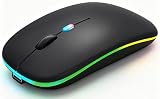
- 【Dual Mode Wireless Bluetooth Mouse】:(BT5.2/3.0 and 2.4G)Dual Mode Realize the Free Switching of One Computer Mouse Between Two Devices.Bluetooth Mouse Mode Can Connect One Device Through BT5.2/3.0 and Wireless Mouse Mode Another Device Through a 2.4G USB Receiver,No Need to Install any Driver,Plug and Play;Wireless/Bluetooth Technology Provides Powerful and Reliable Connection,Which Can Enables Fast Data Transmission Without Delays or Dropouts,Effective Up to 10 Meters(33 feet)of Range;Note:The USB Receiver is Stored Inside The Back of The Mouse.You Can't Use Bluetooth Mode and 2.4G Mode At the Same Time
- 【Rechargeable Wireless Mice Save Energy】:Cordless Mouse Built-in Durable 500mAh Rechargeable Battery, High Cycle Life;LED Wireless Mouse No Need Change Battery,It Can Be Easily Charged Using the Included USB Cable,Just 2 Hours Charging,You Can Use Than 7 Days of Working Time and 30 Days of Standby Time,Standby Time is Very Long;The Laptop Mouse Wireless will enter a sleep state after 5 minutes of inactivity,which saves power and can be used for a long time;You Can Wake USB Mouse Up By Clicking any Button
- 【Colorful LED Breathing Light】:This Tablet Mouse With 7 Different LED Colorful Breathing Lights,Wireless Laptop Mouse for Laptop 7 Different Color Changes Randomly While in Use,Offering Soothing Lighting;Creating Cool and Fancy Atmosphere for Work and Play;LED Mouses Can Give You More Fun During
- 【3 Adjustable DPI Levels】:Wireless Computer Mouse with 800 / 1200 / 1600 DPI Resolution Optical Tracking Technology provides more sensitivity than standard optical mice for smooth and precise tracking on a wide range of surfaces;you can freely choose your cursor speed,reduces muscle fatigue and boost your workflow.whether working on spreadsheets,browsing the web,or gaming,this wireless mouse will ensure smooth and responsive performance
- 【Wide Compatibility Wireless Mouse】:This Wireless Bluetooth Mouse for Laptop,PC/Tablet/Mac/ipad/iphone;It is Compatible With Android/Chromebook/Windows/Vista/Linux/Notebook/Mac OS and Other Devices;Suitable for Homes、Offices、Travel and More
Set up a trackpad or Magic Keyboard
- Attach a Magic Keyboard or Magic Keyboard Folio: place the iPad on the keyboard connector and wait for the pointer to appear when you touch the trackpad.
- Connect a Bluetooth trackpad: open Settings > Bluetooth, put the trackpad in pairing mode, then select it under available devices.
- Test the pointer: move a finger on the trackpad. A circular pointer should appear on the screen and adapt as it moves over buttons, text fields, and icons.
- Try a secondary click: hover over an app icon, file, email, link, image, or selected text, then perform a two-finger click.
You can also use trackpad gestures that complement right-click actions. A two-finger swipe scrolls through pages and lists, a three-finger swipe can switch apps, and a click-and-drag lets you select or move items. These gestures do not replace secondary click, but they make the iPad feel closer to a laptop when managing files, editing documents, or working in split-screen layouts.
Customize secondary click for a trackpad
To change how secondary click works, open Settings > General > Trackpad. On supported iPadOS versions and accessories, you can turn Two Finger Secondary Click on or off. When it is on, pressing the trackpad with two fingers opens context menus. If you prefer a simpler click style, check whether your accessory also appears under Settings > Accessibility > Pointer Control, where you can adjust pointer appearance, scrolling speed, pointer animations, and related behavior.
- Tracking speed: increase it if the pointer feels slow moving across the iPad screen, or decrease it for more precise control.
- Natural scrolling: change this if scrolling feels backward compared with your Mac or PC habits.
- Tap to Click: enable it if you want a light tap to act as a click instead of pressing the trackpad down.
- Two Finger Secondary Click: keep this enabled if you want the most familiar right-click equivalent.
If a two-finger click does not show a menu, first confirm that the item actually supports context actions. Some empty areas of apps, decorative images, or custom app controls may not respond. Try the same gesture on an app icon on the Home Screen, a message in Mail, or a file in Files. If it still fails, disconnect and reconnect the keyboard or trackpad, check Settings > General > Trackpad, restart the iPad, and make sure iPadOS is up to date. For Bluetooth trackpads, low battery or an unstable connection can also cause missed clicks or delayed menus.
What’s actually slowing this PC down?
Pick the symptom - the matching free tool is one click away.
Right-Click with a Mouse
Using a Bluetooth or USB mouse is one of the most familiar ways to perform a right-click equivalent on an iPad. With a standard two-button mouse, the right button can act as a secondary click, opening context menus in apps such as Files, Safari, Mail, s, Photos, and many third-party productivity tools. This is especially useful when you use an iPad at a desk with an external keyboard, monitor, or stand.
Connect a Bluetooth mouse
- Turn on the mouse and put it into pairing mode, usually by holding its Bluetooth or pairing button.
- On the iPad, open Settings.
- Tap Bluetooth and make sure Bluetooth is turned on.
- Select the mouse when it appears under Other Devices.
- Wait for it to move to My Devices and show as connected.
After pairing, move the mouse to confirm the pointer appears on screen. In most cases, you can right-click by pressing the physical right button. For example, right-click a file in the Files app to see actions such as Copy, Rename, Duplicate, Share, Tags, or Delete. In Safari, right-clicking a link may show options to open it in a new tab, copy the link, add it to Reading List, or share it.
Connect a USB mouse
You can also use a wired mouse if your iPad supports the right adapter or port. USB-C iPads can usually connect to a USB-C mouse directly, or to a USB-A mouse through a USB-C hub or adapter. iPads with a Lightning port need a compatible Lightning to USB adapter. Once connected, the pointer should appear automatically, and the right button should work as a secondary click in supported areas.
Adjust mouse click behavior
If the right button does not open menus, check the secondary click setting. Go to Settings > General > Trackpad & Mouse. Look for Secondary Click and choose Right. If you are left-handed or prefer the opposite layout, choose Left instead. You can also adjust Tracking Speed to make the pointer move faster or slower.
- Right button: opens context menus when secondary click is set to the right side.
- Left button: selects, opens, drags, and activates items.
- Scroll wheel: scrolls pages, lists, documents, and timelines.
- Middle button: may have limited or app-dependent behavior on iPadOS.
Some advanced mouse buttons may not behave the same way they do on a Mac or Windows PC. iPadOS supports core pointer actions well, but programmable side buttons, gaming mouse profiles, and vendor-specific features often require desktop software and may not be configurable directly on the iPad. If a right-click menu still does not appear, try clicking on a different item, such as a file name, message, image, text selection, or browser link, because not every blank area or interface element has a context menu.
Rank #3

- 【Ergonomic Bluetooth Mouse】Experience all-day comfort with a sculpted grip that conforms to your hand's natural contours, providing ergonomic support for extended periods of use. Effortlessly pair your device with Bluetooth 5.0 and Microsoft Swift Pair technology
- 【Quiet Mouse】 Enjoy seamless performance on various surfaces like wood, leather, fabric, paper, and resin. This bluetooth wireless mouse features silent left, right, and scroll wheel buttons, enabling quiet, efficient work without disturbing others
- 【6 Efficient Buttons】Forward and backward buttons of the bluetooth mouse for mac help to quickly switch between interfaces when browsing multiple web pages and enhance productivity. (Note: Forward/backward buttons are not recognized on Mac)
- 【3 Adjustable DPI Levels for Precision】 With 800 DPI, 1200 DPI, and 1600 DPI optical tracking, this bluetooth mouse for laptop offers three adjustable DPI levels. Switch effortlessly between DPI settings using the “DPI” button, ensuring smooth and accurate movement for different tasks, from browsing to detailed work
- 【Long Battery Life】Enjoy up to 24 months of use on a single AA battery (not included). The wireless mouse battery powered conserves energy by entering sleep mode after 30s of inactivity and wake up when you move
Use Apple Pencil for Context Menu Actions
Apple Pencil does not have a true right-click button, but it can still trigger many of the same context menu actions you would open with a finger, trackpad, or mouse. In most iPad apps, the equivalent gesture is a long press with the Pencil touch and hold an item, word, image, file, message, link, or blank area until a menu, preview, toolbar, or selection handle appears. This works especially well in apps that support text editing, file management, drawing, annotation, and document markup.
To try it, place the Apple Pencil on the item you want to act on and keep light, steady pressure for about a second. In Files, you can press and hold a document to see actions such as Copy, Duplicate, Rename, Move, Share, Tags, or Delete. In Safari, holding the Pencil on a link may open a preview or menu with options like Open in Background, Add to Reading List, Copy, or Share. In Notes, Mail, Pages, and many PDF apps, holding on text can bring up selection controls, formatting options, lookup tools, paste actions, or annotation features.
Apple Pencil gestures that help with right-click-style actions
- Touch and hold: Opens context menus or selection tools in many apps, similar to a right-click or long press with a finger.
- Double-tap on Apple Pencil 2 or Apple Pencil Pro: Switches tools in supported apps, such as toggling between pen and eraser, showing the color palette, or switching to the last used tool. This is not a right-click, but it can speed up editing workflows.
- Squeeze on Apple Pencil Pro: Opens a tool palette in supported apps, giving fast access to pen, eraser, colors, line weight, and other controls.
- Hover on supported iPad models: With compatible Apple Pencil and iPad Pro models, hovering over the screen can preview tools, brush positions, buttons, or interface targets before you tap or hold.
You can customize some Apple Pencil behavior in Settings. Open Settings > Apple Pencil to adjust available options for your model. On Apple Pencil 2, you can choose what double-tap does, such as switching between the current tool and eraser, switching between current and last used tool, showing the color palette, or turning the feature off. On Apple Pencil Pro, compatible settings may include squeeze behavior, barrel roll features in supported apps, and haptic feedback controls. These options depend on your iPad model, Pencil model, and iPadOS version.
If a context menu does not appear with Apple Pencil, test the same action with your finger first. Some apps treat Pencil input as drawing or handwriting input only, so a long press with the Pencil may start ink, select a stroke, or do nothing. In drawing apps such as Procreate, Concepts, Goods, Notability, and Adobe Fresco, context actions are often controlled by the app’s own gesture settings rather than iPadOS defaults. Look inside the app’s settings for options such as touch shortcuts, stylus gestures, tap-and-hold behavior, selection mode, or palm rejection. Also make sure the Apple Pencil is charged, paired, and responsive by writing in Notes or using Markup. If needed, disconnect and reconnect it, restart the iPad, update iPadOS, and update the app that is not showing the expected menu.
Customize Secondary Click and Pointer Settings
If you use a trackpad, Magic Keyboard, or Bluetooth mouse with your iPad, you can change how the right-click equivalent works from the Settings app. Apple calls this action Secondary Click. Depending on your device, it can be assigned to a two-finger click, the bottom-right corner of a trackpad, the bottom-left corner, or a specific mouse button. These settings are especially useful if the default gesture feels awkward or if you are switching between Mac, Windows, and iPad workflows.
Change secondary click for a trackpad or Magic Keyboard
To adjust trackpad behavior, connect your Magic Keyboard, Magic Trackpad, or compatible Bluetooth trackpad first. Then open Settings and go to General > Trackpad. If your accessory is recognized, you should see options such as tracking speed, natural scrolling, tap to click, and secondary click.
- Open Settings on your iPad.
- Go to General > Trackpad.
- Turn on Two Finger Secondary Click if you want to right-click by clicking or tapping with two fingers.
- If available, choose a corner-based secondary click option, such as the lower-right or lower-left corner.
- Test the setting on the Home Screen, in Files, Safari, Mail, or another app that supports context menus.
Many users find Two Finger Secondary Click the most reliable option because it works similarly to right-clicking on a MacBook trackpad. If you prefer a physical corner click, choose the corner that matches your dominant hand or the setup you use on a desktop computer. You can also enable Tap to Click if you want lighter touch input instead of pressing down on the trackpad surface.
Windows Errors? Fix Them Before They Spread
Repair common Windows errors and clear accumulated junk for a smoother, more stable PC - no reinstall needed.Free scan · no reinstallOutdated Drivers Are Slowing You Down
One free scan finds every outdated or missing driver and matches the right update for your exact hardware.Free scan · exact hardware matchChange secondary click for a mouse
For a mouse, settings appear in a slightly different place. After pairing the mouse through Settings > Bluetooth, go to Settings > General > Trackpad & Mouse or Mouse, depending on your iPadOS version and connected accessory. From there, you can adjust tracking speed, scrolling direction, and available button behavior. On many two-button mice, the right button automatically performs a secondary click. If it does not, you may be able to assign it through AssistiveTouch.
Rank #4

- Convenient Portable Mouse for Laptops and Tablets: The Logitech M196 Bluetooth Wireless Mouse connects in seconds with a reliable pair-and-play Bluetooth connection, no dongle or port required, and works with MacBook Neo laptops and other Apple, Windows, and Chromebook devices
- Comfortable, Travel-Ready Design: This Bluetooth travel mouse is lightweight and fits in any bag; its contoured, ambidextrous shape is comfortable for both left and right hands
- Works on a Variety of Surfaces: With precise line-by-line scrolling and optical tracking; the M196 Wireless Bluetooth Mouse provides smooth and accurate cursor control on nearly any surface
- Made to Last With Recycled Plastic: The plastic parts in the M196 contain certified post-consumer recycled plastic (67% for Graphite and 66% for Off-White and Rose (2))
- 12-Month Battery Life: Enjoy a reliable 12-month battery life (1) and auto sleep feature for longer use between battery changes; 1 AA battery included
- Open Settings > Accessibility.
- Select Touch > AssistiveTouch.
- Turn on AssistiveTouch.
- Scroll to Pointer Devices and choose Devices.
- Select your connected mouse, then assign a button to Secondary Click if the option is available.
Adjust pointer appearance and behavior
iPadOS also lets you customize how the pointer looks and moves. Go to Settings > Accessibility > Pointer Control. Here you can increase contrast, automatically hide the pointer, change pointer color, adjust pointer size, and fine-tune scrolling speed. These options do not change what a right-click does, but they can make it easier to aim at small buttons, file names, links, and menu items before opening a context menu.
- Tracking Speed: Increase it if the pointer feels slow, or reduce it for more precise selection.
- Natural Scrolling: Turn it on or off to match your Mac, Windows, or personal preference.
- Pointer Size: Make the pointer larger if you often lose it on screen.
- Pointer Color: Add a colored outline to improve visibility against light or dark backgrounds.
- AssistiveTouch button actions: Assign mouse buttons to actions such as secondary click, Home, App Switcher, or Control Center.
After changing these settings, test secondary click in several places because support varies by app. In Files, it may show actions such as Rename, Duplicate, Move, or Share. In Safari, it can open link and tab options. On the Home Screen, it may show quick actions for an app. If a menu still does not appear, the app or item you are clicking may not offer a context menu, even when your accessory and settings are working correctly.
Independent reader supportYour contribution helps us test, update, and keep practical guides available for everyone.Troubleshoot Right-Click Problems on iPad
If right-click actions are not appearing on your iPad, first confirm that the item you are trying to interact with actually supports a context menu. On iPadOS, the right-click equivalent is not universal in the same way it is on a desktop computer. A long-press on a photo, file, link, email, message, or selected text often opens extra actions, but tapping empty space or unsupported interface elements may do nothing. Try the gesture in Apple apps such as Files, Safari, Mail, s, or Photos to check whether the issue is app-specific.
For touch gestures, make sure you are pressing and holding without moving your finger. If your finger slides even slightly, iPadOS may interpret the action as a drag, scroll, or text selection instead of opening a menu. In apps such as Files, hold your finger on a file icon until the menu appears, then release. In Safari, press and hold a link or image. If the menu flashes and disappears, try using a lighter, steadier touch or remove any thick screen protector that may interfere with touch accuracy.
Check mouse and trackpad setup
If you are using a mouse, trackpad, or Magic Keyboard, verify that the accessory is connected and configured for secondary click. Open Settings, then check the relevant area: for a trackpad, go to Settings > General > Trackpad; for a mouse, go to Settings > General > Trackpad & Mouse if available. Make sure Secondary Click is enabled and set to the side or gesture you expect, such as clicking with two fingers on a trackpad or clicking the right side of a mouse.
- Magic Keyboard or trackpad: Try a two-finger click on the trackpad. If it does not work, toggle secondary click off and on again.
- Bluetooth mouse: Disconnect and reconnect it from Settings > Bluetooth. If it has removable batteries, replace or recharge them.
- USB mouse: Unplug the adapter and reconnect it. Some hubs may not provide stable input, so test with a direct adapter if possible.
- Third-party devices: Check whether the manufacturer offers firmware updates or iPadOS-specific instructions.
Review pointer and accessibility settings
Some accessibility features can change how clicks behave. Go to Settings > Accessibility > Pointer Control and check your pointer settings. If you use AssistiveTouch, open Settings > Accessibility > Touch > AssistiveTouch and review custom actions for your connected pointer device. A button that you expect to work as right-click may have been assigned to another action, such as Home, App Switcher, or Control Center. Reassign the button to Secondary Click if that option is available.
Fix app, iPadOS, and gesture conflicts
When right-click works in some apps but not others, update the problem app from the App Store and check whether the app uses its own gestures. Some drawing, remote desktop, gaming, and productivity apps override standard pointer behavior. Also update your iPad through Settings > General > Software Update, since pointer and keyboard support has improved across iPadOS releases. After updating, restart the iPad to clear temporary input glitches.
If nothing works, remove variables one at a time. Test touch long-press without accessories attached, then test the mouse or trackpad in a built-in Apple app. Forget and re-pair Bluetooth devices, clean the trackpad or mouse surface, and temporarily disable AssistiveTouch or custom pointer actions. If a specific accessory still cannot produce a secondary click while other devices can, the accessory may not fully support iPadOS right-click behavior.
Best Value

- Convenient Portable Mouse for Laptops and Tablets: The Logitech M196 Bluetooth Wireless Mouse connects in seconds with a reliable pair-and-play Bluetooth connection, no dongle or port required, and works with MacBook Neo laptops and other Apple, Windows, and Chromebook devices
- Comfortable, Travel-Ready Design: This Bluetooth travel mouse is lightweight and fits in any bag; its contoured, ambidextrous shape is comfortable for both left and right hands
- Works on a Variety of Surfaces: With precise line-by-line scrolling and optical tracking; the M196 Wireless Bluetooth Mouse provides smooth and accurate cursor control on nearly any surface
- Made to Last With Recycled Plastic: The plastic parts in the M196 contain certified post-consumer recycled plastic (67% for Graphite and 66% for Off-White and Rose (2))
- 12-Month Battery Life: Enjoy a reliable 12-month battery life (1) and auto sleep feature for longer use between battery changes; 1 AA battery included
Frequently Asked Questions
What is the easiest way to right-click on an iPad without a mouse?
The easiest method is to touch and hold an item until a context menu appears. This works on app icons, links, photos, files, selected text, and many controls inside apps. If nothing appears, the app or item may not support a right-click-style menu in that location.
How do I right-click on an iPad with a Magic Keyboard or trackpad?
On most iPads with a trackpad, tap with two fingers to perform a secondary click. You can also press the trackpad with two fingers if tap-to-click is disabled. To adjust this, open Settings, go to General, then Trackpad, and check options such as Secondary Click and Tap to Click.
Can I right-click on an iPad with a Bluetooth mouse?
Yes, a Bluetooth mouse can perform right-click actions if secondary click is enabled. Go to Settings, then General, then Trackpad & Mouse, and set Secondary Click to the right or left mouse button. In supported apps, clicking that button opens the same type of context menu you would get from a long press.
Free tools Windows power users keep installed
One-click scans. No signup required.
Does Apple Pencil have a right-click feature on iPad?
Apple Pencil does not have a traditional right-click button, but you can often press and hold with the Pencil to open context menus in supported apps. In some apps, Pencil actions are designed for drawing, annotation, or selection instead, so the same gesture may behave differently. If you use Apple Pencil Pro or a newer Pencil with squeeze gestures, available options depend on the app and your Pencil settings.
What should I do if right-click or long-press menus are not appearing?
First, test the gesture in a built-in app such as Files, Safari, or Photos to confirm the iPad is responding correctly. If you are using a mouse or trackpad, check that it is connected and that Secondary Click is enabled in Settings. Also update iPadOS and the affected app, then restart the iPad if context menus still do not appear.
Bottom Line
Right-clicking on an iPad is usually as simple as touching and holding, using a two-finger tap on a trackpad, or clicking the secondary button on a mouse. If you use Apple Pencil or work inside specific apps, context menus may appear differently, so it’s worth checking the app’s own gestures and settings.
If right-click actions are not showing up, start by confirming your accessory settings, updating iPadOS, and testing the gesture in another app. Once your preferred method is set up, using iPad context menus becomes a fast way to copy, paste, rename, share, open shortcuts, and work more efficiently.
Quick wins for a faster PC:
Clear out junk files and repair common Windows errorsFree Scan →Fix the driver behind crashes, sound loss and screen glitchesFind Drivers →Repair Windows errors before they cause bigger problemsFix Now →Quick Recap
Product prices and availability are accurate as of the date/time indicated and are subject to change. Any price and availability information displayed on Amazon at the time of purchase will apply.




