Wii Sports Resort is easiest to learn when you treat each activity as a separate control system. Start with a Wii console, sensor bar, display, the game disc, and a controller that has Wii MotionPlus—either a Wii Remote Plus or an original Wii Remote with the MotionPlus accessory attached. Follow the startup test, tighten the wrist strap, complete the activity tutorial, and make the requested movement slowly before adding speed.
The controller is not used the same way in every event. Swordplay uses a vertical Remote and directional swings; wakeboarding uses a sideways Remote that you tilt to steer; archery uses a Remote and Nunchuk together. The reliable method is to read the on-screen grip and button prompt for the activity you selected, then keep your motions controlled and your play area clear.
As an Amazon Associate I earn from qualifying purchases.
What Wii Sports Resort needs
Prepare the hardware before starting the software. The game depends on motion tracking, so missing or poorly fitted equipment can look like a control problem.
What’s actually slowing this PC down?
Pick the symptom - the matching free tool is one click away.
| Item | What it does | Beginner check |
|---|---|---|
| Wii console | Runs the game and connects the controller. | Confirm it is connected to your display and ready at the Wii Menu. |
| Display and sensor bar | Shows the game and supports pointing and menu selection. | Place the sensor bar as directed for your console setup and keep its view unobstructed. |
| Wii Sports Resort disc | Contains the game. | Use the disc that matches your Wii system and insert it before opening the Disc Channel. |
| Wii Remote Plus | Combines a Wii Remote and Wii MotionPlus in one controller. | Look for “Wii Remote Plus” in the model description when buying used hardware. |
| Original Wii Remote plus Wii MotionPlus accessory | Adds MotionPlus to an earlier Wii Remote. | Make sure the accessory is fully inserted into the Remote’s extension connector and locked. |
| Nunchuk | Provides the second-hand controls required by activities such as archery. | Keep one available even if your first activity uses only the Remote. |
| Working batteries | Power the Remote and, when connected, the Nunchuk setup. | Replace weak batteries before diagnosing tracking or response problems. |
| Wrist strap | Helps prevent the Remote from leaving your hand. | Inspect it, put it on, and tighten its lock before every session. |
Wii Sports Resort is built around Wii MotionPlus-enhanced motion control. A standard Wii Remote without MotionPlus is therefore not the complete controller configuration for this game. You can use the integrated version (Wii Remote Plus) or the original Remote with the separate add-on.
#1 Best Overall

- [Compatibility]: The Wii remote controller is compatible with Nintendo Wii and Wii U, supports all Wii games. Please note that the Wii console is not included. Batteries not included.
- [Built-in Motion Plus]: The built-in motion plus, more sensitive than the original Wii remote controller, can track movement more accurately, bringing you a more realistic game experience.
- Th wii nunchuck controller boasts a 3-axis motion sensor, akin to the Wii Remote. Its ergonomic design ensures a comfortable grip, promoting agility during gameplay.
- EASY SYNC STEPS -- Push the small button on the controller (where the batteries go) then push the red button on the Wii console (under the little door), then you’re able to synchronize with Nintendo Wii.
- LED indicators -- LED lights will indicate which player you're.
How to start the game correctly
Nintendo’s startup sequence is short, but completing every step prevents many first-session problems.
- Insert the Wii Sports Resort disc. Wait for the Wii Menu to recognize it.
- Select the Disc Channel. Use the Remote to point at the disc channel on the Wii Menu.
- Choose Start. Confirm the selection with the A button.
- Put on and adjust the wrist strap. Slide your hand through the strap and tighten its lock so it is snug without cutting into your wrist.
- Complete the initial Wii MotionPlus test. Follow the on-screen instructions and keep the controller still when the game asks for a neutral position.
- Enter the main menu and choose an activity. If the activity displays a controller diagram, pause to identify the grip, orientation, buttons, and any required Nunchuk.
Do not skip the MotionPlus test because the game uses that reference to interpret the controller’s orientation. If you move the Remote while the test is running, repeat the test when prompted rather than trying to compensate with exaggerated gestures.
How MotionPlus changes the controls
MotionPlus is the motion-sensing requirement that distinguishes Wii Sports Resort from games designed for a basic Wii Remote. It lets the software use the Remote’s orientation and direction as part of an activity’s control scheme. A Wii Remote Plus has the hardware built in; an original Wii Remote needs the accessory attached.
MotionPlus does not mean that one gesture works everywhere. The game assigns different meanings to the same physical movement depending on the sport. A tilt may steer in one event, while a directional swing controls the path of an object in another. Read the prompt shown for the selected activity and copy its hand position before practicing.
Integrated versus add-on MotionPlus
| Configuration | Advantages | Checks before use |
|---|---|---|
| Wii Remote Plus | MotionPlus is integrated, so there is no separate adapter to attach. | Confirm the listing says Wii Remote Plus and that a wrist strap is included or available. |
| Original Wii Remote plus Wii MotionPlus accessory | Uses an existing Remote with a detachable MotionPlus unit. | Insert the accessory into the Remote’s extension connector and engage its lock; verify that the accessory stays firmly attached. |
Both configurations are intended for MotionPlus-enabled play. Current prices, stock, seller quality, or guaranteed condition are not established, so treat any marketplace listing as a hardware inspection decision rather than a known-value purchase.
Rank #2
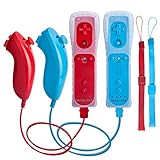
- All buttons are accurate and precise to the clicks. Compatible for all Wii games or Wii sports. Also compatible with Nintendo Wii U consoles.
- Motion Sensor included so it will be perfect for Wii Sports games when sharing with family members.
- High performance replacement controller for Original Nintendo Wii consoles. And also be noted third-party controller.
- Cost-Effective Wii controllers with shaking motion plus built-in & Nunchuk included. No need to buy extra motion plus or a nunchuk controller, you’ll find TechKen wii controller will shake when you’re hitting something on gaming. When plug Nunchuk, it’s able to function thumb stick and triggers.
- EASY SYNC STEPS -- Push the small button on the controller (where the batteries go) then push the red button on the Wii console (under the little door), then you’re able to synchronize with Nintendo Wii.
The basic interface: pointing and confirming
Point the Wii Remote at the screen to move the on-screen pointer. Press A to confirm a menu selection. Keep the Remote aimed at the screen for menus even though an individual sport may later require a sideways or vertical grip. When you leave an activity and return to a menu, follow the new pointing prompt instead of keeping the previous sport grip automatically.
If the pointer wanders, first check the sensor-bar placement and remove anything blocking the line of sight. Then check your batteries. These steps address menu pointing; sport tracking also depends on a properly connected and calibrated MotionPlus unit.
Free tools Windows power users keep installed
One-click scans. No signup required.
Sport-by-sport beginner controls
Swordplay
Hold the Wii Remote vertically. Use directional swings to control your sword movement. The game distinguishes the direction of the swing, so begin with deliberate, compact motions that start and finish where the tutorial indicates. Do not lead with speed: a fast swing made in the wrong plane is harder to correct than a slow, correctly oriented one.
The manual describes blocking with the B button. Keep a finger positioned so you can press B without changing your grip, and practice the block separately before combining it with a directional swing. If the game stops recognizing the intended direction, return the Remote to the neutral position shown by the tutorial and repeat the MotionPlus test rather than twisting your wrist farther.
Wakeboarding
Hold the Remote sideways. Tilt it to steer, and pull up over the wake when the activity calls for that movement. Think of the Remote as a small handlebar: make a measured tilt, watch how the character responds, then adjust. Large, abrupt rotations make it difficult to tell whether the game is responding to your intended steering angle or to an accidental twist.
Rank #3

- It’s a must-try Wii controller if you’re looking for third party Wii remote Nunchuk Controller. All buttons are tested to be correct and match Nintendo Wii/ Wii u console. You’ll find it’s hassle-free shopping with TechKen’s 90-day assurance. -- but only for orders from TechKen.
- High performance with shaking motion plus built-in & nunchuk included. No need to buy extra motion plus or a nunchuk controller, you’ll find TechKen wii controller will shake when you’re hitting something on gaming. When plug Nunchuk, it’s able to function thumb stick and triggers.
- EASY SYNC STEPS -- Push the small button on the controller (where the batteries go) then push the red button on the Wii console (under the little door), then you’re able to synchronize with Nintendo Wii.
- Powered by AA batteries, AA batteries are not included. Silicon case is not included
- IMPORTANT NOTE: Cannot fit in accessories, such as Wii zapper gun.
Start by learning the neutral sideways position. Once you can keep a straight line, add the pull-up movement over the wake. Follow the on-screen demonstration for timing; the important beginner skill is coordinating the tilt and the jump input without changing the sideways grip.
Recommended Free Tools
Archery
Archery requires a Wii Remote in one hand and a Nunchuk in the other. Connect the Nunchuk before entering the activity if the game requests it, then copy the hand positions shown on screen. The two controllers represent different parts of the aiming and drawing action, so holding both devices in one hand or substituting a Remote-only setup will not match the tutorial.
Use the listed buttons to aim and draw. Keep the Remote steady while you perform the Nunchuk movement, and release only when the prompt indicates. If the sight drifts, reset your posture and repeat the MotionPlus check; do not compensate by swinging both controllers.
Other activities
Other Wii Sports Resort activities use their own combination of grip, orientation, buttons, and gestures. The supplied material does not establish one universal control map for every event, so use the activity’s on-screen prompt and tutorial as the authoritative guide. Before pressing a start button, identify whether the Remote is vertical, horizontal, pointed at the screen, or paired with a Nunchuk. That one pause prevents many incorrect-input attempts.
A learning progression that works for first sessions
- Choose one activity. Avoid switching repeatedly while you are still learning the controller orientation.
- Watch or complete the tutorial. Note the required grip, the neutral position, the direction of movement, and the button timing.
- Practice slowly. Reproduce the requested movement with a small range first. Focus on direction and timing before adding speed.
- Check the result. If the game responds as expected, repeat the movement several times without changing your grip.
- Add speed only after consistency. Faster motion is useful only when the same direction and timing remain reliable.
- Move to a second activity. Re-read its prompt because the new sport may require a different orientation or the Nunchuk.
This progression separates two skills beginners often mix together: understanding what the game wants and performing it quickly. Learning the direction first gives you a clear diagnostic when an attempt fails.
Rank #4
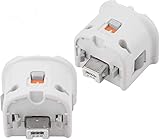
- Brand new and high quality.
- Connect Wii MotionPlus to your Wii Remote controller to increase accuracy and enhance play control on compatible games.
- Contains additional sensors that respond to your wrist's slightest motion for greater results with more economical movement.
- Compatible with a variety of Wii games.Perfect motion plus adapter for your Wii Remote controller.
- Allow it to more accurately capture complex motion and It tracks the player's movements in finer detail and with greater accuracy.
Fixing inaccurate or inconsistent tracking
When the game does not recognize a motion
- Stop the movement and return the Remote to the neutral position shown in the tutorial.
- Verify that the Wii MotionPlus accessory is fully inserted into the Remote’s extension connector and that its lock is engaged. A Wii Remote Plus should not have a loose add-on attached.
- Repeat the calibration or MotionPlus test when the game prompts you.
- Re-read the activity’s grip and orientation instruction. A sideways Remote used as if it were vertical can produce a consistent-looking but incorrect result.
- Replace weak batteries before making larger motions.
When menu pointing is unreliable
- Confirm the sensor bar is positioned correctly and has a clear view.
- Point the Remote directly toward the screen and use A to select.
- Remove bright obstructions or objects that interfere with your line of sight.
- Keep the wrist strap on while testing so you do not loosen your grip to chase the pointer.
When an activity requires a Nunchuk
Connect the Nunchuk before beginning the activity and hold one controller in each hand as shown. Archery is an explicit example. If the game displays a Nunchuk diagram, do not attempt to substitute a Remote-only configuration; the required buttons and movements are divided between the two devices.
Room setup and safe play
Motion-controlled play needs more room than a seated game. Clear furniture, fragile objects, pets, and other players from the movement area. Check above and beside you as well as directly in front; a backswing can reach an area that looks clear from the sofa.
- Put the wrist strap on before selecting an activity and tighten its lock.
- Hold the Remote firmly and avoid letting go during a swing. Nintendo’s Wii Health & Safety Precautions states: “Hold the Wii Remote firmly and do not let go.”
- Use controlled motion rather than maximum force. The game reads direction, tilt, and timing; excessive effort adds risk without improving the input.
- Keep other players outside the active movement area until your turn is complete.
- Stop and rest if you feel dizzy or nauseous. Resume only when you feel normal.
A strap is a backup, not permission to swing near people or breakable objects. If you cannot create a clear space, choose a smaller movement range and postpone play until the area is safe.
Independent reader supportYour contribution helps us test, update, and keep practical guides available for everyone.Choosing a Wii Sports Resort controller
When searching a marketplace, the most useful phrase is “Wii MotionPlus controller.” You may also see listings for “Wii Remote Plus” or a “Wii MotionPlus accessory.” Compare the actual configuration, not just the word “motion” in a title.
| Comparison point | Why it matters | What to verify |
|---|---|---|
| Integrated or add-on MotionPlus | The game requires MotionPlus-enhanced control. | Integrated: Wii Remote Plus. Add-on: original Wii Remote with a separate unit attached to the extension connector. |
| Nunchuk requirement | Some activities, including archery, use two-handed controls. | Buy or retain a compatible Nunchuk if you want to play those activities. |
| Physical condition | Worn buttons, a loose connector, or damaged strap can affect play and safety. | Inspect photographs and ask for clear details when the listing is unclear. |
| Included wrist strap | The strap is part of safe operation. | Confirm it is present, intact, and has a working lock; replace it if damaged. |
| Accessory lock | An unlocked MotionPlus add-on can shift during play. | Check that the seller shows the locking mechanism and that it holds the accessory securely. |
| Return policy | Used hardware may not match its description. | Prefer a listing with a clearly stated return process. |
| Current price or stock | These change by seller and date. | Not established here; check the live listing before buying. |
For an original Remote, follow Nintendo’s installation procedure: insert the MotionPlus accessory into the Remote’s extension connector and lock it. A photograph that shows only the front of a controller may not reveal whether the required accessory is included, so inspect the connector end and the listing contents.
Best Value

- [Compatibility]: The Wii remote controller is compatible with Nintendo Wii and Wii U, supports all Wii games. Please note that the Wii console is not included. Batteries not included.
- [Built-in Motion Plus]: The built-in motion plus, more sensitive than the original Wii remote controller, can track movement more accurately, bringing you a more realistic game experience.
- Th wii nunchuck controller boasts a 3-axis motion sensor, akin to the Wii Remote. Its ergonomic design ensures a comfortable grip, promoting agility during gameplay.
- EASY SYNC STEPS -- Push the small button on the controller (where the batteries go) then push the red button on the Wii console (under the little door), then you’re able to synchronize with Nintendo Wii.
- LED indicator -- LED lights will indicate which player you're.
Common beginner mistakes
Using a basic Remote without MotionPlus
A standard Wii Remote by itself does not provide the MotionPlus configuration this game expects. Choose a Wii Remote Plus or attach the Wii MotionPlus accessory before troubleshooting sport controls.
Changing grip during a move
Switching from vertical to sideways, or rotating the Remote midway through a gesture, changes the reference the activity uses. Set the grip before the countdown and keep it stable until the move is complete.
Trying to learn by force
Harder swings do not correct a wrong direction or timing. Return to the tutorial, use a smaller movement, and build speed only after the game consistently recognizes the intended input.
Skipping the initial test
The startup MotionPlus test establishes the controller’s reference. Complete it, and repeat it when tracking feels inconsistent instead of compensating with exaggerated wrist movements.
Buying a listing with unclear contents
A “Wii controller” title may not tell you whether MotionPlus is integrated, whether an add-on is included, or whether the strap and lock are present. Verify each item in the description and photographs, and use the return policy as protection against an inaccurate listing.
A practical first-session checklist
- Console, display, sensor bar, and Wii Sports Resort disc are connected and ready.
- Wii Remote Plus or original Wii Remote with a properly locked Wii MotionPlus accessory is available.
- Batteries work and a Nunchuk is on hand for activities that require one.
- Wrist strap is fitted and its lock is tightened.
- Furniture, fragile objects, pets, and other players are outside the movement area.
- Disc Channel is selected from the Wii Menu and Start is pressed.
- Initial MotionPlus test is completed without moving the Remote.
- Selected activity’s tutorial has been watched or completed.
- Grip, orientation, buttons, and gesture are identified before the attempt.
- Practice begins slowly, with direction and timing prioritized over speed.
How to know you are ready for faster play
You are ready to increase speed when you can repeat the tutorial movement several times with the same grip, the game recognizes the intended direction or tilt, and you can return to neutral without losing control. If success depends on a larger swing each time, stop and check the MotionPlus connection, calibration, and activity orientation instead. Reliable technique is repeatable at a small range; speed should amplify that technique, not replace it.
Because each activity maps motion differently, finishing one tutorial does not exempt you from reading the next one. Treat every new sport as a short setup lesson: identify the controller arrangement, perform the neutral test if requested, then practice the defining movement in a clear space.
Windows Errors? Fix Them Before They Spread
Repair common Windows errors and clear accumulated junk for a smoother, more stable PC - no reinstall needed.Free scan · no reinstallOutdated Drivers Are Slowing You Down
One free scan finds every outdated or missing driver and matches the right update for your exact hardware.Free scan · exact hardware matchQuick Recap
Product prices and availability are accurate as of the date/time indicated and are subject to change. Any price and availability information displayed on Amazon at the time of purchase will apply.

