The Tool Desk
Outbyte Driver Updater FREEScan for outdated or missing drivers - takes under a minuteDriver Scan →Outbyte PC Repair FREERepair Windows errors before they cause bigger problemsFix Now →Choose parental controls based on the child’s device: use Apple Family Sharing and Screen Time for an iPhone or iPad, and Google Family Link plus Google Play controls for a supervised Android device. These tools can limit app access, age-rated downloads, and screen time, but store ratings are not comprehensive content filters—and Family Link cannot supervise an iPhone or iPad.
Start with the child’s device and account
The parent’s phone does not determine which controls are available; the child’s device and account do. Set up a separate child account within the appropriate family system rather than sharing an adult account. Apple’s child-account age rules vary by country or region. Its guidance says a Child Account is required for children under 13, though the minimum age can differ by location. Apple explains how to create an Apple Account for a child.
As an Amazon Associate I earn from qualifying purchases.
For an iPhone or iPad, use Family Sharing and Screen Time. For a supported, supervised Android device, use Family Link. A parent can install the Family Link app on an iPhone or iPad to manage a child’s eligible device, but cannot use it to supervise the iPhone or iPad itself.
Quick wins for a faster PC:
Repair Windows errors before they cause bigger problemsFix Now →Fix the driver behind crashes, sound loss and screen glitchesFind Drivers →Set up Screen Time for a child’s iPhone or iPad
- Set up Family Sharing. Add the child’s Apple Account to the family group or create a Child Account. The child should sign in to their own account on their device.
- Open the child’s Screen Time settings. On the parent or guardian’s Apple device, go to Settings → Family → [child’s name] → Screen Time. Apple recommends that a family organizer or parent/guardian manage these settings from their device. See Apple’s Screen Time setup guide.
- Choose the restrictions that fit your goal. Configure app and website access, time allowances, schedules, and content and privacy restrictions. Depending on the setting, a child may be able to request approval for eligible downloads or purchases, or for website access in supported browsers.
Apple’s Screen Time guide describes a redesigned experience in version 27. If family devices are not updated to the version required for that experience, Apple says families can continue using the prior Screen Time experience or adjust controls on the child’s device. Menu wording and available options can therefore differ by software version.
#1 Best Overall

- POWERFUL ANDROID 15 PERFORMANCE WITH AI SUPPORT – Powered by Android 15, a fast 4-core processor, and 64 GB of built-in storage, this 10.1-inch kids tablet provides smooth performance for educational apps, videos, games, and everyday entertainment. Expand storage up to 1 TB with a microSD card for more books, photos, music, and videos. With access to Gemini AI, children can explore questions, better understand concepts, and receive interactive learning support under parental guidance.
- GOOGLE KIDS SPACE AND EASY PARENTAL CONTROLS – tablet comes with Google Kids Space, giving children access to age-appropriate books, videos, creative activities, puzzles, and educational apps. Parents can manage screen time, approve or block apps, filter content, and set daily limits through parental controls, helping create a safer and more balanced digital environment for children ages 3 and up.
- 10.1-INCH HD IPS DISPLAY WITH EYE-COMFORT FEATURES – Enjoy clear, colorful visuals on the 1280 × 800 HD IPS glass display. Low-blue-light technology, eye-protection mode, and automatic brightness adjustment help provide a more comfortable viewing experience during reading, learning, video watching, and gaming. The spacious 10.1-inch screen makes content easier for young children to see and navigate.
- KID-PROOF EVA CASE WITH STAND – Designed for everyday bumps and drops, the lightweight EVA protective case provides a comfortable, child-friendly grip and added impact protection. Precisely aligned openings keep the camera, buttons, speakers, and charging port easy to access
- LONG-LASTING BATTERY AND 2-YEAR WARRANTY – The optimized battery system is designed to support extended use for learning apps, videos, reading, and games, while Android 15 helps improve power efficiency. With its educational features, durable protective case, and child-friendly design, this toddler tablet makes a thoughtful gift for birthdays, holidays, and other special occasions. Backed by a 2-year warranty and responsive customer support for added peace of mind.
Choose app, age, time, and purchase controls on Apple devices
Limit apps by age rating
Use Screen Time’s content restrictions to limit applications by age rating. This is useful when the goal is to restrict access to apps above a chosen rating, rather than to block one specific app. Apple’s options and age defaults may vary by state, country, or region; consult Apple’s iPhone guide to app and content restrictions for the controls available on the version in use.
Set time allowances or schedules
Screen Time can apply time allowances and schedules, as well as app and website restrictions. Choose a limit or schedule according to whether you want to manage when an app or device can be used or restrict access to particular content. Review the resulting settings on the child’s device, since labels and available controls depend on its software version.
Rank #2
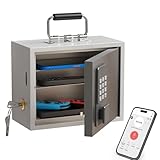
- Phone Lock Box for Screen Time Control – Lock phones away to reduce screen addiction and help kids and teens stay focused during homework, study time, family meals and bedtime routines.
- App-Based Time Scheduling- Set access windows directly in the app. The password will only unlock the box during the approved time period. Outside that window, it won’t open — even with the correct code.
- Passcode Lock + Backup Key Access – Secure keypad entry plus a physical key override for reliable access when you need it, designed for parents who want firm but flexible control.
- Optional Remote Unlock with WiFi Bridge – Unlock and manage access remotely when paired with the WiFi bridge (sold separately), so you can control screen time even when you’re away from home.
- Heavy Steel Core for Real Security – Reinforced cold-rolled steel construction is built to resist impacts, with durable powder coating and 3-layer anti-corrosion protection for long-term indoor use.
Restrict installations, deletions, and purchases
Apple’s controls include restrictions on installing or deleting apps and on in-app purchases. These settings address changes and purchases on the device; they are separate from app age-rating limits. Apple’s iPhone guide describes the available App Store restrictions.
Recommended Free Tools
Use Family Link to manage apps on Android
- Set up supervision. Connect the child’s Google Account to Family Link and confirm that the child’s device is eligible. Google lists Android 6.0 or later as the baseline for child-device supervision; requirements can vary by role and device.
- Open the child’s app limits. In the Family Link app, select the child, then go to Screen time → Time limits → App limits.
- Choose an app and set its limit. Select the app and specify the time allowance, or use Family Link’s controls to block or allow apps. Google’s instructions are in Set app time limits on your child’s device.
Google says app time limits require Android 7 or later, exclude system apps, and apply across the child’s Android and ChromeOS devices. Some apps cannot be blocked because the device or supervision needs them. Check the child’s device eligibility and the available controls if an app does not offer the expected option.
Rank #3
![Apple Watch SE 3 [GPS 44mm] Smartwatch with Midnight Aluminum Case with Midnight Sport Band - M/L. Fitness and Sleep Trackers, Heart Rate Monitor, Always-On Display, Water Resistant](https://m.media-amazon.com/images/I/41IZwhp9VXL._SL160_.jpg)
- GET SMARTER HEALTH INSIGHTS—Apple Watch SE 3 is an advanced health tracker that helps you better understand your body. The smartwatch sends alerts for an irregular heart rhythm, or an unusually high or low heart rate.* You can view your overnight health tracking metrics with the Vitals app,* track your sleep score, and get sleep apnea notifications.*
- A GREAT FITNESS TRACKER—SE 3 can track your workouts in a healthy number of ways—from running and strength training to simply achieving your 10K steps a day. With real-time metrics and Workout Buddy powered by Apple Intelligence from your nearby iPhone,* you’ll hit your goals like never before.
- KEEP HELP CLOSE AT HAND—SE 3 is a smartwatch that can detect a hard fall or severe car crash and automatically help connect you to emergency services and notify your emergency contacts.* Check In can automatically notify a loved one when you’ve arrived at your destination.
- WOMEN’S HEALTH INSIGHTS—SE 3 has advanced sensors that track your wrist temperature while you sleep. With this smartwatch, you can log your periods and symptoms, get period predictions, and get notified of cycle deviations.*
- GREAT BATTERY LIFE AND FASTER CHARGING—Enjoy a smartwatch with all-day, 18-hour battery life* from sunup to sundown. Then charge up to twice as fast as SE 2* and get up to 8 hours of battery in just 15 minutes.*
Set age-based download limits in Google Play
Google Play parental controls let a parent choose the highest maturity rating to allow for downloads or purchases. These ratings limit what can be downloaded or purchased through the store, but they do not act as a full app or web-content blocker. Google warns that a restricted item may still appear in search results or be accessible through a direct link. Apps downloaded before the filter was enabled may also remain visible. On a supervised Android device, Family Link can block those existing apps.
To configure the filter, use Google Play’s parental controls for the child’s account and select the highest rating to allow. Availability can vary by country and content category. Google describes the settings and their limitations in How to set up parental controls on Google Play.
Rank #4

- POWERFUL ANDROID 15 PERFORMANCE WITH AI SUPPORT – Powered by Android 15, a fast 4-core processor, and 64 GB of built-in storage, this 10.1-inch kids tablet provides smooth performance for educational apps, videos, games, and everyday entertainment. Expand storage up to 1 TB with a microSD card for more books, photos, music, and videos. With access to Gemini AI, children can explore questions, better understand concepts, and receive interactive learning support under parental guidance.
- GOOGLE KIDS SPACE AND EASY PARENTAL CONTROLS – tablet comes with Google Kids Space, giving children access to age-appropriate books, videos, creative activities, puzzles, and educational apps. Parents can manage screen time, approve or block apps, filter content, and set daily limits through parental controls, helping create a safer and more balanced digital environment for children ages 3 and up.
- 10.1-INCH HD IPS DISPLAY WITH EYE-COMFORT FEATURES – Enjoy clear, colorful visuals on the 1280 × 800 HD IPS glass display. Low-blue-light technology, eye-protection mode, and automatic brightness adjustment help provide a more comfortable viewing experience during reading, learning, video watching, and gaming. The spacious 10.1-inch screen makes content easier for young children to see and navigate.
- KID-PROOF EVA CASE WITH STAND – Designed for everyday bumps and drops, the lightweight EVA protective case provides a comfortable, child-friendly grip and added impact protection. Precisely aligned openings keep the camera, buttons, speakers, and charging port easy to access.
- LONG-LASTING BATTERY AND 2-YEAR WARRANTY – The optimized battery system is designed to support extended use for learning apps, videos, reading, and games, while Android 15 helps improve power efficiency. With its educational features, durable protective case, and child-friendly design, this toddler tablet makes a thoughtful gift for birthdays, holidays, and other special occasions. Backed by a 2-year warranty and responsive customer support for added peace of mind.
Know what each system can and cannot supervise
| Goal or device | Use | Important limit |
|---|---|---|
| Child’s iPhone or iPad | Family Sharing and Screen Time | Options and menu labels can vary by OS version and region. |
| Child’s supported Android device | Family Link for app blocks and time limits; Google Play controls for maturity-rated downloads | App limits exclude system apps; some apps cannot be blocked. |
| iPhone or iPad managed by a parent using Family Link | The parent can run the Family Link app on the Apple device | Family Link does not supervise the iPhone or iPad itself. |
| Non-Chromebook computer | Not supervised through Family Link | Google says iPhones, iPads, and non-Chromebook computers cannot be supervised with Family Link. |
For current eligibility details, see Google’s Family Link device and account requirements. Supported devices, account rules, and features can change.
What’s actually slowing this PC down?
Pick the symptom - the matching free tool is one click away.
Quick Recap
Troubleshoot limits that do not behave as expected
- An app still appears in Google Play search: The maturity filter restricts downloads or purchases by rating; it does not necessarily hide search results or block direct links.
- An app installed before the filter remains available: Existing downloads may remain visible. Use Family Link to block the app on a supervised Android device if that option is available.
- An Android app has no time limit or block option: Family Link app limits do not apply to system apps, and some apps are required for device or supervision functions.
- You cannot supervise a child’s iPhone in Family Link: Family Link can run on the parent’s Apple device, but supervision applies to supported child devices—not iPhones or iPads.
- A setting or menu is missing: Check the device’s OS version, account setup, regional availability, and whether the feature is supported for that device. On Apple devices, the available Screen Time experience can also depend on whether family devices have the required software version.
Product prices and availability are accurate as of the date/time indicated and are subject to change. Any price and availability information displayed on Amazon at the time of purchase will apply.




