Free tools Windows power users keep installed
One-click scans. No signup required.
Use FFmpeg to read and loop the MP4, publish it to an SRS RTMP endpoint, then configure SRS to forward that stream to the YouTube Live event’s ingest URL and stream key. Those are two separate connections: FFmpeg sends to SRS; SRS sends to YouTube. The FFmpeg command below is a starting point, while the relay configuration depends on your SRS version. Confirm the full chain in YouTube Live Control Room before relying on it for a broadcast.
How the FFmpeg–SRS–YouTube pipeline works
FFmpeg reads the local file and publishes it at real-time speed to an application and stream name on your SRS server. SRS accepts that incoming RTMP stream and relays it to the event URL and stream key supplied by YouTube Live Control Room.
As an Amazon Associate I earn from qualifying purchases.
- Input: your MP4 file, read and looped by FFmpeg.
- Local publishing destination: the SRS host, application, and stream name. These are not YouTube credentials.
- Final destination: YouTube’s event ingest URL and stream key, configured in SRS’s forwarding or relay setup.
The SRS documentation includes a basic FFmpeg publishing example, but it does not establish one relay configuration that applies across SRS versions. Use documentation for the release you deployed, and verify that release’s forwarding behavior and supported transport before broadcasting.
What you need before starting
- An MP4 file available on the machine running FFmpeg.
- An SRS server that is reachable from that machine and configured to accept RTMP publishing.
- A YouTube Live event and its current ingest URL and stream key from Live Control Room.
- FFmpeg installed on the publishing machine. The command below assumes the build includes the
libx264encoder. - A way to configure SRS to forward the incoming stream to YouTube, following the instructions for your installed SRS version.
Do not use a real stream key in a public command example, shared screenshot, or other exposed configuration. Treat it as a credential.
#1 Best Overall

- 【Rich Connection Ports】 The Osee GoStream Deck video switcher comes with 4 HDMI inputs and 2 HDMI outputs, allowing you to connect four different media sources and two displays for MultiView and monitoring. It also includes 2 Type-C ports (input/output) for webcam input/output, SSD connection, and PC connectivity, 1 Ethernet port for live streaming, 2 audio inputs and 1 headphone output for monitoring audio quality or recording, and 1 SD card slot for recording or playing files directly.
- 【Audio Control, Recording and Playback 】 The Osee GoStream Deck video switcher features various audio control buttons and adjustable knobs. It comes with headphone and microphone input for your live-streaming audio system. Additionally, it provides professional audio effects, including EQ, Limiter, Fader, etc. The GoStream Deck can record your PGM to an SD card or USB SSD while simultaneously playing back MP4 files for intros, breaks, etc.
- 【3 Streaming & Landscape / Portrait streaming】 This live streaming video switcher can simultaneously stream to 3 platforms like YouTube, Facebook, Zoom, or any RTMP server via the Ethernet port. Alternatively, you can use the USB output to stream through PC software like OBS or vMix. In addition, it supports both landscape and portrait modes to suit your various needs.
- 【Efficient Control】 The GoStream Deck features a hard control panel with PVW/PGM buses, T-Bar, and Macros - perfect for broadcast-quality streaming in education, conferences, worship, live events, and weddings. With its built-in menu system, you can control your live production without a PC. Additionally, we provide free PC control software and a companion control module for expanded functionality.
- 【Convenient Graphics Overlay】 This video mixer supports MultiSource functionality with dual video windows, background options, and graphics overlay - ideal for church broadcasts, podcasts, online meetings, panel discussions, and TV-quality live productions. Downstream keyer for logo and lower-third overlays. Upstream keyer supporting green screen, chroma key, PIP (Picture-in-Picture), and pattern effects.
Configure the YouTube event and SRS relay
Get the event destination from YouTube
- Open YouTube Live Control Room and select or create the live event you intend to use.
- Copy the event’s stream URL and stream key from the event’s streaming or encoder settings. YouTube expects these values to be entered in the encoder or relay destination settings.
- Keep the destination URL and key separate from the SRS input address you will use in FFmpeg. Do not paste the YouTube key into the FFmpeg command below; that command publishes to SRS.
Set up forwarding in SRS
Configure the SRS instance to forward the incoming application and stream to the YouTube event destination. The exact configuration depends on the SRS release and deployment, so use the current documentation for that release rather than copying a stanza intended for another version. SRS’s RTMP documentation retrieved for this topic is the archived version 5.0 page, while its getting-started documentation is in the v8 line; a single configuration example cannot safely be treated as universal.
YouTube recommends RTMPS, which is RTMP over a TLS/SSL connection. Choose RTMPS for the SRS-to-YouTube leg if your deployed SRS forwarding path supports it. Confirm that the SRS configuration accepts the destination URL format and can use the selected codecs and transport end to end.
Loop the MP4 from FFmpeg to SRS
Replace input.mp4, SRS_HOST, live, and STREAM_NAME with your file path and the application and stream name configured on your SRS server:
Rank #2

- Compact but Powerful Design: ZowieBox is smaller than a phone, featuring a tally light and LCD screen for streaming status. Capture console gameplay in up to 4K with zero-lag HDMI passthrough, while the built-in video encoder converts video for IP streaming. The IP stream can also be decoded back to a 4K HDMI signal.
- Standalone Game Streaming: Just plug and play—ZowieBox enables PC-free live gaming without affecting gameplay. As an RTMP hardware encoder and HDMI streamer, it delivers stable streaming directly from your source, making it ideal for gaming, live events, and professional broadcasting.
- NDI|HX3 Converter Technology: ZowieBox converts HDMI signals to NDI|HX3/HX2/HX, functioning as an NDI video encoder, or NDI Video Decoder for flexible IP workflows. Certified NDI technology enables low-latency gameplay streaming through OBS/vMix. Note: Encoder and decoder modes cannot run simultaneously; full NDI signals are not supported.
- UVC to HDMI Conversion: Supporting up to 4K@30fps and 1080p@60fps decoding, ZowieBox enables flexible conversion for webcam and video workflows. As a video decoder and HDMI to IP converter, it expands connectivity options for professional video devices. Note: USB capture card functionality is not currently supported.
- All-around Configuration Options: Control ZowieBox through its web UI on a PC, phone, or tablet. Manage connected PTZ cameras, tally light, video/audio, OSD, work mode, streams, network, and system settings. Support for VISCA over IP encoder workflows enables flexible PTZ control, while the dashboard provides video preview and system status.
ffmpeg -re -stream_loop -1 -i input.mp4 -c:v libx264 -preset veryfast -tune zerolatency -c:a aac -f flv rtmp://SRS_HOST/live/STREAM_NAME-rereads the file at approximately its native playback rate rather than sending it as fast as the machine can process it. SRS uses this option in its basic FFmpeg publishing example for a file input sent as a live stream.-stream_loop -1tells FFmpeg to loop the input indefinitely. It is an input option, so it must appear before the relevant-ideclaration.-i input.mp4selects the local file. Use a full path if the file is not in the current working directory.-c:v libx264and-c:a aacre-encode video and audio to commonly supported formats for this FLV/RTMP output example. Encoding requires compatible FFmpeg encoders and enough processing capacity for the chosen input and output settings.-f flvselects the output container used by this RTMP publishing pattern.- The final URL points to SRS, not YouTube. Its host, application, and stream name must match your SRS deployment.
This is an illustrative starting command, not a tested command for every file or server. If you change resolution, frame rate, bitrate, keyframe interval, or codecs, make sure the SRS relay and YouTube ingest both accept the result. Stream copy with -c copy may be possible when the input codecs and complete path support it, but it is not appropriate to assume that every MP4 can be copied into this output or that the result meets your event’s settings.
Check YouTube’s encoder settings and stream health
YouTube Help’s encoder guidance, checked on 2026-10-03, lists RTMP/RTMPS ingest; H.264, H.265 (HEVC), and AV1 video; AAC or MP3 audio; frame rates up to 60 fps; and constant-bitrate encoding. It recommends a two-second keyframe interval and says not to exceed four seconds. For stereo audio, it lists 44.1 kHz sampling and 128 Kbps in its recommended advanced settings. These are YouTube recommendations, not a guarantee that a particular SRS build or FFmpeg setup supports every combination.
There is no single bitrate that fits every stream. YouTube’s bitrate recommendations vary by resolution, frame rate, and codec. Choose the applicable values from YouTube’s current encoder guidance rather than applying one bitrate to every MP4. The example command does not set a target bitrate or keyframe interval explicitly, so inspect the actual FFmpeg output and configure those parameters if needed to match the event and YouTube guidance.
Rank #3
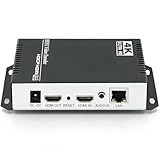
- 【Innovative Product with Leading Technology】- Equipped with an advanced H.265 /H.264 dual encoding chip, supports 4K UHD (3840x2160) video input and output, with a maximum frame rate of 30fps at 4K resolution and up to 120fps at 2K and lower resolutions, delivering a smooth and detailed visual experience. It also supports HDCP 1.4 decryption, easily decoding various HDMI ultra HD video sources, delivering a cinematic visual experience for both professional live streaming and 4K ultra HD content transmission.
- 【Multi-protocol and Multi-platform Compatibility】- Fully compatible with streaming protocols such as HTTP, RTSP, RTMP(S), SRT, HLS(M3U8), MP4, Multicast(UDP, RTP, PTL), ONVIF, FLV, WebRTC, TRTC, ICECAST, it can simultaneously output 4 video streams with different protocols and push them to live streaming platforms such as YouTube, Facebook, Twitch, and Vimeo with one click. Simultaneous live streaming across multiple platforms can be achieved without additional equipment.
- 【Highly Customizable Settings to Meet Individual Needs】- It supports adding static text, scrolling captions, brand logos, and timestamps. Users can freely adjust core parameters such as video resolution, frame rate, and bitrate, and also perform personalized editing functions such as video cropping, rotation, flipping, and mirroring. It supports dual input of HDMI embedded audio and line-in audio, with adjustable sound quality, making your live stream content more distinctive and allowing you to create a unique brand live stream style.
- 【Stable and Efficient Transmission, Easy Operation】- Employing HDMI to Ethernet core connection technology, it ensures stable and reliable network transmission with low latency and no lag, adapting to various network environments. Equipped with an intuitive user interface and detailed instruction manual, no professional technical background is required; setup can be completed quickly after connecting the device. It is also compatible with multiple terminals such as computers and mobile phones for management, and the video stream status can be viewed in real time via a URL.
- 【Lifetime Free Warranty and Technical Supports】- All URayCoder video codecs come with a lifetime free warranty and technical supports, supporting secondary development and feature customization to meet enterprise-level personalized needs. Meanwhile, we providing many kinds of customization services such as shell pattern printing, logo addition, hardware and function development, ensuring reliable quality and worry-free after-sales service.
- Test with representative audio and motion, not only a static or silent section.
- Check the incoming stream and stream health in YouTube Live Control Room before treating the setup as broadcast-ready.
- Confirm the final video and audio codecs, keyframe interval, bitrate, resolution, and frame rate are acceptable at YouTube’s destination.
- Recheck YouTube Help and the event settings when you deploy; supported formats and guidance can change.
Choose RTMP or RTMPS for the YouTube leg
The practical choice depends on what your SRS release can forward and what the end-to-end codec and transport path can handle. YouTube says, “We recommend streaming to YouTube Live with RTMPS, a secure extension to the popular RTMP streaming video protocol.” Its RTMPS guidance describes it as “RTMP over a Transport Layer Security (TLS/SSL) connection” that “provides encryption.” Prefer RTMPS when your configured SRS-to-YouTube path supports it; otherwise, establish which transport the deployed path supports and validate the resulting stream in Live Control Room.
Outdated Drivers Are Slowing You Down
One free scan finds every outdated or missing driver and matches the right update for your exact hardware.Free scan · exact hardware matchPC Slower Than It Used to Be?
A free scan shows the junk files, broken settings and background clutter dragging Windows down - then fixes them in one click.Free scan · Windows 10 & 11Troubleshoot common failures
FFmpeg cannot connect to SRS
Check that the SRS host is reachable from the FFmpeg machine, that the server accepts RTMP publishing, and that the application and stream name in the output URL match the SRS configuration. A YouTube event URL is not a substitute for the SRS input URL in this command.
SRS receives the stream, but YouTube stays offline
Check SRS’s forwarding configuration for the exact release you run, including the destination URL, stream key, and selected transport. Verify that you configured the event currently open in Live Control Room and that the relay can reach the YouTube destination. Avoid assuming that successful publishing from FFmpeg means SRS has also forwarded successfully.
Rank #4

- UNMATCHED 12CH INPUT FLEXIBILITY: Connect 8 cameras directly via HDMI (up to 4K60) or 3G-SDI (1080P60). 4 AUX channels support 4 NDI/SRT/RTMP IP (perfect for PTZ), 2 USB webcams, or 2 built-in MP4 players to play pre-recorded ads or run instant slow-motion replays without costly external devices.
- ROCK-SOLID HARDWARE STABILITY: Say goodbye to monitoring CPU usage, lag, dropped frames, and crashes. Unlike software mixers that limit the features you can run at once, our hardware video switcher utilizes dedicated FPGA processing to handle every feature simultaneously under full load, ensuring absolute stability.
- ISO REC & OUTPUT ROUTING: Record PGM & 8 ISO channels to SSD/CFexpress with zero dropped frames, and stream to 3 platforms. Route any of 12 inputs, PVW, PGM, MultiSource, or M/V to 4 assignable, ultra-low latency outputs (2 HDMI/2 SDI) for IMAG on LED walls, projectors, or confidence monitors.
- BROADCAST GRAPHICS & BRANDING: Overlay transparent graphics (scoreboards, tickers) directly from your PC (vMix, ProPresenter) via HDMI with Alpha-channel support. Run custom Stinger transitions using built-in media players—no expensive external hardware required.
- 5-LAYER MULTISOURCE & VIDEO EFFECTS: Build stunning TV-style layouts with our powerful MultiSource engine, featuring 4 customizable video windows and 1 still/motion background for talk shows, sports & webinars. Use 4 Upstream Keys for Chroma/PiP/LUMA, plus 2 DSKs for logos and lower thirds.
YouTube reports an unstable or unsupported stream
Inspect the actual output codecs, bitrate, resolution, frame rate, and keyframe interval. Compare them with the current YouTube guidance for your chosen resolution, frame rate, and codec; check that SRS can relay or handle the same combination. Test with representative motion and audio, then use Live Control Room’s stream-health feedback to narrow down the issue.
The video plays once or does not loop
Ensure -stream_loop -1 appears before -i input.mp4 and applies to the file input. Check FFmpeg’s output for file-read or decoding errors; an unreadable input cannot loop successfully.
The loop plays, but the output is silent or has encoding errors
Check that the MP4 contains an audio track if sound is expected, and that your FFmpeg build includes the requested encoders. Confirm that the chosen audio and video formats remain acceptable through the SRS relay and at YouTube. The sample command is not a guarantee that every input file or FFmpeg build will encode successfully.
Best Value

- ⭐【Innovative Product with Leading Technology】- Equipped with an advanced H.265/H.264 dual encoding chip, supports 1920x1080 resolution input and output, achieving 60fps high-definition presentation with realistic and delicate color reproduction and lossless detail. It also supports HDCP 1.4 decryption, easily decoding various HDMI high-definition video sources, delivering a cinematic visual experience for both professional live streaming and high-definition content transmission.
- ⭐【Multi-protocol and Multi-platform Compatibility】- Fully compatible with streaming protocols such as HTTP, RTSP, RTMP(S), SRT, HLS(M3U8), MP4, Multicast(UDP, RTP, PTL), ONVIF, FLV, it can simultaneously output 4 video streams with different protocols and push them to live streaming platforms such as YouTube, Facebook, Twitch, and Vimeo with one click. Simultaneous live streaming across multiple platforms can be achieved without additional equipment.
- ⭐【Highly Customizable Settings to Meet Individual Needs】- It supports adding static text, scrolling captions, brand logos, and timestamps. Users can freely adjust core parameters such as video resolution, frame rate, and bitrate, and also perform personalized editing functions such as video cropping, rotation, flipping, and mirroring. It supports dual input of HDMI embedded audio and line-in audio, with adjustable sound quality, making your live stream content more distinctive and allowing you to create a unique brand live stream style.
- ⭐【Stable and Efficient Transmission, Easy Operation】- Employing HDMI to Ethernet core connection technology, it ensures stable and reliable network transmission with low latency and no lag, adapting to various network environments. Equipped with an intuitive user interface and detailed instruction manual, no professional technical background is required; setup can be completed quickly after connecting the device. It is also compatible with multiple terminals such as computers and mobile phones for management, and the video stream status can be viewed in real time via a URL.
- ⭐【Lifetime Free Warranty and Technical Supports】- All URayCoder video codecs come with a lifetime free warranty and technical supports, supporting secondary development and feature customization to meet enterprise-level personalized needs. Meanwhile, we providing many kinds of customization services such as shell pattern printing, logo addition, hardware and function development, ensuring reliable quality and worry-free after-sales service.
When to use this self-hosted method
This pipeline is suited to a setup where you want FFmpeg to read a local file and SRS to act as the relay to YouTube. You must keep the FFmpeg publishing process and the SRS server available, configure SRS for your release, and check the final stream at YouTube. If you host SRS remotely, you also need a reachable server and must manage its deployment and configuration. The software workflow itself does not require a particular capture card or streaming appliance.
Or let it run in the cloud
If your goal is simply to keep uploaded video playing continuously on YouTube, StreamNeo is a cloud alternative: upload a recording or build a playlist, add your YouTube stream key once, and go live. The cloud keeps the stream running without a computer or home connection staying on; uploads play as made, up to 4K 60fps, at one flat price per slot, and StreamNeo automatically recovers if YouTube drops the stream. The first day is free with no card, one free day per account. Monthly billing is $9.99 per month.
Quick Recap
See StreamNeo or start your free day.
Product prices and availability are accurate as of the date/time indicated and are subject to change. Any price and availability information displayed on Amazon at the time of purchase will apply.
Quick wins for a faster PC:
Repair Windows errors before they cause bigger problemsFix Now →Fix the driver behind crashes, sound loss and screen glitchesFind Drivers →Clear out junk files and repair common Windows errorsFree Scan →



