The safest way to make room on a Pixel 6 is to measure first in Settings > Storage, review what Pixel’s Free up space screen suggests, then remove only things you recognise: old downloads, offline media, unused apps, and photos you have confirmed are backed up or copied elsewhere. Google does not publish a fixed amount of free space that a Pixel 6 needs for an Android update, so the aim is a healthy margin, not a magic number.
Know which storage you are freeing
Two different things share the word “storage.” Phone storage is the Pixel 6’s internal space, which is what an update needs. Google Account storage is the cloud quota (up to 15 GB, shared across Photos, Drive and Gmail, per Google’s backup quality help). Buying more cloud space does not clear anything off the phone unless you then remove the local copies. Also, storage is not memory: memory is where running programs live, while storage holds photos, music and apps (Google’s Pixel cleanup page).
As an Amazon Associate I earn from qualifying purchases.
How much free space is enough?
Google’s update help gives no minimum free-space figure for Pixel 6 updates; it only notes that “Updates can be large and may take some time.” Separately, Google’s slow-phone guidance says “Your phone can have issues when less than 10% of storage is available.” That is a general health warning, not an update requirement, but it is a sensible target to stay above. If the update warns about space, free more than you think you need and re-check.
Step-by-step cleanup, safest first
1. Check what is using space
- Open Settings > Storage.
- Note which category is largest (apps, photos and videos, audio, documents, other).
- Tap Free up space if offered. Google notes some of these steps work only on Android 11 and later, and labels can differ by version (source).
2. Review the suggested items
Go through each suggested category and select only items you recognise and no longer need. If a category you want is not listed, use Browse where available. Do not bulk-accept suggestions you have not looked at.
#1 Best Overall

- 【Plug and Play】 This usb c sd card reader is designed with a built-in USB-C cord that won't block your other ports, no third party APP, no network, no driver, no extra power, two-way transfer, plug and play. The camera adapter to iphone is the assistant of the photographer, allowing you to immediately view the best moment of the lens. Friendly and compact port design. With the built-in expansion USB-C cable of this sd card adapter, you can save space and use ports side by side.
- 【USB C Micro SD Card Reader 】 USB C Memory SD camera to phone adapter also features with USB A female port, which can easily connect USB peripheral devices, such as USB Flash disk, USB hard disks, MIDI keyboard, mouse, keyboard, etc. Great convenience for you to transfer files between different devices.
- 【Dual slot design】: USB-C digital camera adapter allows you to access multiple types of memory cards flexibly and conveniently. Compatible with SD, SDHC, SDHC, SDXC, Micro SD, Micro SD, Micro SD, Micro SDHC, Micro SDXC cards, let you to easily browse and copy photos and videos from your cameras, and quickly share your beautiful moments.
- 【Tool for photographer】 Card reader for android phone is a Photography Accessories for Canon Nikon SLR Digital Camera. This usbc card reader features with the newest USB C Connector, easy to transfer Dash Cam/Trial Camera/Digital Camera's Photos and Videos to your USB-C laptop/smartphone/tablets,Such as for iPhone 16/15 Pro Max,MacBook Pro/Air, iMac, Mac Mini after 2018, iPad Pro 2022/2021/2020, iPad Air 2022, Samsung Galaxy S25/S24/S23/S22/S21/S20 and more USB-C devices.
- 【Friendly reminder】: This credit card reader for android phone has built-in USB-C cable, so it does not support the iPhone except iPhone 15/16. The SD card, Micro card cannot be reading simultaneously, but the SD/Micro card and USB peripheral can be recognized simultaneously.
3. Clear out downloads and large files
Open the Files app and check Downloads. Sort by size or date if the option appears, and move selected items to Trash. Google notes some file-management steps require Android 14 or later (Pixel file guidance).
For files you want to keep, copy them to a computer over USB first, open them on the computer to confirm the copy works, and only then delete them from the phone. A data-capable USB-C cable is useful here; a charge-only cable may not transfer files. None of the Settings-based steps need one.
Rank #2

- New and Replacement SIM Tray for Google Pixel 6 pro (5G) 6.7 Inch only -Black color
- not fit for pixel 6A version,not fit for pixel 6 version,please check you phone version before buying it
- Will Replace you Lost SIM Tray or none-working SIM Card Holder as new and let you phone works Again
- not Include the Assemble Guild,made of Quality Material Replacement SIM Card Tray Parts
- Pack well and Check Strictly before shippment,
4. Remove offline media inside its own app
Downloaded songs, videos, podcasts and maps are owned by the app that saved them. Delete them from within that app’s downloads or settings screen rather than hunting for files, which avoids breaking the app’s library.
The Tool Desk
Outbyte Driver Updater FREEFix the driver behind crashes, sound loss and screen glitchesFind Drivers →Outbyte PC Repair FREERepair Windows errors before they cause bigger problemsFix Now →5. Uninstall apps you no longer use
Remove apps you can reinstall and do not need. Reinstalling is easy, but local data (such as offline progress or unsynced content) can differ by app, so check that an app’s data is saved to an account first.
Rank #3
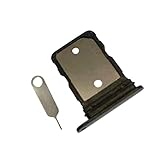
- New and Replacement SIM Tray for Google Pixel 6 6.4 Inch only -Black color
- not fit for pixel 6A version,not fit for pixel 6 pro version,please check you phone version before buying it
- Will Replace you Lost SIM Tray or none-working SIM Card Holder as new and let you phone works Again
- not Include the Assemble Guild,made of Quality Material Replacement SIM Card Tray Parts
- Pack well and Check Strictly before shippment,
6. Clear cache, not storage
For an app that has grown large, open its entry under Storage and choose Clear cache. Cache is temporary, and the app may just be slower the next time it launches. Clear storage is different: per Google, it “Permanently deletes all app data.” Use it only after checking that anything important is saved inside the app or synced.
7. Photos and videos: confirm backup first
Before removing local copies, open Google Photos and confirm backup has finished and that the items open while online; Google says backed-up copies can be viewed in Photos when the device is online. Then delete only the device copy through the app’s or Pixel’s free-up option, rather than deleting from your account. Changing backup quality does not remove phone copies, and Google says quality cannot be changed if account storage is already full (backup quality help).
Rank #4
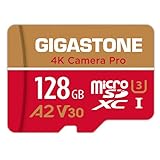
- [Speed] Read/Write up to 100/50 MB/s, V30 speed grade, Ultra HD (UHD) 4K video recording, UHD 4K gaming.
- [App] A2 grade provides faster App loading performance for Smartphone & Tablet.
- [Storage] Expand smartphone internal storage space. Run App on Micro SD card.
Which option to pick
| Action | Reversibility | Backed up or reproducible? | Effort |
|---|---|---|---|
| Clear cache | High; cache rebuilds | Yes, regenerated by the app | Low |
| Delete offline media in its app | High; can re-download | Usually, if still on the service | Low to medium |
| Uninstall unused app | High, though local data varies | App is reinstallable | Low |
| Delete phone copy of a verified computer copy | Medium; depends on your copy | Yes, once verified | Medium |
| Delete photos after confirmed backup | Medium | Yes, if backup is complete | Low to medium |
| Clear storage | Low; permanent | Only if the app syncs | Low |
Google gives no fixed space-saving figure for any of these, so the Storage screen is your only real measure of what each step recovered.
Update only after the space check
- Re-open Settings > Storage and confirm you have comfortable headroom.
- Connect to Wi-Fi and charge to at least 75%, as Google advises.
- Go to Settings > System > Software updates and follow the screen.
- Restart when prompted; downloaded Pixel updates activate after a restart.
Updates download and install in the background, and a failed download may retry automatically over the following days, according to Google. Availability also varies by device and carrier.
Quick Recap
Best Value

- USB-C Card Reader with Light:The micro SD card reader is a great way to help expand storage capacity for your latest smartphone/tablets/computers with usb-c port, with the confirmed connection by Blue Light LED Indicator behind, make sure your devices are always connected
- Ultra-Compact and Portable:Made of high quality zinc alloy, this mini-sized card reader is durable, lightweight and portable, easily slip into your bag. Anti-lost keychain allows you to attach the card reader to key, purse or backpack, easy to carry around and avoid missing
- OTG-Enabled Plug and Use:The type c memory reader support ON-THE-GO Technology, you can easily transfer photos/videos/files between your Type-C devices and micro SD card, no drivers or software required
- Support TF/Micro SD Card:Leizhan Micro SD TF card reader works for the TF (Micro SD, Micro SDHC, Micro SDXC) card, share videos or images with family or friends anytime and anywhere. It support Micro SD card capacity up to 256GB
- Wide Compatibility: No driver needed, the SD Card Reader USB C is compatible with USB-C devices such as iPad Mini 6 2021, iPad Pro, Macbook Pro, Macbook Air, MacBook, XPS 13, Samsung Galaxy S23/S20/S10/Note 20/Note 10, Google Pixel 4 XL, Moto G8/G7 and more USB-C devices.
Product prices and availability are accurate as of the date/time indicated and are subject to change. Any price and availability information displayed on Amazon at the time of purchase will apply.




