Recommended Free Tools
Netflix anime problems usually fall into three different buckets: buffering is most often an unstable or congested connection, persistently soft video can come from a speed limit or Playback Settings, and subtitles that drift on only one episode are likely a title-specific defect. Start by checking whether the symptom affects every title or just one, then test your connection, device, account setting, and TV display path in that order.
Netflix has not published an anime-specific rate for buffering or subtitle-sync failures. The practical tests below use Netflix’s current 2026 speed guidance and troubleshooting paths, so each result points to a specific next step rather than a generic restart.
As an Amazon Associate I earn from qualifying purchases.
Identify the failure before changing settings
Play a different anime episode and then a non-anime title on the same device. Note whether the problem appears everywhere, only on one title, or only when a particular device or TV is used. Scope is the fastest way to separate a network problem from title metadata or display hardware.
Free tools Windows power users keep installed
One-click scans. No signup required.
| What you observe | First suspect | Best first test |
|---|---|---|
| Every title buffers on one device | Weak Wi-Fi, a device issue, or a congested home/ISP connection | Run Fast.com, then retry after restarting the device and home network |
| Every title is blurry or capped at a low quality | Playback Settings, insufficient measured speed, or device capability | Check Data usage per screen in the profile’s Playback Settings and compare Fast.com with the target quality threshold |
| Only one anime episode has subtitles or audio out of sync | Title-specific subtitle, audio, or video metadata | Test another episode and report the affected title |
| Subtitles fail across titles | Network instability or custom VPN, proxy, DNS, or modem settings | Restore custom network settings to defaults and test a cleaner connection |
| Stutter, sparkles, or a distorted picture only on a TV setup | HDMI input, cable, adapter, or HDCP display path | Check the input and cable, then try another HDMI port |
| The same computer works on Ethernet but not Wi-Fi | Wireless interference or unstable Wi-Fi | Use the wired result to isolate the wireless link |
Fix Netflix buffering and repeated rebuffering
Buffering means the player is not receiving data consistently enough to maintain playback. The bottleneck can be inside the home, at the ISP, or anywhere along the route to Netflix. Netflix explains: “Congestion on any part of the connection between Netflix and your screen can affect your video streaming quality and can even cause streaming problems.”
#1 Best Overall

- Ultra-speedy streaming: Roku Ultra is 30% faster than any other Roku player, delivering a lightning-fast interface and apps that launch in a snap.
- Cinematic streaming: This TV streaming device brings the movie theater to your living room with spectacular 4K, HDR10+, and Dolby Vision picture alongside immersive Dolby Atmos audio.
- The ultimate Roku remote: The rechargeable Roku Voice Remote Pro offers backlit buttons, hands-free voice controls, and a lost remote finder.
- No more fumbling in the dark: See what you’re pressing with backlit buttons.
- Say goodbye to batteries: Keep your remote powered for months on a single charge.
1. Measure the connection you are actually using
- On the device that is buffering, open Fast.com in a browser and wait for the result to settle.
- Compare the measured speed with Netflix’s recommended stable speeds:
| Target playback | Netflix-recommended stable speed | How to use the number |
|---|---|---|
| 720p HD | 3 Mbps | A result below this level is unlikely to sustain Netflix’s recommended 720p experience consistently. |
| 1080p FHD | 5 Mbps | Use this as the minimum comparison for Full HD playback. |
| 4K UHD | 15 Mbps | This is Netflix’s recommended minimum for Ultra HD playback. |
These are Netflix’s 2026 guidance figures, not a guarantee of performance. A speed test is a snapshot; evening congestion, other people’s downloads, Wi-Fi interference, and traffic elsewhere between the ISP and Netflix can still cause interruptions.
2. Restart the playback device and home network
- Stop the anime and fully restart the phone, computer, TV, or streaming device. A restart is different from merely turning off the screen or leaving the Netflix app suspended.
- Unplug the modem and router from power for 30 seconds.
- Reconnect the modem and router, wait until the connection is restored, and start Netflix again.
- Run Fast.com once more on the affected device and retry the same episode.
Netflix describes a slow-loading or repeatedly buffering title as a sign that the device may have a weak or unstable internet connection or may need an update. If the restart restores playback, continue watching but monitor whether the symptom returns at a predictable time.
3. Improve the Wi-Fi path
- Move the router and the streaming device closer together for a test.
- Keep the router elevated and in the open rather than inside a cabinet or behind the television.
- Reduce nearby interference and avoid placing the router directly beside other radio equipment.
- Pause heavy downloads or uploads on the home network while testing.
Test from the same room and device where the failure occurred. A fast result on a phone beside the router does not prove that a TV in another room has an equally reliable connection.
4. Update the device
Install any available operating-system or device firmware update, then reopen Netflix. Netflix specifically includes an out-of-date device among the possible causes of slow loading and buffering. Do not assume that updating the router alone updates a television, streaming stick, game console, phone, or computer.
5. Use Ethernet as a controlled comparison
On a computer or a TV/streaming setup with a network port, connect Ethernet temporarily and replay the same episode. If buffering stops on the wired connection while Wi-Fi continues to fail, the result points to wireless conditions rather than Netflix’s anime catalog. A standard Cat6 Ethernet cable is sufficient for this kind of household comparison; the purpose is diagnosis, not a special Netflix accessory.
Rank #2
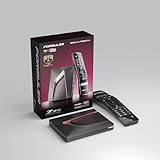
- Next-Gen Flagship Performance. Powered by a high-performance quad-core processor, 4GB DDR4 RAM, and 128GB storage, Z12 Ultra delivers ultra-fast navigation, seamless multitasking, and space for all your favorite apps and recordings.
- Dolby Vision and Dolby Atmos. Enjoy cinematic 4K playback with ultra-vivid colors, deeper contrast, and immersive 3D surround sound that places you right in the middle of the action.
- Advanced Decoding Technology. Supports 4K 60fps 10-bit playback with AV1, H.265 (HEVC), H.264, and HDR formats including HDR10+ and HLG, ensuring compatibility with the latest streaming and live broadcast standards.
- Next-Gen Connectivity. Equipped with Gigabit LAN and WiFi 6E (AX) for faster, more stable, and interference-free streaming—ideal for 4K and beyond.
- Simple and Elegant Home Screen. No ads, no clutter. Customize your home screen with your favorite apps and contents, including direct access to MYTVOnline3 for the ultimate streaming experience.
6. Escalate when the evidence points to the ISP
Contact the ISP when Fast.com remains below the relevant Netflix threshold after the modem/router restart, or when wired playback fails at the same time as Wi-Fi. Tell the ISP the measured speed, time of day, connection type, and whether other services are also slow. If only Netflix is affected while the connection otherwise tests normally, record the title, device, and time before contacting Netflix support; congestion can occur at several points and a single speed test cannot identify which segment is responsible.
Fix blurry video or Netflix staying at low resolution
Netflix adapts video quality to the available connection and the account’s playback data setting. A stable connection that is fast enough for the desired quality can still produce soft video if the profile is configured to limit data usage.
The Tool Desk
Outbyte Driver Updater FREEScan for outdated or missing drivers - takes under a minuteDriver Scan →Outbyte PC Repair FREEClear out junk files and repair common Windows errorsFree Scan →Check Playback Settings in a browser
- Open Netflix in a web browser and select the profile that shows the problem.
- Open the profile’s Playback Settings from the account and profile controls.
- Find Data usage per screen.
- Set it to Auto, or choose a setting appropriate for the quality you are trying to watch.
- Save the change, close Netflix on the playback device, reopen it, and test the same title.
Netflix advises returning the setting to Auto if forcing a quality-appropriate setting causes buffering or freezing. A higher cap cannot compensate for an unstable connection, and forcing a high setting can make interruptions worse.
Separate a quality cap from a weak connection
- If every title is consistently soft but playback is smooth, inspect Data usage per screen first.
- If quality rises and falls while the episode plays, run Fast.com on the affected device and follow the buffering procedure.
- If one device is blurry while another on the same network is sharp, compare device capability, app version, and display connection rather than changing the whole account.
- If only the TV picture is distorted or shows artifacts, use the HDMI/HDCP checks in the next section; that is a display-path problem, not necessarily low Netflix resolution.
Quality changes are adaptive, so allow the episode a moment after restarting before judging the final resolution. Judge the result on the same title, device, and network conditions used for the original complaint.
Fix subtitles or audio that are out of sync
First determine whether the timing error belongs to one title or follows you across Netflix. This distinction matters more than whether the program is anime: a single-episode defect and a network-wide failure require different remedies.
Rank #3

- The Google TV Streamer (4K) delivers your favorite entertainment quickly, easily, and personalized to you[1,2]
- HDMI 2.1 cable required (sold separately)
- See movies and TV shows from all your services right from your home screen[2]; and find new things to watch with tailored recommendations for everyone in your home based on their interests and viewing habits
- Watch live TV and access over 800 free channels from Pluto TV, Tubi, and more[3]; if you find an interesting show or movie on your TV, mobile app, or Google search, you can easily add it to your watchlist, so it’s ready when you are[2]
- Up to 4K HDR with Dolby Vision delivers captivating, true-to-life detail[4]; and you can connect speakers that support Dolby Atmos for more immersive 3D sound
When only one anime episode is affected
- Leave the episode and play another episode of the same series.
- Play a different show, preferably on the same device and connection.
- If the other titles are synchronized, return to the affected episode and note its season, episode, language, and whether the mismatch affects subtitles, spoken audio, or video.
- Report the problem through Viewing Activity for the profile, or use the in-player flag/report option when it is available.
Netflix accepts reports for subtitles that are not matched with sound, as well as audio and video problems. Include the exact episode rather than reporting the whole series when the fault is limited to one entry. A title-specific report gives Netflix the information needed to inspect that episode’s metadata or media asset.
When subtitles are out of sync across titles
- Test another show and another episode without changing the device.
- If the mismatch follows every title, restore any custom VPN, proxy, DNS, or modem configuration to its default settings.
- Improve the Wi-Fi path by moving the router and device closer, keeping the router elevated and unobstructed, and reducing interference.
- Restart the device and home network, then test again before changing subtitle language or other profile options.
A problem that survives several titles and devices is more consistent with the connection or network configuration than with anime subtitle files. If a wired test works while Wi-Fi does not, keep the connection-type result when you report the issue.
What not to infer from a sync problem
Do not assume that every subtitle delay is caused by the animation’s frame rate or by your TV. If only one episode is wrong, the comparison test already provides stronger evidence of a title-level defect. Conversely, changing subtitle languages cannot repair a network interruption that affects every title.
Independent reader supportYour contribution helps us test, update, and keep practical guides available for everyone.Fix TV stutter, sparkles, or distortion caused by the display path
A TV can show a bad picture even when Netflix is delivering a healthy stream. HDMI negotiation and copy-protection compatibility sit between the streaming device and the panel.
- Confirm that the television is set to the HDMI input used by the Netflix device.
- Check that the HDMI cable or adapter supports HDCP 2.2 when the device and content require it.
- Disconnect the cable and reverse its ends, then reconnect both ends firmly.
- Try a different HDMI port on the television.
- Replay the same episode and compare the result.
If another HDMI port or cable fixes the artifacts, the original display path was the limiting component. If the picture remains normal on a computer or phone but fails only through the TV setup, keep the TV-device evidence separate from network troubleshooting.
Rank #4

- 4K streaming made simple:With America’s number 1 TV streaming platform,* exploring popular apps—plus tons of free movies, shows, and live TV—is as easy as it is fun. *Based on hours streamed—Hypothesis Group
- 4K picture quality: With Roku Streaming Stick Plus, watch your favorites with brilliant 4K picture and vivid HDR color.
- Compact without compromises: Our sleek design won’t block neighboring HDMI ports, and it even powers from your TV alone, plugging into the back and staying out of sight. No wall outlet, no extra cords, no clutter.
- No more juggling remotes: Power up your TV, adjust the volume, and control your Roku device with one remote. Use your voice to quickly search, play entertainment, and more.
- Shows on the go: Take your TV to-go when traveling—without needing to log into someone else’s device.
Use a controlled comparison instead of changing everything at once
Change one variable, replay the same short section, and record the result. The following matrix keeps the diagnosis tied to the evidence you can observe.
| Comparison | If the second test works | Likely next action |
|---|---|---|
| Another title on the same device | Only one episode fails | Report that title through Viewing Activity or the in-player report tool |
| Another device on the same Wi-Fi | Only one device fails | Update or restart the failing device; inspect its display connection if it is a TV setup |
| Ethernet instead of Wi-Fi | Wired playback is stable | Treat Wi-Fi placement or interference as the primary fault |
| Fast.com before and after a router restart | Speed recovers after the restart | Continue monitoring; repeat the ISP escalation if the drop returns |
| Another HDMI port | Artifacts disappear | Use the working port and replace or verify the original cable/adapter |
| Default network settings instead of custom VPN/proxy/DNS | Subtitle timing normalizes across titles | Keep the default configuration or reintroduce custom settings one at a time |
When to report a title and when to contact the ISP
Report the title to Netflix
Use Viewing Activity or the in-player report control when a specific anime episode has the subtitle, audio, or video defect while other titles play correctly. Give the season and episode and identify the affected language or track. This is the appropriate route for a metadata or media-file problem.
Contact the ISP
Escalate to the ISP when measured speed is repeatedly below Netflix’s target for the quality you need, when both Ethernet and Wi-Fi fail, or when the slowdown tracks a time-of-day congestion pattern. Provide measurements from the affected device rather than a result taken in a different room.
Continue device and display troubleshooting
Stay with device-level steps when updating, restarting, or switching HDMI ports changes the result. A fault that follows one television, streaming stick, computer, or cable is not evidence that the anime title itself is defective.
Prevent the problem from returning
- Keep the profile’s Data usage per screen on Auto unless you have a specific reason to use another setting.
- Place the router elevated and in the open, with a clear path to frequently used streaming devices.
- Use Ethernet for a fixed TV or computer when Wi-Fi remains unstable.
- Keep the streaming device and its operating system current.
- When a new symptom appears, compare another title before changing subtitle, account, or network settings.
- For TV setups, retain a known-good HDCP 2.2-compatible cable and note which HDMI port works.
The most efficient repair is the one that matches the symptom’s scope: measure and stabilize the connection for buffering, correct the profile data limit for consistently low quality, report a single bad episode, and inspect HDMI/HDCP when the fault is confined to a television display path.
Quick Recap
Product prices and availability are accurate as of the date/time indicated and are subject to change. Any price and availability information displayed on Amazon at the time of purchase will apply.

