If your Nacon Revolution 5 Pro is not connecting or responding, first set the underside switch for your platform, then check whether you are using a USB cable or the controller’s dedicated USB receiver. On a PlayStation, wireless play uses that receiver—not console Bluetooth. The controller’s Bluetooth feature is for pairing audio devices such as earbuds or a headset.
Start with the right platform and connection method
Nacon lists the Revolution 5 Pro as compatible with PC, PlayStation 4, and PlayStation 5; its support FAQ says it is not compatible with Mac. For PC games, Nacon specifies PC mode and XInput compatibility.

As an Amazon Associate I earn from qualifying purchases.
- Set the underside mode switch to the position for your platform. For PC, Nacon identifies the third position as PC mode.
- Choose how you are connecting: USB cable on a console, or the dedicated USB receiver for wireless console play. For a PC game, also confirm that it supports XInput.
- Check that the matching cable or receiver is fully connected, then look at the relevant controller and receiver lights as described below.
Nacon’s Revolution 5 Pro support FAQ explains that the controller cannot connect to a console through Bluetooth. Do not try to pair it with a PlayStation using the console’s Bluetooth settings.
The Tool Desk
Outbyte PC Repair FREERepair Windows errors before they cause bigger problemsFix Now →Outbyte Driver Updater FREEScan for outdated or missing drivers - takes under a minuteDriver Scan →Nacon Revolution 5 Pro not connecting to PS5 or PS4
Check the platform switch first, then follow the steps for your connection type.
#1 Best Overall
Wired connection
- Make sure the USB cable is firmly seated at both the controller and console.
- Confirm the platform switch is set correctly, then press the PS button to synchronize or reconnect.
- If changing from wireless to wired caused a “Controller was disconnected” message, press PS to reconnect.
The quick-start guide identifies the supplied cable as USB-C and recommends using it for charging. If your cable is missing or damaged, a compatible USB-C cable may be a practical replacement, but Nacon’s guide specifically recommends the supplied cable for charging.
Wireless connection through the receiver
- Charge the controller.
- Connect the Revolution 5 Pro’s dedicated USB receiver to the console. Nacon says another dongle will not work with the controller.
- Check that the receiver LED and the controller’s player LED are steady.
- Confirm the platform switch is set correctly and that the receiver and controller are paired with each other.
Nacon’s support FAQ describes the required lights and pairing checks. The quick-start guide identifies the supplied receiver as a 2.4 GHz RF receiver and warns that other products using the same frequency range may cause issues. For PS5 CFI-1000 series consoles, that guide recommends placing the receiver in a front USB port; this recommendation is specific to that series, not a general instruction for every PS5 hardware revision.
Rank #2

- WIRELESS EXCELLENCE: This dedicated 2.4GHZ RF wireless controller transmitter delivers lag-free wireless gaming with up to 30 ft / 10m of wireless range from Nacon Revolution 5 Pro controllers (not included) to your PlayStation PS4 and PS5 gaming console or PC.
- CONNECT TO PLAYSTATION CONSOLE/PC: This replacement wireless transmitter enables a secure connection between Nacon Revolution 5 Pro wireless controllers (all color variants) and PlayStation PS4 or PS5 consoles and PCs.
- COMPATIBLE ONLY WITH NACON REVOLUTION 5 PRO: This replacement wireless transmitter is compatible ONLY with Nacon Revolution 5 Pro controllers including the color variants: Triple Black, White, Forest Camo, Urban Camo and Arctic Camo.
- PAIRS EASILY: See pairing instructions on this listing for connecting your new wireless transmitter to your current Nacon Revolution 5 Pro wireless controller.
- CONTROLLER NOT INCLUDED
Nacon Revolution 5 Pro not working on PC
Set the underside switch to PC mode (the third position, according to Nacon) and check that the game supports XInput. Nacon’s support FAQ identifies PC mode as the setting to use with Steam and says the controller is compatible with PC games that support XInput. The cited instructions do not establish that third-party driver utilities are required.
How to pair a Bluetooth headset or earbuds
Bluetooth pairing is for an audio device, not a PlayStation console. Put the headset or earbuds into Bluetooth pairing mode, then hold the controller’s Bluetooth button for six seconds. Keep the devices near each other while they pair. The ring around the right stick flashes blue and white during pairing and stops flashing when the connection is made.
Rank #3

- HALL EFFECT MAGNETIC TECHNOLOGY: Joysticks and triggers benefit from greatly enhanced precision and durability through magnetic effect, preventing "joystick drift".
- INSTANT ADJUSTABLE TRIGGERS: With precision micro-switch components for ultra-reactive gameplay. Plus, four vibration motors - two in the handles and two in the triggers.
- HIGH PERFORMANCE PC MODE: Ultra-low latency reduced to 1ms with wired connection and 2ms with wireless connection, Gyroscope function to simulate a joystick or the D-pad. Mapping of PC keyboard keys to controller buttons.
- EXTENSIVE PHYSICAL CUSTOMIZATION: With a 4-way and 6-way D-pad, 3 sets of weights, 3 sets of joystick heads (concave, convex, high-dome), 2 sets of joystick rings (medium, large), a storage case, and more than 60 customization combinations.
- ADVANCED SOFTWARE CUSTOMIZATIONS VIA LCD SCREEN: Easy and intuitive customization, mapping programming, and audio source mixing right on the controller.
To turn Bluetooth on for a later reconnection, hold the button for three seconds. Nacon says the same headset should reconnect automatically in the future. The user manual also says a wired headset plugged into the controller’s 3.5 mm jack prevents pairing Bluetooth headphones or earbuds at the same time. See the support FAQ and user manual.
Fix Revolution 5 Pro stick drift or incorrect axis input
If the stick moves in the wrong direction or appears to drift, update the controller firmware. Nacon says a Y-axis inversion issue associated with drift was fixed in firmware and advises users to update to the latest firmware. Its support instructions do not give a firmware version, release date, or step-by-step update procedure, so use Nacon’s current support guidance rather than relying on an assumed version or process.
Rank #4
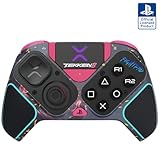
- BUILT FOR GAMING - Engineered to fit your play style and packed with tons of customizable options, the Pro BFG Wireless Controller is the new standard in PlayStation and PC gaming.
- FULLY CUSTOMIZABLE - Map functions to any of the four mappable back buttons to take down ops quickly and efficiently. Use the Profile Button to create three unique button mapping profiles to maximize your efficiency in any game.
- ULTIMATE MODULARITY - Create the ultimate controller for any game using the swappable modules and interchangeable pieces. Includes a reversible left module, standard right module, 6-button fight pad module, 4 interchangeable sticks, 3 different D-pads, and 4 gates.
- PREMIUM BUILT-IN AUDIO - Hear your enemies before you see them with Sony 3D audio on PS5. Plus, low latency audio and different EQ profiles to choose from give you the advantage over the competition.
- Officially licensed by Bandai Namco Entertainment Inc. & a PlayStation Official Licensed Product
Check whether FPS Pro is enabled
Nacon says FPS Pro mode disables the joystick dead zone. That can make slight drift visible if a stick does not return exactly to center. Nacon advises against enabling FPS Pro on both sticks at once. If drift appears only with this mode enabled, turn it off or avoid applying it to both joysticks; if it persists, the firmware guidance above is the relevant supported next step.
Free tools Windows power users keep installed
One-click scans. No signup required.
Reset the controller
Nacon’s published reset instruction is to insert the tip of a paper clip into the reset hole on the back of the controller for several seconds. The support page does not specify whether this reset preserves profiles or settings, or whether it can resolve a hardware fault.
Best Value

- OFFICIALLY LICENSED FOR PS4: Licensed by Sony for PlayStation 4 and compatible with PC. Featuring the official PlayStation 4 controller layout, including touch pad, SHARE and OPTIONS buttons, and LED player status indicator.
- BUILT FOR COMFORT: Larger face buttons and rubber coating provide enhanced grip and comfort during marathon gaming sessions.
- VIBRATION MOTORS: Feel every shot, hit or explosion with immersive dual vibration motors.
- HIGH SPEED PERFORMANCE: Integrated 3-meter USB connection cable provides a low-latency, plug and play experience.
- HEADSET COMPATIBLE: Connect your RIG headset, or other headset, to the 3.5mm stereo port for instant game audio and chat support.
If the receiver or controller still does not work
Do not substitute a generic wireless dongle: Nacon says the controller requires its dedicated receiver. The support page’s wording about a replacement receiver being available “soon” does not confirm current stock. Check the MyNacon support portal for current replacement-receiver or spare-parts information. If the supported connection checks, firmware update, and reset do not resolve the problem, contact Nacon support before treating replacement hardware as the only option.
Quick Recap
Product prices and availability are accurate as of the date/time indicated and are subject to change. Any price and availability information displayed on Amazon at the time of purchase will apply.




