Recommended Free Tools
Start by separating controller-link problems from cloud-streaming delay. Confirm that your device, browser or app, and controller are supported; meet Xbox’s connection guidance (10 Mbps on mobile devices, 20 Mbps on consoles, PCs, and tablets, with 5 GHz Wi-Fi recommended); then test the same game over a USB data cable. USB bypasses Bluetooth interference and is the quickest diagnostic. If wired play is stable, repair or replace the Bluetooth path. If wired and Bluetooth behave the same, investigate the network, host device, display, or Xbox service instead of buying another controller.
For repeated disconnects, power-cycle and re-pair the controller, install available firmware, try another data cable and port, pause competing traffic, and compare a local game with a cloud game. Document the results across connection methods and devices before contacting Xbox Support.
As an Amazon Associate I earn from qualifying purchases.
Where Xbox Cloud Gaming lag comes from
A button press can pass through several stages before you see its result: the controller radio or USB link, the host operating system, the cloud game’s input loop, video capture and encoding, network transport, decoding on your device, and the display. A fault in any one of these stages can feel like “controller lag,” even when the controller is working normally.
| Stage | Typical symptom | Useful test |
|---|---|---|
| Bluetooth or USB link | Buttons arrive late, inputs drop, or the controller repeatedly disconnects. | Play locally, then repeat over a known-good USB data cable. |
| Host device | Both local and cloud games feel slow on one phone, PC, tablet, or console. | Try another USB port, close background apps, and test another device. |
| Home network | Inputs and video stutter together; quality changes with distance or busy household use. | Use Ethernet or 5 GHz Wi-Fi, stop downloads, and retest at another time. |
| Cloud transport or service | Local play is responsive but cloud play has inconsistent delay or packet-loss symptoms. | Compare another network and record the time, game, device, and connection type. |
| Display | The game responds promptly in a recording or input test, but the image appears late. | Use a low-latency display mode and compare the built-in screen with another display. |
Xbox describes cloud latency as a combination of game-loop, encoding/decoding, and device factors. Consequently, no single controller, cable, or internet-speed number guarantees identical results for every location and device.
#1 Best Overall

- Charger for Xbox Series X S and PS5 Controller : USB C Type-C Charger Cord specially made for Xbox Series X Controller, Series S Controller,PS5 Controller. This usb c cable can bear 10000+ bending test,Service life much longer than normal PS5 controller charger cord.
- Perfect Long: With the perfect 10ft length, you can lie on the couch or sofa and play games while you are charging at the same time. and you can also pose in a variety of positions without worrying about your PS-5 Charger Cables are not long enough.Make it easy to stay in the game.
- Perfect Connection: The stainless steel connector heads slot in your PS5 controllers Console easily and steadily, and won't get loose or fall out from your PS5 Controller. Just enjoy the best gaming experience.
- Simultaneously Charge and Play: SCOVEE PS5 charging cable allows you to play playstation-5 games while Charge. No need to stop and recharge,allow you to take charge of your games.
- Universal Compatibility: USB type c to USB C Cable compatible with Xbox Series X Controller,Series S controler,compatible with Playstation-5,PS5 controller and more devices with usb c port.
Check the required setup before changing anything
Xbox Cloud Gaming requires a compatible controller connected by Bluetooth or USB and a high-speed connection. Xbox’s current cloud-gaming FAQ publishes these speed targets:
| Device category | Published minimum guidance | Preferred wireless setup |
|---|---|---|
| Mobile devices | 10 Mbps | 5 GHz Wi-Fi where available |
| Consoles, PCs, and tablets | 20 Mbps | 5 GHz Wi-Fi or Ethernet for fixed devices |
These are connection-speed guidelines, not a latency guarantee. A connection can exceed them and still perform poorly if it has packet loss, congestion, high jitter, or a weak wireless signal.
- Confirm that the operating system sees the controller before you open the cloud-gaming session.
- Use the supported Xbox app or browser for your device and keep it updated.
- Temporarily pause downloads, video streams, cloud backups, VPNs, and other heavy background traffic.
- Keep the controller close to the host device during testing and remove unnecessary Bluetooth peripherals.
Run this ten-minute isolation test
- Power-cycle the controller. Turn it off completely, wait several seconds, and turn it on again. Restart the phone, PC, tablet, or console as well.
- Check local input. Open a locally installed game or an input tester. Press several buttons and move both sticks for a few minutes. Note whether inputs are delayed or lost.
- Test Bluetooth once. Pair the controller normally and play the same cloud game long enough to reproduce the problem.
- Switch to USB. Use a known-good data-capable cable, not a charge-only lead. Connect directly to the host and repeat the same test.
- Compare the result. If USB fixes the issue, focus on Bluetooth interference, distance, pairing state, or the host radio. If USB does not help, continue with network and device tests.
- Change one variable. Try another USB port, another controller-compatible device, or another network. Changing several things at once makes the result impossible to interpret.
Keep a short record of each test: connection type, device, game, approximate time, and whether the symptom was delay, a dropped input, a frozen picture, or a full disconnect.
The Tool Desk
Outbyte PC Repair FREERepair Windows errors before they cause bigger problemsFix Now →Outbyte Driver Updater FREEFix the driver behind crashes, sound loss and screen glitchesFind Drivers →Fix Bluetooth delay and random disconnects
Forget and re-pair the controller
- Open the host device’s Bluetooth settings and remove or forget the Xbox controller.
- Turn Bluetooth off and back on, then restart the host device.
- Put the controller into pairing mode and pair it again from the operating system’s Bluetooth screen.
- Launch cloud gaming only after the operating system shows the controller as connected.
A stale pairing record can produce repeated reconnects even when the controller appears connected. Re-pairing also tells you whether the failure is confined to one host device.
Rank #2

- Official Microsoft Xbox Series X/S USB Type C Charging Cable
- 2.7 Meter Length Cable
- Compatible with all Xbox Series X/S Controllers
- Will NOT work with Xbox One controllers, as they use a mini USB cable
- This is the same charge cable that comes with the play & charge set and the one that comes packaged with some of the brand new controllers
Reduce radio interference
Keep the controller within a short, unobstructed distance of the host while diagnosing it. Move it away from USB 3 hubs, metal enclosures, Wi-Fi access points, and other active Bluetooth devices. Disconnect headphones, keyboards, and other peripherals temporarily. A controller that becomes stable when nearby or when other radios are removed is pointing to interference or range, not cloud-game processing.
Try the Xbox Wireless Adapter on Windows
For a Windows PC that cannot use a cable, Xbox documents its Xbox Wireless Adapter as a workaround for Bluetooth controller problems. Install the adapter according to its Windows instructions, pair the controller to the adapter, and repeat the local and cloud tests. This changes the controller radio path; it does not repair a congested internet connection, a failing USB port, or cloud-service latency.
Use USB as both a fix and a diagnostic
A wired connection removes the controller’s Bluetooth radio from the path, making USB the cleanest way to determine whether wireless interference is responsible. Use a cable that carries data and fits the controller’s port securely. Some inexpensive leads provide charging only, so the controller may light up without appearing to the operating system.
Free tools Windows power users keep installed
One-click scans. No signup required.
- Connect the controller directly to the host rather than through an unpowered hub.
- Wait for the operating system to recognize it, then verify that button presses register.
- Try a second known-good cable if the controller disconnects or is not detected.
- Try a different USB port, especially if one port is loose, damaged, or shared with several high-power devices.
- Repeat the same cloud session used for the Bluetooth comparison.
If USB is consistently responsive while Bluetooth is not, keep using the wired connection for a fixed setup or repair the Bluetooth environment. If both methods fail on the same host, the cable is unlikely to be the only cause.
Rank #3

- Wide compatibility – Compatible with PS5 DualSense, Xbox Series X/S, Xbox Elite Series 2 (Model 1914 & 1797), and all USB-C devices. Perfect USB-C replacement for daily gaming.
- Ideal length for comfort – The 10 ft (3 m) cable allows comfortable play while charging. Relax on your couch without worrying about short cables.
- Charge and play simultaneously – No need to pause gaming to charge. Charge your controller while playing for uninterrupted sessions, unlike charging docks.
- Durable & reliable connection – Withstands 9,999+ bends at 90°. Sturdy USB-C connectors ensure a secure, stable connection.
- 24-month manufacturer warranty
Update the controller and check for hardware faults
Install available firmware
Use the Xbox Accessories app where it is supported to check for controller firmware updates. Apply the update with a stable connection, reconnect the controller, and repeat the local test before returning to cloud gaming. Firmware can address compatibility and synchronization defects, but an update cannot compensate for packet loss or a weak wireless signal.
Test another device and game
Use the same controller with another compatible device or a locally installed game. A fault that follows the controller across devices and connection methods suggests the controller, its battery, its port, or firmware. A fault limited to one phone, PC, browser, or console points toward that host’s radio, USB stack, drivers, resource load, or network.
Inspect the physical connection
- Check for a loose USB connector, bent contacts, or a cable that disconnects when gently moved.
- Replace batteries or recharge the controller if it powers off rather than merely losing its wireless link.
- Remove accessories that obstruct the controller’s port or pairing button during testing.
- Do not treat a controller that fails in every test as proof that the cloud service is broken; verify it with another controller or device first.
Stabilize Wi-Fi or Ethernet
Prefer 5 GHz Wi-Fi or Ethernet
For a fixed PC or console, Ethernet avoids most wireless interference. If you must use Wi-Fi, choose the 5 GHz network when the device and access point support it. Keep the device in the same room as the access point during testing, reduce walls and distance, and avoid crowded 2.4 GHz channels. After the baseline is stable, move the device back to its normal location to see whether distance is the deciding factor.
What’s actually slowing this PC down?
Pick the symptom - the matching free tool is one click away.
Stop competing traffic
Pause large downloads, game updates, streaming video, cloud synchronization, and security scans while testing. A speed test can look adequate while another device is filling the upstream queue, creating bufferbloat and delayed packets. Resume household traffic after the test to determine whether the problem returns under normal load.
Rank #4

- Charger for Xbox Series and PS5 Controller : USB C Type-C Charger Cord specially made for Xbox Series X Core Controller,Series S Controller, PS5 Controller. this usb c cable can bear 10000+ bending test.PS5 controller charger cord.
- Extra Long: With the extra15ft length, you can lie on the couch or sofa and play games while you are charging at the same time. and you can also pose in a variety of positions without worrying about your PS-5 Charger Cables are not long enough.Make it easy to stay in the game.
- Perfect Connection: The stainless steel connector heads slot in your PS5 controllers easily and steadily, and won't get loose or fall out from your PS5 Controller. Just enjoy the best gaming experience.
- Simultaneously Charge and Play: SCOVEE PS5 charging cable allows you to play 5 games while Charge. No need to stop and recharge, allow you to take charge of your games.
- Universal Compatibility: USB type c to USB C Cable compatible with Xbox Series X Core Controller,Series S controler,for Playstation-5,PS5 controller and more devices with usb c port.
Check for time-of-day and routing effects
Repeat the same game at another time and, if possible, on a different trusted network. A problem that appears only during busy evening hours suggests local congestion or an access-provider route. A problem that follows the device across networks points more strongly to the device, controller, app, or service.
Separate controller latency from cloud-streaming latency
Cloud play adds capture, encoding, transport, decoding, and display work that does not exist in a locally installed game. Use the same controller, display, and host whenever possible:
- Play a local game or run an input tester and observe button response.
- Play the cloud version with Bluetooth.
- Play the cloud version with USB.
- Repeat the cloud test on another network or device if the symptom remains.
| Result | Most likely focus |
|---|---|
| Local and cloud games are delayed with Bluetooth and USB | Controller hardware or firmware, USB path, host performance, display mode, or a system-wide device issue. |
| Local play is good; Bluetooth cloud play is bad; USB cloud play is good | Bluetooth interference, range, pairing state, or the host’s Bluetooth radio. |
| Local play is good; both Bluetooth and USB cloud play are bad | Network quality, browser/app behavior, device decoding, display latency, or cloud-service conditions. |
| Only one game behaves badly | Game-specific streaming or server conditions; compare another cloud title before replacing hardware. |
Microsoft’s Developer article dated March 21, 2025 explains that Xbox’s Direct Capture work reduced input latency by 16–72 milliseconds depending on the game. That is an Xbox-reported improvement, not a promise that every title or setup will gain the same amount. The same article describes WebRTC improvements intended to make streaming more resilient to packet loss.
Crashes, No Sound, or Screen Glitches?
Random freezes, missing sound and display glitches usually trace back to one bad driver. Find and replace yours safely.Free scan · under a minuteWindows Errors? Fix Them Before They Spread
Repair common Windows errors and clear accumulated junk for a smoother, more stable PC - no reinstall needed.Free scan · no reinstallCheck the app, browser, and host device
- Install pending operating-system updates and update the Xbox app or supported browser.
- Close extra browser tabs, screen recorders, overlays, and applications that consume CPU, memory, or network bandwidth.
- Disable power-saving settings that put the USB port or wireless adapter to sleep during play.
- On a PC, connect the controller directly and avoid a low-power hub while diagnosing disconnects.
- Try the host’s built-in screen and another display. Enable the display’s game or low-latency mode if available.
- Sign out and back into the Xbox account if the app repeatedly loses the session, then restart the app rather than leaving a failed session open.
These steps are host-side checks. They cannot improve a weak Wi-Fi signal, but they can eliminate local resource contention and display processing that is often mistaken for controller delay.
Best Value
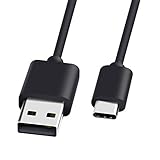
- 1.🎮[COMPATIBILITY] Professional charging cable for Xbox Series S/X and Xbox Elite Controller Series 2.PS5 Controller PS5 Dual Sense,,Switch/Pro/Lite Controller,Steam Deck ( !!! IMPORTANT NOTE: This is NOT compatible with controller older than those stated above. Not for Micro-USB Devices !!! )
- 2.🎮SIMULTANEOUSLY CHARGE & PLAY - There's nothing worse than your controller dying in the middle of hunting a Thunderjaw. Luckily with our type-c USB charging cable, you can enjoy a seamless gaming experience. Charge and Sync cable to allow continued play even while charging the Xbox Elite Controller Series 2.
- 3.🎮Using high quality materials, high quality copper core wire, safe and fast charging your equipment.
- 4.🎮USB2.0 ↔ USB-C jack Silver-plated connectors: Thickened cable shell and high quality copper core, 2A current, the cable charging speed is faster than ordinary USB cable.
- 5.🎮After-sale policy: The charging cable is sold under strict quality control. Please rest assured to purchase. If there is any quality problem, please contact us and we will refund for you.
Use the symptom to choose the next fix
| Symptom | Next action |
|---|---|
| Controller disconnects only over Bluetooth | Forget and re-pair it, remove nearby Bluetooth devices, move closer, then test USB. On Windows, test the Xbox Wireless Adapter. |
| Controller disconnects over Bluetooth and USB on one host | Try another cable and port, restart the host, update firmware, and test another device. |
| Video and inputs freeze together | Use 5 GHz Wi-Fi or Ethernet, stop competing traffic, and retest on another network. |
| Video is smooth but every button feels late | Compare local and cloud play, test USB, check display mode, and close host applications. |
| Only one controller fails | Test that controller on another device; inspect its port, battery, and firmware. |
| Several controllers fail on several devices and networks | Record the evidence and contact Xbox Support; do not assume replacing one controller will solve a service or network issue. |
When and how to contact Xbox Support
Escalate after you have tested at least one local game, Bluetooth and USB, another cable or port, and—when possible—another network or host. Include:
- Controller model and whether it uses Bluetooth, USB, or the Xbox Wireless Adapter.
- Phone, tablet, PC, or console model and operating-system version.
- Xbox app or browser version and the cloud game name.
- Network type (Ethernet, 5 GHz Wi-Fi, 2.4 GHz Wi-Fi, or mobile data) and whether other traffic was paused.
- Approximate times, frequency of disconnects, and any displayed error message.
- The result of each comparison: local versus cloud, Bluetooth versus USB, and one device or network versus another.
Xbox Insider release notes dated October 19, 2021 specifically asked users to report random synchronization loss or disconnects after reconnecting. That historical guidance reinforces the value of reporting reproducible behavior with device and connection details rather than describing it only as “lag.”
Prevent the problem from returning
- Keep the controller firmware, host operating system, Xbox app, and supported browser current.
- Use a short, secure data cable for a stationary setup and keep a spare known-good cable for diagnosis.
- Keep the controller within reliable Bluetooth range and avoid placing the host behind metal or inside a crowded equipment cabinet.
- Reserve 5 GHz Wi-Fi or Ethernet for cloud play when practical.
- Pause large transfers during competitive sessions and monitor whether household traffic causes the symptom.
- When an update or network change occurs, retest locally and in the cloud so you know which part of the path changed.
The practical decision is straightforward: USB is the fastest way to remove Bluetooth from the equation; a stable 5 GHz or wired network is the fastest way to remove most wireless congestion; and a local-versus-cloud comparison tells you whether the remaining delay belongs to the controller or to streaming.
Quick Recap
Product prices and availability are accurate as of the date/time indicated and are subject to change. Any price and availability information displayed on Amazon at the time of purchase will apply.

