Free tools Windows power users keep installed
One-click scans. No signup required.
Most Super Mario 64 emulator problems are not caused by the game itself. Input, audio, and graphics are separate plugin or core layers, so the correct fix depends on whether you are using standalone Mupen64Plus, RetroArch with Mupen64Plus-Next, or a RetroPie installation. Identify that setup first, then change one layer at a time: restore controller detection and mapping, remove audio synchronization problems, and return graphics to a resolution and renderer your hardware can sustain.
The sequence below covers missing controllers, incorrect N64 layouts, analog drift, crackling or missing sound, slowdown, uneven frame pacing, and settings that are silently overridden by a front end.
As an Amazon Associate I earn from qualifying purchases.
Identify the emulator before changing anything
Write down the application name, core name, operating system, graphics renderer, controller type, and the exact symptom. Also test another N64 game if one is available. If every game has the same problem, suspect the emulator, input driver, audio output, or global configuration. If only Super Mario 64 is affected, look for a game-specific override or a title-specific compatibility setting.
Standalone Mupen64Plus and RetroArch cores do not use the same configuration files. RetroPie can launch either standalone Mupen64Plus or a Libretro core, which means two installations on the same device may have different controller, graphics, and audio settings.
#1 Best Overall

- Use the generic standard USB port, if your program or application accepts USB controller input, it can be used natively without drivers or patches, JUST PLUG AND PLAY!
- Supported Operating system: Windows 98, ME, Vista, 2000, 2003, XP, 7, 8, 8.1, 10; Linux UBUNTU, Linux Mint, Android Linux (via an USB OTG cable); Mac OS X and beyond; Retrogaming operating systems: RetroPie, Recalbox, Happi Game Center, Lakka, ChameleonPi, Piplay.
- Supported Device (With USB storage device): PC, Notebook Computer, Laptop Computer; Android Smartphone: connect via an USB OTG cable; Raspberry Pi (RPI, Raspberry pie): Raspberry Pi 1 Model B, Model A, Raspberry Pi 1 Model B+, Raspberry Pi Zero, Raspberry Pi 2, Raspberry Pi 3 Model B, Raspberry Pi 3, Retro Pie. --- Note: NOT SUPPORT Android TV BOX.
- Supported Game Emulators: Current: Project64, 1964, MAME (MESS), Mupen64Plus, Sixtyforce, CEN64; Historical: Project Unreality, Corn, UltraHLE, Nemu64.
- Super sensitive buttons for precision control. Third party controller, not original Nintendo 64 controller. But it works phenomenal with the Raspberry Pi game emulation and so on. Cord is approx 5.9 ft. Long.
| Environment | What to identify | Typical configuration location |
|---|---|---|
| Standalone Mupen64Plus | Mupen64Plus version, input plugin, audio plugin, graphics plugin, renderer | InputAutoCfg.ini and mupen64plus.cfg |
| RetroArch with Mupen64Plus-Next | Core name, video driver, core options, controller driver, remapping | retroarch.cfg, core options, and remap files |
| RetroPie | Whether the launch entry uses standalone Mupen64Plus or a Libretro core | /opt/retropie/configs/n64/InputAutoCfg.ini, mupen64plus.cfg, or RetroArch configuration |
Do not apply a standalone Mupen64Plus fix to a RetroArch core and expect the same result. First confirm the executable or core shown by the launch menu, log, or emulator information screen.
Fix a controller that is not detected
Read the startup message
A log containing “No auto-configuration found,” “No joysticks/controllers found,” or “Forcing keyboard input” indicates a detection or auto-configuration problem rather than a Super Mario 64 control problem. Confirm that the operating system sees the device, reconnect it before launching the emulator, and check whether another controller is being selected as player one.
SDL-based installations can use an SDL joystick testing utility to list every button, axis, and hat. Record the number reported for each control. A controller’s D-pad may appear as a pair of axes instead of a hat; use the mapping syntax that matches what the utility reports.
Configure standalone Mupen64Plus
Open the InputAutoCfg.ini file used by the running installation. In RetroPie’s standalone setup, that is normally under /opt/retropie/configs/n64/. Find the exact controller name printed by the emulator and add or copy a section using that name. Set the controller as connected, select the input plugin identifier required by your build, and map the complete N64 layout: analog X and Y, Start, A, B, Z, both shoulder buttons, the four C buttons, and the D-pad.
The official example uses these starting analog values:
AnalogDeadzone = 4096,4096
AnalogPeak = 32768,32768
Those numbers are starting points, not universal requirements. Axis ranges differ between devices, so retain the same mapping syntax as the other working sections in your file. Save a backup before editing, then restart the emulator so it rereads the file.
Rank #2
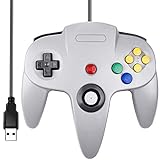
- Plug & Play: Standard USB controller; no drivers needed for compatible devices
- Compatible with Windows PC, macOS, Linux and Raspberry Pi
- Iconic original M-shaped configuration, featuring 10 action buttons, a precision analog Control Stick, and an 8-way D-pad.
- The 3D analog stick provides nuanced control for precise movements and enhanced gameplay comfort.
- Features a 6-foot (1.8 m) cable for comfortable gameplay.
Map controls by the values reported by the testing utility. For example, a button entry uses the button number reported by the device, while a hat entry must use the hat direction and number. Do not assume that the physical button labelled A is reported as button zero, or that every D-pad is a hat.
What’s actually slowing this PC down?
Pick the symptom - the matching free tool is one click away.
Remap Mupen64Plus-Next in RetroArch
Start Super Mario 64, open the RetroArch Quick Menu, and enter Controls. Set the device type to Controller or Joypad, verify the correct device is assigned to player one, and map the N64 controls. Save a core remap when the layout works so it applies to other games using the same core without changing your global controller profile.
If a global RetroArch profile appears correct but the game is wrong, check for a game-specific or core-specific remap. A more specific remap overrides the global one. Remove or disable an override only after copying it somewhere safe; it may contain an intentional compatibility setting.
Use the keyboard map as a diagnostic fallback
Standalone Mupen64Plus can be tested without a gamepad using its default keyboard layout: arrow keys operate the analog stick; I, J, K, and L operate the C buttons; W, A, S, and D operate the D-pad; Z and X operate Z and the shoulder triggers; Enter is Start; Left Shift is A; and Left Control is B. If this works, the game, ROM, and graphics layer are receiving input and the fault is confined to controller detection or mapping.
Correct analog drift, oversteer, and weak movement
Set the smallest effective dead zone
With Mario standing still, release the analog stick. If he walks or the camera moves, increase the dead zone gradually until the idle signal becomes stable. Then test a very small movement. An excessive dead zone makes the first part of the stick travel unresponsive and can make turning feel slow or imprecise.
Quick wins for a faster PC:
Clear out junk files and repair common Windows errorsFree Scan →Scan for outdated or missing drivers - takes under a minuteDriver Scan →Standalone Mupen64Plus exposes AnalogDeadzone and AnalogPeak in the controller configuration. RetroArch’s Mupen64Plus-Next exposes analog dead-zone and analog-sensitivity options in its core options. Change one value at a time and record the result. Do not copy another controller’s numbers blindly: different sticks report different minimum, centre, and maximum ranges.
Rank #3

- Wireless controller fully compatible with Switch 1 / Switch 2 and N64 console
- Lag-Free 2.4 GHz wireless, 10m/33ft range, no delay, plug & play
- Built-in rumble vibration for immersive gameplay. No Extra Rumble Pak Required
- Built-in rechargeable battery, 10-hour runtime
- The 3D analog stick provides nuanced control for precise movements and enhanced gameplay comfort.
Check the full range
After drift is gone, push the stick slowly in every direction. Mario should respond to small movements and reach a clear maximum before the stick hits its physical stop. If full movement is never reached, the peak value may be too high for that device or the axis may be mapped incorrectly. If Mario reaches maximum speed almost immediately, the peak value or sensitivity may be too low.
Test diagonals as well as the four cardinal directions. An axis reported as a hat, a swapped X/Y axis, or an inverted Y axis can look like a sensitivity problem when it is actually a mapping problem.
Repair missing, crackling, or speed-linked audio
Confirm the audio plugin and output device
Audio is a separate emulation layer. Open the emulator’s plugin or core information and verify that an audio plugin is selected and that the output device is the one connected to your speakers or headphones. If the emulator is silent while the operating system plays other sounds, check the selected device, mute state, and per-application volume before changing game settings.
PC Slower Than It Used to Be?
A free scan shows the junk files, broken settings and background clutter dragging Windows down - then fixes them in one click.Free scan · Windows 10 & 11Outdated Drivers Are Slowing You Down
One free scan finds every outdated or missing driver and matches the right update for your exact hardware.Free scan · exact hardware matchThe Mupen64Plus FAQ warns that a faulty audio plugin can make emulation slow even when the computer itself is not unusually slow. If audio crackles, disappears, or limits fast-forward, test a different supported audio plugin rather than raising graphics performance settings. The FAQ specifically advises avoiding shunyuan’s HLE audio plugin when it causes this behavior.
Disable audio-driven throttling while testing
Some plugins synchronize game speed to audio. Jabo’s audio settings include Sync game to Audio; disable that option temporarily when diagnosing speed-linked slowdown. If the game immediately returns to normal speed but sound becomes unstable, the synchronization path or audio plugin needs replacement rather than a faster graphics setting.
After selecting a stable plugin, re-enable synchronization only if it produces smooth pacing. Compare the same scene with synchronization on and off, and keep the setting that avoids crackle and periodic speed dips.
Rank #4

- 🎮[Compatible ]This wired controller is fully compatible with the original N64 system console, specially designed for enjoying old school Online N64 video games, perfectly for Mario Kart 64, Zelda n64, Mario party, Perfect Dark, Super Mario 64, ocarina of time 64,Super Smash Bros and many other N64 games.(Not for Windows PC Games)
- 🎮[Ergonomic Design]Tight and accurate analog control, the controller features 10 function buttons (including Left and Right shoulder functions and Z-trigger). Based on ergonomic and designed to fit your hands nicely, easier to grip than other controllers. It is a great replacement for old original N64 controller you have.
- 🎮[Rumble Pak & Memory Card ]: Compatible with most of game memory cards. you can use a memory card and transfer the game memory card save data. Upgraded 3D analog control stick commands your action with precision, perfectly compatible with N64 System console.
- 🎮[N64 Wired connection]The cord is approx. 1.7 meters (6ft), including a push-on N64 connector and easy to use. Use a N64 Controller Extension Cord Cables, you can play across the room. The joystick is removeable and replaceable.
- 🎮Third party controller, not original N64 controller(non-USB edition). The best gift for your families or friends, that will bring back those childhood memories when you are playing these classic N64 games.
Check the RetroPie output port
On RetroPie systems using the OMX audio configuration, inspect the [Audio-OMX] section. OUTPUT_PORT = 0 selects the audio jack, while OUTPUT_PORT = 1 selects HDMI. Choose the port where the display or speakers are actually connected, then restart the emulator.
Use the core’s expected sample rate
Mupen64Plus-Next documents an internal sample rate of 44,100 Hz. If your host audio system is configured for a different rate, the operating system normally resamples it, but unusual audio-driver combinations can produce distortion or underruns. Keep the core at its documented rate while troubleshooting and change host audio settings only after the emulator is stable.
Restore full speed and consistent frame pacing
Return to a sustainable internal resolution
Set the internal resolution to native or the lowest enhanced option first. RetroPie documentation warns that high resolutions can affect performance greatly, especially on small single-board computers and integrated graphics. A high-resolution setting can turn a previously smooth game into one with dropped frames, audio crackle, or uneven input response.
Close overlays, screen capture, browser windows, and other background workloads while testing. Make one change, restart the game, and revisit the same Mario 64 scene. Changing resolution, renderer, audio, and synchronization at the same time makes it impossible to identify the cause.
Compare graphics plugins deliberately
In standalone installations, the graphics plugin controls the rendering path. In Mupen64Plus-Next, the available choices include GLideN64, Angrylion, and ParaLLEl-RDP. GLideN64 is generally the most compatible active plugin in RetroPie documentation, while Angrylion and ParaLLEl-RDP can offer different accuracy and performance characteristics depending on the video driver and hardware.
Recommended Free Tools
| Renderer or plugin | What to test | Trade-off to watch |
|---|---|---|
| GLideN64 | Compatibility with normal enhancements and common game effects | Higher internal resolutions can reduce performance |
| Angrylion | Whether a more accurate software-style path resolves a graphics issue | May require substantially more processing power |
| ParaLLEl-RDP | Whether the selected video driver and hardware support its path smoothly | Performance depends strongly on driver and hardware combinations |
There is no universal best renderer for every computer. If one plugin produces visual glitches, switch to another at native resolution before increasing any enhancement. Judge the result by frame pacing and sound stability, not only by an unlocked counter.
Best Value

- Wireless controller fully compatible with Switch 1 / Switch 2 and N64 console
- Lag-Free 2.4 GHz wireless, 10m/33ft range, no delay, plug & play
- Built-in rumble vibration for immersive gameplay. No Extra Rumble Pak Required
- Built-in rechargeable battery, 10-hour runtime
- The 3D analog stick provides nuanced control for precise movements and enhanced gameplay comfort.
Prefer stable pacing over an unlocked number
A stable 30 FPS output is a more useful result for Super Mario 64 troubleshooting than a high but fluctuating counter accompanied by crackle or uneven motion. Watch for regular pauses, audio pitch changes, and input that feels delayed every few seconds. These symptoms can indicate audio synchronization or background-load problems even when the displayed frame rate looks high.
Independent reader supportYour contribution helps us test, update, and keep practical guides available for everyone.Understand settings that front ends override
Back up configuration files before deleting an override. In RetroPie, standalone Mupen64Plus uses InputAutoCfg.ini and mupen64plus.cfg, while Libretro cores use RetroArch configuration and core-option files. Mupen64Plus-Next also keeps its saves, states, system files, and per-core options in the directories documented by the Libretro installation.
If a setting appears to change back after you edit it, look for a per-game option, a core override, a remap, or a front-end launch command that writes settings at startup. Edit the file that belongs to the active core, not a similarly named file belonging to another installation.
The Tool Desk
Outbyte PC Repair FREERepair Windows errors before they cause bigger problemsFix Now →Outbyte Driver Updater FREEFix the driver behind crashes, sound loss and screen glitchesFind Drivers →Use this controlled troubleshooting sequence
- Record the setup. Note the front end, core or standalone executable, operating system, renderer, controller name, and whether another N64 game has the same symptom.
- Make a backup. Copy the active configuration, remap, and core-option files before editing them.
- Test detection. Reconnect the controller, check the emulator log, and use an SDL joystick utility when available.
- Map the complete N64 layout. Assign the analog axes, Start, A, B, Z, shoulder buttons, C buttons, and D-pad. Confirm that hats and axes use the correct syntax.
- Test with the keyboard fallback. If the default keyboard controls work, leave graphics and audio unchanged while repairing the gamepad profile.
- Tune analog response. Increase dead zone only until drift stops, then check sensitivity and peak range with small and full-stick movements.
- Stabilize audio. Verify the plugin and output device, disable audio-driven synchronization while testing, and check the RetroPie output port if applicable.
- Lower graphics demand. Return to native resolution, close background workloads, and compare one renderer at a time.
- Retest the same scene. Use identical settings and location in the game after each change so improvements are measurable.
- Save only the working configuration. Create a core or game remap after the controls, audio, and renderer remain stable across a restart.
Common symptoms and the most likely layer
| Symptom | Most likely cause | First action |
|---|---|---|
| No controller listed | Driver detection or missing auto-configuration | Check the log, operating-system device list, and InputAutoCfg.ini or RetroArch device assignment |
| Buttons work but N64 layout is wrong | Incorrect button, axis, or hat numbers | Use an SDL joystick test and remap each control |
| Mario moves when the stick is released | Dead zone is too small or the stick is worn | Increase dead zone in small increments and retest neutral position |
| Mario barely turns | Dead zone is too large, sensitivity is too low, or peak range is wrong | Reduce dead zone and verify sensitivity and peak values |
| Sound crackles while the game slows | Faulty audio plugin or audio synchronization | Try another plugin and disable audio-to-game synchronization temporarily |
| Sound is missing but the game runs | Wrong output device, muted stream, or wrong RetroPie port | Verify the device and check OUTPUT_PORT |
| Slowdown begins after increasing resolution | Graphics workload exceeds the hardware budget | Return to native resolution before changing anything else |
| Visual glitches with acceptable speed | Renderer compatibility | Compare GLideN64, Angrylion, and ParaLLEl-RDP at low resolution |
| Settings revert after restart | Core, game, or front-end override | Identify the active configuration path and inspect more-specific overrides |
Rumble has its own requirements
Rumble will not work merely because a controller is mapped. In RetroArch with Mupen64Plus-Next, the game must support rumble, the selected input driver and physical device must provide rumble, and the player pak must be set to rumble. Check all three conditions before treating missing vibration as an emulator defect.
A controller can therefore have perfectly working buttons and analog movement while rumble remains unavailable. Test rumble in a supported game after enabling the correct player-pak setting, and remember that a non-rumble device cannot be made to vibrate through a configuration file.
What a successful repair looks like
The finished setup has a documented emulator or core, a controller profile that matches the device’s reported buttons, a dead zone that removes drift without masking small movements, an audio plugin and output device that remain clean during normal play, and a renderer-resolution combination that holds steady pacing in the same test scene. Save that known-good configuration only after restarting the emulator and confirming that no front-end override replaces it.
Quick Recap
Product prices and availability are accurate as of the date/time indicated and are subject to change. Any price and availability information displayed on Amazon at the time of purchase will apply.
Do these 3 things before closing this tab:
1Fix the driver behind crashes, sound loss and screen glitches2Repair Windows errors before they cause bigger problems3Scan for outdated or missing drivers - takes under a minute
