The Tool Desk
Outbyte Driver Updater FREEFix the driver behind crashes, sound loss and screen glitchesFind Drivers →Outbyte PC Repair FREERepair Windows errors before they cause bigger problemsFix Now →You can connect three external monitors through a USB-C docking station only if the laptop, dock, operating system, and cables all support the same display setup. Check the laptop’s exact USB-C video capability and maximum display count first: three video ports on a dock do not guarantee three independent screens. For a native MST setup, the laptop and operating system must also support MST; a DisplayLink dock is a different, driver-dependent option.
Check whether your laptop can drive three external screens
USB-C describes the connector, not what it can do. Check the specifications for the exact laptop model and port. Look for DisplayPort video over USB-C (often called DisplayPort Alt Mode), USB4 with DisplayPort, or Thunderbolt support. A data-only USB-C port cannot carry the native DisplayPort signal an MST dock needs. ASUS also advises checking whether the particular USB-C port supports display output: ASUS support guidance on USB-C display capability.
As an Amazon Associate I earn from qualifying purchases.
Then check the laptop’s maximum supported display count, supported DisplayPort version, resolution and refresh-rate limits, and whether that count includes the built-in screen. MST can divide a DisplayPort stream among multiple displays, but it does not increase the number of displays the laptop’s graphics hardware can drive. Plugable’s compatibility guidance recommends checking the computer manufacturer’s specifications when port capabilities or display limits are unclear: Plugable’s MST compatibility guide.
Choose between native MST and DisplayLink
These are different ways to deliver video. Native MST uses the laptop’s DisplayPort video path. DisplayLink sends display data over USB to DisplayLink hardware in the dock and requires its software driver. Some docks combine both technologies, so check which physical outputs use which one before buying.
#1 Best Overall

- 13-in-1 USB-C Docking Station — Fleet Deployment Ready: Standardize your enterprise desktop with a powerful USB-C docking station featuring 13 essential ports. Unified 100W USB-C charging eliminates per-model power adapters, reducing desk complexity and IT support overhead.
- Triple Monitor Support with DisplayLink: Connect up to three extended HDMI displays for a more productive workspace. Delivers up to 4K 30Hz on HDMI 1 and up to 1920x1200 60Hz on HDMI 2 and 3. Supports M1, M2, M3, M4, M5, and MacBook Neo, enabling multi-monitor expansion even on Macs normally limited to a single external display. Driver install required for HDMI 2 and 3 ports on Mac - see gallery video for setup guidance.
- 100W Laptop Charging + 20W Device Charging: Charge your laptop through the rear USB-C port with up to 100W. The front USB-C port delivers 20W charging for phones and accessories, making this USB docking station ideal for a complete desk setup.
- Universal Compatibility: This USB-C docking station is compatible with Windows 10+, macOS 11+, and ChromeOS systems with USB-C, USB4, or Thunderbolt ports. macOS requires DisplayLink Manager installation to enable multiple displays. Note: Does not support protected content (HDCP) playback, such as Netflix, Hulu, etc.
- Business-Ready Connectivity: Built for office, education, and government deployments, this TAA, NDAA, and Section 889 compliant docking station features 3x HDMI, 4x USB-A 5Gbps, USB-C 20W charging, SD card reader, Gigabit Ethernet, and audio in/out. Includes dock, 1 meter (3.3ft) USB-C host cable, power adapter with AC power cord, and quick start guide.
| What to check | Native MST | DisplayLink |
|---|---|---|
| Video route | Splits a native DisplayPort stream over a video-capable USB-C connection. | Transports display data over USB through DisplayLink hardware. |
| Drivers | The cited Plugable MST adapter is described as driverless. | Requires DisplayLink software; confirm support for the exact dock and operating system. |
| Operating-system guidance | Plugable says Windows and ChromeOS support independent extended displays over MST; macOS does not support multiple independent extended displays over MST. | Plugable identifies DisplayLink as a Mac alternative to MST, but compatibility still depends on the dock, OS, and driver. |
| Main limits | The laptop’s display-count limit and available video bandwidth still apply. | Can provide USB graphics outputs, but the exact dock and OS determine what works. |
| Before you buy | Verify video over USB-C, MST support, the laptop’s maximum display count, and the bandwidth needed for your screens. | Check the dock’s port mapping, driver and OS support, and the resolution and refresh rate you need. |
Plugable’s explanation of DisplayLink and Alt Mode MST ports describes the distinction and why a hybrid dock’s ports may not behave alike. If you use a Mac, do not assume an MST dock will provide three independent extended desktops; verify a specifically Mac-compatible DisplayLink dock and its requirements.
Examples to compare, not universal recommendations
For a compatible Windows or ChromeOS laptop, Plugable describes the USBC-MSTH3 as a driverless USB-C-to-triple-HDMI MST adapter. Its published ceiling is up to three 4K displays at 60 Hz, but only under host-dependent conditions. Plugable says the result depends on the laptop’s video capability, DisplayPort version, MST/DSC support, available bandwidth, monitors, and cables; its triple-display configuration calls for HDMI 2.0-or-newer monitors and cables. See the USBC-MSTH3 compatibility and supported configurations.
Rank #2

- 14-in-1: Get 14 connectivity options ranging from two 4K HDMI ports, a 1080p VGA port, a 5 Gbps USB-C port, a 100W USB-C PD-IN port, five USB-A ports, a 1 Gbps Ethernet port, an SD / micro SD slot, and an AUX port for all your peripheral needs.
- Extended View with Triple Display: Connect and stream across three monitors simultaneously in 4K via two HDMI ports and a 1080p VGA port, ideal for multitaskers. Note: For macOS, the display on external monitors will be identical.
- Transfer Files at Super Speeds: Rely on the USB-A and USB-C ports for instant transfers of your multimedia and files at impressive 5 Gbps speeds.
- 80W Pass-Through Charging: The hub's 80W seamless charging solution ensures your devices receive constant power, letting you work and play without interruptions. (Note: Wall charger not included)
- Compatibility: Supports USB-C, USB4, and Thunderbolt connections. Compatible with MacBook (macOS 12 and newer), Windows 10 and 11, ChromeOS, and laptops equipped with DP Alt Mode and Power Delivery. Note: This device is not compatible with Linux.
A hybrid alternative appears in Lenovo Canada’s listing for the Plugable UD-3900PDZ, which describes up to three HDMI displays using a combination of USB-C DisplayPort Alt Mode and DisplayLink USB graphics: Lenovo Canada’s UD-3900PDZ listing. Treat this as an example to investigate, not proof that it works with your laptop. Confirm the exact regional model, port technology, operating-system support, power requirements, and display limits.
Match the dock to your screens and connection
Before choosing a USB-C docking station, compare its specifications with the laptop and all three monitors. Three matching video connectors are not enough: the ports may use different technologies, and the laptop may not support three external displays.
Rank #3

- 【All in one Docking Station】This Acer laptop docking station includes 2 HDMI(4K@60Hz), 1 DP(8K@30Hz), 2 USB-C (10Gbps), 2 USB-A (5Gbps), Ethernet(1 Gbps), PD charging(100W) , and SD/MicroSD slots (104Mbps)-enabling seamless multi-display setup and efficient device connectivity for work and entertainment. 📌𝐍𝐨𝐭𝐞: 𝐏𝐥𝐞𝐚𝐬𝐞 𝐞𝐧𝐬𝐮𝐫𝐞 𝐲𝐨𝐮𝐫 𝐥𝐚𝐩𝐭𝐨𝐩 𝐡𝐚𝐬 𝐚 𝐭𝐡𝐮𝐧𝐝𝐞𝐫𝐛𝐨𝐥𝐭 𝟑/𝟒/𝟓 𝐩𝐨𝐫𝐭 𝐨𝐫 𝐚 𝐟𝐮𝐥𝐥-𝐟𝐞𝐚𝐭𝐮𝐫𝐞𝐝 𝐔𝐒𝐁-𝐂 𝐩𝐨𝐫𝐭
- 【Brilliant Triple Display Expansion】This docking station 3 monitors supports single display up to 8K@30Hz on DP or 4K@60Hz on HDMI. For triple-display, it supports up to 4K@60Hz + 4K@60Hz + 1080P@60Hz. 📌𝐍𝐨𝐭𝐞 𝐅𝐨𝐫 𝐌𝐚𝐜 𝐮𝐬𝐞𝐫𝐬: 𝐦𝐚𝐜𝐎𝐒 𝐜𝐚𝐧 𝐨𝐧𝐥𝐲 𝐦𝐢𝐫𝐫𝐨𝐫 𝐭𝐡𝐞 𝐬𝐚𝐦𝐞 𝐜𝐨𝐧𝐭𝐞𝐧𝐭 𝐚𝐜𝐫𝐨𝐬𝐬 𝐚𝐥𝐥 𝐞𝐱𝐭𝐞𝐫𝐧𝐚𝐥 𝐦𝐨𝐧𝐢𝐭𝐨𝐫𝐬.
- 【Super-Fast 10Gbps Data Transfer】This usb c hub multiport adapter includes 2 USB-C for 10Gbps, 2 USB-A for 5Gbps, and SD/MicroSD slots for 104Mbps high-speed file transfers. Perfect for photographers, designers, and data-intensive professionals.
- 【Reliable 100W Charging】This USB C docking station supports up to 100W input and safely delivers 85W to your laptop, keeping you powered while you work. 📌 Note: Make sure your laptop’s USB-C port supports charging and keep the docking station connected to a 100W power adapter for stable operation. 𝐏𝐨𝐰𝐞𝐫 𝐚𝐝𝐚𝐩𝐭𝐞𝐫 𝐚𝐧𝐝 𝐜𝐚𝐛𝐥𝐞 𝐚𝐫𝐞 𝐧𝐨𝐭 𝐢𝐧𝐜𝐥𝐮𝐝𝐞𝐝.
- 【1000Mbps Stable Ethernet】Equipped with a 1000Mbps RJ45 Ethernet port, this docking station dual monitor delivers a fast, stable, and low-latency network connection. Experience low-latency connections.
- Display route: Confirm that the laptop supports the dock’s native MST or DisplayLink outputs. For a hybrid dock, identify which ports use each technology.
- Display count: Check the laptop’s total display limit and whether its built-in screen counts toward that limit.
- Resolution and refresh rate: Compare the requested modes across the host, dock, monitors, and cables. All three displays share available bandwidth; a dock’s maximum is not a guarantee for every laptop.
- Inputs and cables: Match each dock output to a monitor input. For the cited triple-4K-at-60-Hz MST configuration, Plugable calls for HDMI 2.0-or-newer monitors and cables.
- Software and power: Install a DisplayLink driver if the relevant ports require it. Follow the dock’s manual for its power supply, host cable, firmware, and port-specific restrictions; there is no single cabling or power procedure that applies to every dock.
Connect and configure the three monitors
- Identify the host: Record the exact laptop model, operating-system version, and USB-C port you plan to use.
- Verify video and display limits: Confirm that port supports video. For native MST, verify MST support and check the laptop’s maximum display count and supported modes.
- Select the connection path: Choose native MST for a compatible host and operating system, or a specifically supported DisplayLink solution where appropriate. For a Mac, verify the exact dock and driver support rather than relying on MST.
- Connect the dock: Follow its manual for required power, host connection, and any firmware steps.
- Connect each monitor: Use the dock ports, monitor inputs, and cables that support the target resolution and refresh rate. Install the DisplayLink driver if the outputs you are using require it.
- Set extended desktops: In the operating system’s display settings, choose Extend rather than Duplicate or Mirror, then arrange the screens to match their physical positions.
If only two monitors appear
Work from the laptop outward. Check the host’s display-count limit first: the internal panel may use one of the available displays. Plugable suggests closing the lid or disabling the internal display, if the computer supports it, when only two of three external monitors are detected. Then check the dock port’s technology, the DisplayLink driver if applicable, the monitor input selection, cable capability, and graphics drivers. Finally, recheck the operating system’s display settings to confirm the missing screen is detected and configured as an extended display.
Quick Recap
Rank #4
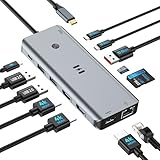
- USB C Docking Station for Windows Laptops: Transform your laptop into a triple monitor workstation with this true 13-in-1 docking station. It combines 12 versatile ports (3HDMI 4K@60Hz, 2USB-C 3.1 10Gbps, 1USB-A 3.1 10Gbps, 2USB-A 2.0, SD card slot + microSD card slot, Gigabit Ethernet, and 100W PD 3.0 charging port) plus a dedicated one-touch screen control button, providing seamless switching between mirror and extend modes. Plug and play, no drivers required. IMPORTANT: Before purchasing, please confirm your laptop's USB-C port supports DisplayPort Alt Mode or Thunderbolt 3/4 for triple display function
- Triple 4K Display Docking Station: As a 3 hdmi docking station triple monitor solution, this device delivers stunning 4K visuals. On Windows with MST support, enable triple monitor extend mode across all three HDMI ports for independent displays, or mirror mode for identical content. For Windows Users (DP Alt Mode supported): Full triple 4K extend display works. For macOS Users: Triple monitor extend is NOT supported due to OS limitations. macOS supports up to 2 displays (1 extended + 1 mirrored). Please verify your Mac specifications before purchasing
- 10Gbps Ultra-Fast Data Transfer: This triple monitor docking station delivers blazing 10Gbps transfers via USB 3.1 ports (USB A/C), fully backward compatible with USB 3.0/2.0. The SD/microSD card reader supports UHS-I cards, letting photographers and creators offload high-res photos and 4K videos instantly for users of a laptop docking station 3 monitors setup. For those running a docking station dual monitor configuration, this hub delivers the same high-speed performance
- Gigabit Ethernet and 100W Power Delivery: Whether you're running a 3 monitor docking station for work or play, enjoy low-latency wired internet via the Gigabit Ethernet port for video conferencing, cloud gaming, and large file transfers. The dedicated USB-C port delivers up to 100W PD 3.0 pass-through charging, keeping your laptop powered during intensive tasks, even with a full 3 hdmi docking station configuration
- Broad Windows Laptop Compatibility: This universal docking station with 3 hdmi ports is compatible with Windows laptops featuring USB-C that supports DisplayPort Alt Mode or Thunderbolt 3/4, including Dell XPS 13/15, HP EliteBook, Lenovo ThinkPad, Microsoft Surface series, and more. Video output (including triple monitor setups) requires your device's USB-C port to support DisplayPort Alt Mode or Thunderbolt 3/4
Product prices and availability are accurate as of the date/time indicated and are subject to change. Any price and availability information displayed on Amazon at the time of purchase will apply.




