Kodi’s File Manager lets you browse, copy, move, rename, and—when enabled—delete files from within Kodi. Use it to change what is stored on disk; use Kodi’s library tools separately to remove stale movie, TV, or music records after files change. On desktop, your operating system’s file browser is often simpler. These instructions follow the Kodi v21 File Manager documentation; paths and permissions can differ by platform.
What Kodi File Manager changes—and what it does not
File Manager is a two-panel browser under Kodi’s Settings. One panel can show the file or folder you want to act on, and the other can show its destination. Select an item, open its context menu, choose an available action, and confirm when prompted. Kodi’s documentation describes the interface in its File manager guide.
As an Amazon Associate I earn from qualifying purchases.
There are two different kinds of “sources” in Kodi. A File Manager source makes a location browsable in File Manager; it does not automatically add that location to Movies, TV Shows, Music, or another library. Library sources are configured separately. Likewise, deleting a stored file is not the same operation as removing its record from Kodi’s library.
How to copy or move files in Kodi File Manager
- Open Settings and choose File manager.
- In one panel, browse to the file or folder you want to transfer. In the other, browse to the destination folder. Add a File Manager source first if the location is not listed.
- Highlight the item to transfer, open its context menu, and choose Copy or Move, if that action is available.
- Check that the opposite panel shows the intended destination, then confirm the operation.
You can mark multiple items on supported keyboard or remote setups; Kodi’s documentation identifies Space or remote key 0 for marking items. Remote mappings and platform interfaces vary, so use the control shown by your setup rather than assuming every remote behaves the same way. For a USB transfer, browse to the USB drive as one panel’s location. USB is optional, not a requirement for cleanup.
#1 Best Overall

- You don’t need to change the Music with your fingers. This bluetooth remote control can scroll the pause/play Music APP. Next Prevtrack,Volume yp or down,mute etc. Of course, it is a good helper for you to take selfie or videos.
- capture stunning photos&video remotely with easy - Say goodbye to blurry photos. Eliminate camera shake for razor crisp photos every time. Snap photos and Start/Stop video recording with the click of a button.
- 【!!!You must read it if your device is Iphone or Ipad etc. IOS system devices】!!! TThe" Home "button not fit for Ios System like iphone ipad itouch.
- It is follow ergonomic. Comfortable hand feeling. Pleasant sound of silicone keypad built-in light strength pot piece .High grade acrylic panel. Standby time more than one year
- There is a call answer and end button
Adding a location to File Manager
Use File Manager’s Add source option to make a folder available for browsing there. This does not add it to a media library. Kodi recommends organizing library sources by type—such as Movies, TV Shows, Music Videos, and Music—rather than pointing a source at an entire drive. Whole-drive sources can include unrelated or hidden folders. Choose distinctive source names; large collections can be split into smaller sources to make scanning easier. See Kodi’s source folder guidance.
How to delete or rename files in Kodi
Before using a destructive action, verify both the highlighted item and the panel showing it. Deleting from File Manager changes storage; it does not by itself clean the library database. If Delete or Rename is unavailable, enable Allow file renaming and deletion in the File Manager settings. This setting permits changes to real files, so enable it only when you intend to make them. Kodi v21’s Media settings documentation also notes that a folder may remain when it contains other files, such as artwork or NFO data.
Rank #2

- 1. Universal Compatibility & Plug & Play Simply plug this USB remote directly into any available USB port on your PC, laptop, Mac, Smart TV, or other USB-enabled devices. It is automatically recognized without any driver installation. Enjoy immediate control right out of the box!
- 2. Effortless Media Control & Entertainment Take full command of your digital entertainment. Effortlessly play, pause, skip tracks, adjust volume, and mute your favorite music, movies, and videos on popular media players like VLC, Windows Media Player, iTunes, and Spotify. Perfect for relaxing on the couch.
- 3. Ideal for Presentations & Home Theater PC (HTPC) The ultimate tool for professionals and home users. Advance your PowerPoint (or Keynote) slides seamlessly without being tethered to your computer. It also perfectly complements your HTPC setup, allowing you to comfortably control Kodi, Plex, and other media centers from your seat.
- 4. Ultra-Compact & Portable Plug-in Design Enjoy the ultimate portability with our streamlined, all-in-one design. This remote is incredibly compact and lightweight, fitting perfectly in your hand and easily stored anywhere. The direct plug-in design makes it highly durable and ideal for on-the-go use with laptops for presentations or travel.
- 5. Enhanced User Experience & Quality Assurance Designed with user-friendly, tactile buttons for precise control and a comfortable feel. Constructed with durable materials to ensure reliable, long-lasting performance. We are committed to your satisfaction with dependable customer support.
- Open Settings > Media > General and enable Allow file renaming and deletion, if required.
- Return to Settings > File manager and navigate to the item.
- Open its context menu and select Rename or Delete.
- Check the item and confirm the action only if the displayed target is correct.
If your goal is simply to remove a file from a desktop Kodi setup, the operating system’s file browser may be more straightforward. After moving, renaming, or deleting library media outside Kodi, clean the relevant library as described below.
Do these 3 things before closing this tab:
1Clear out junk files and repair common Windows errors2Scan for outdated or missing drivers - takes under a minute3Repair Windows errors before they cause bigger problemsHow to access Kodi’s userdata folder
Userdata contains Kodi configuration and source-related files. Its physical location varies by platform, release, and fork, so do not assume a path from another device applies to yours. Kodi’s special protocol paths provide shortcuts that Kodi translates to platform-specific locations. For example, special://logpath is used in Kodi’s File Manager log-access walkthrough; other special:// paths can be used to reach Kodi folders.
Rank #3
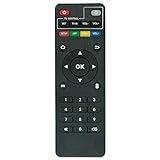
- Work with CS918 MXV Q7S Kodi TV Media Player
- No programming is required. Just install new alkaline batteries and it is ready for use.
- Power Supply: 2X AAA Batteries
- Battery and User Manual Not Included
- T96
Treat Userdata and add-on data as advanced areas. Back up Kodi’s data folder before editing or removing anything. Contents vary, and an add-on’s settings or data may be needed if you still use it. Kodi’s Userdata documentation also warns that passwords.xml stores network-share passwords as readable text. Do not expose or share that file; use a dedicated network account for media access where possible.
How to remove a source from Kodi
Removing a source changes Kodi’s source or library relationship; it is not the same as deleting the files in that location. The media remains on storage unless you separately delete it. In a library workflow, Kodi may ask whether to remove items associated with the source from the library. Kodi’s music source-removal guidance describes this prompt.
Rank #4

- 【4K Media Player】-- Experience Full 4k@30hz media files in this digital media player; It supports a single file up to 4GB(FAT32) or 30GB(NTFS) in MKV, AVI, TS/TP, MP4/M4V, MOV, VOB, M2TS, WMV, PMP, PG, M2TS; It is capable of 4K video only for 4K TV, HDMI up to 7.1 surround sound, good for home entertainment systems;Made of aluminum alloy, it has better protection during carrying
- 【Dual USB Ports】-- Plays from TF card / USB flash drives(up to 128G) and USB hard drives up to 8TB. Dual USB ports for connecting two devices, but it can only read one of them at one time. You can also connect a USB mouse or keyboard to operate the player, making your TV smarter by adding the ability to play videos, music, and photo slideshows or PPT
- 【H.265 Decoding】-- Powerful H.265 decoding loads files by taking half time and half occupation of bandwidth of H.264 decoding, it is much more efficient and faster; Enjoy a higher quality video experience with less buffering
- 【Multiple Play Modes & Vertical Display】 -- This 4k media player can play various popular videos, music, and photos. Videos and photos can be played in order, and music can be played randomly; It also reads PPT document, you can connect a PPT flip to display it better. It also supports horizontal and vertical screen, compatible with your vertical screen
- 【HDMI & AV & Optical Output】-- You can manage the media player to play MP3 or WAV songs to your speakers via optical or AV output to experience better audio effects. It also reads embedded and external subtitle files like SRT, SMI, SUB, SSA
For a File Manager-only location, remove it from the File Manager source list if you no longer want it available to browse there. For a Movies, TV Shows, or Music library source, use that library’s source-management controls and read any prompt carefully before confirming. If you want the actual media erased, delete it separately and verify the selected path first.
Recommended Free Tools
How to clean Kodi’s library after moving or deleting files
When files have been moved, deleted, or renamed, Kodi’s library can retain records that no longer point to the original media. Clean the relevant database separately from file operations. Kodi provides the built-in functions CleanLibrary(video) and CleanLibrary(music) for video and music library cleanup, respectively; see the built-in functions list.
Best Value

- Compatible Models:This New Replacement Remote Control Compatible with HD Media Players Mini 1080p
- 【NOTE】Not compatible with other brands or types. Before ordering, please ensure your original remote control matches the buttons and appearance shown in the illustration. Otherwise, it may not function properly
- Easy to Use: Features an upgraded chip with built-in infrared technology. No programming or pairing required—just requires two standard AAA batteries
- Durable & Comfortable: Featuring high-quality ABS material and a newly upgraded smart chip, it delivers instant button response with precise control up to 8 meters/26 feet. Soft silicone buttons protect fingertips, while the ergonomic curved design ensures comfortable, fatigue-free use during extended daily operation
- Package included & After-Sales Service:1 * Remote Control ( Battery & Instruction Not Included.) If you have any questions, please contact us through AMZ tools and we will help you within 12 hours
- Use
CleanLibrary(video)after changes to movies or TV video files. - Use
CleanLibrary(music)after changes to music files.
A library clean addresses stale database entries; it is not a substitute for deleting files from storage, and deleting a file does not automatically perform the library clean. If you are removing a source, consider the separate prompt about removing its library items before confirming.
Which cleanup method should you use?
| Method | What changes | Does the media file remain? | Practical precaution |
|---|---|---|---|
| File Manager Delete | Deletes the selected stored file; library records may need a separate clean. | No, if deletion succeeds. | Verify the selected file and enable deletion only when needed. |
| Remove a source | Changes Kodi’s source relationship; a library workflow can offer to remove associated library items. | Yes, unless you separately delete it. | Read the confirmation prompt and distinguish source removal from file deletion. |
CleanLibrary(video) or CleanLibrary(music) |
Removes stale records from the corresponding Kodi library after media changes. | Yes, for files that still exist. | Choose the function matching the library you changed. |
| Operating system file browser | Changes files directly on the device; Kodi’s library may need a separate clean. | Depends on the file operation. | Often simpler on desktop; confirm the correct drive and folder. |
Android transfer and permission differences
On some Android platforms, Kodi may report a permissions error when transferring directly to external storage. The documented workaround is to transfer the file first to a public folder such as Downloads or Documents, then move it from there to USB in File Manager. This is an Android-specific workaround, not a universal Kodi requirement. If it does not match your device’s available locations or prompts, use the storage locations the platform permits. Kodi’s File Manager documentation describes USB and public Android folders as possible transfer locations.
Quick Recap
Product prices and availability are accurate as of the date/time indicated and are subject to change. Any price and availability information displayed on Amazon at the time of purchase will apply.




