To change the handwriting panel’s font size in Windows 11, open Settings > Bluetooth & devices > Pen & Windows Ink, expand Handwriting, and choose Font size. A Windows 11 how-to guide lists the choices as Small, Medium, and Large, with Medium as the default. Microsoft’s documentation confirms the location of the setting but does not list those size values, so treat the names as the secondary guide reports them.
Change the handwriting view size
- Press Windows key + I to open Settings.
- Select Bluetooth & devices, then select Pen & Windows Ink.
- Expand the Handwriting section. On some builds the relevant control is nested, so expand Use your handwriting to enter text as well.
- Select Font size and choose Small, Medium, or Large.
- Open the handwriting view and write a few words to check whether the size suits your handwriting.
Menu labels and nesting can differ between Windows 11 builds and between devices from different manufacturers. The path above is the one Microsoft documents for the setting; if your screen shows different wording, look for the same Handwriting section under Pen & Windows Ink.
As an Amazon Associate I earn from qualifying purchases.
If the Font size option is missing
- Confirm the pen and ink features are present. The Pen & Windows Ink page must appear under Bluetooth & devices. If it does not, the device or build may not expose handwriting input in this location.
- Expand every nested handwriting heading. The size control is sometimes hidden under the text-entry option rather than sitting directly under Handwriting.
- Use the Settings path first. Microsoft’s documentation describes this setting through Settings, not through a registry edit, so there is no documented registry procedure to try before checking the menus.
Microsoft’s documentation does not provide a compatibility list for every Windows 11 device, so if none of these checks reveal the option, the control may simply not be available on that particular build or hardware.
The Tool Desk
Outbyte PC Repair FREEClear out junk files and repair common Windows errorsFree Scan →Outbyte Driver Updater FREEFix the driver behind crashes, sound loss and screen glitchesFind Drivers →Handwriting size compared with other text settings
Four separate controls affect how text looks on screen, and they do not overlap. Changing one does not change the others.
#1 Best Overall

- 【Retina‑Grade 2.5K Ultra‑Clear Display】Experience true 2.5K resolution (2560×1600) with an ultra-high pixel density of 275 PPI,delivering four times the detail of a typical 1080P monitor,density delivers razor-sharp text and stunning image detail.Our portable monitor touchscreen features 300–400 nits for indoor use and a peak brightness of over 450 nits for outdoor visibility,keeping the screen crisp and readable whether you’re in a bright café or a dim hotel room.Ideal for video editors,designers working remotely students and content creators.
- 【Professional-Grade Color Accuracy】JUNEBOX portable touch screen monitor covers 139% sRGB color gamut with a high contrast ratio of 1500:1, delivering precise and vivid colors with smooth and natural transitions. Whether you are working with complex layers, adjusting skin tones, or previewing finished works, it meets the strict professional requirements for color and detail, bringing your inspiration to life accurately.The touchscreen monitor features an anti-glare matte finish to effectively reduce reflections.It is equipped with low-blue light and flicker-free backlight technology, ensuring comfortable and non-dry viewing even after hours of continuous use.
- 【10-Point Sensitive Touch + Metal Body】Featuring an all-metal aluminum alloy body,Our touch screen monitor is slim,sturdy and delivers an exceptional texture,while offering excellent heat dissipation for comfortable and stable handling even during prolonged use.It supports 10-point sensitive touch control, responding smoothly to fingertip swipes, two-finger zoom, and multi-finger gestures without unresponsive touches or ghosting.Whether you’re presenting design drafts,browsing web pages or making meeting annotations,it operates with ease and precision.
- 【Built-in High-Quality Stereo Speakers】This small touchscreen monitor equipped with dual built-in stereo speakers for an immersive audio experience.Whether for video conferences,movies and TV shows or intense gaming,the sound is richer and clearer.You can communicate openly at any time without external speakers or headphones,keeping your desktop tidy.Enjoy clear sound anytime,anywhere and immerse yourself in a hassle-free audiovisual world.
- 【Free Angle Adaptation & Landscape/Portrait Switch】Our mini touchscreen monitor supports one-click landscape and portrait screen switching,perfect for TikTok live streaming and mobile gaming.It offers flexible installation options to fit any scenario. Built with an adjustable rear stand, the monitor allows 0–45° tilt angle adjustment. Equipped with standard 75mm VESA mounting holes, it can be easily installed on walls, monitor arms, or photography racks. Ideal for desktop placement, workbench use, or building a professional live streaming workstation, delivering flexible, stable, and hassle-free installation anytime.
| Setting | Where it lives | What it changes | Side effects |
|---|---|---|---|
| Handwriting font size | Settings > Bluetooth & devices > Pen & Windows Ink > Handwriting > Font size | The size of the handwriting view | A larger view can cover parts of the app underneath it (see below) |
| Handwriting font | Handwriting settings under Pen & Windows Ink; Microsoft’s support instructions list Ink Free and Segoe UI | The font family used to display recognized text | Not stated by Microsoft to change the size of the handwriting view |
| Windows text size | Settings > Accessibility > Text size | Text throughout Windows, using a slider, according to Microsoft | Not stated for handwriting view size; it is a separate control |
| Display scale | Settings > System > Display (Microsoft lists it under Display) | Other interface elements, along with text | Enlarges more than text, so it affects the whole screen layout |
If you only want the handwriting panel bigger, use the Font size control. Reach for Windows text size or display scale only when you want a broader change across the desktop and apps.
Why a larger handwriting view can hide app content
Microsoft Learn’s Windows app documentation states: “The application UI does not reflow to accommodate the larger control, which might occlude important UI.” The page does not name an individual author. In practice, a larger handwriting view is drawn over the app you are writing in, and the app does not rearrange its layout to make room. If a button or field sits under the panel, move the panel or choose a smaller size.
Rank #2
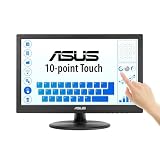
- Full HD Display with IPS Technology: 15.6" Full HD display features IPS technology providing wide viewing angles for everyday use
- 10-Point Multi-Touch Capability: 10-point touch capacity, suitable for any application that involves virtual keyboard or multi-touch functionality
- VESA Compatible Mounting: VESA compatible (75mm x 75mm) for monitor arm / mini PC / NUC PC mounting, making the desktop clutter-free and space saving
- Flexible Tilt Adjustment: -5 to 30 tilt angle, flexible enough for scenarios as an extended monitor or POS machine
- Eye Care Technology: ASUS Eye Care monitors feature TV Rheinland-certified Flicker-free and Low Blue Light technologies to ensure a comfortable viewing experience
What is and is not established
- Established by Microsoft: the location of the handwriting size preference, the separation between handwriting size and handwriting font, and the existence of Windows text size and display scale as separate controls.
- Established only by a secondary Windows 11 guide: the names Small, Medium, and Large, and Medium as the default.
- Not established: pixel or point sizes for each option, and whether every Windows 11 build and device shows identical labels.
Because no reliable size values are published for each option, the best way to choose is to test each one in the handwriting view with your own writing.
Quick Recap
Best Value

- Make Your Devices Touch-enabled: This portable monitor features a 10-point capacitive touch. It is compatible with both Windows and macOS systems, allowing you to add touch functionality to your laptop/PC/Macbook by simply connecting it via the fully featured USB-C interface. MUST NOTE: For Type-C 3.1 DP ALT-MODE or Thunderbolt 3/4 ports, use a Type-C to Type-C cable for power, video, and touch. Use HDMI+power cable+USB-A to USB-C cable for devices without these ports. No extra drivers are required.
- FHD Portable Monitor: The portable monitor features a 15.6-inch touchscreen with a Full HD resolution of 1920x1080. Its advanced IPS display offers a wide viewing angle of 178°, delivering accurate and vibrant colors that are perfect for gaming and watching videos. Moreover, the monitor is equipped with blue light reduction and flicker-free technology, ensuring a comfortable viewing experience even during long periods of use and reducing eye strain.
- Lightweight and Portable Travel Monitor: Designed to be ultra-slim and easy to carry. Its compact size makes it a convenient option for people on the go who need a second screen. Whether you're a traveler, student, gamer, engineer, or anyone who needs a portable monitor, this device can easily fit into any suitcase or backpack. It's perfect for those who require a second screen while out and about.
- Full Size HDMI and USB-C Ports: The monitor has Standard HDMI and USB-C ports, providing versatile connectivity options. You can connect it to a variety of devices, including laptops, desktops, gaming consoles, and mobile phones.
- Built-in Kickstand and Speakers: The CAPERAVE Portable Monitor has a built-in kickstand that allows you to easily prop it up at different angles, making it comfortable to use while sitting or standing. Additionally, it features built-in speakers that deliver clear and immersive audio, enhancing your multimedia experience.
Rank #4
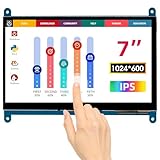
- HD Visual Enjoyment: The 7-inch touchscreen supports 1024x600 resolution, IPS screen helps keep colors consistent and gives you a crystal-clear viewing experience at a 170° wide viewing angle. And the screen requires a wired connection for use
- Wide Compatibility: The mini monitor is fully compatible with Raspberry Pi 5, 4, 3B+, 3B, 2B+, BB Black, Banana Pi, Jetson Nano, and other mainstream mini computers. It also supports Windows 10/8/7
- Sensitive Touch Screen: The capacitive touchscreen supports up to 5-point touch, No driver installation is required; simply connect the Raspberry Pi and the monitor via the Micro USB and HDMI ports to use it immediately
- Plug and Play Display: Simply connect the screen to the device through the HD port and power on the USB port to achieve the function. The screen adopts a bezel-free design, convenient for you to better use and transform
- Multi-scenario Application: The touch screen can be used as a universal small HDMI-compatible screen for connecting computers, TV boxes, and game consoles, or as a computer temperature monitor
Rank #3
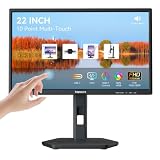
- USB-C Connection & Metal Laptop Stand : Using one Power adapter + a single USB-C cable connects laptops, smartphones and more for touch control, video output and charging your devices. IMPORTANT NOTE: Before using the monitor's USB-C port, please connect the power adapter and press the "POWER" button to turn on the monitor (green indicator lights up), then plug in the USB-C cable. If you plug in the USB-C cable before turnning on the monitor, only the charging function will work, and video output as well as touch control will be unavailable. 3000:1 Contrast Ratio | 100% sRGB Color Gamut
- Premium Packaging & Extra Protective Film: The 22 inch computer touchscreen display is fully wrapped with thickened anti-collision materials. An extra protective film is attached to the screen for added protection, which you can peel off after receiving the product. Premium packaging for flawless delivery. FHD 1920x1080P | 75Hz Refresh Rate
- ±90° Rotates | Portrait | Landscape Mode: The 22 inch usb-c desktop touch screen monitor supports ±90° vertical rotation, ideal for long-document browsing, coding and vertical content viewing. It boosts work efficiency. IMPORTANT NOTE: The monitor does not rotate the displayed image automatically. Please set the display orientationin in your devices to "Portrait" mode or "Portrait (Flipped)" mode before using portrait mode. 2x 3W Built-in Speakers | VESA 75x75mm
- 10 Point Touch USB-C Monitor: Smooth, responsive and precise 10 points multi-touch for intuitive PC interactions and interactive workflows. The touch function supports on Windows system and Android system. IMPORTANT NOTE: Due to system limitations, the touch function of this 22 inch USB-C PC touch screen monitor is not compatible with MacOS system, iPadOS system, iOS system, gaming consoles, Linux systems and Fire TV cube, etc.
- KVM Switch Function: Support integrated KVM function, enabling you to operate two devices using a single keyboard and mouse. Effortlessly switch work content between different devices in seconds, eliminating messy cables and extra peripherals for a neat and tidy workstation. (No one-click switching function)
Product prices and availability are accurate as of the date/time indicated and are subject to change. Any price and availability information displayed on Amazon at the time of purchase will apply.




