A tip calculator needs three inputs (the bill, the tip percentage, and the number of diners) and produces three outputs: the tip, the total, and each person’s share. The core arithmetic is two lines: tip = bill × (percentage / 100) and total = bill + tip. Dividing the total by the number of diners gives the per-person amount. The rest of the work is collecting input safely, rejecting values that would produce nonsense, and formatting the result as currency.
This walkthrough builds a single-page calculator in plain HTML and JavaScript with no libraries. It uses the DOM, a form, and the built-in Intl.NumberFormat API. The final section contains a complete listing you can save as an HTML file and open in a browser.
As an Amazon Associate I earn from qualifying purchases.
Plan the inputs and outputs
Before writing markup, decide what the calculator accepts and what it promises to return. Each input needs a control type and a set of rules, and those rules determine which checks the script must run itself.
| Field | Control | Accepted values in this example | Why the rule exists |
|---|---|---|---|
| Bill amount | input type="number", step="0.01" |
0 or greater, up to cents | A negative bill has no meaning for a restaurant check. Cents are the smallest unit most currencies use. |
| Tip percentage | input type="number", step="1" |
0 to 100, whole numbers by default | The person types 20, not 0.2. The 100 ceiling is a design choice that rules out typos such as 200. |
| Number of diners | input type="number", step="1" |
Whole numbers of 1 or more | Dividing by zero produces Infinity. A fractional diner count is not meaningful for a split. |
The outputs are the tip amount, the total, and the per-person share. The example shows all three at once so the reader can see how each one depends on the previous one.
#1 Best Overall
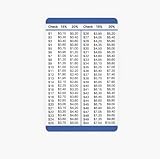
- This is a double-sided tip table card.
- The front shows 15% and 20% tips for $1 to $50 purchases
- The back shows 15% and 20% tips for $51 to $100 purchases
- It's the same dimensions as a credit card--but thinner to take less space in your wallet or pocket
- It's printed on waterproof plastic--not on laminated paper like cheaper versions
Build the form markup
Use a real <form> element with a labeled control for each field. Labels matter for screen-reader users and also let people click the text to focus the field. Keep the results in a separate region so that errors and output are never mixed into the form.
Native attributes do part of the validation for you. required, min, max, and step are enforced by the browser before the form submits. MDN’s reference for input type="number" describes this behavior: the control checks that the entered text is numeric and usually provides up and down stepping controls. Those attributes do not replace checks in JavaScript, because scripts can read values the browser has not checked, and because a browser’s messages are not always what you want to show. Treat them as a first line of defense.
Read and validate the values
Each input element’s value property is a string. Convert it to a number before any arithmetic, and handle the empty case separately. Number("") returns 0, which would silently turn a blank bill into a valid $0.00 bill. Checking for an empty string first avoids that trap.
Blank and non-numeric values
Return NaN for blank fields and then test with Number.isFinite(). This rejects NaN and Infinity together, so the rest of the code never sees a value it cannot calculate with.
Rank #2

- Convenience and usability: This tip card for wallet not only adopts standard bank card dimensions for easy fitting into wallets or pockets, but also features a specially designed hanging hole for attachment to your keychain. Whether dining out or carrying it daily, the tip calculator card provides convenience wherever you go.
- No calculation required: The content on the tip card is meticulously arranged for simplicity and clarity, enabling you to quickly retrieve the necessary information based on your needs. The operation process is straightforward, significantly reducing the time spent calculating tips on your own and effectively avoiding embarrassment and misunderstandings caused by errors.
- Clear design: The tip calculator wallet card features a double-sided design, with amounts ranging from 1 to 50 on one side and 50 to 100 on the other, covering most daily expenses. The tip card offers two calculation percentages of 15% and 20% to suit different occasions. Each $5 increment is divided into segments, distinguished by different colors, making it easy to locate and identify amounts quickly.
- Premium material: We have chosen high-quality PVC material to create an easy tip card that is both stylish and durable. It resists bending and deformation, ensuring long-lasting use without worries.
- Versatile applicability: Whether for formal business meals or casual family gatherings, this tip calculator card helps you navigate various dining settings with ease, effectively preventing embarrassment due to unclear tipping. You will receive multiple tip calculation cards, which can be placed in different wallets or card holders. The durable wallet card not only eliminates the hassle of forgetting to bring one but also allows you to easily share the convenience with friends and family, passing on ease and care.
Range checks
- Bill: must be finite and not less than 0.
- Tip percentage: must be finite and between 0 and 100 inclusive.
- Diner count: must pass
Number.isInteger()and be at least 1.
The diner check uses Number.isInteger(), which rules out 2.5 people and returns false for NaN, so one test covers both problems.
Showing errors
Write the message into a visible element with role="alert" and hide the previous result, so a stale per-person amount never sits beside an invalid input.
Calculate the tip, total, and share
Once all three values pass validation, the arithmetic is short. The steps below match the order the code runs them.
Free tools Windows power users keep installed
One-click scans. No signup required.
- Convert the percentage to a fraction by dividing by 100. Entering
20means you multiply the bill by0.2. - Compute the tip:
tip = bill * (tipPercent / 100). - Add the tip to the bill:
total = bill + tip. - Divide the total by the diner count:
perPerson = total / people. This step is only safe after the diner count has passed validation. - Pass each number to the formatter, described in the next section, and display the result.
The percentage conversion is the step most often done wrong. If the script stores the raw 20 and then formats the tip with a percent style, the output will be wrong. The next section explains how to avoid that.
Rank #3

- LARGE EIGHT-DIGIT DISPLAY – Clear and easy-to-read 8-digit display, perfect for everyday calculations and ensuring accurate results in home or office settings.
- TAX & CURRENCY EXCHANGE FUNCTIONS – Effortlessly handle tax calculations and convert home currency to other currencies for easy financial management.
- GENERAL PURPOSE CALCULATOR – Ideal for a wide range of applications, from basic math to business and personal use, with memory keys for quick storage and recall.
- USER-FRIENDLY KEYBOARD – Easy-to-use layout, featuring square root, percent calculation, and simple functions that make it perfect for everyday tasks.
- COMPACT & PORTABLE DESIGN – Space-saving design that fits easily on any desk or in a briefcase, making it ideal for both home and office use.
Format the output as currency
Use Intl.NumberFormat to turn numbers into display strings. Do not build the output by concatenating a dollar sign with a number. Currency formatting varies by locale in symbol placement, digit grouping, and decimal separators, and by currency in the number of fraction digits. MDN’s documentation for Intl.NumberFormat covers the style: "currency" option and the ISO 4217 currency code, and the ECMA-402 specification (12th edition, dated June 2025) defines the behavior that browsers implement.
const money = new Intl.NumberFormat("en-US", {
  style: "currency",
  currency: "USD",
});

money.format(12.3);   // "$12.30"
money.format(1234.5); // "$1,234.50"
Keep the formatter in a single constant and call format() only at the moment you update the page. The numbers stay numeric throughout the calculation, so the formatted string is never fed back into arithmetic.
Percent style and the whole-number convention
If you want to display the tip rate itself, the percent style of Intl.NumberFormat expects a fraction. It multiplies by 100 when formatting. Passing 0.2 gives "20%", while passing 20 gives "2,000%". The example keeps the percentage as a whole number in the input and does not use the percent style at all, so this trap does not arise. If you add a percent display later, convert to a fraction first.
Recommended Free Tools
Choose the locale deliberately
The example uses "en-US" and "USD", which matches the sample bill and dollar labels. If your audience uses another currency, change both values together. Do not change the currency code without changing the locale, because a mismatch can produce a correctly formatted number in an unexpected style.
Rank #4

- 【12 Digit Display】Features easy-to-read 12 digits LCD display, the big screen clearly shows the numbers, suitable for all kinds of calculations and office scenes.
- 【Double Power Supply】Support both solar energy and batteries. Our calculator comes with an AAA battery; In a well-lit environment, you can also use solar energy to charge.
- 【Embedded Big Button】Big buttons make your input flow and comfortable; Raised button design makes your input accurate and fast; Sturdy plastic keys for long-lasting use.
- 【Automatic Shut-down】Intelligent power saving design-Our calculator can stand by for 8 minutes without operation, then it will automatically shut down.
- 【Function introduction】Contains basic functions of add, subtract, multiply, divide,CE, %; Upgrade function of M+/M-/MRC; Covers the needs of daily computing.
Decide how to round and split the bill
Rounding is a presentation choice in the basic version and a money-handling choice in a more careful one. The two approaches give different results, and a tutorial should not present them as interchangeable.
Option 1: round only for display
The basic listing keeps full floating-point values and lets Intl.NumberFormat round each figure to the currency’s fraction digits (two for USD) when it formats the output. This is simple and correct for a demo. The trade-off is that each displayed share is rounded on its own. If the bill is split three ways, the displayed shares can add up to a total that is a cent off from the displayed total. This is a normal consequence of rounding each value independently, not a bug in the formatter.
Option 2: allocate whole cents so the shares add up
If the displayed shares must sum exactly to the displayed total, do the money math in integer cents. Convert the bill to cents, compute the tip in cents, and then give each diner a base share plus one extra cent for the first few diners. The function below returns share amounts in cents that always sum to the total.
Crashes, No Sound, or Screen Glitches?
Random freezes, missing sound and display glitches usually trace back to one bad driver. Find and replace yours safely.Free scan · under a minuteWindows Errors? Fix Them Before They Spread
Repair common Windows errors and clear accumulated junk for a smoother, more stable PC - no reinstall needed.Free scan · no reinstallfunction splitCents(totalCents, people) {
const base = Math.floor(totalCents / people);
const extra = totalCents - base * people;
return Array.from({ length: people }, (_, i) => base + (i < extra ? 1 : 0));
}
// Example: $100.00 split three ways
splitCents(10000, 3); // [3334, 3333, 3333]This approach is a design decision made for the calculator, not a rule set by the language. Restaurants and payment apps have their own conventions for who absorbs the leftover cent. The function gives the extra cents to the first diners; if your product needs a different rule, change which share receives the remainder.
Best Value
- Convenience and usability: This tip card for wallet not only adopts standard bank card dimensions for easy fitting into wallets or pockets, but also features a specially designed hanging hole for attachment to your keychain. Whether dining out or carrying it daily, the tip calculator card provides convenience wherever you go.
- No calculation required: The content on the tip card is meticulously arranged for simplicity and clarity, enabling you to quickly retrieve the necessary information based on your needs. The operation process is straightforward, significantly reducing the time spent calculating tips on your own and effectively avoiding embarrassment and misunderstandings caused by errors.
- Clear design: The tip calculator wallet card features a double-sided design, with amounts ranging from 1 to 50 on one side and 50 to 100 on the other, covering most daily expenses. The tip card offers two calculation percentages of 15% and 20% to suit different occasions. Each $5 increment is divided into segments, distinguished by different colors, making it easy to locate and identify amounts quickly.
- Premium material: We have chosen high-quality PVC material to create an easy tip card that is both stylish and durable. It resists bending and deformation, ensuring long-lasting use without worries.
- Versatile applicability: Whether for formal business meals or casual family gatherings, this tip calculator card helps you navigate various dining settings with ease, effectively preventing embarrassment due to unclear tipping. You will receive multiple tip calculation cards, which can be placed in different wallets or card holders. The durable wallet card not only eliminates the hassle of forgetting to bring one but also allows you to easily share the convenience with friends and family, passing on ease and care.
Option 3: which numbers to show
A split can show the whole group’s total divided evenly, or it can show each person’s share of the tip and of the bill separately. The example shows the full per-person amount because it is the simplest. If you show the tip and bill separately, label each row clearly so the reader does not assume the per-person figure is the tip alone.
Independent reader supportYour contribution helps us test, update, and keep practical guides available for everyone.Complete listing
The file below combines the markup, validation, arithmetic, and formatting. Save it with an .html extension and open it in a browser. The script is placed at the end of the body so the elements exist when it runs.
<!DOCTYPE html>
<html lang="en">
<head>
  <meta charset="utf-8">
  <meta name="viewport" content="width=device-width, initial-scale=1">
  <title>Tip Calculator</title>
</head>
<body>
  <form id="tip-form">
    <label for="bill">Bill amount (USD)</label>
    <input id="bill" type="number" min="0" step="0.01" inputmode="decimal" required>

    <label for="tip">Tip percentage</label>
    <input id="tip" type="number" min="0" max="100" step="1" value="18" required>

    <label for="people">Number of diners</label>
    <input id="people" type="number" min="1" step="1" value="1" required>

    <button type="submit">Calculate</button>
  </form>

  <p id="error" role="alert"></p>

  <dl id="results" hidden>
    <dt>Tip</dt><dd id="out-tip"></dd>
    <dt>Total</dt><dd id="out-total"></dd>
    <dt>Per person</dt><dd id="out-each"></dd>
  </dl>

  <script>
    const money = new Intl.NumberFormat("en-US", {
      style: "currency",
      currency: "USD",
    });

    const form = document.getElementById("tip-form");
    const errorBox = document.getElementById("error");
    const results = document.getElementById("results");

    function readNumber(id) {
      const raw = document.getElementById(id).value.trim();
      return raw === "" ? NaN : Number(raw);
    }

    function validate(bill, tipPercent, people) {
      if (!Number.isFinite(bill) || bill < 0) {
        return "Enter a bill amount of 0 or more.";
      }
      if (!Number.isFinite(tipPercent) || tipPercent < 0 || tipPercent > 100) {
        return "Enter a tip percentage from 0 to 100.";
      }
      if (!Number.isInteger(people) || people < 1) {
        return "Enter a whole number of diners, 1 or more.";
      }
      return "";
    }

    form.addEventListener("submit", (event) => {
      event.preventDefault();

      const bill = readNumber("bill");
      const tipPercent = readNumber("tip");
      const people = readNumber("people");

      const problem = validate(bill, tipPercent, people);
      if (problem) {
        errorBox.textContent = problem;
        results.hidden = true;
        return;
      }
      errorBox.textContent = "";

      const tip = bill * (tipPercent / 100);
      const total = bill + tip;
      const perPerson = total / people;

      document.getElementById("out-tip").textContent = money.format(tip);
      document.getElementById("out-total").textContent = money.format(total);
      document.getElementById("out-each").textContent = money.format(perPerson);
      results.hidden = false;
    });
  </script>
</body>
</html>
Troubleshooting
- Output shows “$NaN”. A value reached the arithmetic without being converted, usually because
readNumber()was bypassed. Check that every field goes throughNumber()and that the validation runs before the formulas. - Clicking Calculate does nothing. The button must be inside the form with
type="submit", and the script must target the same form ID. If the script runs before the elements exist, move it to the end of the body or adddefer. - Values with a comma decimal fail for some users. The
valueof aninput type="number"uses a period as its decimal separator in the browsers this example relies on, so a user whose keyboard produces a comma may see an empty or rejected value. The sources reviewed for this article do not establish a reliable parser for locale-specific typed decimals. If your audience needs that, use a text field and parse the input yourself, which is a larger project than this example. - Shares are a cent off from the total. This is the rounding behavior described above. Switch to the whole-cent allocation if the displayed numbers must reconcile exactly.
- Per-person amount is wrong for a split with a tip only. The example divides the total, which includes the tip. Dividing only the tip gives a different figure and should be labeled differently.
Where to go next
Once the basic calculator works, the most useful extensions are a currency selector that changes both the locale and the currency code together, a rounding-mode choice for the cents allocation, and an accessible error summary that links each message to its field. MDN’s JavaScript reference pages for Intl.NumberFormat and input type="number" cover the options used here in more detail.
The Tool Desk
Outbyte Driver Updater FREEScan for outdated or missing drivers - takes under a minuteDriver Scan →Outbyte PC Repair FREEClear out junk files and repair common Windows errorsFree Scan →Quick Recap
Product prices and availability are accurate as of the date/time indicated and are subject to change. Any price and availability information displayed on Amazon at the time of purchase will apply.




