The Tool Desk
Outbyte Driver Updater FREEScan for outdated or missing drivers - takes under a minuteDriver Scan →Outbyte PC Repair FREERepair Windows errors before they cause bigger problemsFix Now →Before changing PS5 system software, make a USB backup through Settings > System > System Software > Back Up and Restore > Back Up Your PS5. Use a USB drive formatted as FAT32 or exFAT, wait for the on-screen “Backup complete” message, and only then remove the drive. If you have PlayStation Plus, verify that your saves are synchronized to cloud storage as a second copy.
A normal system-software update is different from Reset PS5 (Reinstall System Software). Sony says reinstallation deletes all data on the console, so do not choose that Safe Mode option until your backup has completed and you know how you will restore it.
As an Amazon Associate I earn from qualifying purchases.
Why a backup matters before a PS5 system-software change
A routine update is intended to update the console while preserving installed content and saves, but any operation that resets or reinstalls the system software can remove local data. Safe Mode includes options that result in data loss, and Sony recommends backing up to USB or cloud storage before using them. A backup gives you a recovery path if the update process is interrupted, troubleshooting requires a reset, or you ultimately need to reinstall the operating system.
The safest approach is to keep two independent copies when possible: a complete USB backup and synchronized PlayStation Plus cloud saves. USB storage works without a subscription and can include more than saved games. Cloud storage is convenient for saves, but it requires an active PlayStation Plus membership, an internet connection, and the correct synchronization settings.
#1 Best Overall
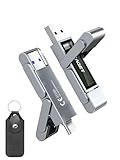
- 【Instantly Expand Your Storage – Plug & Play with Any Device】Say goodbye to “Storage Full” warnings! This 512GB flash drive features both USB-C and USB 3.2 ports, offering true plug-and-play compatibility. Instantly add massive space and transfer files directly between your iPhone 15/16/17 Pro, Android phone, Mac, Windows PC, tablet, or Smart TV — no cables, adapters, or internet required. The simplest solution for phone storage expansion.
- 【Blazing SSD-Like Speed – Transfer a Full Movie in Seconds】Experience the thrill of fast transfers. With USB 3.2 Gen 1 technology, achieve read speeds up to 560MB/s – dramatically faster than standard USB 3.0 flash drives. Move a 4K video or entire music library in moments. Ideal for photographers, gamers, and professionals who value their time.
- 【Durable & Compact Metal Design – Built for Your On-the-Go Life】Crafted from a premium zinc alloy metal body, this flash drive is built to withstand the rigors of daily life, offering enhanced resistance to shock and physical stress. The included stylish leather case provides scratch protection and effortless portability, making it the perfect travel companion.
- 【Your All-in-One Portable File Hub – Simplify Your Digital Workflow】More than a thumb drive, it’s your universal file hub. Use it as a USB-C flash drive for new laptops, a USB memory stick for PCs, extra storage for your PS5, a media library for your car audio, or a reliable external drive for backups. The ultimate tool for students, creatives, and tech enthusiasts.
- 【Complete Package with Premium Support】Get everything you need: 1x 512GB USB flash drive, 1x premium leather case, 1x user manual. Backed by a 30-day satisfaction guarantee and a dedicated reliable support team that responds within 24 hours. We ensure your data backup and storage experience is seamless and reliable.
Prepare the console and storage
Choose the right USB device
Use a USB storage device formatted as FAT32 or exFAT. These are the formats Sony documents for PS5 backup data. A drive currently configured as the PS5’s USB extended storage for game installations is not suitable: extended storage uses a different format and cannot be used for the backup operation. If necessary, copy anything important from the drive elsewhere and reformat it on a computer before connecting it to the console.
Formatting erases the drive, so check its contents first. The backup can contain games and applications, saved data, screenshots, video clips, and settings; make sure the device has enough free space for the categories you select. Sony does not publish a universal backup-duration, success-rate, or failure-rate statistic, and the time required depends on how much content is being copied.
Synchronize trophies separately
Trophies are not included in a PS5 USB backup. Open the Trophies area while the console is online and allow your latest trophy progress to synchronize before making a major system change. This keeps trophy records associated with your PlayStation Network account even though they are absent from the local backup archive.
Outdated Drivers Are Slowing You Down
One free scan finds every outdated or missing driver and matches the right update for your exact hardware.Free scan · exact hardware matchPC Slower Than It Used to Be?
A free scan shows the junk files, broken settings and background clutter dragging Windows down - then fixes them in one click.Free scan · Windows 10 & 11Finish or close active work
Close games and applications, connect the console to reliable power, and avoid disconnecting the USB device while the operation is running. The PS5 restarts as part of the backup process. Do not press the power button or remove the drive until the console displays its completion message and returns you to the home screen.
Make a complete USB backup
Follow this sequence on the PS5 itself:
- Connect the prepared drive. Insert the FAT32- or exFAT-formatted USB storage device directly into the PS5.
- Open the backup menu. Go to Settings > System > System Software > Back Up and Restore.
- Choose the backup command. Select Back Up Your PS5. Sony describes this function as: “You can use a USB storage device to back up saved data from your PlayStation®5 console.”
- Select categories. Choose the content categories you want copied. A full backup can include games and apps, saved data, screenshots and video clips, and settings. Review the selection before proceeding, particularly if the drive has limited free space.
- Start and wait. Select Next, then Back Up. The console restarts and begins copying. Leave the USB device connected and powered until the screen says “Backup complete. Your PS5 console will restart”.
- Finish safely. Select OK when prompted and allow the PS5 to return to the home screen. Only after that should you remove the USB drive.
The resulting archive is a console backup rather than a simple folder of individual save files. Keep the drive somewhere safe and do not reformat it if you may need to restore the backup.
Rank #2

- MOVE FILES IN A FLASH: Fast and convenient read speeds up to 300 MB/s* with the latest USB 3.1 standard give you more time to work, play, watch, and create; Send a 3GB 4K UHD video file from your Bar Plus to your PC in just 10 seconds**
- RUGGED REFINEMENT: As strong as it is stylish; The sturdy metal body keeps your data safe and intact, and the integrated keyring prevents accidental misplacement or loss; The Bar Plus is the ideal combination of stunning design and worry-free durability
- TOUGH & TRUSTED: The Bar Plus a trustworthy drive to store your valuable data; It works through it all with a waterproof, shock-proof, temperature-proof, magnet-proof, and X-ray-proof body, all backed by a 5-year limited warranty***
- WORLD'S #1 FLASH MEMORY BRAND: Experience the performance and reliability from the world's #1 brand for flash memory since 2003;**** All firmware & components, including Samsung's world-renowned DRAM & NAND, are produced in-house
What the USB backup contains—and what it does not
The categories you select determine the scope of the archive. Sony’s full-backup function can copy:
- Installed games and applications.
- PS5 and PS4 saved data stored on the console.
- Screenshot files and video clips.
- Console settings.
Trophy data is excluded. Trophies must be synchronized separately through the online account service. Also excluded as a usable backup source is a USB extended-storage drive that holds game installations; its format is different from the FAT32 or exFAT format required by Back Up Your PS5.
Recommended Free Tools
A USB backup is useful when you want to preserve settings and media as well as saves, or when you do not have PlayStation Plus. It is also the copy you can use after a full system-software reinstallation, provided the system-version requirement for restoration is met.
Use PlayStation Plus cloud storage as a second copy
Cloud storage requires a PlayStation Plus membership. Sony says: “You can automatically sync your saved data with cloud storage when you close a game or put your console in rest mode.” To make that automatic process reliable, the PS5 must remain connected to the internet and be allowed to connect while in rest mode.
Configure automatic synchronization for PS5 games
- Open Settings > Saved Data and Game/App Settings.
- Select Saved Data (PS5).
- Choose Sync Saved Data, then enable Auto-Sync Saved Data.
- Leave the console online and use rest mode or close the game so the latest local save can upload.
Configure automatic uploading for PS4 games
- Open Settings > Saved Data and Game/App Settings.
- Select Saved Data (PS4).
- Enable Auto-Upload.
- Keep the PS5 online while the upload completes.
Sony’s 2026 support documentation lists cloud capacity of 100 GB for PS5 saved data and 100 GB for PS4 saved data. Cloud synchronization concerns saved data; it is not a replacement for the USB backup when you also want games, applications, screenshots, video clips, or settings preserved.
Rank #3
- 【Instantly Expand Your Storage – Plug & Play with Any Device】Say goodbye to “Storage Full” warnings! This 256GB flash drive features both USB-C and USB 3.2 ports, offering true plug-and-play compatibility. Instantly add massive space and transfer files directly between your iPhone 15/16/17 Pro, Android phone, Mac, Windows PC, PS5, tablet, or Smart TV — no cables, adapters, or internet required. The simplest solution for phone storage expansion.
- 【Blazing SSD-Like Speed – Transfer a Full Movie in Seconds】Experience the thrill of fast transfers. With USB 3.2 Gen 1 technology, achieve read speeds up to 560MB/s – dramatically faster than standard USB 3.0 flash drives. Move a 4K video or entire music library in moments. Ideal for photographers, gamers, and professionals who value their time.
- 【Durable & Compact Metal Design – Built for Your On-the-Go Life】Crafted from a premium zinc alloy metal body, this flash drive is built to withstand the rigors of daily life, offering enhanced resistance to shock and physical stress. The included stylish leather case provides scratch protection and effortless portability, making it the perfect travel companion.
- 【Your All-in-One Portable File Hub – Simplify Your Digital Workflow】More than a thumb drive, it’s your universal file hub. Use it as a USB-C flash drive for new laptops, a USB memory stick for PCs, extra storage for your PS5, a media library for your car audio, or a reliable external drive for backups. The ultimate tool for students, creatives, and tech enthusiasts.
- 【Complete Package with Premium Support】Get everything you need: 1x 256GB USB flash drive, 1x premium leather case, 1x user manual. Backed by a 30-day satisfaction guarantee and a dedicated reliable support team that responds within 24 hours. We ensure your data backup and storage experience is seamless and reliable.
Understand the PS5 and PS4 cloud behavior
For PS5 saves, the console and cloud synchronize to the newest data. Check that the most recent save has finished syncing before changing system software. For PS4 saves, Sony says uploads occur automatically when configured, but the save must be downloaded manually to PS5 storage after the change. A PS4 save appearing in cloud storage does not by itself mean it is already present on the restored console.
Distinguish an update from a system-software reinstallation
Routine online update
For a standard update delivered over the internet, open Settings > System > System Software > System Software Update and Settings > Update System Software, then follow the prompts. This path updates the installed system software without intentionally wiping the console. A backup is still prudent because troubleshooting can later require a reset, and a failed update may leave you needing recovery options.
Manual update from USB
If the PS5 cannot update online, Sony’s manual procedure uses a separate FAT32- or exFAT-formatted USB drive. On a computer, create the folder structure PS5/UPDATE and save the official update file in that folder with the exact filename PS5UPDATE.PUP. Connect the drive to the console, boot into Safe Mode, and select Update System Software > Update from USB Storage Device. Keep the backup drive separate from the update media when possible, so you do not accidentally overwrite or reformat your backup archive.
Use only the official update file and the exact folder and filename. An incorrectly named file or misplaced folder will not be detected by the Safe Mode updater. Follow the on-screen Safe Mode instructions and do not interrupt power while the update is being installed.
Reset PS5 (Reinstall System Software)
Reinstallation is a different Safe Mode option from updating. Sony states: “Reinstalling the system software on your PS5 console will delete all of the data on your PS5 console.” Treat Reset PS5 (Reinstall System Software) as destructive. Confirm that the USB backup reached the “Backup complete” state, that your cloud saves have synchronized if you use PlayStation Plus, and that you understand the restoration steps before selecting it.
Rank #4

- Transfer files with style and USB 3.2 Gen 1 performance
- As stylish as it is durable
- Protect your files with Lexar DataShield
- USB 3.2 Gen 1 enabled; backwards compatible with USB 3.1 / USB 3.0 and 2.0 devices
- Compatible with PC and Mac systems
Some Safe Mode choices also erase data even when they are not labeled as a complete reinstallation. Read the warning attached to each option. If the goal is only to install a newer system-software version, use the normal update path rather than a reinstall command.
Restore a PS5 USB backup after an update or reinstall
- Make sure the PS5 is running the same system-software version that was installed when the backup was created, or a newer version. Sony requires the current version to be the same as or newer than the backup’s version.
- Connect the USB drive containing the backup. Do not use the console’s game extended-storage drive for this purpose.
- Open Settings > System > System Software > Back Up and Restore.
- Select Restore Your PS5 and choose the backup archive shown on the drive.
- Confirm the restore and leave the drive connected while the console restarts and completes the operation.
Restoring returns the backed-up categories you selected, so media, settings, applications, and saves are restored only if they were included in the archive. Trophies remain account-synchronized data rather than USB-backup data and should be retrieved through the account after you sign in.
After a restore, Sony disables Console Sharing and Offline Play. Re-enable that setting afterward if you want the console to retain access to subscriptions and purchased content while offline or when other users share the console.
USB backup versus PlayStation Plus cloud storage
| Consideration | USB backup | PlayStation Plus cloud |
|---|---|---|
| Availability | Works without PlayStation Plus, using a FAT32- or exFAT-formatted USB device. | Requires a PlayStation Plus membership. |
| Content scope | Can include games and apps, saved data, screenshots, video clips, and settings, according to the categories selected. | Focuses on saved data; it does not replace a full console backup for applications, media, or settings. |
| Connectivity | Does not require internet access during the physical copy. | Requires an internet connection and appropriate rest-mode or game-closing synchronization settings. |
| PS5 save behavior | Restores the saved data contained in the archive. | Console and cloud synchronize to the newest PS5 saved data. |
| PS4 save behavior on PS5 | Included if PS4 saved data is selected for the USB archive. | Uploads automatically when enabled but must be downloaded manually to PS5 storage after the change. |
| Recovery requirement | Restore requires the same or a newer system-software version than the one installed when the backup was made. | Sign in to the PlayStation Network account and download or synchronize the saves after the system change. |
| Trophies | Not included. | Handled through account synchronization rather than the console backup archive. |
Troubleshoot common backup and restore problems
The PS5 does not offer the backup drive
Confirm that the device is formatted FAT32 or exFAT and connected directly to the console. If it is configured as USB extended storage for games, it uses the wrong format for backup data. Move its game content elsewhere, reformat it, and reconnect it before opening Back Up and Restore.
Free tools Windows power users keep installed
One-click scans. No signup required.
The backup stops or does not finish
Check available space on the USB device and reduce the selected categories if necessary. Reconnect the drive securely, close applications, and start the operation again with the console connected to stable power. Do not remove the drive during the copy; wait for the exact “Backup complete” confirmation before treating the archive as usable.
Best Value

- Dual Drive USB C + USB A: Equipped with an USB-C port and USB-A 3.2 port,the Dual USB SSD flash drive allows you transfer data between smartphone/tablet and computer more conveniently. Instantly release space or quickly move pictures or movies on your OTG enabled Android Type C phone, tablet, MacBook, Windows computer, car audio system, smart TV and more.
- Ultra Fast High Speed: SSK USB 3.2 GEN 2 flash drive up to 550mb/s read speeds and 500mb/s write speed, which is 10 times faster than traditional USB 3.0 memory stick. Let you move high-resolution photos, videos fast and large-capacity files. Based on internal testing, performance may vary slightly due to factors such as host equipment, interfaces, and usage conditions.
- Plug and Play: Ultra dual drive supports plug and play, without any software installation. At the same time, USB stick storage can expand the capacity of phones and computer. It is convenient for everyone to use the mobile phone to directly read the flash drive for file sharing, data transmission, and video playback when working or studying. Work with most systems such as Windows / Android/ Macbook Pro and Mac OS. (incompatible with lightning port)
- Safe & Reliable: USB SSD drive is made of high-grade zinc alloy shell, which is resistant to falling and abrasion. The design of the double-head protective cover better protects the two interfaces. External memory stick have excellent shock resistance and fast heat dissipation performance to better protect your data.
- Universal Compatibility: High speed USB stick external storage compatible with computer equipment, smart TV, car audio, smart phones, iPhone 15, iPad, Laptops, Macbook and more. Backward-compatible with USB 3.0 and USB 2.0 ports. Comes with default format EXFAT, it works with most systems such as Windows/Linux/Mac OS./Android(Incompatible with lightning port)
The cloud copy is older than the local save
Keep the console online, close the game, and allow rest mode synchronization to complete. For PS5 games, synchronization uses the newest console or cloud data, so verify which copy is newest before accepting a conflict. For PS4 games, confirm that Auto-Upload is enabled and remember that the save still requires a manual download to PS5 storage after the system change.
Restore is unavailable after reinstallation
Check the system-software version first. The PS5 must be at the same version or a newer version than the one present when the backup was created. Update the console before attempting Restore Your PS5, then reconnect the drive and open the restore menu again.
Games or settings are missing after restoration
Review which categories were selected when the backup was created. A restore cannot bring back content that was not included in the archive. Re-enable Console Sharing and Offline Play because Sony disables it during restoration, then sign in and recover account-based content or cloud saves as appropriate.
Do these 3 things before closing this tab:
1Scan for outdated or missing drivers - takes under a minute2Repair Windows errors before they cause bigger problems3Fix the driver behind crashes, sound loss and screen glitchesA safe order of operations
For a planned system-software change, use this order:
- Synchronize trophies while online.
- Enable and verify PlayStation Plus synchronization if you have the membership.
- Prepare a separate FAT32- or exFAT-formatted USB device.
- Run Back Up Your PS5 and wait for the completion message.
- Perform the routine update, manual USB update, or required Safe Mode operation.
- If the console was reinstalled, update it to at least the backup’s original system-software version, restore the archive, re-enable Console Sharing and Offline Play, and manually download PS4 cloud saves if needed.
This sequence preserves the widest range of recoverable data while respecting the important difference between updating system software and reinstalling it.
Quick Recap
Product prices and availability are accurate as of the date/time indicated and are subject to change. Any price and availability information displayed on Amazon at the time of purchase will apply.

