Free tools Windows power users keep installed
One-click scans. No signup required.
Short answer: choose an image whose specific license covers your intended YouTube use, save the source and license record, check for separate rights in people, logos or artwork shown, import the file into your editor, place it on the timeline, and add the credit the license requires. Then upload the finished video and choose YouTube’s license separately. “Royalty-free” describes a licensing model; it does not make every image automatically safe to use.
What royalty-free means on YouTube
Royalty-free usually means you do not pay a recurring royalty for each use after meeting the license terms. It does not mean copyright-free, public-domain, or unrestricted. The permission comes from the license attached to that particular image, and different libraries impose different conditions.


As an Amazon Associate I earn from qualifying purchases.
YouTube’s own guidance says the uploader must obtain permission from the copyright owner; YouTube cannot grant rights to someone else’s content. A search thumbnail, a repost, or the words “free image” are not proof of permission. Treat the image page and its license as part of your production paperwork.
Two permissions are involved in a finished upload:
- Image permission: the right to copy, adapt and display the still image in your video, including commercial use if you monetize or promote a business.
- YouTube video license: the license you offer other people for the complete video you uploaded. This setting does not clear rights in images owned by someone else.
Keep those decisions separate. You can use an image under a stock-site license and still publish your video under YouTube’s Standard license. Selecting Creative Commons Attribution for the video is optional and is lawful only when every part of the upload is eligible for CC BY.
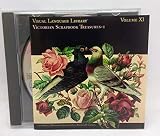
#1 Best Overall

- High resolution: 28MB, JPEG/ 8.5" x 11" @ 300 dpi
- Medium resolution: 10MB, JPEG/ 5" x 7.5" @ 300 dpi
- Low resolution: 600K, JPEG (for comps)/ 5" x 7.5" @ 72 dpi
- Browsing/ keyword searching software included
Choose an image and verify its license
Start with a source you can document
Use an image you created, a work that is genuinely in the public domain, or a file offered under a license that covers your planned use. Download from the original image page rather than from a repost or an image-search result. Record the page address, creator name, image title, license name, and the date you checked it. Save a PDF, screenshot, or copy of the license text with the project because library pages and wording can change.
Check the permissions that matter
Read the terms for the exact file. Confirm whether the license allows:
- use in an edited YouTube video rather than only personal viewing;
- commercial use, sponsorships, advertising, or monetization if those apply to your channel;
- cropping, color changes, animation, overlays, or other adaptations;
- publication worldwide and for as long as the video remains online;
- the credit format, if attribution is required; and
- the way you may distribute the image inside a video instead of as a standalone download.
Look specifically for restrictions on standalone redistribution, resale, misleading endorsement, unlawful activity, or use of a recognizable person or brand. “Royalty-free” does not override any of those clauses.
Do these 3 things before closing this tab:
1Repair Windows errors before they cause bigger problems2Fix the driver behind crashes, sound loss and screen glitches3Clear out junk files and repair common Windows errorsExamples: Unsplash and Pixabay
Unsplash’s published license permits free commercial and noncommercial use without permission or mandatory attribution. It prohibits selling an image without significant modification and compiling images to replicate a competing service. The license also warns that separate permission may be needed for recognizable people, trademarks, artwork, or other protected material visible in the photograph.
Pixabay’s license summary permits free use and adaptation without required attribution, subject to prohibited uses. Pixabay states that its full Content License, not the summary, is legally binding, so read the complete terms for the specific file and retain that record. Standalone redistribution is prohibited under the summary.
These examples show why you must not apply one library’s rules to another. An optional credit is courteous, but it is never a substitute for permission when permission is required.
Check people, logos and artwork inside the frame
A stock-image license covers the copyright in the photograph or illustration; it may not clear every other right represented in it. Before publishing, inspect the image for:
- recognizable individuals whose likeness is used commercially;
- company names, logos, product packaging, uniforms, or distinctive trade dress;
- paintings, sculptures, posters, book covers, screens, or other copyrighted works;
- private locations with contractual or property restrictions; and
- symbols or scenes that could imply endorsement, defamation, or affiliation.
For editorial commentary, the legal analysis can differ from advertising or sponsorship. If the intended use depends on an exception such as fair use, obtain jurisdiction-specific advice rather than assuming the stock license resolves the issue.
Download and preserve a rights record
- Open the original image page and verify that it is the page for the exact file you intend to use.
- Download the largest permitted version and keep the original filename.
- Copy the creator, title, source URL, license name, and any required attribution wording into a project notes file.
- Save a screenshot or PDF of the license page, including the date you checked it.
- Note any model release, property release, editorial-only label, or prohibited-use warning shown on the source page.
- Store the notes and source file with the video project so an editor can reconstruct the rights decision later.
Do not rely on memory or on a browser bookmark that may later point to changed terms. A clear record is useful if a rights holder asks how you obtained the image or if a platform dispute requires documentation.
Add the image in your video editor
The exact buttons differ between editors, but the workflow is consistent. The sources for this guide do not require a particular application or technical setting.
- Create or open the project. Set the project’s aspect ratio and frame rate to match the YouTube video you plan to export. A 16:9 project suits standard landscape uploads; choose a vertical project only when the finished video is intended for that format.
- Import the file. Use the editor’s media-import command, then confirm that the image is sharp at the project’s display size. If the file is extremely large, make a working copy at a sensible resolution instead of repeatedly recompressing the original.
- Place it on the timeline. Drag the image to a video track at the point where it should appear. Still images normally receive a default duration; extend or shorten the clip to match the narration, music, or on-screen text.
- Set framing. Choose fit, crop, or fill deliberately. Check the preview for faces, logos and text near the edges, where a crop or YouTube’s player controls could obscure them.
- Add motion only when it helps. A restrained pan or zoom can keep a long still visually active. Avoid motion that makes legally important text unreadable or changes the image in a way the license forbids.
- Keep the source credit available. Add a text card, lower-third, voiceover, or description credit when required. Do not place tiny text on screen for such a short time that viewers cannot read it.
- Export a review copy. Watch the complete render, not only the editor preview. Confirm that the image remains visible for the intended duration, the credit is legible, and no transition reveals an unintended part of the source image.
Write the correct credit
When the license requires attribution
For Creative Commons Attribution material, YouTube recommends including the work’s title, author, source URL, and license information. Put that information in the video description or in the video itself as text or voiceover. A practical format is:
Recommended Free Tools
“Image title” — Creator Name, source URL, licensed under CC BY [version].
Use the license version and link specified by the source. If you modified the image, say so, for example “cropped and color-adjusted.” Keep the credit close to the video’s other production notes and make sure the URL is complete and readable.
When attribution is optional
Unsplash and Pixabay’s cited guidance does not require attribution, although both indicate that credit is appreciated. You may still credit the creator to help viewers identify the source. Label it as a courtesy rather than claiming that the credit itself grants permission.
What credit cannot do
Credit does not cure an unauthorized copy. Writing the photographer’s name under an image that you had no right to use does not create a license, and it does not automatically satisfy a model, trademark, or property release.
The Tool Desk
Outbyte PC Repair FREERepair Windows errors before they cause bigger problemsFix Now →Outbyte Driver Updater FREEFix the driver behind crashes, sound loss and screen glitchesFind Drivers →Upload the video and choose YouTube’s license
- Upload the exported file in YouTube Studio and complete the title, description, audience and visibility fields.
- Put required image credits in the description or confirm that they are already legible in the video.
- On a computer, YouTube documents the license control at Content, select the video, Details, Show more, then License.
- Leave the upload under YouTube’s Standard license unless you have verified that every element you own or use can be licensed under Creative Commons Attribution.
- Select Creative Commons Attribution only when the entire upload is licenseable under CC BY. YouTube says a Content ID claim blocks this selection.
Choosing CC BY for your upload does not relicense an Unsplash, Pixabay, CC BY, or other third-party image beyond the rights you actually received. If one component is restricted, the whole upload is not eligible for that setting.
Copyright, fair use and monetization
YouTube’s U.S.-focused fair-use guidance explains that fair use depends on the facts and that courts, not a platform form, make the final determination. Purpose, transformation, the amount used, and market effect can matter, but there is no automatic “credit” or “five-second” rule. A non-transformative decorative image copied without permission remains risky even if the video is educational or the creator names the photographer.
Monetization does not change the image’s license. If you earn advertising revenue, sell a product, or publish sponsored content, confirm that the image license permits commercial use and that any people, marks, or artwork have the permissions your use requires. Rules differ by country, so the U.S. fair-use explanation should not be treated as a universal legal test.
Pre-publish rights checklist
- I have the original image page and a saved copy of its license terms.
- The license covers my planned YouTube use, including commercial use if applicable.
- I checked restrictions on adaptation, standalone redistribution, resale and endorsement.
- I inspected the frame for people, logos, artwork and other third-party rights.
- I know whether attribution is required and prepared the complete credit.
- The credit is in the description or visible and readable in the video.
- I selected YouTube Standard or CC BY based on the rights to the entire upload, not only the image.
- I can show how and when I obtained the file if a claim arises.
Troubleshooting common problems
The image page says “free,” but has no clear license
Do not publish yet. “Free” can describe a preview, a personal-use allowance, or a subscription service rather than a transferable license. Find the original terms or choose an image with explicit permissions you can save.
A copyright claim appears after upload
Review the claim details and compare them with your rights record. If the claimant identified music, footage, or artwork elsewhere in the video, the image license will not resolve that separate issue. Dispute only when your documentation supports the specific use; otherwise replace the material or obtain permission.
The image contains a visible brand or person
Pause publication and determine whether the planned context implies endorsement or uses the likeness commercially. Crop, replace, or obtain the additional release when the license page says the stock license does not cover that right.
The required credit is too long for the frame
Put the full title, author, source URL and license in the description, then use a readable abbreviated credit or a pointer to the description in the video if the license permits that arrangement. Never omit a required element simply because the on-screen design is crowded.
You cannot select Creative Commons Attribution in YouTube Studio
Check every component of the upload for rights and look for a Content ID claim. YouTube’s guidance says a claim prevents the CC BY selection. Keep the Standard license or resolve the claim and rights issue before changing the setting.
What’s actually slowing this PC down?
Pick the symptom - the matching free tool is one click away.
The exported image looks blurry or cropped
Return to the editor and check the project dimensions, scaling mode and source resolution. Use the original permitted download, keep important content inside safe margins, and watch the exported file at full size before replacing the YouTube upload.
Independent reader supportYour contribution helps us test, update, and keep practical guides available for everyone.Or let it run in the cloud
StreamNeo is for a different part of the workflow: once your image-based video is finished, it can keep that uploaded video live on YouTube from the cloud. It does not create the edit or stream a camera. You upload the recording or build a playlist, add your YouTube stream key once, and go live; StreamNeo loops the video while your computer and home connection are off.
- Upload: send the finished, rights-cleared video to StreamNeo.
- Add the stream key: paste the YouTube stream key once in your StreamNeo slot.
- Go live: start the slot and let the cloud loop the uploaded video.
There is no computer to leave on at home, and the upload is streamed at whatever quality you made, up to 4K 60fps, at one flat price per slot with no quality tiers or re-encode. If YouTube drops the stream, StreamNeo automatically recovers it. Each slot includes one always-on stream, 10 GB of storage pooled across your active slots, 24/7 looping and playlists, and StreamNeo team support. The first day is free with no card; UPI and cards are available in India, and card checkout is available worldwide.
Current options are Daily $0.99 per day · Weekly $2.99 per week · Monthly $9.99 per month · 6 months $49.99 for 6 months · Yearly $89.99 a year. Billing can be stopped at any time; five or more slots can be arranged with support. See StreamNeo for details, then start the no-card first day at app.streamneo.com/register.
Windows Errors? Fix Them Before They Spread
Repair common Windows errors and clear accumulated junk for a smoother, more stable PC - no reinstall needed.Free scan · no reinstallOutdated Drivers Are Slowing You Down
One free scan finds every outdated or missing driver and matches the right update for your exact hardware.Free scan · exact hardware matchKeep your rights paperwork with the project
Store the downloaded image, source URL, license capture, credit text, release documents and final description together. If you revise the video later, recheck whether the new crop, soundtrack, sponsor or distribution changes the permitted use. This habit prevents a “royalty-free” label from becoming an assumption that outlives the actual license.
Frequently Asked Questions
Can I use an image found through Google Images?
Only if you open the original source, verify a license that covers your use, and preserve that license record. A search result or thumbnail is not permission.
Do I need to credit an Unsplash or Pixabay image?
Their cited license guidance does not require attribution, although credit is appreciated. Check the current terms for the specific file and credit whenever another license condition requires it.
Does choosing YouTube’s Creative Commons license clear the images in my video?
No. That setting applies only when the entire upload is eligible for CC BY; it cannot grant rights to an image owned by another person or service.
Quick wins for a faster PC:
Clear out junk files and repair common Windows errorsFree Scan →Scan for outdated or missing drivers - takes under a minuteDriver Scan →Repair Windows errors before they cause bigger problemsFix Now →Quick Recap
Product prices and availability are accurate as of the date/time indicated and are subject to change. Any price and availability information displayed on Amazon at the time of purchase will apply.

