Crashes, No Sound, or Screen Glitches?
Random freezes, missing sound and display glitches usually trace back to one bad driver. Find and replace yours safely.Free scan · under a minutePC Slower Than It Used to Be?
A free scan shows the junk files, broken settings and background clutter dragging Windows down - then fixes them in one click.Free scan · Windows 10 & 11A full VPS filesystem can stop a 24/7 YouTube stream when the encoder or its service cannot write required data, but a full-disk alert alone does not identify the cause. First confirm which mount is full and what is consuming it; then correlate the local service logs with YouTube Live Control Room errors. Reclaim space only after identifying the consumer, restore the service when there is headroom, and verify that YouTube is receiving the stream again.
Why did my 24/7 YouTube stream stop when my VPS disk filled?
A full filesystem can prevent an encoder or related process from writing files it needs, and the resulting process failure or connection interruption may stop the broadcast. The precise failure depends on the encoder, service configuration, filesystem and disk consumer; a full disk does not prove that logs caused the problem.
As an Amazon Associate I earn from qualifying purchases.
What’s actually slowing this PC down?
Pick the symptom - the matching free tool is one click away.
Separate the two sides of the incident: the VPS may have storage or process trouble, while YouTube reports what it sees arriving at its ingest service. YouTube says, “The Live Dashboard and Live Control Room check for errors in the stream that you’re sending to YouTube.” YouTube Help’s live streaming error messages include timestamps and error-specific guidance. Use those messages alongside host evidence rather than treating either view as a complete diagnosis.
How do I find what filled the disk on Linux?
- Check capacity and identify the affected mount. Use your distribution’s available disk-usage tools to determine which filesystem is full. A VPS may have more than one mount, and the stream files, system journal and application logs may be on different filesystems.
- Locate large consumers on that mount. Inspect directories and files before removing anything. Identify the actual owner and purpose of unusually large items; do not assume that
/var, logs or old-looking files are safe to delete. - Check the stream service. If it is managed by systemd, inspect the named unit’s current state and recent logs. For example,
journalctl -u your-service-namedisplays logs for that unit; replace the example name with the real unit. To follow new messages as they arrive, usejournalctl -u your-service-name -f. - Compare timestamps. Match local errors—especially write failures, no-space messages or process exits—to the YouTube Live Control Room event timeline. This can distinguish a host storage problem from a separate ingest or encoder issue.
Keep useful failure messages before cleanup where feasible. They may show whether the encoder could not write, exited for another reason or remained active while YouTube reported an ingest error.
#1 Best Overall

- 【High-speed performance upgrade, goodbye to lag】Experience lightning-fast read speeds of up to 500MB/s and write speeds of 400MB/s with EDILOCA 2.5" SATA III SSD, delivering 3x faster performance than traditional HDDs. Accelerate system boot time by 60%, reduce game loading delays, and streamline large file transfers for seamless multitasking—ideal for gamers, professionals, and daily users. Backward compatible with SATA II (3Gb/s) interfaces for versatile upgrades.
- 【3D QLC NAND technology, durability and capacity combined】Engineered with advanced 3D QLC NAND flash memory, this internal SSD achieves high-density storage while ensuring extended lifespan and stable performance. Rigorously tested under heavy workloads, it guarantees 99.9% data integrity, making it reliable for long-term use. Precision components and 72-hour stress testing further enhance durability, even in demanding environments.
- 【Excellent performance, silent and resilient】Say goodbye to mechanical noise—this SSD hard drive operates silently with no moving parts. Built-in shock-resistant (1500G/0.5ms) and drop-proof (1.2m) features protect data against accidental impacts, ensuring peace of mind for laptop users on the go. Whether gaming, working, or streaming, enjoy near-instant responsiveness and consistent performance without interruptions.
- 【Universal compatibility, plug and play】Seamlessly compatible with Windows 10/11, macOS 10.4+, Linux 2.6.33+, and NAS systems. Plug-and-play design simplifies installation—simply mount the SSD and format it via Disk Management (new drives are blank, requiring initial partitioning). Perfect for upgrading laptops, desktops, or expanding storage in home servers, with no additional drivers needed.
- 【3-year service, backed by a 3-year limited warranty】Backed by EDILOCA’s 3-year limited warranty and 24/7 technical support, ensuring worry-free use. Trusted by over 2 million global users, each SSD undergoes a 72-hour stress test for quality assurance. From personal computers to professional workstations, EDILOCA delivers reliable data storage solutions with a commitment to customer satisfaction.
How do I clear systemd journal logs safely?
Use journal cleanup only if measurement shows that the journal is a material consumer. The systemd 255 journalctl manual documents these commands:
journalctl --disk-usagereports the disk space currently used by journal files.journalctl --rotaterotates active journal files into archived files.journalctl --vacuum-size=LIMITremoves the oldest archived journal files until their combined size is at or below the chosen limit, where possible.journalctl --rotate --vacuum-size=LIMITrotates files first and then vacuums archived data.
Replace LIMIT with a size appropriate to the host, such as a value with a unit supported by your systemd version. Do not treat any one target as universally safe: retention needs depend on disk capacity, log volume and how much history you need for operations. Vacuuming removes archived files only. Active files remain, so the total may not fall exactly to the requested size; and this method will not help if media, application logs outside journald or another service’s data occupy the space.
Recommended Free Tools
Rank #2
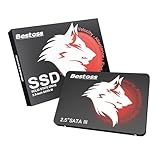
- Launch as Fast as Sirius: Replace slow HDDs with this internal SSD. 550MB/s read speeds boot systems at least 50% faster than HDDs. Open office files in seconds and load games faster with this SATA SSD for your computer storage.
- Long-Lasting Durability: Your Tough & Reliable Sky wolf Guardian: TLC chips offer longer write life than QLC. This internal SSD ensures reliable internal hard drive performance for vital data.
- Full Coverage for Multi-Scenario Use: Perfect for office, content creation, and home/ NAS systems. This 2.5 inch SSD accelerates boot times and file transfers as your trusted PC hard drive.
- Versatile Capacity Storage: Enjoy Freedom: 120GB-4TB options. This SSD internal stores files, photos, videos, games - ideal hard drive for PC storage needs.
- Multi-Device Compatibility & Plug & Play: SATA III SSD compatible with Windows/Linux laptops, desktops. A high-performance internal sata SSD solution for your pc storage.
What if the journal is not the problem?
Follow the evidence to the identified consumer. If stream media is using the space, decide which files are genuinely no longer needed before removing or relocating them. If an application log outside journald is growing, identify the process and its logging or rotation configuration. If another service’s data is responsible, understand its role and recovery requirements before changing it.
Avoid purging all logs or deleting arbitrary files under system directories as a routine fix. Do not remove stream assets, databases, package files or unfamiliar data just because they are large. If the VPS remains persistently short of capacity after safe cleanup, consider whether the provider allows a disk expansion or whether a larger VPS storage allocation is needed; the right option depends on the provider and the current disk layout.
Rank #3
- Launch as Fast as Sirius: Replace slow HDDs with this internal SSD. 550MB/s read speeds boot systems at least 50% faster than HDDs. Open office files in seconds and load games faster with this SATA SSD for your computer storage.
- Long-Lasting Durability: Your Tough & Reliable Sky wolf Guardian: TLC chips offer longer write life than QLC. This internal SSD ensures reliable internal hard drive performance for vital data.
- Full Coverage for Multi-Scenario Use: Perfect for office, content creation, and home/ NAS systems. This 2.5 inch SSD accelerates boot times and file transfers as your trusted PC hard drive.
- Versatile Capacity Storage: Enjoy Freedom: 120GB-4TB options. This SSD internal stores files, photos, videos, games - ideal hard drive for PC storage needs.
- Multi-Device Compatibility & Plug & Play: SATA III SSD compatible with Windows/Linux laptops, desktops. A high-performance internal sata SSD solution for your pc storage.
How do I restore and verify the stream?
- Confirm usable headroom. After addressing the identified consumer, recheck the affected filesystem. A service restart cannot compensate for a filesystem that is still full.
- Inspect the service state and logs. If your stream runs under systemd, check the actual unit name and its recent output. The exact unit and encoder command are host-specific.
- Restart deliberately if needed. Once storage is available, restart the named service using the method appropriate for your system and confirm it stays running. A restart policy may help recover from a process exit, but it does not fix full storage, invalid stream credentials, broken inputs or a YouTube-side error.
- Check YouTube’s view of the stream. In Live Control Room, confirm the stream status and health, and compare the event timeline with the original error. YouTube’s live stream metrics include real-time information such as duration and viewer figures; they confirm what YouTube sees, not that the VPS has adequate storage.
Whether the interruption resumes the same live event or affects its resulting video depends on the event configuration and what YouTube shows for that broadcast. Do not assume continuity solely because the local process restarted.
What if the disk has headroom but YouTube still reports a problem?
Investigate ingest, network and encoder configuration as a separate branch. Follow the timestamped YouTube error and its instructions. If you use OBS, the OBS Project’s stream connection troubleshooting guide, dated 2024-09-30, says dropped frames and intermittent disconnections commonly relate to an unstable connection to the ingest server or a bitrate the connection cannot sustain. That guidance concerns connection symptoms; it does not establish the cause of a particular VPS interruption.
Rank #4

- Renewed server with the highest quality standards
- Ideal for a robust enterprise environment or data center
- All servers include power cords, and other parts detailed in full product description below
- Custom configurations available upon request
| Evidence | Branch to investigate | Next step |
|---|---|---|
| Filesystem is full and local logs show write or no-space errors | Host storage exhaustion | Identify the consumer, reclaim space safely, then inspect and recover the service. |
| Journal usage is unusually large | systemd journal retention | Measure usage, preserve useful evidence, rotate and vacuum archived files if appropriate, then configure limits. |
| Disk has headroom but YouTube reports stream or connection errors | Ingest, network or encoder configuration | Follow the platform error and the relevant encoder’s diagnostic guidance. |
| Local service is stopped but disk space is healthy | Process recovery | Check the unit state and logs, then restart deliberately if appropriate. |
How can I prevent the VPS disk from filling again?
Set journal limits for the actual system
For persistent journal storage, systemd’s systemd 252 journald.conf manual documents SystemMaxUse= and SystemKeepFree=. Review the applicable runtime settings where relevant, too. Check the installed systemd version and where the journal is stored before choosing values; documented defaults depend on filesystem size and include caps, so they are not a sizing recommendation for every VPS.
Journald’s space controls do not clean unrelated files. To reduce journal use, it deletes archived files only; setting limits does not automatically remove a non-journal disk consumer or guarantee that existing journal data immediately shrinks to a desired amount.
Best Value

- 【High capacity storage】The Beelink Me Pro NAS comes with 3 x M.2 2280 PCIe3.0 SSD slots, each slot supporting up to 4TB capacity, for a total of up to 12TB capacity. In addition, the Mini PC also comes with two hard drive bays, supports 2.5-inch and 3.5-inch SATA drives, with up to 30TB capacity per drive. You can install the SSD yourself and use it to store data.
- 【Supports multiple systems】Beelink Mini PC equipped with Intel N95 CPU( 4C/4T, up to 3.4GHz),12G LPDDR5, and 128G SSD (supporting Windows/Linux systems), you can use this machine as a mini computer or install home media center systems such as JellyFin/KODI/Plex, turning this NAS into a large storage network and easily streaming photos, music, or 4K movies to your TV or other devices for sharing with your family and guests.
- 【Modular Innovative Design】Conventional Design: The motherboard is fixed inside the chassis with noreserved upgrade path, making user upgrades inconvenient or impossible. ME Pro innovation: DIY drawer-style design supports easy motherboard upgrades - compatible with Intel N-series, Intel 12th/13th/14th/15th Gen, AMD FP8 series, and ARM architectures. It allows quick dust removal with a single pull, fully user-operable.
- 【Soft Routing&Efficient Transmission】 The Me Pro PC is equipped with dual LAN, supporting soft routing functionality for network performance optimization, feature expansion, advanced network management, and resource sharing. It supports Wake On LAN, RTC Wake, and Auto Power On. At the same time, the mini PC has built-in WiFi 6 and Bluetooth 5.4, supporting wireless connection to multiple devices such as keyboards, mice, and printers, and high-speed transmission of various photos and streaming videos, providing you with a better user experience.
- 【Lifetime After-Sales Service】Beelink has been dedicated to R&D NAS for many years. All Beelink NAS have passed strict inspections before shipping. If you have any questions, please don’t hesitate to contact US. We are 100% guaranteed to solve your problems. We offer lifetime technical support, a 3-Year-free warranty, and 24/7 after-sales service. All of our products obtained FCC, RoHS, and CE Certifications.
Use process supervision and disk monitoring together
A systemd restart policy can help restart a process that exits, but it cannot create free space. A public Ubuntu VPS example of FFmpeg managed by systemd uses Restart=always; this is one implementation example, not a universal prescription or guarantee. Choose restart behavior for your service and ensure repeated failures will be visible rather than mistaken for a healthy stream.
Pair process supervision with disk-capacity monitoring and alerts configured for your VPS. Monitor the relevant filesystem, not just overall server status, and investigate growth trends before the mount reaches capacity. This helps catch media or application-log growth that journald limits cannot control.
Or let it run in the cloud
If you would rather not operate an always-on stream from a VPS, StreamNeo is a cloud service for keeping a YouTube channel live from uploaded videos: upload a recording or build a playlist, add your YouTube stream key, and go live. It loops the uploaded video from the cloud, so your computer and home connection do not have to stay on. It does not stream from a camera.
- Each slot streams uploaded video as made, up to 4K 60fps, at one flat price per slot; there are no quality tiers or re-encoding.
- Automatic recovery is included if YouTube drops the stream.
- The first day is free with no card required. Plans can be billed for a day, a week, a month, six months or a year, and can be canceled any time.
- Each slot includes 10 GB of storage, pooled across active slots, plus 24/7 looping, playlists and StreamNeo team support.
The monthly price is $9.99 per month. Start your free StreamNeo day.
Quick Recap
Product prices and availability are accurate as of the date/time indicated and are subject to change. Any price and availability information displayed on Amazon at the time of purchase will apply.
Quick wins for a faster PC:
Clear out junk files and repair common Windows errorsFree Scan →Fix the driver behind crashes, sound loss and screen glitchesFind Drivers →



