If a smart device will not connect to your mesh Wi-Fi, first confirm the device’s supported Wi-Fi band and security mode. Then check whether the setup phone is on the 2.4 GHz band, whether your router’s band-management settings are getting in the way, and whether signal or interference is causing the failure. A mesh network can use one network name while its phone and smart device connect on different bands.
Why a 2.4 GHz mesh connection can fail
Some smart-home devices support only 2.4 GHz Wi-Fi. Google notes that some devices do not support 5 GHz or 6 GHz, and that a phone may need to use 2.4 GHz during setup. TP-Link likewise says some IoT devices cannot roam between mesh nodes. These are compatibility patterns, not rules for every device: check the exact model’s instructions.
As an Amazon Associate I earn from qualifying purchases.
A single Wi-Fi name does not mean every client uses the same radio band. Your mesh system manages connections, and the phone, device, and mesh node may be using different bands or nodes. If the setup app transfers the phone’s Wi-Fi details to the device, its band can matter even when the mesh broadcasts one network name.
Check these requirements before changing settings
- Device band: Verify that the exact model supports 2.4 GHz and note whether it also supports 5 GHz or 6 GHz.
- Security mode: Check the device maker’s requirements for WPA2 or WPA3. Older devices may not work with WPA3 or WPA3 transition mode.
- Setup instructions: Look for directions about which Wi-Fi network the phone must join and whether a dedicated IoT network is recommended.
- Router controls: Confirm which band-steering, IoT-network, roaming, and channel controls your mesh model actually provides. Names and availability depend on model and firmware.
Try the setup fixes in order
- Put the phone on 2.4 GHz if the instructions require it. Follow the device maker’s pairing steps. If the router provides a separate 2.4 GHz or IoT network, connect the phone to that network during setup when directed. Google recommends manually connecting the phone to 2.4 GHz for some setups; TP-Link’s Deco guidance describes using its IoT network.
- Use the router’s documented band-steering or IoT option. If the setup instructions point to band steering, follow the router maker’s directions to disable it temporarily or use a dedicated IoT network. These controls are not available on every mesh system. Restore any temporary change after pairing if the manufacturer recommends doing so.
- Resolve a WPA3 mismatch carefully. If the device cannot connect using WPA3 or WPA3 transition mode, check both manufacturers’ compatibility instructions. Some routers offer a WPA2-Personal option for 2.4 GHz or a separate IoT network, but the available choices vary. Use the strongest security mode supported by the relevant devices; do not switch to an open network or WEP.
- Try only mesh-specific roaming changes that match your model’s guidance. TP-Link’s Deco FAQ recommends disabling Fast Roaming for certain connection problems and includes Beamforming in its troubleshooting guidance. Those instructions are Deco-specific, not universal mesh advice. Record the original settings and change one option at a time so you can identify the effect and restore the setting.
- Test signal and interference. Temporarily place the device closer to a mesh point. If pairing works there, placement or signal may be contributing to the failure. Microwaves and cordless phones can interfere with Wi-Fi. Follow your router maker’s channel and channel-width recommendations; Microsoft notes that 20 MHz width may help some older adapters or drivers that struggle with 40 MHz, though a narrower channel can reduce maximum throughput.
What to do if the device still will not connect
Keep a short record before contacting support: the mesh/router model and firmware, the smart-device model, the exact app error, the configured band and security mode, and each setting you changed. Contact the device maker and router or ISP support with those details. If a setup app cannot find the device, Google’s guidance notes that router settings or a 2.4 GHz-only setup may be needed.
#1 Best Overall

- SIMPLE TO SET UP WITH ALEXA: Get started in minutes with multiple setup options, including a zero touch experience when you select "Link device to your Alexa account" at checkout
- CONTROL FROM ANYWHERE: Schedule plugged-in appliances like lights or fans to turn on/off automatically, or control them remotely via the Alexa app when you’re away
- COMPACT DESIGN: The plug fits perfectly into 1 socket, leaving remaining sockets and outlets free for use; ideal for multiple appliances like holiday lighting, heaters, fans, lamps, water kettles, coffee makers, and more
- CUSTOMIZE ROUTINES: Schedule your smart plug to turn on/off either at designated times, with a voice command, or even at sunrise and sunset
- NO 3RD PARTY APPS OR HUBS REQUIRED: Set up and manage connected devices directly in the Alexa app; no need for additional smart hubs or 3rd party apps
Do not assume that replacing the mesh system is the next step. The cited troubleshooting guidance focuses first on band, security, setup, and placement compatibility; hardware replacement is worth considering only if you confirm a specific limitation in your equipment.
Quick Recap
Best Value
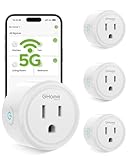
- FAST, STABLE CONNECTION: Enjoy easy Bluetooth setup and dual-band WiFi that stays reliable. Choose the 5GHz band for peak performance near the router, or the 2.4GHz band for better range through walls, over longer distances or with many devices.
- POWERFUL & COMPACT: This smart plug is rated for 120V/15A (1800W), ETL & FCC Certified, perfectly handles heavy-duty appliances like coffee makers more than 10A. Mini smart plugs feature a space-saving design that fits neatly into any outlet in your room.
- HAND-FREE VOICE CONTROL: Smart plugs that work with Alexa & Google Home Assistant. Just give a simple voice command to control your devices. Tips: please connect smart plug to the GHome app first—cannot link directly to Alexa/Google Home.
- TIMER AND SCHEDULES: This smart plug automates your home on schedules, turning lights on at sunset and off at bedtime for hands-free convenience. It runs devices only when needed and cuts power to prevent overcharging, saving you energy and giving you true peace of mind.
- APP REMOTE & GROUP CONTROL: Use your smartphone to turn home appliances on and off anytime, anywhere. Set up a group for all outlet timer indoor, control them with just one tap, and manage multiple smart outlet plugs simultaneously.
Rank #4

- FAST, STABLE CONNECTION: Simply plug in and keep the smart outlet connected to your stable 2.4GHz network(2.4 G WiFi only). Enhanced WiFi + Bluetooth connection is faster and more stable. Note: Don't support 5G WiFi.
- HAND-FREE VOICE CONTROL: Smart plugs that work with Alexa & Google Home Assistant. Just use simple voice commands to control your devices. Tips: please connect smart plug to the GHome app first—cannot link directly to Alexa/Google Home.
- SCHEDULES & AUTO-OFF TIMER: Easy to set timers and add schedules to connected devices circularly or randomly, making them work as scheduled like auto-off and auto-on.
- APP REMOTE & GROUP CONTROL: Use your smartphone to turn home appliances on and off anytime, anywhere. Set up a group for all outlet timer indoor, control them with just one tap, and manage multiple smart outlet plugs simultaneously.
- CERTIFIED SAFETY & COMPACT DESIGN: This wifi outlet plug combines assured reliability and a small size. It is ETL and FCC certified, rated at 10A, 1200W, and 120V, and its space-saving compact design fits perfectly into any corner of your home.
Rank #3

- Voice control: Kasa smart plugs that work with Alexa and Google Home Assistant. Enjoy the hands free convenience of controlling any home electronic appliances with your voice via Amazon Alexa or Google Assistant
- Easy set up and use: 2.4GHz Wi-Fi connection required. Plug in, open the Kase app, follow the simple instructions and enjoy
- Scheduling: Use timer or countdown schedules set your smart plug to automatically turn on and off any home electronic appliances such as lamps, fan, humidifier, Christmas lights etc.
- Smart Outlet Control from Anywhere: Turn electronics on and off from anywhere with your smartphone using the Kasa app, whether you are at home, in the office or on vacation.
- Trusted and Reliable: Kasa is trusted by over 6 Million users and being the Reader’s Choice of PCMag 2020. UL certified for safety use. 2-year warranty.
Rank #2
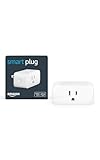
- Amazon Smart Plug works with the Alexa app and compatible Alexa devices to add voice control to any electrical outlet.
- Simple setup - No smart home hub required. Just plug it in, open the Alexa app and follow the stress-free directions to get started in minutes.
- Compatible with many lamps, fans, coffee makers, and other household devices with a physical on/off switch.
- Make any outlet a smart outlet. Compact design keeps your second outlet free for an additional smart plug.
- Use as a timer for lights or create lighting schedules for when you are away from your home.
Manufacturer guidance
- Google Home and Nest: How Nest Wifi, Nest Wifi Pro, and Google Wifi 2.4, 5 GHz and 6 GHz bands work
- TP-Link: Deco Smart Home Setup: Settings to Prevent & Fix Connection / Dropping Issues
- TP-Link: Recommendations for Wi-Fi setup for IoT Smart Home devices
- Wyze: My device won’t connect to my router’s WPA3 network
- Microsoft: Wi-Fi and your home layout
- Google Home and Nest: Troubleshoot Seamless Setup devices
Product prices and availability are accurate as of the date/time indicated and are subject to change. Any price and availability information displayed on Amazon at the time of purchase will apply.




