If your Fire TV remote still navigates menus but the volume, mute, or power buttons do not control the TV, check the TV selected in Equipment Control first. On a Fire TV streaming device, go to Settings > Equipment Control > Manage Equipment > TV, confirm the brand, and choose Change TV if it is wrong. Amazon says this procedure does not apply to Fire TV Smart TVs.
Start by identifying what is failing
- Navigation and Home work, but TV controls do not: Check Equipment Control and the TV brand before trying to pair or reset the remote.
- No remote buttons respond: Check that the batteries are seated correctly and have charge. If your remote supports Amazon’s LED diagnostic mode, use it to distinguish low battery, pairing, and other remote issues.
- You are using the Fire TV mobile app: Its volume and power controls have separate device and HDMI CEC requirements; see the section below.
A remote can communicate with Fire TV for navigation while its TV-control setup is wrong. An isolated volume or power failure therefore does not, by itself, mean the remote needs pairing.
As an Amazon Associate I earn from qualifying purchases.
Correct the TV selected in Equipment Control
- On your Fire TV streaming device, open Settings > Equipment Control > Manage Equipment > TV.
- Check whether the listed TV brand matches the television you are using.
- If it does not, choose Change TV and follow the on-screen prompts.
- Test the volume, mute, and power buttons again.
These are Amazon’s instructions for Fire TV streaming devices, not Fire TV Smart TVs. Smart TV owners should use support for their specific TV model rather than applying this menu path. Amazon’s volume-control instructions
Recommended Free Tools
Check app controls, HDMI CEC, and external speakers
The Fire TV mobile app’s volume and power controls are a separate feature from the physical remote’s TV-control setup. They require a supported Fire TV device and a TV that supports HDMI CEC. Amazon recommends enabling HDMI CEC in the TV’s settings; the setting’s name and location vary by TV. Some TVs may not support the CEC protocol needed for the controls.
#1 Best Overall

- Universal Compatibility: Replacement remote works seamlessly with Insignia, Toshiba, TCL, Hisense, Omni, 2-Series, and 4-Series smart TVs that support voice control.
- Easy Setup: Simply insert batteries and pair—no complex programming required. (Note: 2 AAA batteries are not included.)
- Convenient Voice Control: Easily search for content and control your TV using built-in voice commands.
- Built to Last: Durability is proven with a tested lifespan of over 100,000 clicks.
- Pet-Friendly: Brand new ABS materials, safe to curious dogs.
If audio comes through an external speaker and its volume or power is not responding, set up equipment control for that speaker under Settings > Equipment Control. The app’s controls may also require the speaker to be configured separately. Amazon’s Fire TV app and HDMI CEC guidance
Use the LED diagnostic if the remote is unresponsive
Only some remotes support Amazon’s diagnostic mode. To check, press the Alexa Voice button and see whether an LED flashes. Amazon notes, “Not all remotes have an LED light.” If yours does support the mode:
Rank #2

- “Alexa, find my remote.” - Use a device with Alexa, the Alexa app or Fire TV app and Alexa Voice Remote Pro will emit a ring. No searching cushions.
- Backlit for your convenience - Navigate movie night with a motion-activated backlight that illuminates buttons in dimly-lit rooms.
- Two customizable buttons - Create your own shortcuts to favorite channels, apps, or any Alexa commands.
- Dedicated headphone button - A new shortcut to the on-screen Bluetooth menu that lets you pair your wireless headphones fast.
- Integrated TV controls - Control power, volume, plus surf live TV with dedicated channel buttons all from one remote.
- Hold Rewind and Right together for three seconds.
- Press Menu, then press another remote button to read the LED response.
- Interpret the result using the table below.
| LED response | What it indicates | Next step |
|---|---|---|
| Slow red blink | Low battery | Replace the batteries; Amazon recommends AAA alkaline batteries for best performance. |
| Fast red blink | A remote problem | Try the applicable remote reset procedure below. |
| Orange | Remote is not paired | Follow the pairing steps below. |
| White | Check that Fire TV is on | Confirm the device has power and is switched on. |
| Blue | The diagnostic found no remote issue | Amazon recommends restarting Fire TV. |
To exit diagnostic mode, hold Play/Pause and Up together for three seconds, press Menu, then remove and reinsert the batteries. Amazon’s remote troubleshooting and LED diagnostic steps
PC Slower Than It Used to Be?
A free scan shows the junk files, broken settings and background clutter dragging Windows down - then fixes them in one click.Free scan · Windows 10 & 11Outdated Drivers Are Slowing You Down
One free scan finds every outdated or missing driver and matches the right update for your exact hardware.Free scan · exact hardware matchPair a remote that is unpaired or not responding
Try Amazon’s initial pairing steps before doing a full reset:
Rank #3

- Compatible with Streaming Devices (2018-2026): TV stick 4K Max (1st, 2nd Gen), TV stick 4K (1st, 2nd Gen, Plus, Select), TV stick (HD, 3rd Gen), TV cube (3rd Gen), TV stick lite (1st, 2nd Gen)
- Compatible with Smart TVs: works seamlessly with Insignia, Toshiba, Omni, 2-Series and 4-Series smart TVs with voice control
- Incompatible Devices: Not compatible with TV stick (1st, 2nd Gen), soundbar or other receiver
- Voice Control Features: Quickly search content, launch apps, and adjust volume using voice commands for hands-free convenience
- Instant Access Shortcuts: 4 pre-programmed buttons provide one-tap access to popular streaming apps and channels
- Keep the remote within 10 feet (3 m) of Fire TV.
- Hold Home until the on-screen pairing prompt appears; Amazon says this takes about 10 seconds.
- If pairing does not start, remove the batteries for 30 seconds, reinstall them, and try again.
- If that fails, try fresh AAA alkaline batteries.
Amazon’s pairing guide gives another reset-and-pair attempt: hold Left, Menu, and Back together for 12 seconds, then press Home. If the remote still will not pair, unplug Fire TV for five seconds, reconnect it, and try again. Fire TV can have up to seven controllers paired; if that limit has been reached, remove one before adding another. Amazon’s pairing instructions
When to use the full remote reset
Use this more involved sequence if the initial pairing steps do not resolve the issue. For most remotes, Amazon’s full reset procedure is:
Rank #4
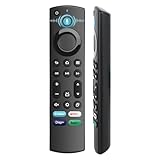
- 【Replacement for All FireStick Devices Remote】This top-quality voice remote is fully compatible with Insignia, Toshiba, and AMZ Smart TVs and Fire Series Devices. It serves as an excellent replacement remote for all AMZ Smart Devices, Insignia Smart TVs, Toshiba Smart TVs, Pioneer TVs, and AMZ Smart TVs. It works seamlessly with various remote models, including but not limited to: NS-RCFNA-21, NS-RCFNA-19, CT-95018, CT-RC1US-21, CT-RC1US-19, and many remote.
- 【Intelligent Voice Control】This smart voice remote empowers you to effortlessly search, play, pause, and fast-forward millions of pieces of content using just your voice. It enhances convenience in daily life and adds a touch of enjoyment.
- 【Effortless Pairing】Simply press and hold the remote Home button for approximately 10-15 seconds, then release it when the LED begins flashing rapidly. Afterward, wait for about 60 seconds, and your remote control should automatically pair with your device.
- 【Energy-Saving Technology】With our innovative energy-saving technology, this remote can operate for extended periods without requiring battery changes.
- 【4 Shortcuts with Remote】The replaced tv remote features 4 shortcuts(with Prime video / Netflix / Disp+ / Hulu) for popular streaming channels. It makes your life easier!
- Unplug Fire TV from both power and HDMI for 60 seconds.
- Hold Left, Menu, and Back together for 12 seconds.
- Wait five seconds, then remove the batteries from the remote.
- Reconnect Fire TV and wait for the on-screen remote-detection message.
- Reinsert the batteries and press Home. If it does not pair, hold Home for 10 seconds.
Amazon lists different reset sequences for the Basic Edition remote and the first-generation Alexa Voice Remote. Identify your remote generation and use its matching instructions rather than assuming the sequence above applies to every model. Amazon’s remote reset instructions
Free tools Windows power users keep installed
One-click scans. No signup required.
Check compatibility before replacing the remote
If the remote remains faulty after checking batteries and trying the appropriate pairing or reset steps, verify compatibility before buying a replacement. Amazon’s compatibility guide lists supported remotes by Fire TV model and warns that not all remotes work with all devices. As one specific exception, Amazon says Alexa Voice Remote Pro is not compatible with Element and Westinghouse Amazon Fire TV Smart TVs.
Best Value

- Compatible Devices: Universal voice remote control only for Fire smart TV, Compatible with Insignia/Toshiba/TCL/Hisense Fire smart TV.
- Easy to Use: Ready to control your TV in just 3 steps. Requires 2 AAA batteries. (batteries not included)
- Convenient Voice Controls: Search quickly, using just your voice.
- 4 Channel Shortcuts: Quick launch for your favorite APP.
- Package Contents: IDGPUW replacement remote, user manual, and Lifetime Technical Support
If your original remote still works, add the replacement through Settings > Controllers & Bluetooth Devices > Amazon Fire TV Remotes > Add New Remote. If it does not work, restart Fire TV and wait for the on-screen remote-detection message; insert batteries in the replacement, and if pairing does not begin, hold Home for 10 seconds. Amazon’s remote compatibility guide · Amazon’s replacement remote pairing instructions
Quick Recap
Product prices and availability are accurate as of the date/time indicated and are subject to change. Any price and availability information displayed on Amazon at the time of purchase will apply.




