Quick wins for a faster PC:
Clear out junk files and repair common Windows errorsFree Scan →Scan for outdated or missing drivers - takes under a minuteDriver Scan →Both Firefox and Chrome can capture a full web page, including content beyond the visible viewport. Firefox’s regular screenshot tool offers more documented selection and output choices: full page, visible area, a custom region, or a page part highlighted as you move the pointer, with download or clipboard copying. Chrome’s documented full-page workflow is a DevTools command called “Capture a full size screenshot.” Choose Firefox when you want those extra built-in selections; choose either browser for a whole-page capture, then check the result on the page you need to capture.
At a glance: what each browser offers
| Need | Firefox | Chrome |
|---|---|---|
| Capture the full page | “Save full page” in the regular screenshot tool; full-page capture is also available in DevTools. | DevTools “Capture a full size screenshot” in Device mode. |
| Capture only the visible viewport | “Save visible” in the regular screenshot tool. | DevTools “Capture screenshot.” |
| Select a custom region | Documented in the regular screenshot tool. | Not established by the Chrome documentation cited here. |
| Select a page part by pointing at it | The regular tool highlights page parts as the pointer moves, allowing a selection. | Not established by the Chrome documentation cited here. |
| Copy the result to the clipboard | Documented in the regular screenshot tool, alongside image download. | Not established by the Chrome documentation cited here. |
| Capture a single element | Available through Firefox DevTools’ “Screenshot Node” workflow. | Not established by the Chrome documentation cited here. |
“Not established” means the cited Chrome documentation does not confirm that workflow; it does not prove that Chrome cannot provide it by another method. Firefox feature details are in Mozilla’s Firefox screenshot guide and Firefox DevTools documentation. Chrome’s documented method is described in Chrome for Developers’ Device mode guide.


As an Amazon Associate I earn from qualifying purchases.
How to take a full-page screenshot in Firefox
Use the regular screenshot tool
- Open the page you want to capture.
- Open the screenshot tool from the page context menu, press Ctrl+Shift+S on Windows or Linux, or press Command+Shift+S on macOS. You can also add a screenshot button to the toolbar.
- Choose Save full page to capture the whole page, including content beyond the current viewport. Choose Save visible if you only need what is on screen.
- Download the image or copy it to the clipboard.
If you need only part of the page, use the regular tool’s custom-region option or point at a page part and select it when highlighted. This selection flexibility is the clearest documented difference from Chrome’s built-in full-page route.
Free tools Windows power users keep installed
One-click scans. No signup required.
Use Firefox DevTools for a full page or one element
- Open Firefox DevTools for the page.
- To use the full-page screenshot toolbar button, open DevTools Settings and enable it under Available Toolbox Buttons.
- Use the enabled button to capture the whole page. Firefox saves the capture in the browser’s Downloads directory.
Firefox DevTools also documents a Web Console screenshot command with a full-page option, as well as Screenshot Node for capturing a single element. These are separate from the regular screenshot tool’s “Save full page” interface; consult the DevTools documentation for command details.
#1 Best Overall

- Record videos and take screenshots of your computer screen including sound
- Highlight the movement of your mouse
- Record your webcam and insert it into your screen video
- Edit your recording easily
- Perfect for video tutorials, gaming videos, online classes and more
How to take a full-page screenshot in Chrome
- Open the page in Chrome and open DevTools.
- Switch DevTools to Device mode.
- Open the DevTools More options menu and choose Capture a full size screenshot.
Chrome’s separate Capture screenshot command captures the current viewport, not the full page. The full-size command is the documented built-in path for content beyond what is currently visible. See Chrome for Developers’ Device mode guide.
Which one should you use?
- Choose Firefox’s regular screenshot tool when you want to select a region or highlighted page part, switch between full-page and visible-area captures, or copy the image directly to the clipboard.
- Choose Chrome when its documented DevTools full-size capture meets your need and you are comfortable using Device mode.
- Choose Firefox DevTools when you need its documented single-element capture or want a DevTools-based full-page route.
- For either browser, inspect the output. The capture tools do not come with a documented guarantee that every page will render perfectly.
Limits to keep in mind
The official browser documentation cited here does not specify a universal maximum page height or image dimension, and it does not promise that every page will be captured correctly. Very long pages, dynamically loaded content, sticky elements, embedded content, and other page-specific behavior are reasons to check the resulting image rather than assume it is complete. The documentation does not quantify how often these cases cause problems or define a cutoff.
A Mozilla Support moderator suggested in a June 25, 2019 troubleshooting discussion that very large Firefox captures could run into a canvas data-volume limitation. This is a historical community-forum explanation, not a current, quantified browser specification: it gives no reliable size threshold and does not mean all long-page captures fail.
Windows Errors? Fix Them Before They Spread
Repair common Windows errors and clear accumulated junk for a smoother, more stable PC - no reinstall needed.Free scan · no reinstallOutdated Drivers Are Slowing You Down
One free scan finds every outdated or missing driver and matches the right update for your exact hardware.Free scan · exact hardware matchRank #2

- Works on Windows 11, 10, & 8
- Build a Professional Resume Fast with the step-by-step guide to help you create a professional resume that showcases your unique experience and skills
- ResumeMaker & Resume Maker are registered trademarks & box images and screenshots are copyrights of Individual Software Inc.
- Modern Resume Styles - Choose from 60 styles and customize any style with choice of header, colors, graphics and a photograph plus Powerful Ways to Search for Jobs
- Video Resumes & Expert Advice - View Sample Video Resumes and video resume scripts you can customize plus Email & Share Your Resume on LinkedIn, Facebook & Twitter
Troubleshooting a missing or incomplete capture
- You captured only the visible area. In Firefox, choose “Save full page,” not “Save visible.” In Chrome, use “Capture a full size screenshot,” not “Capture screenshot.”
- The Firefox DevTools full-page button is missing. Enable it in DevTools Settings under “Available Toolbox Buttons.”
- The page looks incomplete or unusual in the image. Check the actual output, especially on pages with dynamic content, embedded content, sticky elements, or very long layouts. The cited browser documentation does not identify a universal fix or guarantee for these cases.
- A particularly large Firefox capture fails. The 2019 Mozilla Support discussion raises canvas data volume as a possible cause but does not establish a current limit. Try a smaller capture, such as a region, or use another documented workflow; do not rely on an assumed maximum dimension.
Or skip the browser setup
For a repeatable capture from code, ScreenshotNeo accepts one GET request with the target URL and can return a PNG, JPEG, WebP, or PDF. See the ScreenshotNeo API documentation for parameters and response details.
curl -G "https://api.screenshotneo.com/v1/shot" -d access_key=YOUR_API_KEY --data-urlencode url=https://stripe.com -o shot.webpScreenshotNeo removes cookie banners, newsletter popups, and chat widgets before the capture; those cleanup steps can be turned off. Bot checks, blank pages, timeouts, failed loads, and cache hits cost nothing, and response headers identify the page verdict and billing status. Its MCP server lets AI agents use tools including take_screenshot, get_page_info, and capture_pdf. The Free plan includes 1,000 shots per month with no card; paid plans start at $5 for 3,000 shots. See ScreenshotNeo for the service details, or sign up free for 1,000 screenshots a month with no card.
Frequently Asked Questions
Does Chrome’s “Capture a full size screenshot” include content below the current viewport?
Yes. Chrome documents it as the Device mode command for capturing the whole page, including content outside the current viewport.
Rank #3
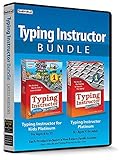
- Works on Windows 11, 10 & 8
- Kids ages 6 to 12 and older kids to adults learn to type on exciting adventures outside the classroom
- Both typing programs provide rewards every step of the way and learn in English or spanish
- Teaches keyboard basics following an age appropriate typing plan
- Typing Instructor is a registered trademark & box images and screenshots are copyrights of Individual Software Inc.
Can Firefox save a full-page screenshot to the clipboard?
The regular Firefox screenshot tool documents image download and clipboard copying after capture; the full-page option is “Save full page.”
Quick Recap
Product prices and availability are accurate as of the date/time indicated and are subject to change. Any price and availability information displayed on Amazon at the time of purchase will apply.




