On Evercade Nexus, save states follow the familiar Evercade pattern: press Menu during a game, choose Save or Quick Save, select a slot, and later use Load or Quick Load. Saves are stored on the cartridge. Nexus multiplayer is local wireless EverSync between two Nexus handhelds; it does not require the internet or a router, but the game must support compatible two-device play. Display controls include Original, Pixel Perfect and Fullscreen ratios, plus scanlines, bezels and Tate mode for vertical arcade games.
The practical details below explain the button flow, cartridge and firmware precautions, multiplayer limits, and how to choose a display mode without stretching the image unnecessarily.
| # | Preview | Product | Price | |
|---|---|---|---|---|
| 1 |
|
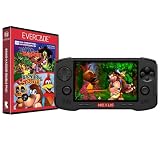
Evercade Nexus and Banjo-Kazooie Double Pack | $199.99 | Buy on Amazon |
| 2 |

|
Evercade EXP-R Handheld with Tomb Raider 1, 2 & 3 | $129.99 | Buy on Amazon |
| 3 |

|
Evercade EXP-R Solo | $119.99 | Buy on Amazon |
| 4 |

|
Blaze Evercade EXP-R und Duke Nukem Collection 1 (Bundle) | $147.09 | Buy on Amazon |
| 5 |
|
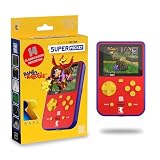
HyperMegaTech! Rare Super Pocket | $69.99 | Buy on Amazon |
As an Amazon Associate I earn from qualifying purchases.
How Nexus save states work
Save states capture the current game position outside the original cartridge save system. The working Nexus workflow is the same menu pattern documented for other Evercade systems, although the exact wording can change with firmware.
The Tool Desk
Outbyte PC Repair FREERepair Windows errors before they cause bigger problemsFix Now →Outbyte Driver Updater FREEScan for outdated or missing drivers - takes under a minuteDriver Scan →- Start the game and press the Menu button.
- Choose Save to open the save-state slots.
- Select an available slot and confirm the save.
- Keep the cartridge inserted until the operation has finished, then leave the game through the system menu if the title or an update instructs you to do so.
Quick Save writes directly to slot 1, making it the fastest option when you do not need to manage several checkpoints. To resume, open Menu, select Load and choose the required slot. Games or firmware versions that expose a last-save shortcut may label it Quick Load or Load Last Save.
#1 Best Overall
- Evercade Nexus delivers classic retro gaming on the go! New sleek design with textured grips, dual analogue joysticks and the biggest, best Evercade screen to date. Complete Evercade cartridge library compatibility of over 80 cartridges and 700+ games.
- 5.89" 840x512 IPS high resolution screen with 500+ nit brightness, WiFi 6 2.4GHz/5GHz wireless connectivity for updates, Wireless headphone support. TATE mode for vertical screen play.
- EverSync wireless multiplayer allows multiple Nexus handhelds to directly connect and play together in supported games with no WiFi network required.
- Dual stereo sound with front-facing speakers, 5+ hours battery life with USB-C charging, 3.5mm headphone jack.
- Includes physical cartridge featuring brand new versions of the 64-bit hits, Banjo-Kazooie and Banjo-Tooie from Rare. Comes with console, USB-C charging cable and physical game cartridge featuring Banjo-Kazooie and Banjo-Tooie. Note: Evercade Nexus does not connect to a TV.
Managing slots
Use separate slots for meaningful milestones rather than overwriting one state repeatedly. The documented Evercade VS workflow lets you highlight a slot and press X to delete it. If Nexus presents a different confirmation screen, follow the on-screen prompt; the important distinction is that deleting a slot removes the state, not the original save data inside the game.
Advanced save-state information
Evercade firmware notes describe more robust save states and advanced menus that can show slot selection and playtime. Those additions make it easier to identify an old checkpoint, but they do not change the basic Menu, Save, slot, Load sequence.
Where saves are stored and why firmware matters
Evercade support guidance says saves are stored on the cartridge. That means the cartridge is part of the save system: do not remove it while a save is being written, and do not assume that changing handhelds creates an independent cloud copy. Keep the cartridge available when loading a state on another compatible Evercade device.
Firmware notes also warn that a game update can make an existing save state incompatible. A state made before an update may fail to load even though the cartridge is working normally. If a title offers its own in-game save method, use that as an additional progression point before applying an update. For any cartridge-specific failure, consult official Evercade cartridge support rather than repeatedly overwriting the affected slot.
Rank #2
- Evercade EXP-R delivers classic retro gaming on the go
- Bundled with Tomb Raider Collection 1 physical cartridge
- New charcoal grey colour scheme with turquoise accents, and TATE mode for vertical screen play with dedicated buttons
- Complete Evercade Library compatibility
- 800x480 IPS High Resolution Screen, Built-in WiFi, Light and compact design, with 4-5 hours battery life with USB-C Charging
Installing a firmware update
The documented installation path is:
- Open Settings.
- Choose System.
- Select Install Update.
- Read the on-screen warning and allow the update to complete before removing power or the cartridge.
After an update, test an important state by loading it before deleting older slots. If the state is rejected, try the game’s native save system and contact support with the cartridge and firmware details.
EverSync multiplayer: what Nexus can and cannot do
EverSync is Nexus’s local wireless multiplayer feature. It links two Evercade Nexus handhelds directly, so neither an internet connection nor a Wi-Fi router is required. One player can share the inserted cartridge wirelessly with the second Nexus, a useful distinction from systems that require a separate copy for every player.
What you need
- Two Evercade Nexus handhelds with EverSync support.
- A game that supports compatible multiplayer across two Nexus units.
- A charged battery on each handheld and the same game session started according to the game’s multiplayer instructions.
The available coverage does not establish that every cartridge supports two-device play. A cartridge can be part of the Nexus library without offering EverSync multiplayer, so check the individual game’s instructions or compatibility information before planning a two-player session.
Typical connection sequence
- Power on both Nexus handhelds and make sure each is ready to play.
- Insert the cartridge into the Nexus that will host the game.
- Launch the compatible title and open its multiplayer or EverSync option.
- On the second Nexus, join the session when the game prompts you.
- Start the match only after both devices report that the connection is established.
Menu names can vary by game and firmware, so use the title’s own prompts for the final confirmation. If the second handheld cannot join, first verify that the game is one of the titles supporting two-device EverSync play; then restart both handhelds and repeat the connection sequence with the cartridge still in the host unit.
Rank #3
- Evercade EXP-R Solo delivers classic retro gaming on the go
- New design with light grey casing with dark grey and red accents.
- TATE mode for vertical screen play with dedicated buttons
- Complete Evercade Library compatibility
- 800x480 IPS High Resolution Screen, Built-in WiFi, Light and compact design, 4-5 hours battery life with USB-C Charging. Note: The EXP-R does not connect to a TV
Is there online multiplayer?
No online multiplayer service is established for Nexus in the available feature documentation. EverSync is local, device-to-device play. It does not route a game through the internet, matchmaking servers or a household router.
Choosing a Nexus display ratio
Nexus provides three principal screen-ratio choices. The right setting depends on whether you value the original geometry or a larger image that fills more of the panel.
| Setting | How it presents the game | Use it when |
|---|---|---|
| Original | Uses the game’s original-size presentation. | You want the least intervention and are comfortable with unused screen area. |
| Pixel Perfect | Preserves integer-aligned pixel geometry where the source and display allow it. | You want sharp, regular pixels for sprites and menus. |
| Fullscreen | Expands the picture to use more of the panel. | You prefer a larger image and accept that the presentation may differ from the original framing. |
Original and Pixel Perfect are the safer choices when accurate proportions matter. Fullscreen is convenient on a handheld because it reduces unused space, but expansion can change how the game is framed compared with its native output. Switch between the three while viewing a familiar scene rather than judging from a title screen alone; scrolling backgrounds and circular objects reveal geometry changes more clearly.
Do these 3 things before closing this tab:
1Scan for outdated or missing drivers - takes under a minute2Clear out junk files and repair common Windows errors3Fix the driver behind crashes, sound loss and screen glitchesScanlines, filtering and bezels
Firmware video options add Subtle and Strong scanline levels, allowing you to imitate the visible line structure of a traditional display. Subtle scanlines retain more brightness; Strong scanlines produce a more pronounced retro effect. Use either only if the added texture helps you, because scanlines reduce the clean, evenly lit appearance of modern pixel art.
Rank #4
- The new Evercade EXP-R portable retro game console from Evercade includes Duke Nukem Collection 1 (with 3 games) cartridge in a single package
- Evercade EXP-R offers classic and retro games for travel with a new retro color scheme
- TATE mode for vertical screen playback with dedicated keys
- Full compatibility with the Evercade cartridge library with over 60 cartridges and more than 600 games
The firmware notes also document nearest-neighbour filtering for 720p output. Nearest-neighbour keeps hard pixel edges instead of smoothing them, which is generally the appropriate filter for low-resolution sprites. The 720p qualification matters: it describes the output mode covered by the firmware notes, not a claim that every Nexus game is rendered internally at 720p.
Six bezel options are available in the broader firmware display controls. Bezels frame the game image with artwork or side panels; they do not change the game’s input or save behavior. Turn them off when you want the largest uninterrupted picture, or choose one when the original arcade-style presentation is part of the appeal.
Independent reader supportYour contribution helps us test, update, and keep practical guides available for everyone.Using Tate mode for vertical arcade games
Tate mode is designed for arcade games whose cabinets used a portrait-oriented screen. When enabled, Nexus rotates the display vertically and rotates the button mapping with it. That keeps the controls aligned with the new orientation instead of forcing you to hold the handheld sideways while the buttons remain mapped for landscape play.
What’s actually slowing this PC down?
Pick the symptom - the matching free tool is one click away.
- Open the game’s display or system video options.
- Enable Tate mode.
- Rotate the handheld as indicated by the on-screen image.
- Test movement and fire buttons before starting a long session, because the mapping has changed with the rotation.
Vertical shooters and other portrait-oriented arcade titles are the clearest use cases. For standard horizontal games, leave Tate mode off; rotating the display would add no benefit and may make the controls less comfortable.
Best Value
- 15 pre-loaded Rare games: Jetpac, Lunar Jetman, Atic Atac, Knight Lore, Gunfright, Slalom, Cobra Triangle, Snake Rattle 'n' Roll, Solar Jetman, Battletoads, R.C. Pro-Am II, Battletoads in Battlemaniacs, Conker's Pocket Tales, Banjo-Kazooie, Blast Corps
- Rare-inspired colour scheme.
- USB-C Charging (cable included).
- Compatible with full library of Evercade cartridges
Nexus hardware relevant to these settings
Evercade Info lists the following Nexus specifications. The page does not state a publication year, and these figures are not independent laboratory measurements, so treat them as the reported product specifications rather than a guaranteed battery or brightness test result.
| Component | Reported specification | Why it matters here |
|---|---|---|
| Display | 5.89-inch IPS panel, 840 × 512 resolution, more than 500 nits | Provides the panel on which ratio, scanline, bezel and Tate choices are shown. |
| Controls | Dual analogue sticks | Useful for games that support analogue input, independent of display orientation. |
| Speakers | Dual front-facing stereo speakers | Keep sound directed toward the player during handheld play. |
| Headphones | 3.5 mm headphone jack and wireless-headphone support | Offers wired or wireless listening when speakers are not suitable. |
| Battery | 5,000 mAh, rated for 5+ hours | EverSync sessions and high-brightness settings consume portable play time, so charge both units before multiplayer. |
Troubleshooting common Nexus problems
A save state will not load
- Confirm that the original cartridge is inserted and that you selected the correct slot.
- If the game was updated, assume the state may be incompatible and try an in-game save instead.
- Do not delete the slot until you have tested every available recovery option.
- For a persistent cartridge error, use official Evercade support and provide the game, cartridge and firmware information.
The save menu looks different
Firmware revisions can add advanced slot and playtime displays or rename a shortcut as Quick Load or Load Last Save. Look for the underlying Save, Load and slot functions rather than relying on one exact label.
EverSync will not connect
- Check that both handhelds are Nexus units with EverSync support.
- Confirm that the game supports two-device multiplayer; not every cartridge is documented as compatible.
- Keep the cartridge in the host handheld and restart both systems before trying again.
- Remember that a router and internet connection are not part of the EverSync requirement, so changing home-network settings will not solve a game-compatibility problem.
The picture looks stretched or too small
Try Pixel Perfect first if sharp geometry is the priority. Choose Original when you want the game’s native-size presentation, or Fullscreen when using more of the panel matters more than preserving the original framing. Disable scanlines and bezels while diagnosing the image so those effects do not obscure the ratio change.
Recommended Free Tools
A practical setup checklist
- Before playing, install firmware through Settings → System → Install Update if an update is available.
- After updating, verify an important save state before creating new checkpoints.
- For two-player sessions, bring two charged Nexus handhelds and a game confirmed to support EverSync.
- Use Pixel Perfect or Original for geometry accuracy; select Fullscreen for maximum panel use.
- Enable Tate mode only for portrait-oriented arcade games and test the rotated controls.
- Keep the cartridge inserted during save operations and follow any shutdown instruction shown by the game or system.
Nexus therefore works best when its features are treated as separate choices: cartridge-based save states for convenient checkpoints, local EverSync for supported two-handheld games, and display controls tailored to the source artwork. Once those limits are understood, the Menu save workflow, the ratio settings and Tate mode are straightforward to use without risking a valuable cartridge save or expecting an online service that the platform does not provide.
Quick Recap
Product prices and availability are accurate as of the date/time indicated and are subject to change. Any price and availability information displayed on Amazon at the time of purchase will apply.

