Use an Xbox-compatible PC controller as your primary input for Don Bradman Cricket. Steam lists Xbox controller support for the PC release and marks the system requirements with “Controller Required.” Start on Rookie difficulty, spend time in Practice Nets, and learn the right-stick batting motion before attempting a full match.
The title “Don Bradman Cricket Jr” is ambiguous: the official materials documented for this guide cover Don Bradman Cricket and Don Bradman Cricket 17, not a separate official “Jr” edition. The setup below therefore applies to those documented PC games. Keyboard play is possible only as an unofficial workaround using input emulation, and it does not provide the same analogue control as a controller.
As an Amazon Associate I earn from qualifying purchases.
What you need to know before setting up
Don Bradman Cricket is designed around analogue sticks. Batting direction and timing, bowling line and release, spin generation, and several fielding actions are all described in the official help in terms of controller-stick movement. That design explains why Steam identifies a controller as required rather than treating it as an optional accessory.
- Best-supported input: an Xbox-compatible controller connected to the PC and recognised by Steam.
- Best starting difficulty: Rookie, which assists foot movement and shot selection and postpones advanced and unorthodox shots.
- Best learning area: Practice Nets, where delivery and player variables can be tuned without the pressure of a complete match.
- Keyboard status: community-created mappings exist, but there is no authoritative official keyboard layout in the documented help.
Button names can differ between controller models or an on-screen prompt scheme. Learn the action represented by each stick or mapped key rather than relying only on a printed letter.
#1 Best Overall

- Platform Compatibility: This PC controller is designed for Windows PC, Steam, Switch, Android, and iOS. Xbox-style asymmetric stick layout for PC gamers. Three modes cover all your devices. Please check your device compatibility before purchase
- Three Connection Modes: 2.4G wireless, Bluetooth, wired USB-C. PC gets native XInput/DirectInput. Switch pairs via Bluetooth, no adapter. This gaming PC controller switches devices seamlessly. Stable wireless minimizes random disconnects during gaming
- Hall Effect Precision: Hall effect joysticks and triggers eliminate stick drift. This gaming controller for PC delivers smooth, responsive input with no dead zones. Built for FPS, racing, and action games. Long-term precision for competitive PC gaming
- Back Buttons & Battery: Two programmable back buttons map combos and shortcuts. Textured grips with dual vibration. 1000mAh battery delivers up to 20H playtime. RGB can be turned off. A solid PC controller for gaming with custom back buttons
- ABXY Layout Switch: Press B + Minus + Plus to swap between PC and Switch modes. Features: 1000Hz polling rate, RGB lighting, turbo. Note: designed without mic jack or gyro sensor
Choose and connect the right controller
Why an Xbox-compatible controller is the safe choice
Steam’s listing explicitly identifies Xbox controllers under full controller support and includes the note “Controller Required.” An Xbox-compatible PC controller therefore matches the input model the game expects and avoids translating digital keyboard presses into analogue directions.
A wired Xbox-compatible controller is usually the least complicated arrangement: connect it before launching the game, let the operating system and Steam detect it, and then start Don Bradman Cricket. A compatible wireless controller can also work when it is correctly paired and visible to Steam, but the game must still receive it as an Xbox-style gamepad.
Initial connection checklist
- Connect the controller to the PC or pair it using the controller manufacturer’s normal Windows procedure.
- Open Steam and confirm that the controller appears in Steam’s controller settings or test screen.
- Launch the game only after Steam can read the sticks and buttons. Move both sticks and press several face buttons in the test interface.
- Start Don Bradman Cricket and check that the on-screen prompts respond to the controller rather than to an unrecognised device.
- If the game still shows no input, close it, reconnect the controller, and relaunch. Avoid running multiple remapping utilities at the same time because they can send duplicate or conflicting signals.
Set a forgiving difficulty before learning controls
The official help describes five difficulty levels that progressively expand the controls and make opponents harder. Rookie is the appropriate first setting because it assists foot movement and shot selection, so a new player can concentrate on reading the delivery and learning the basic stick motion.
Free tools Windows power users keep installed
One-click scans. No signup required.
Use the levels as a progression
- Rookie: use this while learning batting direction, timing, bowling release, and basic fielding.
- Intermediate levels: move up after you can consistently identify length and complete ordinary shots without relying on frantic corrections.
- Highest levels: reserve these for when you are comfortable with expanded controls, faster decisions, and less assistance.
The exact names and behaviour of the five levels are less important than the principle: do not increase difficulty merely because you can win a single match. Raise it when the current assistance no longer teaches you anything.
Rank #2

- COMPATIBILITY: Support PC Computer, Laptop, Notebook. Windows XP/7/8/10/11, Steam, PS 3
- COMPATIBILITY FOR ANDROID: Support Android Mobile Phone/Tablet/TV/Box(system version 4.0 or above, and the device must fully support OTG function). Need to purchase a OTG adapter or cable for the Android device with Type-C or Micro-USB port.
- PLUG AND PLAY: Only for PC games supporting Xinput mode / Android mobile games supporting Android mode / PS 3. No need to install drivers except for Windows XP.
- PRODUCT FEATURE: Multi-mode: Xinput & Dinput & Android & PS 3 / Vibration Feedback Function / JD-SWTICH Function / TURBO Function
- NOTICE: This USB Wired PC Controller Gamepad does not support the Xbox 360 / Xbox One / Mac OS / PS4
Practice Nets: the fastest way to learn batting
Open Practice Nets before playing a full match. The official help identifies Nets as the place to learn batting mechanics and adjust both delivery and player variables. You can tune the following conditions:
- difficulty
- bowler type
- delivery type
- wicket side
- line
- length
- speed
- mentality
- batter and bowler handedness
- player skill
A useful Nets sequence
- Begin with a single bowler type and a moderate speed so that the ball marker is easy to read.
- Face deliveries on both wicket sides. This prevents you from memorising one visual angle.
- Change only one variable at a time: for example, keep the line constant while switching from good length to short.
- Repeat a delivery until you can identify its length before the ball reaches the batter.
- Add speed, different delivery types, and altered handedness only after the basic timing feels repeatable.
- Finish with a short sequence at match-like settings to check that the skill transfers outside a controlled drill.
Beginner batting controls
Read the ball marker first
The ball marker communicates the delivery’s pitch length and direction. In the official manual, red indicates a short delivery and green indicates good length. Use the marker as an early cue, then watch the ball itself and prepare the stick movement rather than swinging immediately.
Use the right stick for direction and timing
“The Right Stick is used for direction and timing of your shot.” In practical terms, move the right stick toward the area where you want to play and make the movement at the correct moment. The same physical input carries two decisions: where the shot goes and when the bat meets the ball.
Crashes, No Sound, or Screen Glitches?
Random freezes, missing sound and display glitches usually trace back to one bad driver. Find and replace yours safely.Free scan · under a minuteWindows Errors? Fix Them Before They Spread
Repair common Windows errors and clear accumulated junk for a smoother, more stable PC - no reinstall needed.Free scan · no reinstall- Watch the marker appear and identify whether the ball is short, good length, or another length.
- Choose a sensible shot direction instead of trying an advanced stroke on every delivery.
- Move the right stick toward that direction as the ball reaches the hitting zone.
- Review the result: a mistimed shot usually indicates that the stick movement began too early or too late, while a poor placement suggests the direction was wrong.
On Rookie, let the assistance handle some foot movement and selection while you develop the right-stick rhythm. Do not judge your batting from one edge or mistimed shot; repeat the same delivery in Nets and adjust one part of the movement at a time.
Rank #3

- Wide Compatibility: VOYEE wired 360 controller compatible with Microsoft Xbox 360 & Slim/ PC (Windows 11/10/8.1/8/7). Just plug and play, not for FPS games
- Enhanced Game Controller: Upgraded PC 360 controller with new left and right trigger buttons and more sensitive joysticks and buttons - Respond quickly to player commands without delay
- Astonishing Gaming Experience: VOYEE wired pc controller provides rumble control and according to the game automatic vibration feedback to enhanced game experience and match your personal preference
- Ergonomic Design: Grips's contours have been designed to fit your hands more comfortably to hold for a long time and 7.2ft cord allows greater
- What You Get: VOYEE wired 360/PC Controller, 45 Days Money Back, 365 Days Guarantee Against quality defect and 24 Hours Friendly Customer Support
What to practise first
- Play straight or otherwise conservative shots against good-length deliveries.
- Learn to recognise a short red-marker delivery before attempting a specialised response.
- Practise both left- and right-handed matchups by changing handedness in Nets.
- Delay advanced and unorthodox shots until ordinary timing is reliable.
Pace bowling: length, line, and release
Pace bowling uses a two-stage right-stick action. First choose the intended length. As the bowler reaches the delivery stride, pull the right stick down; then push it up to release the ball.
- Select a length before the delivery animation reaches its release phase.
- Pull the right stick down as the bowler approaches the delivery stride.
- Push the stick up to release.
- Use release timing to alter the result: an earlier release sends the ball closer to the batter, while a later release produces a shorter delivery.
- Repeat the same line and length in Nets until the release feels predictable, then vary speed and delivery type.
The release cue matters as much as the initial length selection. If the ball is consistently too short, release earlier; if it is landing too full than intended, check that the down-then-up motion is occurring at the correct stride rather than being rushed.
Spin bowling: generate spin with the left stick
Spin uses the left stick to create the spin and the right stick for line and release. The official help allows the left stick to be rotated smoothly through up to three rotations. The final right-stick direction determines the line.
The Tool Desk
Outbyte Driver Updater FREEFix the driver behind crashes, sound loss and screen glitchesFind Drivers →Outbyte PC Repair FREEClear out junk files and repair common Windows errorsFree Scan →- Choose the intended line and prepare the right stick.
- Rotate the left stick smoothly to generate the desired amount of spin. You can make up to three rotations; do not jerk the stick between them.
- Use the right stick to set the line and complete the release.
- Practise one rotation first, then add a second or third only when the ball is landing consistently.
Spin is easier to learn when line and spin are separated into two deliberate motions. If the ball is spinning correctly but missing the intended area, adjust the final right-stick direction rather than changing the left-stick rotation.
Rank #4
![ZD-V+ USB Wired Gaming Controller Gamepad For PC/Laptop Computer(Windows XP/7/8/10/11) & PS3 & Android & Steam - [Black]](https://m.media-amazon.com/images/I/41Ddk2Xp33L._SL160_.jpg)
- Support PC Windows XP / 7 / 8 / 10 / 11 & PS3 & Steam
- Support Android (version 4.0 or above, and the device must fully support OTG function). Not inlciud a OTG adapter in the package.
- Support Plug and Play, only for PC games supporting Xinput mode / PS3
- Feature: Multi-mode: Xinput & DirectInput / Vibration Feedback Function / JD-SWTICH Function (exchange the functions of D-pad and Left-Stick in Xinput mode)
- USB Wired Gamepad (PS architecture) - Does not support the Xbox 360 / Xbox One / Mac OS
Fielding assistance: choose the right level
The game offers three fielding modes. The choice determines how much responsibility you have for movement, catches, and throws.
| Mode | What the player controls | Best use |
|---|---|---|
| Fully assisted | The AI makes fielding decisions. | First matches, learning batting and bowling, or reducing workload while learning the rest of the controls. |
| Semi-assisted | The player controls catching and throws while assistance handles other fielding decisions. | A transition stage when you want to practise the most important fielding actions without controlling every movement. |
| Manual | The player controls movement, catching, and throws. | Experienced players who want complete responsibility for positioning and execution. |
A sensible fielding progression
- Start with fully assisted fielding while learning the batting and bowling systems.
- Switch to semi-assisted mode when you are ready to practise catches and throws deliberately.
- Move to manual only after you can judge movement, catch timing, and throw decisions without losing track of the ball.
Manual mode is not automatically better for a beginner. It adds decisions at the exact moment a new player is still learning where the ball marker and release cues appear.
Independent reader supportYour contribution helps us test, update, and keep practical guides available for everyone.Keyboard setup: an unofficial workaround
Community documentation describes a KeyboardSplitter-based method for Don Bradman Cricket 14 and 17. It is not an official keyboard layout, and Steam’s “Controller Required” note means keyboard-only play may depend on emulation. A keyboard cannot reproduce the continuous analogue range of a stick, so batting direction, timing, bowling line, and release may feel less precise.
Quick wins for a faster PC:
Clear out junk files and repair common Windows errorsFree Scan →Scan for outdated or missing drivers - takes under a minuteDriver Scan →What the community mapping does
The workaround presents keyboard presses as controller-like inputs. Example mappings from the community document include:
Best Value
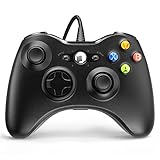
- 🎮【Wired Controller Compatible with 360】: Wired USB Game Pad Controller Compatible with xbox 360 controller systems and PC Windows 7/8/10. Improved grip and contour design make it more ergonomic, fitting your hands comfortably for a consistent, comfortable gaming experience.
- 🎮【Easy Operate】: This Wired Controller Comes with a 7.2 ft USB cable for flexible movement. Just plug this 360 controller into your console or computer (no driver needed). A reliable xbox 360 controllers alternative for quick setup.
- 🎮【Great Performance】: Features dual vibration motors, pressure-point triggers, and an 8-way arrow button for full game control. Whether you use it as a xbox 360 controller for pc or console, you’ll get immersive, responsive feedback.
- 🎮【Ergonomics Design】: Asymmetrical grip and contour design fits your hands perfectly. All buttons are easy to press with instant response, giving you a smooth, fatigue-free experience ideal for long controller for 360 sessions.
- 🎮【Use up to 4 Controller】: YAEYE wired controller, Connect up to 4 controllers at once for multiplayer games. This xbox 360 controller wired design works great with friends, making it a solid choice for shared gaming moments.
| Keyboard key | Mapped action in the community example |
|---|---|
| A | Good length |
| Y | Yorker |
| X | Rub/shine and take run |
| B | Bouncer and cancel run |
| R | Slower ball and sweep |
| T | Faster ball and advance |
| Arrow-key combinations | Batting shots |
| Additional mapped keys | Field changes |
The duplicated actions in that example reflect the limitations of a community layout, not a universal rule for every keyboard configuration. Treat the document as a starting point and verify each action in a safe practice situation.
Keyboard setup steps
- Install and configure the community input-splitting or emulation tool according to its own documentation.
- Load a Don Bradman Cricket 14 or 17 profile, or create one using the example mappings as a reference.
- Assign the keys you can reach without moving your hand during a delivery. Keep batting, bowling, and run controls logically grouped.
- Start Steam and confirm that the emulated controller is visible before launching the game.
- Open Practice Nets and test every mapped action. Check a batting shot, a bowling length, a release, a run command, and a fielding action.
- Save a backup of the working profile. If a later change breaks the setup, restore the known-good profile instead of rebuilding it during a match.
If the game ignores the emulated device, close other remapping programs and restart Steam and the game. If actions repeat or two commands occur together, inspect for duplicate bindings in both Steam and the splitter utility.
Controller versus keyboard
| Comparison point | Xbox-compatible controller | Keyboard workaround |
|---|---|---|
| Official support | Explicitly supported by Steam; the listing says a controller is required. | Community supplied; no official keyboard layout is documented. |
| Analogue precision | Sticks directly represent batting direction and timing, bowling line and release, and spin motion. | Digital keys approximate stick positions and may reduce precision. |
| Setup effort | Connect the device, confirm Steam detection, and launch. | Requires a splitter or emulation profile and individual action testing. |
| Beginner learning | Matches the controller-oriented tutorial language and Rookie assistance. | Rookie and Nets still help, but the tutorial’s stick instructions must be translated into keys. |
| Recovery from errors | Reconnect or retest the controller through Steam. | Check profiles, duplicate bindings, emulation status, and Steam detection. |
Choose the controller unless a keyboard is your only practical option. The keyboard route can make the game accessible on a particular desk, but it should be treated as an experiment rather than an equivalent officially supported control scheme.
Common problems and fixes
The controller is connected but the game does not respond
- Verify that Steam detects the controller before launching the game.
- Close the game, reconnect the controller, and launch again.
- Disable competing remapping utilities so only one layer translates the input.
- Test both sticks and several buttons in Steam’s controller test screen.
Batting shots are consistently mistimed
- Return to Rookie difficulty.
- Use Practice Nets with one delivery type and moderate speed.
- Watch the ball marker and practise the right-stick movement without changing several variables at once.
- Change timing before changing shot direction; the right stick controls both.
Pace deliveries keep landing too short
Check the release moment. The documented technique uses a down motion as the bowler reaches the delivery stride and an upward push to release. Releasing later produces a shorter ball, so move the release earlier while keeping the selected length unchanged.
Spin has the wrong line
Keep the left-stick rotation steady and alter the final right-stick direction. The left stick creates spin; the right stick sets line and release.
Quick Recap
Keyboard keys do nothing or trigger two actions
- Confirm the emulated controller appears to Steam.
- Check that the correct Don Bradman Cricket 14 or 17 profile is loaded.
- Remove duplicate assignments from Steam and the splitter tool.
- Test mappings in Practice Nets before entering a match.
A practical first-session plan
- Connect an Xbox-compatible controller and verify it in Steam.
- Select Rookie difficulty and fully assisted fielding.
- Enter Practice Nets with a moderate-speed bowler.
- Spend several deliveries reading the marker: red means short and green means good length.
- Practise right-stick direction and timing on ordinary shots.
- Switch to pace bowling and repeat the down-then-up release motion.
- Try one-rotation spin bowling, using the right stick to set line.
- Play a short match with the same assistance settings.
- Move to semi-assisted fielding only after the ball, bat, and release cues feel familiar.
- Consider manual fielding and a higher difficulty level separately; changing both at once makes it harder to identify what caused a problem.
Quick reference
| Task | Input or setting to remember |
|---|---|
| Recommended PC input | Xbox-compatible controller |
| First difficulty | Rookie |
| Batting direction and timing | Right stick |
| Ball-marker colours | Red: short; green: good length |
| Pace release | Pull right stick down at the delivery stride, then push up |
| Pace timing effect | Earlier release: closer to the batter; later release: shorter delivery |
| Spin generation | Rotate the left stick smoothly, up to three rotations |
| Spin line and release | Right stick |
| Least demanding fielding | Fully assisted |
| Intermediate fielding | Semi-assisted |
| Complete fielding control | Manual |
| Keyboard status | Unofficial emulation and community mappings |
Product prices and availability are accurate as of the date/time indicated and are subject to change. Any price and availability information displayed on Amazon at the time of purchase will apply.

