What’s actually slowing this PC down?
Pick the symptom - the matching free tool is one click away.
Core Keeper dedicated-server settings are split between launch arguments and an optional ServerConfig.json. The -world argument selects the save slot, -worldmode fixes the world’s rules when it is created, and -port normally uses UDP 27015. The practical procedure is to choose or back up the save first, set arguments in the server’s ARGUMENTS.txt-documented format, start once, and then verify the generated files and logs. A few values published by community and hosting guides conflict—especially maximum players and game-ID rules—so treat the copy of ARGUMENTS.txt shipped with your server build as authoritative.
Playing with friends? Godlike.Host runs hosted Core Keeper servers from 10 data-center locations, with free DDoS protection.
Where Core Keeper reads dedicated-server settings
A dedicated server can receive settings in two places:
As an Amazon Associate I earn from qualifying purchases.
- Launch arguments: options supplied when the server process starts, such as
-world,-worldmode,-maxplayers,-portand-password. ServerConfig.json: an optional configuration file used by some server builds for persistent values such as the player limit.
One commonly cited guide says command-line values override values in ServerConfig.json. That makes launch arguments the safest place to resolve a conflict: put the intended value there, restart the process, and check the startup output. Do not assume a control-panel label maps to the same key as the game executable; hosted panels often add their own wrapper settings.
Parameter names and accepted values can change between builds. A guide reports that ARGUMENTS.txt has shipped with the dedicated server since update 1.1.0. Open that file in the same server directory as the executable before copying an old command line from a forum post.
#1 Best Overall

- DISCOVER 50+ GAMES — Explore a curated library of more than 50 games playable across XBOX consoles, PC, and supported devices, with new favorites ready to discover.
- PLAY ACROSS YOUR FAVORITE DEVICES — Enjoy included games across supported XBOX consoles, PC, and other compatible devices for more ways to play wherever you are.
- PLAY TOGETHER ONLINE — Connect with friends and communities with online console multiplayer included with XBOX Game Pass Essential.
- STREAM WITH XBOX CLOUD GAMING — Enjoy up to 5 hours of cloud playtime per month and stream supported games to compatible devices with XBOX Cloud Gaming.
- EARN REWARDS WHILE YOU PLAY — Earn Rewards points by playing games, completing eligible activities, and shopping in the Store with your XBOX Game Pass membership.
Prepare the server before changing options
- Stop the server cleanly. A normal shutdown gives the game a chance to write the latest world state. Avoid editing files while the process is still saving.
- Back up the save directory. Copy the entire dedicated-server save folder to a separate location before changing the world slot, mode or player limit.
- Read the local documentation. Compare every option you plan to use with this build’s
ARGUMENTS.txt, including spelling, allowed ranges and whether a restart is required. - Decide whether you are creating or continuing a world. The seed and mode matter at creation time; the slot matters every time the server starts.
- Record the existing command. Keep a text copy of the working arguments so a later change can be reversed.
Core options at a glance
| Option | Purpose | Reported value or behavior | Reliability note |
|---|---|---|---|
-world |
Selects the save slot | One guide reports slots 0–29 | Medium confidence; use the range accepted by your build |
-worldseed |
Seeds a newly created world | Used only when a world is first created | Medium confidence |
-worldmode |
Chooses world rules | Normal, Hard, Creative or Casual; one guide maps them to 0, 1, 2 and 4 | Medium confidence; one source omits Casual |
-maxplayers / maxNumberPlayers |
Sets the player capacity | Most guides say 8 by default; one ServerConfig.json example says 100 |
Low confidence because published values conflict |
-gameid |
Identifies the game session | Generated at startup when empty | Length and character rules conflict across guides |
-port |
Network listening port | 27015 UDP by default | Medium confidence |
-password |
Sets the join password | If none is set, a random session password may be generated | Medium confidence |
season |
Controls seasonal rules | -1 is reported as the current season |
Low confidence; verify the exact argument syntax locally |
Selecting a world slot and loading an existing save
How the slot is matched
The -world value identifies the save slot. When continuing a single-player world, the number must match the leading number in that save file’s name. For example, a file whose name begins with 7 belongs to slot 7; starting the server with another slot can create or open a different world instead of the world you expected.
One guide lists a 0–29 range, but that is a single-guide report rather than an official guarantee. If your build rejects a number, follow the local ARGUMENTS.txt and the slot names actually present in the save directory.
Free tools Windows power users keep installed
One-click scans. No signup required.
Safe migration procedure
- Shut down both the single-player game and the dedicated server.
- Locate the save file and note its leading slot number.
- Copy the save into the dedicated server’s save location, retaining the original filename and extension.
- Set
-worldto that leading number. - Start the server and confirm the world name, map progress and character access before allowing other players to join.
- If a new, empty world appears, stop immediately. Recheck the filename, path and slot argument rather than exploring or building in the wrong save.
Where saves are stored
A commonly reported default is a DedicatedServer subfolder inside the game’s normal save location. The exact parent path varies by operating system and installation. If the server does not see a copied world, inspect its startup output and local configuration for a custom save path instead of assuming that the desktop client’s folder is being used.
Rank #2

- System: Intel Core i5-13400F 2.5GHz 10 Cores | Intel B760 Chipset | 16GB DDR5 | 1TB PCIe 4.0 NVMe SSD | Windows 11 Home
- Graphics: NVIDIA GeForce RTX 5060 8GB Graphics | 1x HDMI | 2x DisplayPort
- Connectivity: 1 x USB-C 3.2 | 2 x USB-A 3.2 | 6 x USB-A 2.0 | 1 x LAN | WiFi 6 | Bluetooth 5.3 | 7.1 Channel Audio
- Tempered Side Case Panel | Custom RGB Lighting | Keyboard and Mouse
- 1 Year Parts & Labor Warranty, Free Lifetime Tech Support
World mode, seed and seasons
World mode is a creation-time decision
-worldmode is reported to accept Normal, Hard, Creative and Casual. One guide represents those modes numerically as 0, 1, 2 and 4, respectively; another omits Casual. More importantly, the mode cannot be switched between Creative and the other modes after the world has been created. Choose the mode before the first launch of a new slot. To use a different mode, make a separate world or restore a backup made before creation.
Seeds do not regenerate an established world
-worldseed is reported to apply only when a world is first created. Changing it while pointing at an existing slot does not rebuild that world. If you need a different seed, select a new slot, set the seed, and verify that the server is creating rather than opening an existing save.
Season handling
One guide reports a season value of -1 for the current season and says an explicit season overrides date-based selection. This setting has lower confidence than the port or slot behavior, so confirm the accepted spelling and values in your build’s argument list. Apply it before startup and verify the resulting seasonal content in-game.
Do these 3 things before closing this tab:
1Fix the driver behind crashes, sound loss and screen glitches2Repair Windows errors before they cause bigger problems3Scan for outdated or missing drivers - takes under a minuteRank #3

- Intel Core i7 14700F, NVIDIA GeForce RTX 5070 12GB, 32GB DDR5 RGB 4800MHz 16x2 1TB NVMe SSD, WIFI Ready, Windows 11 Home
- Connectivity: 6 x USB 3.1 | 1x RJ-45 Network Ethernet 10/100/1000 | Audio: On board audio
- Special Add-Ons: Tempered Glass RGB Gaming Case | 802.11AC Wi-Fi Included | 16 Color RGB Lighting Case | Free iBUYPOWER Gaming Keyboard & RGB Gaming Mouse | No Bloatware | AI Workstation PC ready
Maximum players: why published numbers disagree
The most frequently cited default is eight players, and support attributed to Pugstorm is described as one to eight players on PC. However, one ServerConfig.json example lists maxNumberPlayers with a default of 100. Those figures cannot be treated as equivalent: the 100 value may be a configuration-file ceiling, an outdated example or a value not supported by the current game build.
For a reliable setup, decide the capacity you actually need, set it with the argument name accepted by your build (often -maxplayers), and check the startup log for the effective value. Test a second connection before advertising a larger lobby. Raising a number in a JSON file alone is not proof that the game will accept that many simultaneous PC players.
Capacity also affects memory. One hosting guide suggests 3–4 GB of RAM for a full lobby of eight on a well-explored world. Treat that as a planning estimate, not a guaranteed minimum: exploration history, plugins or other processes can change usage. Leave headroom for the operating system and monitor memory while the world is busy.
Rank #4
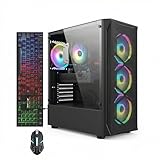
- This Gaming PC Desktop is well-suited for a variety of tasks including gaming, study, business, photo and video editing, streaming, day trading, crypto trading, and so on,ideal for Home, Office, School work
- This high-performance Gaming Computer Desktop is capable of running a wide range of popular PC games for pc gamer, including Fortnite, Call of Duty Warzone, Escape from Tarkov, GTA V, World of Warcraft, LOL, Valorant, Apex Legends, Roblox, Overwatch, CSGO, Battlefield V, Minecraft, Elden Ring, Rocket League, The Division 2, and Hogwarts Legacy with 60+ FPS
- PC Gaming System: This gaming computer desktop is loaded with Intel Core i7 up to 3.9GHz | 16GB Memory | 512GB Solid State Drive | Genuine Windows 11 Home 64-bit
- Gaming Desktop Connectivity: This gaming pc comes with RGB Fan x 4 | 1x RJ-45 | Wi-Fi 6 | Bluetooth 5.0 | Radeon RX 580 8G | HDMI | DisplayPort
- Gaming Computer Special Feature: This gaming pc equips with RGB Gaming Mouse & Keyboard |1 Year parts & labor | Free lifetime tech support,ARGB lighting that brings your gaming setup to life, with easy plug-and-play setup that gets you started in minutes. Built for long-lasting performance, it holds up well over time, while secure packaging ensures it arrives in perfect condition. Backed by reliable customer support for quick issue resolution
Networking: port, game ID and password
Port and transport
The reported default is UDP port 27015. If you keep that value, allow inbound UDP 27015 through the host firewall and forward the same UDP port on the router to the server machine when players connect from the internet. If you change -port, use the same number in the firewall rule, router rule and client connection details. A TCP-only rule will not substitute for the required UDP rule.
Game ID
-gameid is reportedly generated at startup when left empty. Published guidance conflicts on its length and allowed characters: reports mention minimums of 15, 23 or 28 characters and a maximum of 28. Because those rules are inconsistent, do not invent a value based on a forum example. Leave it empty if automatic generation works, or follow the exact constraints printed by your server build.
Password and administrator access
-password sets the join password. If no password is supplied, a random session password may be generated. The setting is a join credential, not an administrator password. Administrators are reported to use the in-game pause menu rather than a separate admin-password field. Share a deliberate password privately and rotate it by changing the launch argument and restarting the server.
Best Value

- This Gaming PC Desktop is well-suited for a variety of tasks including gaming, study, business, photo and video editing, streaming, day trading, crypto trading, and so on,ideal for Home, Office, School work
- This high-performance Gaming Computer Desktop is capable of running a wide range of popular PC games for pc gamer, including Fortnite, Call of Duty Warzone, Escape from Tarkov, GTA V, World of Warcraft, LOL, Valorant, Apex Legends, Roblox, Overwatch, CSGO, Battlefield V, Minecraft, Elden Ring, Rocket League, The Division 2, and Hogwarts Legacy with 60+ FPS
- PC Gaming System: This gaming computer desktop is loaded with Intel Core i7 up to 3.9GHz | 16GB Memory | 512GB Solid State Drive | Genuine Windows 11 Home 64-bit
- Gaming Desktop Connectivity: This gaming pc comes with RGB Fan x 6 | 1x RJ-45 | Wi-Fi 6 | Bluetooth 5.0 | GeForce RTX 3050 6G | HDMI | DisplayPort
- Gaming Computer Special Feature: This gaming pc equips with RGB Gaming Mouse & Keyboard |1 Year parts & labor | Free lifetime tech support,ARGB lighting that brings your gaming setup to life, with easy plug-and-play setup that gets you started in minutes. Built for long-lasting performance, it holds up well over time, while secure packaging ensures it arrives in perfect condition. Backed by reliable customer support for quick issue resolution
A dependable first-start workflow
- Open
ARGUMENTS.txtand identify the exact syntax for world, mode, seed, capacity, port, password and game ID. - Choose an unused slot for a new world, or match
-worldto the leading number of an imported save. - For a new world, set
-worldmodeand, if desired,-worldseedbefore the first launch. Do not expect later edits to change the mode or regenerate the map. - Set a capacity supported by the build. Start conservatively at eight or fewer unless the local documentation and testing establish a higher limit.
- Set
-port(27015 UDP unless you have a reason to change it), then align firewall and router rules. - Add
-passwordif the server should not be open to anyone who can discover it. - Leave
-gameidempty initially unless the build documents a specific valid format. - Start the process once and save the complete startup log. Confirm the selected slot, effective player limit, listening port and generated identifiers.
- Join locally, then test from an external network if internet players are expected. Only after both tests pass should you hand out the address and password.
Diagnosing common failures
The server opens the wrong world
- Stop the process and compare
-worldwith the leading number in the save filename. - Check that the file was copied into the server’s
DedicatedServer-type save folder, not only the desktop client folder. - Restore the backup if anyone has already played in the mistakenly created slot.
Players cannot connect
- Confirm the server is listening on the configured UDP port.
- Open that UDP port in the host firewall and forward the same port on the router.
- Check that clients are using the current address, port and password.
- Test from inside and outside the local network to distinguish a LAN configuration issue from an internet NAT issue.
The player limit does not change
- Look for both
-maxplayersandmaxNumberPlayers; they may belong to different configuration layers. - Remove conflicting duplicate arguments and restart.
- Check the startup log for the effective value. If the build caps PC play at eight, a JSON value of 100 will not override that product limit.
A mode or seed change has no effect
That is expected for an existing world. Create a new slot for a different seed or mode, or restore a pre-creation backup. Never experiment on the only copy of a valuable world.
An old command suddenly fails
Re-read the current ARGUMENTS.txt. Community posts may describe an earlier build, and detailed 2026 hosting guides often assume a provider’s panel rather than a self-hosted installation. Remove unrecognized switches and add them back one at a time.
Version and hosting caveats
Several detailed guides published in 2026 come from companies selling hosted Core Keeper servers. Their panel screenshots and automation steps do not necessarily apply to a self-hosted executable. A widely cited Steam community discussion is more than four years old and may describe an earlier version. Use those materials for concepts, but use your installed build’s argument file and startup output for final names and limits.
The safest operating rule is simple: preserve a known-good command, change one setting at a time, restart after each change, and verify the effective value in the log. Keep dated backups before changing slots, modes or save paths.
Quick Recap
Pre-launch checklist
- Correct save copied to the server’s save directory.
-worldmatches the save filename’s leading number.- New-world mode and seed selected before first creation.
- Player capacity confirmed against the current build, not an unverified 100-player example.
- UDP port opened consistently in the server, firewall and router.
- Password shared securely, with no assumption that it grants admin rights.
- Game ID left to automatic generation unless local rules are clear.
- Startup log reviewed and a backup retained.
Product prices and availability are accurate as of the date/time indicated and are subject to change. Any price and availability information displayed on Amazon at the time of purchase will apply.




