Recommended Free Tools
To copy pictures from a Samsung camera to a computer, connect the camera with its compatible USB cable or remove its memory card and use a matching card reader. The right steps depend on the camera model: the Samsung WB35F manual, for example, documents a USB workflow for older Windows versions, but those instructions should not be assumed to fit every Samsung camera or current computer.
Choose a transfer method that fits your camera
| Method | What to check first | Best fit |
|---|---|---|
| USB cable | The camera supports computer file transfer, and you have the correct cable and connection steps. | You want to leave the card in the camera and connect it directly. |
| Memory-card reader | The camera uses a removable card, and the reader supports its format and your computer’s port. | You want to access the card directly or the camera’s USB connection is inconvenient. |
| Wireless or phone-mediated transfer | The camera manual confirms wireless transfer and identifies a compatible app or process. | Your specific model supports it and you prefer not to connect a cable or remove the card. |
Before buying a cable or reader, find the camera’s exact model number and check the manual for its card format, USB mode, and computer requirements. A USB SD card reader is an option only if the camera’s card is SD-format and the reader can connect to your computer.

As an Amazon Associate I earn from qualifying purchases.
Copy pictures over USB
Follow the connection sequence in your camera’s manual. Some older Samsung cameras may need their supplied proprietary cable; a cable that physically fits is not necessarily suitable. The Samsung WB35F user manual describes the following Windows removable-disk procedure for the WB35F and related models. It lists Windows XP, Vista, 7, and 8, so do not treat it as confirmation of compatibility with every current Windows or macOS computer.
- On the camera, open Basic settings and set Connectivity → i-Launcher → Off.
- Turn the camera off, then connect it to the computer using the USB cable. The manual says to plug the small end into the camera and warns that reversing the cable can damage files.
- Turn the camera on. The manual says the computer recognizes it automatically.
- On the computer, open My Computer → Removable Disk → DCIM → 100PHOTO. Copy or drag the pictures to a folder on the computer.
- Open a few copied files from the destination folder to confirm they transferred correctly before deleting anything from the camera or card.
The manual describes this connection as a way to transfer files from the camera’s memory card to the computer. Other Samsung models may use different settings, folder names, cables, or connection modes.
#1 Best Overall
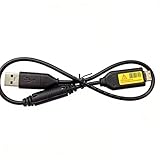
- Replacement cable Compatible for Samsung SUC-3 SUC-5 and SUC-7
- Cable Lengh: 0.5 metres / 1.5 feets
- Plug and Play: use this cable to connect the camera to your computer, laptop or Mac, you can transfer pictures to your computer
- Compatible with: Samsung Digimax AQ100, CL80, ES55, ES60, ES63, ES65, ES67, ES70, ES71, ES73, ES74, ES75, ES78, EX1, HZ10W, HZ15W, HZ25W, HZ30W, HZ35W, HZ50W, i8, i80, i100, L100, L110, L120, L200, L201, L210, L301, L310W, L313, M110, M310W, NV4, NV9, NV30, NV33, NV40, NV103, NV106, P800, P1000, P1200, PL10, PL20, PL50, PL51, PL55, PL57, PL60, PL65, PL80, PL81, PL100, PL101, PL120, PL121, PL150, PL151, PL170, PL200, PL201, PL210, PL211, PL221, SH100.
- Also compatible with: SL50, SL102, SL201, SL202, SL203, SL310W, SL420, SL502, SL600, SL605, SL620, SL630, ST10, ST30, ST45, ST50, ST60, ST61, ST65, ST67, ST70, ST71, ST80, ST90, ST91, ST95, ST500, ST510, ST600, ST700, ST5000, ST5500, ST6500, TL9, TL90, TL100, TL105, TL110, TL205, TL210, TL220, TL240, TL350, TL500, WB210, WB500, WB550, WB600, WB610, WB650, WB660, WB690, WB700, WB2000, WB5000, WB5500, WP10 and more Digital Camera
Copy pictures with a memory-card reader
If the camera stores pictures on a removable card, a compatible reader lets you copy files without connecting the camera itself.
- Turn the camera off and remove the card as directed by its manual.
- Check the card’s format and choose a reader that supports it. If it is an SD card, an SD card reader may work; do not assume every Samsung camera uses SD.
- Connect the reader to a compatible computer port. Use an appropriate adapter if the reader’s plug and computer port differ.
- Open the card on the computer, locate the folder containing the pictures, and copy them to a folder on the computer.
- Check that the copied pictures open before safely ejecting the card and returning it to the camera.
Transfer speed can depend on the camera, reader, cable, and computer port. A card reader is not guaranteed to be faster than USB in every setup.
Rank #2

- USB cable length:5ft,compact to carry anytime, anywhere;Combines high-speed data transfer and charging in one cable, compatible with Samsung Camera Charger.enabling video/RAW photo transmission to computers for professional editing, while delivering battery charge. (if your camera model support charging by USB cable)
- USB Cable Replacement for Samsung SUC -C3 SUC-C5 SUC-C7 CB20U05A/B EA-CB20U12/EP CB20U05A
- Compatible with Samsung P1200,P1000, P800, PL10, PL100, PL101, PL120, PL121, PL150, PL151, PL170, PL171, PL20, PL200, PL201, PL210, PL211, PL22, PL50, PL51, PL55, PL57, PL60, PL65, PL80, PL81
- Compatible with Samsung WB2000, WB210, WB500, WB5000, WB550, WB5500, WB600, WB610, WB650, WB660, WB690, WB700, WB710
- Compatible with Samsung ES55, ES57, ES60, ES63, ES65, ES67, ES70, ES71, ES73, ES74, ES75, ES78, EX1 Series
Check whether wireless transfer is available
Some cameras support a wireless route through a phone and a camera-specific app, followed by copying the files from the phone to the computer. The available guidance does not establish that an unspecified Samsung camera supports this method or identify an app that works with it. Check the exact model’s manual before relying on wireless transfer.
Outdated Drivers Are Slowing You Down
One free scan finds every outdated or missing driver and matches the right update for your exact hardware.Free scan · exact hardware matchWindows Errors? Fix Them Before They Spread
Repair common Windows errors and clear accumulated junk for a smoother, more stable PC - no reinstall needed.Free scan · no reinstallQuick Recap
Rank #4

- Replacement cable Compatible for Samsung SUC-3 SUC-5 and SUC-7 (Non-OEM).
- Cable Lengh: 1.5 metres / 5.5 feets
- Plug and Play: use this cable to connect the camera to your computer, laptop or Mac, you can transfer pictures to your computer, Data transfer rates up to 480Mbps
- Compatible with: Samsung Digimax AQ100, CL80, ES55, ES60, ES63, ES65, ES67, ES70, ES71, ES73, ES74, ES75, ES78, EX1, HZ10W, HZ15W, HZ25W, HZ30W, HZ35W, HZ50W, i8, i80, i100, L100, L110, L120, L200, L201, L210, L301, L310W, L313, M110, M310W, NV4, NV9, NV30, NV33, NV40, NV103, NV106, P800, P1000, P1200, PL10, PL20, PL50, PL51, PL55, PL57, PL60, PL65, PL80, PL81, PL100, PL101, PL120, PL121, PL150, PL151, PL170, PL200, PL201, PL210, PL211, PL221, SH100.
- Also compatible with: SL50, SL102, SL201, SL202, SL203, SL310W, SL420, SL502, SL600, SL605, SL620, SL630, ST10, ST30, ST45, ST50, ST60, ST61, ST65, ST67, ST70, ST71, ST80, ST90, ST91, ST95, ST500, ST510, ST600, ST700, ST5000, ST5500, ST6500, TL9, TL90, TL100, TL105, TL110, TL205, TL210, TL220, TL240, TL350, TL500, WB210, WB500, WB550, WB600, WB610, WB650, WB660, WB690, WB700, WB2000, WB5000, WB5500, WP10 and more Digital Camera
Troubleshoot a missing camera or photos
- The computer does not show the camera: Confirm the camera’s USB mode and connection sequence in its manual. Try the supplied cable if available, and check that the computer supports the camera’s transfer mode.
- The camera charges, but no files appear: Charging alone does not establish that the computer can access the camera’s pictures. Identify the model and consult its manual before installing software or buying a replacement cable.
- The camera appears, but the pictures are not visible: For the WB35F-family instructions, look in DCIM/100PHOTO. Other models may store pictures in a different folder.
- The card is not recognized: Check the card format against the camera manual and confirm the reader supports it and connects properly to the computer.
- The transfer is slow: The camera, cable, card reader, and computer port can all affect transfer speed. There is no universal fastest method for every setup.
Product prices and availability are accurate as of the date/time indicated and are subject to change. Any price and availability information displayed on Amazon at the time of purchase will apply.




