Sometimes. In Chrome on Android, Google says the device screen lock can be used when biometrics aren’t supported. That does not guarantee a PIN-only option when biometrics are available. The answer also depends on which app and autofill provider is filling the password.
When can Android password autofill use a PIN?
It depends on the autofill flow. Google’s Chrome instructions say that when a device does not support biometrics, Chrome uses the default device screen lock instead, such as a password or passcode. This describes a fallback for unsupported biometrics—not a setting that always lets you choose a PIN while supported biometrics remain enabled. Google Chrome Help states: “If your device doesn’t support biometrics, Chrome uses your default device screen lock like password or passcode instead.”
As an Amazon Associate I earn from qualifying purchases.
Android’s screen-lock credential can be a PIN, pattern, or password. Android Developers uses the term DEVICE_CREDENTIAL for authentication with one of those credentials. That platform capability does not mean every password manager offers a consumer-facing PIN-only preference. Android Developers describes the credential type in its guidance on showing a biometric authentication dialog.
Change Chrome’s verification setting
In Chrome, open More → Settings → Passwords and Autofill → Autofill settings, then find Verify it’s you when filling sensitive info. Google says this added check is on by default. Menu names or locations may change with Chrome updates. Google’s Chrome instructions explain the setting.
#1 Best Overall
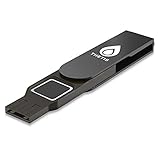
- Embedded Fingerprint Sensor - Advanced embedded fingerprint sensor which facilitates a world-class one-of-a-kind password-less experience. A powerful security chip with state-of-the-art cryptographic algorithms ensures protection of online accounts and passwords.
- Password-less Future - Created with FIDO2 certification, experience a password-less future in an interoperable authentication process and make daily log-in experiences easy, instant, and protective for an advanced and revolutionary style of password-less security. **Note: FIDO2 does not support Mac log-in.
- U2F Backwards Compatibility - Thetis FIDO2 Fingerprint Key is backwards compatible with any and all websites that follow U2F protocols and work side-by-side with the newest Chrome browser and other popular operating systems such as: Windows, MacOS, Linux, and more. Note: Only Enterprise Users using Azure Active Directory can access Windows Hello log-in via Thetis FIDO2 Fingerprint Security Key.
- Multi-layered Authentication - Created with world-renowned HOTP (One Time Password) technology which creates a password-less solution to standard tokens. The leading multi-factored authentication process is with Thetis security key.
- Take It Anywhere - Designed to be small and compact to fit and be taken anywhere: car keys, pocket, purse, etc.
- Leave it on: Chrome asks for an authentication check when filling sensitive information. Google describes fingerprint, face, or another screen lock, with the screen-lock fallback applying when the device does not support biometrics.
- Turn it off: Chrome no longer shows the screen-lock or biometric authentication prompt when autofilling sensitive information. This removes the extra re-authentication step; it does not switch that step to a PIN.
Why another autofill app may behave differently
Android’s Autofill framework, available from Android 8.0 (API 26), allows autofill services—including password managers—to provide saved data to apps. A service may require authentication before filling, and its controls are not necessarily governed by Chrome’s setting. Check the active provider’s own authentication settings and documentation. Android Developers’ Autofill overview explains the framework.
Chrome can also use third-party autofill services. Google’s developer blog posted a timeline update on February 7, 2025, saying native third-party autofill service support in Chrome was moving to Chrome 135. That rollout note does not establish that all providers use the same authentication flow or expose the same PIN controls. Google’s Chrome developer blog provides the update.
Rank #2

- FIDO-ONLY FUNCTIONALITY: Supports FIDO2 (passkeys) and FIDO U2F protocols for passwordless and second-factor authentication. Does not support OTP, TOTP, Smart Card (PIV), or other advanced features - upgrade to YubiKey 5 Series for extended functionality
- SECURE AND CONVENIENT: Passwordless MFA login with the YubiKey Bio authenticator and biometric information using a fingerprint, with a PIN as a fallback. Simply plug in via USB and use your fingerprint to authenticate
- DEVICE & OS COMPATIBILITY: Compatible with Windows, macOS, ChromeOS, and Linux. Works seamlessly with supported services like Google and Microsoft accounts, and major password managers. See the full compatibility list at "Works With YubiKey"
- DURABLE & RELIABLE: Resistant to tampering, water, and crushing. No batteries or network connectivity required, offering dependable authentication without any downtime. Securely manufactured in USA & Sweden
- Yubico Authenticator App - Fingerprint enrollment, passkey management and PIN configuration available via the app app - Upgrade to YubiKey 5 Series to generate one-time-passwords (OTP) via Yubico Authenticator and for advanced compatibility (OATH, PIV)
When a device security feature can require biometrics
Identity Check is a specific Android security feature that can require biometrics for certain sensitive actions in specified contexts, such as outside trusted places. Google’s list includes Google Password Manager autofill in apps, but expressly excepts Chrome from that item. This is not a universal rule for every Android autofill prompt. Google’s Identity Check help describes the feature and its listed actions.
The Tool Desk
Outbyte Driver Updater FREEScan for outdated or missing drivers - takes under a minuteDriver Scan →Outbyte PC Repair FREERepair Windows errors before they cause bigger problemsFix Now →Quick Recap
Rank #4
![ineo USB Fingerprint Reader for Windows Hello, Compact Plug and Play Security Key, Silver [Not for Mac]](https://m.media-amazon.com/images/I/41kpVE976ZL._SL160_.jpg)
- Instant Windows Hello Integration: Quickly unlock your Windows 10/11 PC with your fingerprint. No need to type passwords—just one touch for fast and secure access. Works directly with Windows Hello, no extra software needed.
- Plug & Play Simplicity: No drivers needed for genuine Windows systems—just plug it in and it works. Automatically recognized in most cases (95%+ compatibility). Tip: Manual driver update may be required for non-genuine systems.
- USB Fingerprint Reader: A compact metal fingerprint scanner for PCs and laptops that makes logging in quick and easy—just plug it into any USB port and start using it. Its ultra-portable design fits perfectly in your laptop bag.
- Microsoft-Certified Security: Fully supports Windows Hello and the Windows Biometric Framework for safe and reliable login. Features high accuracy (0.001% false acceptance / 0.1% false rejection) to keep your data secure. Also supports password and file encryption for most websites.
- Multi-User Flexibility: Store up to 10 fingerprints—perfect for shared devices at home or work. Enjoy fast and smooth access with lightning-speed authentication in under 0.5 seconds.
Rank #3

- Supports FIDO2 biometric authentication services and FIDO U2F services requiring security key functionality. Secure and flexible authentication across multiple platforms.
- Exceptional biometric performance, 360° readability, and advanced anti-spoofing technology.
- Designed for portability, it comes with a cover to protect the security key when not in use.
- Aligns with cybersecurity measures that comply with key privacy laws and regulations, including GDPR, BIPA, and CCPA. Approved for use in U.S. federal government institutions.
- Passkey compatibility with Microsoft, Google, and Apple for a convenient and secure sign-in experience. Certified for Microsoft Entra ID for secure multifactor integration with Microsoft services.
What to try if Chrome asks for a fingerprint
- Confirm whether the prompt appears in Chrome or in another app. Chrome’s setting applies to its sensitive-info autofill flow; another app may be using a different autofill provider.
- In Chrome, open More → Settings → Passwords and Autofill → Autofill settings and review Verify it’s you when filling sensitive info.
- If you want to keep the extra check, do not assume the toggle can force a PIN where biometrics are supported. Google documents the screen-lock fallback when biometrics are unsupported, not a universal PIN override.
- If a third-party password manager is active, check that provider’s own authentication options. Android’s autofill framework and Chrome’s provider support do not make its settings interchangeable with Chrome’s.
- If Identity Check is enabled, check whether its context-specific biometric requirement applies to the action. Google’s documentation lists Google Password Manager autofill in apps and treats Chrome separately.
Product prices and availability are accurate as of the date/time indicated and are subject to change. Any price and availability information displayed on Amazon at the time of purchase will apply.




