Keep the extracted page as live HTML, and build the editor around it: measure rendered elements in the browser, then draw selection outlines, handles and guides in a separate overlay. The critical step is a single, explicit coordinate transform between the browser viewport and the editor’s pannable, zoomable workspace. Reuse that transform everywhere so selection and editing controls stay aligned as the page moves or changes.
How should a visual editor for HTML be structured?
Separate the rendered page from the editor’s interaction state. The page remains the content layer; a separate model holds selected element identifiers, selection bounds, active drag or resize operations, guides, snapping rules and undoable edits. Render the editor controls in an SVG or positioned-DOM overlay associated with the editor viewport.
As an Amazon Associate I earn from qualifying purchases.
This is a practical default, not a performance guarantee. The browser already lays out the HTML, so read its rendered geometry instead of trying to recreate layout from CSS declarations. Keep pan and zoom in one transform pipeline rather than adding offsets independently in selection, dragging and guide code.
Recommended Free Tools
Choose one coordinate convention
A useful model has three spaces: client coordinates, measured relative to the browser viewport; editor-local coordinates, relative to the editor viewport; and workspace coordinates, where the content is positioned before pan and zoom. Define the mapping once. For example, if the workspace is uniformly scaled by zoom and translated by panX and panY, map a client point to workspace coordinates as follows:
#1 Best Overall

- Multifunctional Drawing Tablet – Ctab 12 is a 12-inch Android 15 tablet, powered by a T616 octa-core processor with 16GB RAM and 256GB ROM (expandable up to 2TB) for smooth multitasking. Ideal for online teaching, Zoom meetings, and digital art creation, it’s perfect for beginners and professionals in drawing, sketching, design, 3D work, and animation.
- Ultra-Sensitive Stylus for Seamless Creativity – This tablet with Stylus comes equipped with a rechargeable pen offering 4096 pressure levels and tilt support, ensuring precise, natural strokes for professional-grade results. The pen attaches magnetically to prevent loss and includes a drawing glove for a comfortable, smudge-free experience—perfect for artists and designers.
- Experience Every Detail in Stunning Clarity – The 12-inch IPS display delivers crisp, vibrant 2K visuals, bringing every brushstroke, movie, or game to life. Wide viewing angles and anti-glare technology ensure accurate colors and comfortable, precise artwork from any position.
- Large Screen with Protective Case – Enjoy a spacious canvas for drawing, sketching, or working on this Android tablet. The included protective case features three folding modes, offering multiple viewing angles while protecting your tablet from scratches and bumps—ideal for creating, typing, or watching videos anywhere.
- 8000mAh Long-Lasting Battery – Android tablet features a powerful 8,000mAh battery, providing up to 6 hours of video playback or creative work. The reinforced Type-C port allows easy charging from any orientation, giving you more uninterrupted time for drawing, streaming, or productivity.
const viewportRect = editorViewport.getBoundingClientRect();
const workspaceX = (clientX - viewportRect.left - panX) / zoom;
const workspaceY = (clientY - viewportRect.top - panY) / zoom;
This formula assumes the workspace transform is exactly that translation followed by uniform scaling, with no additional transformed ancestors or rotation. If the implementation supports other transforms, use the inverse of the actual transform matrix instead of extending the formula with scattered special cases. Apply the same mapping to pointer input, measured element bounds and overlay geometry.
How do you measure and select HTML elements?
For an ordinary element, getBoundingClientRect() gives its border-box rectangle in viewport coordinates, including padding and border. The rectangle changes when scrolling changes the element’s position relative to the viewport. That makes it a convenient starting point for placing a viewport-aligned selection outline. [MDN, getBoundingClientRect()]
Rank #2

- 【All-in-One Standalone Drawing Tablet】No computer needed. Ready right out of the box. 12" screen, 4096 stylus, 16GB RAM, 256GB storage, Android 15. Runs all your favorite drawing apps smoothly. Perfect for beginners, students, and hobbyists. Create anywhere – from home to coffee shop.
- 【Natural Drawing Feel】4096 pressure levels capture every stroke from delicate lines to bold marks. 60° tilt support lets you shade naturally, just like a real pencil. USI 2.0 ensures compatibility across devices. Magnetic attachment keeps the stylus secure on your portable drawing tablet – no fumbling, no losing.
- 【True Color Canvas】12-inch IPS display with 2000x1200 resolution brings every detail to life. 100% sRGB color gamut ensures vibrant, accurate hues from first sketch to final render. Full-lamination eliminates parallax – your pen tip meets the cursor exactly where you expect. More room to create on this drawing tablet with screen – zero distraction.
- 【Anti-Glare & Eye Comfort】Pre-applied anti-glare screen protector cuts harsh reflections and fingerprints, so you can draw under any light – studio, cafe, or sunlight. Reduced glare means less eye strain, even during marathon sessions. This drawing tablet no computer needed keeps your focus on art, not on squinting.
- 【Open. Smooth. Limitless.】Powered by Android 15 and 16GB RAM (8+8 virtual) – layers pile up, apps multiply, yet zero lag. 256GB storage onboard, expandable to 2TB – room for thousands of artworks, tutorials, and everything you love. Download any creative app from Google Play: ibis Paint, CSP, Krita, you name it. A true art tablet for drawing that adapts to you.
Keep the rectangle in client coordinates while positioning an overlay attached to the same viewport. If the overlay instead uses document coordinates, account for page scroll offsets; do not add those offsets to client-coordinate geometry. Convert from client to workspace coordinates only at the boundary where the editor needs workspace positions.
What’s actually slowing this PC down?
Pick the symptom - the matching free tool is one click away.
Account for elements that occupy multiple boxes
A single logical element, such as wrapped inline text, can have multiple rendered fragments. getClientRects() returns a rectangle for each CSS border box, so use it when one bounding rectangle would incorrectly surround empty space between line fragments. The API also notes that rectangles for SVG descendants are relative to the SVG viewport and reflect its viewBox transform. [MDN, getClientRects()]
Rank #3

- Word-first 16K Pressure Levels: The upgraded stylus features 16,384 levels of pressure sensitivity and supports up to 60 degrees of tilt, delivering smoother lines and shading for a natural drawing experience. With no battery or charging needed, it operates like a real pen, making it easy for beginners to create effortlessly. This functionality helps novice artists develop their skills and explore their creativity without the intimidation of complex tools
- Designed for Beginners: This drawing pad desinged with 8 customizable shortcuts for both right and left-hand users, express keys create a highly ergonomic and convenient work platform
- Perfectly Adapted for Android: The XPPen Deco 01 V3 art tablet supports connections with Android devices running version 10.0 and above. It is recommended to download the XPPen Tools Android application, which adapts to your smartphone's screen aspect ratio, ensuring accurate mapping. It also supports mapping on Android screens with different aspect ratios in portrait mode
- Large Drawing Space, Bigger Bold Inspiration: This expansive drawing pad has10 x 6.25-inch helps you break through the limit between shortcut keys and drawing area
- Easy Connectivity for Beginners: The Deco 01 V3 offers USB-C to USB-C connectivity, plus adapters for USB C. This ensures easy connection to various devices, allowing beginner artists to set up quickly and focus on their creativity without compatibility concerns. Whether using a laptop, tablet, or desktop, the Deco 01 V3 provides a seamless experience, making it an ideal choice for those just starting their digital art journey
Decide what “select” means for fragmented content: one outline around the union of the fragments, or separate outlines around each fragment. The measurements give you the boxes; the selection behavior is an editor design choice.
How do you keep the overlay aligned as the page changes?
Re-measure when geometry may have changed, and make every overlay update use the same coordinate conversion as the initial selection. A practical event strategy is to refresh after relevant scrolling, viewport resizing and editor-controlled mutations, and to observe size changes with ResizeObserver. This is an implementation recommendation based on the APIs’ behavior, not a complete change-detection specification.
Rank #4
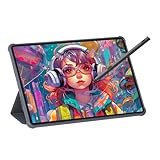
- Stunning Display: Enjoy vibrant colors and crisp details on the 11 inch Nano anti-glare display with a 1920 x 1200 resolution and 90Hz refresh rate
- Rechargeable Pen: The computer graphic tablet is equipped with a rechargeable pen with 4096-level pressure sensitivity and tilt function, making strokes smooth and sensitive
- Soft Light Glass: Nano-etching screen reduces glare/graininess, offers a paper-like texture. Full-laminated design enhances touch precision/image clarity. Soft viewing experience reduces eye strain for natural drawing and extended use. Anti-fingerprint coating ensures cleanliness
- Powerful Performance: Experience seamless multitasking and smooth gaming, 6GB of RAM, and 128GB of storage (expandable up to 1TB)
- All-Day Battery Life: Stay connected and entertained with the long-lasting 8000mAh battery that supports uninterrupted usage throughout the day
- Scroll: Recompute viewport-relative bounds when the page or a relevant scrolling container moves. A rectangle measured before scrolling is not a permanent document position.
- Resize: Observe the editor viewport or relevant elements when their dimensions matter.
ResizeObserversupports content-box, border-box and device-pixel-content-box observations. - Editor operations: Refresh after the editor changes content or layout, such as when a move or resize is committed.
- Transforms: Do not rely on
ResizeObserverto report CSS transform changes. Arrange an explicit refresh for transforms the editor controls, and test how externally changed transforms are handled.
For a drag, keep pointer coordinates and the selected element’s measured geometry in the same coordinate system before calculating a delta. Convert the pointer to workspace coordinates, compare it with the drag’s workspace-space starting point, then apply the resulting change according to the editor’s chosen editing model. Mixing a client-space pointer delta with workspace-space bounds causes errors that grow as zoom changes.
How should an editor handle SVG geometry?
Choose the geometry that matches the task. For placing an overlay on screen, use rendered viewport bounds. For editing SVG shapes in their own coordinate system, use SVG user-space geometry and convert it through the SVG viewport and viewBox mapping.
Best Value

- All-in-One Drawing Tablet: This standalone tablet requires no computer connection—start drawing right out of the box. Perfect for artists on the go, its sleek aluminum back provides a comfortable feel and makes the writing tablet an ideal choice for note-taking and capturing ideas.
- 10.95-inch Full HD Graphic Tablet: The combination of a 10.95-inch screen and FHD+ (1920*1200) resolution ensures a high pixel density of 207 PPI, delivering a sharp visual experience. With a 99% sRGB color gamut, every stroke of your artwork is precisely represented.
- Smooth 90Hz Refresh Rate: The digital drawing tablet features a 90Hz refresh rate, ensuring smooth visuals with no lag. This makes images more vivid, allowing you to immerse yourself in a seamless creation experience. The digital drawing pad also enhances your viewing experience, whether you're watching films or playing games.
- Full-Laminated Anti-Glare Screen: The digital art pad features a nano-etched, anti-fingerprint matte surface that significantly reduces glare and provides a natural paper-like texture for a comfortable drawing feel. The full-lamination technology minimizes parallax, enhancing stroke precision and clarity, while also helping to reduce eye strain during prolonged use.
- High-Precision H-Pencil: The drawing pen features Huion's years of experience in line-drawing algorithms, offering better accuracy and preventing line offset while drawing. With 4096 levels of pressure sensitivity and 60° tilt recognition, it brings you a writing experience that feels just like using a real pencil.
getBBox() reports an SVG box in user space and excludes transforms on the element and its ancestors; it is not a fully transformed screen rectangle. getBoundingClientRect() reports viewport geometry instead. Treating these as interchangeable will misplace controls when SVG transforms or viewBox scaling are involved. [MDN, SVG viewBox and getBBox()]
Can you edit HTML inside an iframe?
Only if the parent page is permitted to access the frame’s document. The same-origin policy governs that access, so an extraction workflow must establish whether the iframe is same-origin before promising direct DOM selection or editing. Do not assume that a parent can inspect a cross-origin frame. [MDN, iframe]
A cooperating embedded page could expose a deliberate messaging interface, but that requires an agreed protocol and security design. Without one, treat the frame as an interaction boundary rather than a DOM tree the editor can freely inspect.
Quick wins for a faster PC:
Fix the driver behind crashes, sound loss and screen glitchesFind Drivers →Repair Windows errors before they cause bigger problemsFix Now →Should you use a DOM/SVG overlay or draw HTML into canvas?
A DOM or SVG overlay is the straightforward starting point when the content should remain live HTML and editor controls need native interactive elements. HTML-in-Canvas is a developing alternative for drawing live DOM descendants into a canvas, but its browser availability should not be treated as a stable cross-browser baseline.
| Approach | What it offers | Trade-off to plan for |
|---|---|---|
| DOM or SVG overlay | Browser-rendered content remains the content layer; selection handles and guides can be interactive DOM or SVG elements. Browser geometry APIs provide rendered boxes. | You must keep the overlay synchronized with scrolling, resizing, transforms and editor mutations. The cited API sources do not establish a performance advantage. |
| HTML-in-Canvas | A proposal for drawing DOM descendants into canvas, with geometry updates for hit testing and accessibility described in the WICG explainer. | Chrome for Developers described the API as an origin trial for Chrome 148 through 150. Check current browser status and provide a fallback before relying on it. |
Chrome for Developers describes HTML-in-Canvas setup, rendering, canvas sizing with ResizeObserver, and CSS transform synchronization. Its guide summarizes the process: “Using the API happens in three phases: Setting up your canvas, rendering into the canvas, and updating the CSS transform so the browser knows where the element physically sits on the screen.” The WICG explainer and Chrome guide describe an evolving path, not a guarantee of broad stable availability. [WICG, HTML-in-Canvas; Chrome for Developers, Introducing the HTML-in-Canvas API origin trial]
Quick Recap
Compare the approaches against your requirements
- Rendering fidelity: Do the original DOM and complex CSS or SVG need to remain live?
- Interaction: Should handles, guides and hit targets remain real DOM elements?
- Support: Can the editor depend on a developing feature, or does it need a fallback?
- Geometry: Can the implementation consistently map viewport, SVG, iframe and workspace coordinates?
- Performance: Measure with representative extracted pages. The cited sources provide no comparative performance figures.
What should you validate before shipping?
- Select a regular block element and check that its outline matches its rendered border box.
- Scroll the page and any relevant scrollable containers; verify that selection geometry updates rather than drifting.
- Test wrapped inline content with
getClientRects()so the editor’s chosen fragment behavior is visible and consistent. - Change viewport and element sizes, then test CSS transforms separately; size observation alone does not cover transform changes.
- Test SVG elements with a
viewBox, distinguishing screen-space overlay placement from user-space editing geometry. - Determine whether embedded documents are same-origin before offering DOM-level editing controls.
- If evaluating HTML-in-Canvas, verify current browser availability and exercise the fallback path.
Product prices and availability are accurate as of the date/time indicated and are subject to change. Any price and availability information displayed on Amazon at the time of purchase will apply.




