Free tools Windows power users keep installed
One-click scans. No signup required.
There is no single global preset that is best for every RTX 5060 Ti system. Start with application-controlled image quality, keep power management at its default behavior, use in-game NVIDIA Reflex when available, enable DLSS per game, and cap frame rate below your monitor’s variable-refresh ceiling. Then create per-game overrides only when a specific title shows stutter, excessive latency, or unstable clocks.
Install the right driver before changing settings
The RTX 5060 Ti requires a current GeForce Game Ready driver on a system that has just added the card. Driver support is also how newer DLSS features and display compatibility improvements reach the GPU, so record the driver version whenever you troubleshoot a game.
As an Amazon Associate I earn from qualifying purchases.
- Install the latest Game Ready package offered for your operating system.
- Restart Windows after installation, even if the installer does not insist on it.
- Confirm that the card appears correctly in NVIDIA Control Panel and in Device Manager.
- After a major driver change, allow a game to rebuild shaders. The first launch can stutter while this happens.
Do not tune every control globally before testing a game. A setting that helps a competitive shooter can hurt image quality, power use, or frame pacing in a ray-traced role-playing game.
PC Slower Than It Used to Be?
A free scan shows the junk files, broken settings and background clutter dragging Windows down - then fixes them in one click.Free scan · Windows 10 & 11Crashes, No Sound, or Screen Glitches?
Random freezes, missing sound and display glitches usually trace back to one bad driver. Find and replace yours safely.Free scan · under a minuteA reliable RTX 5060 Ti starting profile
Open NVIDIA Control Panel, choose Manage 3D settings, and use Program Settings to select a game. Leave the global profile close to its defaults unless you have a reason to change it.
#1 Best Overall

- AI Performance: 767 AI TOPS
- OC mode: 2632 MHz (OC mode)/ 2602 MHz (Default mode)
- Powered by the NVIDIA Blackwell architecture and DLSS 4
- Axial-tech fan design features a smaller fan hub that facilitates longer blades and a barrier ring that increases downward air pressure
- A 2.5-slot design maximizes compatibility and cooling efficiency for superior performance in small chassis
| Control | Recommended starting point | When to change it | Trade-off |
|---|---|---|---|
| Power management mode | Default or application-controlled behavior | Choose Prefer maximum performance for a title that demonstrably clocks down during play or has inconsistent pacing. | A global maximum-performance setting can keep clocks high, increasing power draw, heat, fan noise, and idle consumption. |
| Low Latency Mode | Leave the driver setting at its default when the game offers NVIDIA Reflex. | For a game without Reflex, test On; test Ultra only when minimum input latency matters more than completely consistent throughput. | Results depend on the game’s render queue and frame rate. Stacking an aggressive driver override with Reflex is not a general improvement. |
| Max Frame Rate | Use a game-specific cap when you need predictable frame pacing or when running variable refresh. | With G-SYNC or another VRR mode, cap below the display’s maximum refresh rate. The correct value is monitor-specific. | A lower cap can reduce latency spikes, power, and heat, but it also limits peak FPS. |
| Vertical sync | Choose the behavior that matches your game, API, VRR setup, and frame-generation mode. | Follow the game’s documented guidance and test the combination rather than treating V-Sync as universally On or Off. | The wrong combination can add queueing, cause tearing, or interact poorly with frame generation. |
| Texture filtering – Quality | Default or Quality | Try Performance only if testing shows that the small image-quality compromise is worthwhile in the specific game. | Performance favors throughput by allowing more aggressive filtering decisions; distant textures can look less stable. |
| Shader Cache Size | Enabled with a driver-managed or generous limit | Increase the limit if a large library of games repeatedly recompiles shaders and storage space is available. | A larger cache uses disk space. Disabling it can bring back compilation stutter after updates or scene changes. |
Image-quality options such as texture filtering should normally remain application controlled. A game can select a mode that matches its renderer, texture assets, and anti-aliasing path better than a blanket driver override.
Apply settings to one game instead of the whole system
- Launch NVIDIA Control Panel.
- Select Manage 3D settings, then open the Program Settings tab.
- Choose the game from the list. If it is missing, select Add and browse to the game’s executable.
- Change only the controls you intend to test. Keep a note of each original value.
- Select Apply, start the game, and test the same scene or benchmark for several minutes.
- Change one variable at a time. If performance or image quality worsens, restore the previous value before testing another control.
Use a separate profile for each executable when a launcher, test build, or alternate DirectX/Vulkan executable is involved. Changing the launcher profile does not necessarily change the game process that renders the frames.
Configure the monitor and variable refresh first
Select the highest stable refresh rate that the monitor and cable can sustain. In Windows, open Settings > System > Display > Advanced display and choose the desired refresh rate. NVIDIA Control Panel also exposes display refresh-rate controls under Display > Change resolution.
Enable compatible VRR
- Open NVIDIA Control Panel > Display > Set up G-SYNC.
- Enable G-SYNC or G-SYNC Compatible for the display if the option is available.
- Choose whether it applies to full-screen mode or windowed and full-screen mode. Windowed mode is useful for borderless games but can affect other applications.
- Apply the change and verify the monitor’s own adaptive-sync indicator, if it has one.
The RTX 5060 Ti driver support includes G-SYNC Compatible displays, but compatibility is still display- and connection-dependent. If the option is absent, check the monitor’s firmware, input selected on the panel, cable standard, and whether adaptive sync is enabled in the monitor’s on-screen menu.
Set a refresh-aware frame cap
A VRR panel works inside a range. When a game reaches the panel’s maximum refresh rate, it can leave that range and invoke a different synchronization behavior. Set Max Frame Rate in the game, NVIDIA Control Panel, or a trusted frame limiter to a value below the monitor’s ceiling. There is no universal number: the appropriate cap depends on the display’s rated refresh rate, its measured VRR range, and how accurately the limiter holds the target.
Use the same limiter consistently while comparing settings. Do not judge a driver change with one cap and a game change with another, because the cap itself changes latency, power, and frame-time behavior.
Rank #2

- AI Performance: 772 AI TOPS
- OC Edition: 2647 MHz OC mode, 2617 MHz default mode
- Powered by the NVIDIA Blackwell architecture and DLSS 4
- SFF-Ready Enthusiast GeForce Card
- Axial-tech fans feature a smaller fan hub that facilitates longer blades and a barrier ring that increases downward air pressure
Low-latency settings: Reflex first, driver override second
Games with NVIDIA Reflex
Enable NVIDIA Reflex in the game’s graphics or latency menu when the title provides it. Reflex is a game-level technology that coordinates rendering with the GPU so the render queue does not grow unnecessarily. Leave the NVIDIA Control Panel Low Latency Mode at its default for that title rather than stacking an aggressive override.
Reflex is especially useful when the GPU is heavily loaded. It cannot remove latency from a slow display, wireless controller, network route, or a CPU-limited game, so evaluate the complete chain rather than the GPU setting alone.
Games without Reflex
For a title that does not expose Reflex, test Low Latency Mode: On in that game’s Program Settings profile. Ultra is a conditional option for situations where minimizing queued frames is the priority and the game remains stable. It is not automatically faster in every engine; if frame pacing becomes uneven, return to Off or On and use an appropriate frame cap.
Do not enable driver Ultra globally. Different games use different APIs, CPU workloads, and frame queues, so a setting that helps one executable can have no effect or a negative effect in another.
DLSS Super Resolution: choose image quality before raw FPS
The RTX 5060 Ti supports NVIDIA DLSS 4 features, including Super Resolution, Frame Generation, neural rendering, and Reflex, when a game implements them. DLSS options are exposed in the game’s own graphics menu, not as a universal NVIDIA Control Panel switch.
| DLSS mode | Practical starting use | What changes |
|---|---|---|
| Quality | Start here at 1440p when the game supports DLSS. | Uses a relatively higher internal render resolution, generally preserving more fine detail while providing a moderate performance lift. |
| Balanced | Try when Quality does not meet the frame-rate target. | Reduces the internal resolution further, trading some fine detail and stability for more GPU headroom. |
| Performance | Reserve for demanding ray tracing, high-resolution output, or a strict FPS target. | Provides the largest render-cost reduction but is more likely to show softness, shimmering, or reconstruction artifacts. |
Inspect thin geometry, foliage, distant wires, text, and particle effects after changing modes. A higher displayed FPS is not an improvement if the image has distracting reconstruction artifacts. Game updates can also change available DLSS models and presets, so retest after a major update.
Rank #3
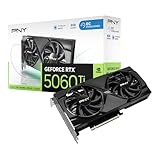
- Dual-Fan Cooling in a Compact Design - Two fans work together to distribute and dissipate heat efficiently across a compact design, delivering the thermal headroom to sustain boost clocks without demanding a full-length card slot.
- Masterfully Crafted Cooling - A dense heatsink pulls heat away from the GPU while a vented metal backplate adds passive cooling and reinforces the card against sagging, resulting in lower temperatures for stronger performance and stability in demanding workloads.
- Overclocked Out of the Box - A factory-tuned 2692 MHz boost clock delivers extra performance over reference specifications with no setup required, plus headroom to push further with VelocityX.
- VelocityX Software - Gain full control over your PNY graphics card to maximize its performance. Fine-tune core and memory clocks, dial in custom fan curves, and monitor real-time temperatures and speeds, all from one intuitive interface. Save up to five profiles for instant recall.
- NVIDIA Blackwell Architecture - The Ultimate Platform for Gamers and Creators. Do it all with 5th-Gen Tensor Cores for max AI performance, new streaming multiprocessors that are optimized for neural shaders, and 4th-Gen Ray Tracing Cores built for Mega Geometry.
Frame Generation: smoothness is not the same as input response
DLSS Frame Generation inserts AI-generated frames between rendered base frames. It can make motion appear smoother, but those generated frames do not replace the need for a healthy base-frame rate. Input is sampled from the rendered frames, so a high displayed FPS with a low base FPS can still feel delayed.
- Enable Frame Generation only in games that support it correctly on the RTX 5060 Ti.
- Enable Reflex alongside it when the game exposes Reflex; NVIDIA describes Frame Generation as working with Reflex to manage latency.
- Use a frame cap that keeps the rendered workload stable and inside the monitor’s VRR range.
- Check fast camera pans, HUD elements, thin moving objects, and mouse movement for artifacts or an unpleasant latency increase.
- Disable it for latency-critical competitive play if the generated-frame feel is less responsive than native rendering.
Compare native rendering, DLSS Super Resolution alone, and Super Resolution plus Frame Generation at the same display refresh and cap. This separates image-reconstruction changes from the motion-smoothing effect of generated frames.
Independent reader supportYour contribution helps us test, update, and keep practical guides available for everyone.Power, heat, and clock behavior
Prefer maximum performance can be useful when a game repeatedly drops clocks during active play and produces inconsistent frame times. Apply it to that game’s profile, not globally, and confirm that the issue is really clock behavior rather than a CPU limit, background task, shader compilation, or thermal throttling.
Recommended Free Tools
Keeping the GPU at elevated clocks increases energy use and heat. If temperatures, fan noise, or power are already high, a sensible frame cap often solves the underlying problem more efficiently than forcing maximum performance. Monitor temperatures and clock graphs while reproducing the issue; do not infer a fault from a momentary clock reading in a menu.
How to test whether a change helped
- Choose a repeatable location: the same save, replay, benchmark pass, or route through a demanding scene.
- Record resolution, refresh rate, DLSS mode, Frame Generation state, Reflex state, frame cap, driver version, and graphics preset.
- Run the baseline for long enough to include traversal or combat, not just a static menu.
- Change one setting and repeat the identical test.
- Compare average FPS together with frame-time consistency, 1% lows if your tool provides them, visual artifacts, GPU utilization, temperature, and power.
- Keep the change only if it improves the metric you actually care about without creating a new problem.
Official NVIDIA material does not establish one universal FPS or latency gain for an RTX 5060 Ti Control Panel preset. Any numerical improvement must be tied to a particular game, driver, resolution, display, and test method.
Quick Recap
Troubleshooting common symptoms
Stutter after installing the card or driver
- Leave Shader Cache enabled and allow the game to finish compiling shaders.
- Do not repeatedly clear the cache while diagnosing; that forces compilation again.
- Test the game with overlays and background recording disabled if they are competing for GPU or CPU time.
- Compare a clean game profile with one containing overrides. A stale profile can preserve an unsuitable setting.
Input feels delayed
- Enable Reflex in the game if available.
- If Reflex is absent, test Low Latency Mode On, then Ultra only if frame pacing remains stable.
- Remove unnecessary Frame Generation and compare at the same refresh and frame cap.
- Check that the GPU is not saturated far beyond the intended cap; excessive queueing can make mouse response feel heavy.
Tearing or unstable VRR
- Confirm the monitor is running at its intended refresh rate in Windows and NVIDIA Control Panel.
- Verify adaptive sync is enabled in the monitor menu and that the correct display input is selected.
- Set a cap below the monitor’s maximum rather than allowing unrestricted peaks.
- Test the game’s V-Sync guidance for its rendering API and frame-generation mode; there is no universal switch position.
Image looks soft or shimmers
- Move DLSS from Performance to Balanced or Quality.
- Check the game’s sharpening, anti-aliasing, and render-scale controls before forcing texture-filtering overrides.
- Return Texture filtering – Quality to its default if Performance produces distracting texture instability.
GPU runs hotter than expected
- Remove global Prefer maximum performance and apply it only to the affected game if needed.
- Use a refresh-aware cap to prevent rendering frames the display cannot show.
- Check case airflow, fan curves, dust, and ambient temperature before changing driver settings.
Suggested profiles by gaming priority
| Priority | Control Panel approach | In-game approach |
|---|---|---|
| Competitive responsiveness | Per-game profile; avoid unnecessary overrides; use a tested cap and do not force maximum power globally. | Reflex On when available. Use native rendering or DLSS Quality if image clarity and base-frame rate remain strong. Skip Frame Generation if its latency is unacceptable. |
| High-quality single-player visuals | Application-controlled image quality, Shader Cache enabled, default power behavior unless pacing proves otherwise. | DLSS Quality at 1440p is the initial choice; add Frame Generation only after checking base FPS, artifacts, and responsiveness. |
| Quiet and efficient gaming | Default power management, sensible frame cap, Shader Cache enabled, Texture filtering – Quality. | Use DLSS Balanced when needed, lower expensive ray-tracing options selectively, and target a stable frame rate instead of unlimited FPS. |
What not to do
- Do not apply Prefer maximum performance globally just because it sounds faster.
- Do not combine Reflex with an aggressive Low Latency Mode override without testing the specific game.
- Do not choose a universal frame cap such as the same number for every monitor; the cap must reflect the display’s refresh ceiling and VRR range.
- Do not judge Frame Generation by displayed FPS alone; assess base-frame rate, latency, and artifacts.
- Do not force Texture filtering – Performance or a low DLSS mode when the visible quality loss outweighs the measured gain.
- Do not quote a Control Panel setting as a guaranteed percentage improvement. Results vary with the title, driver, resolution, CPU, display, and test scene.
Final setup checklist
- Current Game Ready driver installed and the system restarted.
- Monitor set to its highest stable refresh rate.
- G-SYNC Compatible or other VRR mode enabled and verified where supported.
- Per-game profile created under Manage 3D settings > Program Settings.
- Power management left at default unless a reproducible pacing problem justifies Prefer maximum performance.
- Reflex enabled in games that provide it; Low Latency Mode used as a tested fallback when Reflex is absent.
- DLSS Quality tested first at 1440p, with Balanced or Performance used only when the workload requires it.
- Frame Generation evaluated with Reflex, a stable base-frame rate, and image-quality checks.
- Frame cap set below the monitor’s refresh ceiling for VRR operation.
- Shader Cache left enabled with a driver-managed or generous limit.
Product prices and availability are accurate as of the date/time indicated and are subject to change. Any price and availability information displayed on Amazon at the time of purchase will apply.

