Freedom251 › Developer Handoff Software

Figma Dev Mode
What Figma Dev Mode is
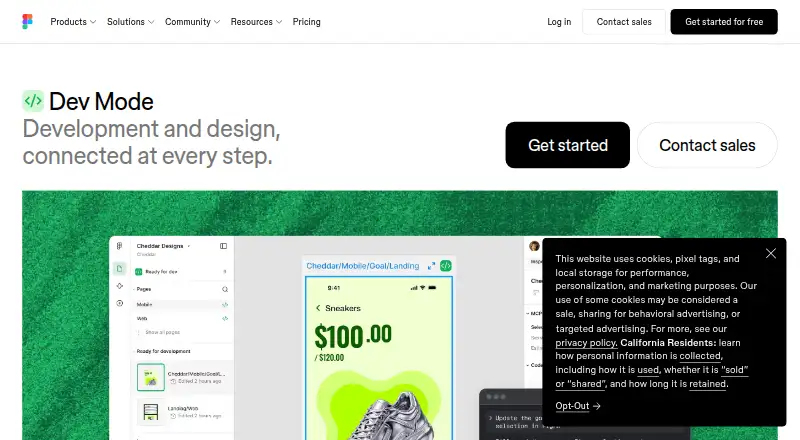
Figma Dev Mode is a developer-focused space for inspecting design files and supporting design handoff. Developers can view code snippets, component properties, layer data, annotations, measurements, variables, and other properties. Frame comparisons show changes between versions, while Code Connect can map design components to production components. The Figma MCP server supplies structured design context for AI agents generating design-informed code. Design layers can also link to GitHub files, Jira tickets, and Storybook stories. The Figma for VS Code extension can notify users of design changes and provide code autocomplete in the IDE. Dev Mode requires a Full or Dev seat on a paid plan, though free viewers can inspect basic details, copy CSS, iOS, and Android code, export assets, and comment. Starter costs nothing. The Professional Dev seat is $12 a month; Organization and Enterprise Dev seats are $25 a month and $35 a month, respectively, billed annually. Figma runs in a browser on desktop operating systems and offers desktop apps for macOS and Windows, plus mobile apps for iOS and Android.
Who it suits
Dev Mode suits developers working with Figma design files who need inspection, version comparison, or links between design layers and code resources. Teams using production component systems or the VS Code extension may also find its handoff tools relevant.
What it does well
- Inspects code snippets, measurements, variables, and properties.
- Compares frame versions side by side.
- Code Connect maps design components to production components.
- Design layers can link to GitHub, Jira, and Storybook.
What to know first
- Dev Mode requires a Full or Dev seat.
- Dev Mode is available on paid plans.
- Free viewers have basic inspection access only.
Limits
The free Starter plan offers limited access to Figma products and unlimited drafts. Free viewers can inspect basic design information, but Dev Mode requires a Full or Dev seat on a paid plan.
Plans
| Plan | Billed and limits | Price |
|---|---|---|
| Starter | Unlimited drafts · UI kits and templates · 150 AI credits/day, up to 500/month | Free |
| Professional Dev seat | monthly · Full Dev Mode · FigJam, Slides and Buzz · 500 AI credits/month | $12 a month |
| Professional Full seat | monthly · All Figma products · 3,000 AI credits/month · Unlimited files and projects | $16 a month |
| Organization Dev seat | annually · Full Dev Mode · Centralized administration · 500 AI credits/month | $25 a month |
| Professional Collab seat | monthly · FigJam, Slides and Buzz · 500 AI credits/month · Basic Dev Mode inspection | $3 a month |
| Enterprise Dev seat | annually · Full Dev Mode · Enterprise security and administration · 500 AI credits/month | $35 a month |
As figma.com lists them, read 14 Oct 2026. The maker's own page has the final word.
Getting started
- Open the Figma Dev Mode website
- Use Figma in a desktop browser or install its macOS or Windows app
- Use a Full or Dev seat on a paid plan to access Dev Mode
- Install the Figma for VS Code extension if you want its IDE notifications and autocomplete
Figma Dev Mode is a developer workspace within Figma for inspecting designs and coordinating handoff. It is best suited to teams that build from Figma files and want implementation details connected to their design workflow. Its strongest case is the link between design context and production components; the main trade-off is that fuller Dev Mode access requires a paid seat.
Overview
Dev Mode keeps implementation details close to the Figma design: developers can inspect structured layers, measurements, annotations, variables, component properties, and code snippets. It also connects design layers to GitHub files, Jira tickets, and Storybook stories, which can make handoff more useful when a team maintains those resources alongside its designs.
This is a Figma-specific handoff workspace, not a general-purpose design-file inspector. Frame comparison, Code Connect, and the Figma MCP server extend it beyond static inspection: teams can compare versions, map design components to production components, and provide AI agents with structured design context for code generation.
For a broader set of tools in this category, see Developer Handoff Software.
Key features
- Design inspection: Code snippets, component properties, structured layer data, annotations, measurements, variables, and other properties give developers multiple ways to inspect a design. Free viewers retain basic measurements, property values, CSS and mobile code copying, asset export, and commenting, so occasional reviewers may not need a paid seat.
- Frame comparison: Side-by-side frame versions help teams identify changes over time instead of relying only on a current snapshot.
- Component mapping: Code Connect maps design components to production components, a practical fit for teams that want new code to follow their actual component system.
- AI design context: The Figma MCP server supplies structured design context to AI agents generating design-informed code. Its value is most direct for teams incorporating AI agents into that workflow.
- Linked resources and IDE support: GitHub files, Jira tickets, and Storybook stories can be linked to design layers. The Figma for VS Code extension can notify users about design changes and provide code autocomplete in the IDE.
Pricing
Figma uses a freemium model. The Starter plan costs nothing, billed Free; it offers limited access to Figma products and unlimited drafts. That is useful for exploring Figma or working with drafts, but it does not replace the paid Full or Dev seat required for Dev Mode access.
| Plan | Price and term | What it includes |
|---|---|---|
| Starter | free (billed Free) | Limited access to Figma products; unlimited drafts |
| Professional Dev seat | $12 a month (billed Monthly) | Dev Mode, Figma Slides, and FigJam; view and comment access in Figma Design |
| Organization Dev seat | $25 a month (billed Annually) | Dev Mode, Figma Slides, and FigJam; view and comment access in Figma Design |
| Enterprise Dev seat | $35 a month (billed Annually) | Dev Mode, Figma Slides, and FigJam; view and comment access in Figma Design |
The Professional Dev seat is the lowest-cost paid route and fits teams that need Dev Mode without an annual billing term. Organization and Enterprise Dev seats cost more and are billed annually; their stated inclusions are the same, so the price difference is not explained by those inclusions. Free viewers can inspect basic design information without buying Dev Mode, making the paid seat harder to justify for people who only need occasional measurements, code copying, exports, or comments. Subscription help is available through in-app support or [email protected].
Platforms
Figma is browser-based and runs on macOS, Windows, Linux, and ChromeOS. Desktop applications are available for macOS and Windows, while the iOS and Android mobile apps support live device previewing. The broader platform listing also includes API and extension support.
Who it's for
Dev Mode is a strong fit for developers working from Figma files, especially where design components correspond to production components and handoff materials are linked to design layers. Teams that use version comparison or want structured design context for AI-assisted coding have additional reasons to adopt it.
It is less compelling for people who only need basic inspection: free viewers can already check measurements and property values, copy CSS, iOS, and Android code, export assets, and comment. It is also not a fit for teams whose design files are not in Figma.
Pros and cons
- Pro: Inspection combines measurements, layer structure, annotations, variables, component properties, and code snippets in one design-focused workspace.
- Pro: Code Connect, linked implementation resources, and the VS Code extension connect design handoff to production components and IDE work.
- Pro: Free viewers retain several practical inspection and export actions without a Dev Mode seat.
- Con: Full Dev Mode access requires a paid Full or Dev seat, so teams must account for seat costs when assigning access.
- Con: Its stated design-file support is Figma, limiting its usefulness for teams working from other design tools.
- Con: Organization and Enterprise Dev seats are annually billed at higher prices, while their stated inclusions match the Professional Dev seat.
Alternatives
Choose UXPin if a freemium tool with a free trial is a better fit: after its 14-day trial, its Free plan offers 2 prototypes and 50 AI credits.
Justinmind is worth considering for free UI design and wireframing with 1 project, unlimited screens, and unlimited viewers.
Lunacy offers a free plan with up to 10 cloud documents, up to 10 document editors/exporters, and 30 days of version history.
Mockplus may suit a team seeking a free-forever Basic plan with 10 users, 10 active projects, unlimited designs, 3 project folders, and 1 Admin.
Pixso offers unlimited viewer seats and unlimited draft files on its Free plan, alongside caps of 3 design files and 3 whiteboard files.
ProtoPie is an alternative for prototyping, with a Free plan that allows 2 cloud prototypes, 8 scenes per prototype, and 50MB of cloud storage.
Zeplin Flows offers a free plan capped at 1 project and 100 screens, with unlimited members and no Flow Boards.
Marvel is another freemium option; its Free plan is limited to 1 user and 1 project.
Verdict
Choose Figma Dev Mode if your developers build from Figma and need design inspection, handoff links, or component mapping close to the source design. Its production-component mapping and broad inspection tools are the clearest reasons to pay; look elsewhere if you need support for other design-file formats or only require the basic inspection that free viewers already provide.
Verdict
Figma Dev Mode brings design inspection and handoff links into a developer-focused workspace. Its paid-seat requirement matters, although free viewers retain a set of basic inspection and export options.
Questions
Is Figma Dev Mode free?
Figma offers a free Starter plan, and free viewers can inspect basic design information. Dev Mode requires a Full or Dev seat on a paid plan.
How much does a Dev seat cost?
The Professional Dev seat costs $12 a month, billed monthly. Organization Dev seats cost $25 a month and Enterprise Dev seats cost $35 a month, both billed annually.
Which platforms support Figma?
Figma is browser-based and runs on desktop operating systems including macOS, Windows, Linux and ChromeOS. Desktop apps are available for macOS and Windows, and mobile apps for iOS and Android.
What can free viewers do?
They can view measurements and property values, copy CSS, iOS and Android code, export assets and comment.
What can Dev Mode connect to?
Design layers can link to GitHub files, Jira tickets and Storybook stories. The Figma MCP server provides structured design context for AI agents.
Facts from Figma Dev Mode's own pages
- Advanced inspection
- Developers can access code snippets, component properties and structured layer data directly from a design canvas. · figma.com, 14 Oct 2026
- AI and MCP
- The Figma MCP server gives AI agents structured design context to generate design-informed code. · figma.com, 28 Sept 2026
- API capabilities
- The REST API can extract file objects, layers and properties, retrieve usage data and receive event notifications through webhooks. · developers.figma.com, 14 Oct 2026
- Code Connect
- Code Connect maps design components to production components so generated code can use an actual component system. · figma.com, 14 Oct 2026
- Company facts
- LinkedIn lists Figma as founded in 2012, headquartered in San Francisco, privately held, with 1,001–5,000 employees. · linkedin.com, 14 Oct 2026
- Company legal name
- The Google Play listing identifies the developer as Figma, Inc. · play.google.com, 14 Oct 2026
- Compare changes
- Dev Mode provides side-by-side comparison of design changes over time. · figma.com, 14 Oct 2026
- Component mapping
- Code Connect maps design components to production components so new code can use a team's actual system. · figma.com, 28 Sept 2026
- Component playground
- The component playground lets developers interactively explore component properties and variants. · figma.com, 14 Oct 2026
- Design comparison
- Dev Mode can compare frame versions side by side to show what changed over time. · figma.com, 28 Sept 2026
- Design inspection
- Developers can inspect code snippets, component properties, structured layer data, annotations, measurements, variables, and properties. · figma.com, 28 Sept 2026
- Desktop apps
- Figma provides desktop applications for macOS and Windows. · help.figma.com, 28 Sept 2026
- Desktop requirements
- The desktop app requires macOS 12 or later or 64-bit Windows 10 or later and is available for Intel and Apple Silicon Macs. · help.figma.com, 14 Oct 2026
- Dev resources
- GitHub files, Jira tickets and Storybook stories can be linked directly to design layers. · figma.com, 14 Oct 2026
- Dev statuses
- Teams can mark designs ready for development and receive notifications when statuses or designs change. · figma.com, 14 Oct 2026
- Focus view
- Focus view isolates the frames being built and filters out the rest of the canvas. · figma.com, 14 Oct 2026
- Free inspection
- Viewers can view measurements and property values, copy CSS, iOS, and Android code, export assets, and comment without purchasing Dev Mode. · figma.com, 28 Sept 2026
- Integrations
- Official integrations include Jira, Confluence, Zapier, Asana, Notion, Linear, Dropbox, Trello, VS Code, Storybook, zeroheight and AWS Amplify Studio. · figma.com, 14 Oct 2026
- Jira integration
- The Jira integration embeds Figma files in issues and lets users link or create Jira issues from selected Figma layers. · help.figma.com, 14 Oct 2026
- License
- Figma's service agreements grant limited non-exclusive access rights and prohibit reverse engineering, copying, modification and derivative works, indicating proprietary software rather than open source. · figma.com, 14 Oct 2026
- Limit: integrations
- TrustRadius reviewers report that integrations with other platforms can be limited for seamless workflows. · trustradius.com, 14 Oct 2026
- Limit: mobile editing
- Google Play reviewers complain that the mobile app is largely read-only and lacks full dashboard or editing actions. · play.google.com, 14 Oct 2026
- Limit: performance and navigation
- Reviewers report lag in complex files and file browsing or search that is less intuitive. · trustradius.com, 14 Oct 2026
- Limit: pricing complaints
- Trustpilot's review summary reports dissatisfaction with pricing, hidden fees and unexpected charges. · trustpilot.com, 14 Oct 2026
Where Figma Dev Mode stands on Freedom251
- Developer Handoff Software#1 of 25