What’s actually slowing this PC down?
Pick the symptom - the matching free tool is one click away.
If Windows 10 reports that a Mellanox MCX311A-XCAT “failed to initialize” or “cannot start (Code 10),” first check the driver family and the exact Windows and firmware compatibility—not the card’s health. The MCX311A-XCAT is a ConnectX-3 EN adapter, which uses NVIDIA’s WinOF driver family; WinOF-2 is for ConnectX-4 and newer. Code 10 means the device failed to start, but it does not by itself prove a hardware failure.
What the MCX311A-XCAT is—and which driver family it uses
NVIDIA identifies the MCX311A-XCAT as a ConnectX-3 EN network adapter: a single-port, 10GbE SFP+ card using PCIe 3.0 x4. See NVIDIA’s ConnectX-3 firmware release notes for the model listing. NVIDIA assigns ConnectX-3 and ConnectX-3 Pro adapters to WinOF; WinOF-2 is for ConnectX-4 and later. Do not choose WinOF-2 simply because it is a newer driver family.

As an Amazon Associate I earn from qualifying purchases.
If the card was supplied by a computer or server manufacturer, check the card’s brand and PSID (the product/subsystem identifier) and consult that OEM’s driver page. NVIDIA cautions that customized devices may require the OEM package; a matching model name alone does not establish that a generic package is appropriate.
Check Windows 10 and package compatibility before installing
NVIDIA’s compatibility matrix lists Windows 10 Client 64-bit support for ConnectX-3 EN with specific WinOF and firmware combinations. Those rows are version-specific, not a guarantee that every WinOF package supports every Windows 10 release:
#1 Best Overall
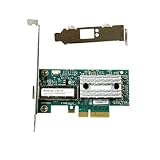
- Transmission rate: 10Gbps
- Interface type: SFP+ Port *1
- Compatible slots: PCI-E X4
- Compatible systems: Windows Server 2003/2008/2012, Windows 7/8/10 /Visa, Linux, ESXi/ESXi*
- The package includes: MCX311A-XCAT network card * 1, high bracket * 1, low bracket * 1
| Matrix entry | Windows 10 detail | Firmware requirement shown |
|---|---|---|
| WinOF 5.35, ConnectX-3 EN | Windows 10 Client 64-bit | 2.40.5030 and above |
| WinOF 5.50, ConnectX-3 EN | Windows 10 Client 1803 entry is marked beta | 2.42.5020 and above |
These entries are from NVIDIA’s WinOF compatibility matrix. Check the release notes for the exact installer you intend to use, your Windows 10 build and architecture, and the card’s PSID/OEM before proceeding. A version number alone is not enough: NVIDIA separately says WinOF v5.50.54000 is a Windows Server 2019-only package, so that package should not be treated as a Windows 10 client installer.
What Code 10 tells you—and what it does not
Microsoft defines Code 10 as a failed device start. In its explanation of CM_PROB_FAILED_START (Code 10), Microsoft says the error is set when a driver in the device stack fails the IRP_MN_START_DEVICE request. That identifies a failed start operation, not the specific cause. A driver mismatch, firmware issue, configuration problem, or hardware fault may require further evidence to distinguish.
Rank #2

- Industry-leading throughput and latency performance
- I/O consolidation
- Virtualization acceleration
- TCP/UDP/IP and iSCSI stacks
- Dual Gigabit Ethernet ports
Collect the device and Windows details first
- Record the Device Manager status. Open Device Manager, find the Mellanox adapter, and open Properties. Note its exact displayed name, the problem code and any accompanying status value, the driver provider, version and date, and the Hardware IDs.
- Record the PC and card identity. Note the Windows 10 release/build and whether it is 64-bit. Check the card label or OEM documentation for the model and PSID; use the OEM’s support page if it is a customized card.
- Inspect the device with PnPUtil. In an elevated Command Prompt, run
pnputil /enum-devices /problemto enumerate devices with problems. For a specific device, usepnputil /enum-devices /instanceid <device instance path>, replacing the placeholder with the instance path shown for that adapter. - Check installation logs and events. Microsoft’s SetupAPI log guidance explains where to look for device installation errors. For ConnectX-3 Ethernet problems, NVIDIA recommends checking System Event Viewer entries from mlx4 sources.
Microsoft’s device problem troubleshooting guidance covers inspecting device status and using PnPUtil. Keep the status output and relevant event text; these can help distinguish an installer problem from a driver-start or firmware clue.
Try low-risk recovery before changing firmware
Disable and re-enable the adapter
NVIDIA’s WinOF Ethernet troubleshooting guidance includes disabling and re-enabling a ConnectX Ethernet adapter as a step for Code 10. In Device Manager, right-click the adapter, select Disable device, then right-click it again and select Enable device. Check whether the status changes and whether a new mlx4 event appears.
Rank #3
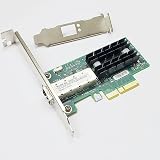
- MCX311A-XCAT
- 10G Ethernet
- 10 Gbps
Match the installed package to the card and OS
If the installed family or package does not match the adapter, Windows build, architecture, OEM identity, or package’s firmware requirements, use the appropriate OEM or NVIDIA WinOF release notes to identify a supported installer. Do not infer support from a shared “5.50” version label: the package’s stated operating system matters.
Act on specific event clues, not Code 10 alone
NVIDIA documents an RSS configuration mismatch as one condition that can prevent the driver from starting. Its troubleshooting page also says a RUN_FW command failed with error -22 event can indicate that the wrong firmware image is in use. Treat either as a lead only when the relevant configuration or event is actually present; neither follows automatically from Code 10.
Avoid flashing firmware just because the adapter shows Code 10. Firmware changes should follow the exact card identity, OEM guidance, and a relevant compatibility or event finding. If the error remains, NVIDIA advises contacting support for the persistent ConnectX Code 10 case; an OEM-branded card should also be referred to its OEM.
The Tool Desk
Outbyte PC Repair FREERepair Windows errors before they cause bigger problemsFix Now →Outbyte Driver Updater FREEScan for outdated or missing drivers - takes under a minuteDriver Scan →When replacement is reasonable
Consider replacing the card only when vendor diagnostics or other evidence points to hardware failure. Code 10 by itself is not that evidence. If you do shop for an MCX311A-XCAT, verify the exact model and PSID, the host’s PCIe slot and bracket support, and the requirements of the SFP+ link you intend to use. The model listing identifies the card, but does not establish compatibility with an unspecified switch, optic, or DAC.
Quick Recap
Best Value
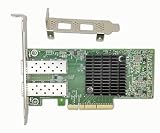
- The 10Gb Ethernet Adapter Cards CX-4 Lx EN MCX4121A-XCAT network interface card with 10Gb/s Ethernet connectivity addresses virtualized infrastructure challenges, delivering best-in-class and highest performance to various demanding markets and applications.
- Interfaces: 2x SFP+/SFP28 Port; Slot: PCIE 3.0(8.0GT/s) X8/X16. Data Transfer Rate : 10 Gbps/1000Mbos/100Mbps/10Mbps. Auto-negotiation, Vlan Support.
- Low and full height bracket(assembled) are included that makes it easy to install the card in a small form factor/low profile computer case/server. Supports I/O virtualization and make the servers more stable.
- Kindly Remind: To ensure compatibility with most devices, this network adapter is shipped with a base firmware version. If you experience link issue or system compatibility issue or fireware update issue during use, please scan the code on the label at the back of this NIC to perform a firmware update for optimal performance.
- To enable RDMA functionality, it is recommended to install the MLNX-OFED driver (Linux) or WinOF-2 driver (Windows) provided by scaning the code to get the driver link. We provide lifelong technical support, please contact us if you meet any problem during use.
Product prices and availability are accurate as of the date/time indicated and are subject to change. Any price and availability information displayed on Amazon at the time of purchase will apply.




