A failed paste does not mean Claude cannot work with your Figma design. Claude.ai supports image uploads, but the official guidance does not identify one universal cause when a clipboard paste fails. For a reliable workaround, copy the selected Figma frame as a PNG or export it and upload the image to Claude.
Why won’t Claude accept my Figma screenshot?
Claude.ai supports image uploads, while Figma offers a command to copy a selected object as a PNG for use in other applications. Those documented features do not guarantee that every clipboard handoff between Figma and Claude will work. The failure may depend on the particular app or environment, but the official guidance does not establish a single cause.


As an Amazon Associate I earn from qualifying purchases.
Start by checking whether an image actually appears in the Claude conversation. If it does not, use Figma’s Copy as PNG command or export the image and attach the resulting file. That tests a different route without assuming Claude itself is the problem.
How do I paste a Figma screenshot into Claude?
Option 1: Copy the selected frame as a PNG
- In Figma Design, select the frame or object containing the screen you want Claude to see.
- Right-click the selection and choose Copy as PNG. Figma documents a 2× default output for this command.
- Switch to the Claude conversation and paste. Check that the image appears before sending your prompt.
Figma describes this command as copying a selected object to the clipboard so it can be pasted into Figma or other applications. Select the frame that contains the intended screen; copying an object is not a guarantee that every surrounding detail on the canvas will be included.
#1 Best Overall
Option 2: Export a PNG and attach it
- Select the frame or layer you want to share in Figma Design.
- In the Export section, add an export configuration and choose PNG.
- Export the selection. In Figma’s browser app, the file goes to the browser’s configured download location; in the desktop app, Figma prompts you to choose a name and destination.
- In Claude, use the attachment flow to select the downloaded PNG, then send it with your prompt.
Figma says export availability depends on your access and whether the file owner has restricted copying and sharing. If export controls are unavailable, check those permissions rather than treating it as evidence of a Claude upload problem.
Which file format should I use?
For a screen design with small labels or interface text, choose PNG when possible. Figma describes PNG compression as lossless and says it maintains image quality and text readability. JPG uses lossy compression, which can affect how clearly text appears.
Rank #2

- Large Active Drawing Space: UGEE M708 V3 graphic drawing tablet features 10 x 6 inch large active drawing space with papery texture surface, provides enormous and smooth drawing for your digital artwork creation, offers no-lag sketch and painting experience
- 16384 Passive Stylus Technology: A more affordable passive stylus technology offers 16384 levels of pressure sensitivity allows you to draw accurate lines of any weight and opacity according to the pressure you apply to the pen, sharper line with light pressure and thick line with hard pressure for artistry design or unique brush effect for photo retouching
- Compatible with Multiple System and Softwares: Powerful compatibility, tablet for drawing computer, perform well with Windows 11/10/8/7, Mac OS X 10.10 or later, Android 10.0 or later, mac OS 10.12 or later, Chrome OS 88 or later and Linux; Driver program works with creative software such as Photoshop, Illustrator, Macromedia Flash, Comic Studio, SAI, Infinite Stratos, 3D MAX, Autodesk MAYA, Pixologic ZBrush and more
- Ergonomically Designed Shortcuts: 8 customizable express keys on the side for short cuts like eraser, zoom in and out, scrolling and undo, provide a lot more for convenience and helps to improve the productivity and efficiency when creating with the drawing tablet
- Easy Connectivity for Beginners: The UGEE M708 V3 offers USB to USB-C connectivity, plus adapters for USB C, ensuring easy connection to various devices and allowing beginner artists to set up quickly and focus on their creativity without compatibility concerns; Whether using a laptop, desktop, chromebook, or tablet, the UGEE M708 V3 provides a seamless experience for those just starting their digital art journey
JPG can be smaller when some quality loss is acceptable, but it is a less suitable choice when Claude needs to inspect fine UI text. Before troubleshooting further, check the exported file’s format, size, dimensions, and legibility.
The Tool Desk
Outbyte PC Repair FREERepair Windows errors before they cause bigger problemsFix Now →Outbyte Driver Updater FREEFix the driver behind crashes, sound loss and screen glitchesFind Drivers →What image limits and resolution should I check?
Anthropic’s Claude.ai image guidance lists JPEG, PNG, GIF, and WebP as supported formats, with a maximum of 30 MB per image and maximum dimensions of 8000 × 8000 pixels. Anthropic recommends avoiding small or low-resolution images and says 1000 × 1000 pixels or larger provides the best results for image work. These are product limits and guidance, not a guarantee of recognition accuracy.
- Confirm the export is one of the supported formats.
- Check that the file is no larger than 30 MB and neither dimension exceeds 8000 pixels.
- Zoom in on small text before uploading; if it is hard to read in the image, it may also be hard to interpret in Claude.
- Avoid downscaling a dense interface just to make the file smaller. Export the relevant frame or screen instead.
What if I have several screens or a longer design document?
A PDF may be more convenient when the material spans multiple screens. Anthropic’s documentation says Claude 4, Claude 3.7 Sonnet, and Claude 3.5 Sonnet can analyze both text and visual elements in PDFs under 100 pages uploaded to chats or projects. That guidance is specific to those model generations and the stated page limit; it does not establish visual PDF analysis for every Claude model or every PDF context.
Quick Recap
Rank #4
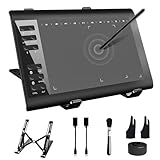
- 【Wide Compatibility】TeinenRon Upgraded Graphics Tablet is compatible with Windows Xp, 7, 8, 10,11. Android 4.4 and above; Mac OS 10.7.0 and above (Not compatible with iPhone/iPad/Chromebook) NOTE: for Mac user, Security & Privacy’s permission is necessary for Accessibility/Input Monitoring/ Full Disk Access when installation completed.
- 【Large Active Drawing Space】This T1060 digital drawing pad features 10 x 6inch large active drawing area, provides a large enough space for your digital artwork creation; The drawing area is 3.3 x 5.8 inch when a mobile phone is connected.
- 【Ergonomically Designed Shortcuts】Designed with 12 customizable shortcut keys and 10 multimedia Keys (Only Compatible for Windows), provides more convenience to help improve productivity and efficiency when creating tablet drivers with graphics tablet that allow shortcuts to many different software.
- 【Stylus with Tilt Function】Outfitted with pen, no need to recharge and we offer 30 PCS replacement pen refills; Features ±60° tilt recognition for accurate cursor positioning at different angles to add shadows to your creations; Features 8192 levels of pressure sensitivity for accurate and smooth control of line thickness; Features 266PPS reporting rate and 5080LPI resolution
- 【Widely Used】(1)TeinenRon computer drawing tablet is well compatible with most major design creative software such as PS, SAI, FlipaClip, Medibang, Adobe illustrator, Adobe premiere, Lightroom, etc. it's a good choice for professionals and beginners.(2)This drawing board is also compatible with Microsoft office Word, Excel, powerpoint and other office software, which is an ideal choice for online teaching, telecommuting, web conferencing and other office software.
What should I check if the workaround still fails?
- Verify the image reached Claude: look for the image in the conversation before sending. If direct paste did not work, try Copy as PNG, then export and attach the file.
- Check Figma access: export may be unavailable if you lack access or the file owner restricts copying and sharing.
- Check the file itself: confirm its format, size, dimensions, and readability against Anthropic’s guidance.
- Do not assume a particular root cause: browser clipboard permissions, app behavior, or account-specific conditions may be worth investigating in your setup, but the cited product documentation does not identify any of them as the confirmed cause.
Product prices and availability are accurate as of the date/time indicated and are subject to change. Any price and availability information displayed on Amazon at the time of purchase will apply.




