PC Slower Than It Used to Be?
A free scan shows the junk files, broken settings and background clutter dragging Windows down - then fixes them in one click.Free scan · Windows 10 & 11Outdated Drivers Are Slowing You Down
One free scan finds every outdated or missing driver and matches the right update for your exact hardware.Free scan · exact hardware match“Power button locked” can describe several different problems: a normal lock screen, a long-press action that was changed, a button blocked by a case or debris, or a physical or software fault. First identify what the button actually does—and your phone’s exact model—before trying a fix. Button menus and restart steps differ by device.
First, work out what “locked” means
Check whether the display is simply showing its lock screen, whether a press or long press triggers an unexpected action, or whether the physical button will not click or respond. These point to different causes and call for different solutions.
As an Amazon Associate I earn from qualifying purchases.
- The screen is locked: The phone may be working normally; the display lock is a security feature.
- A long press opens an assistant or another feature: The button’s action may be configurable.
- The button feels blocked or fails to respond: A case, film, debris, damage, or an intermittent fault may be involved.
- The phone is frozen or will not turn off: Follow the restart instructions for the exact model rather than trying a universal button combination.
If you mean the screen is locked
On iPhone, pressing the side button locks the phone, and it can also lock automatically after inactivity. Unlock it using the authentication method supported and configured for that model, such as Face ID, Touch ID, or a passcode. A lock screen by itself does not mean the side button is broken. See Apple’s iPhone lock and unlock instructions.
The Tool Desk
Outbyte PC Repair FREERepair Windows errors before they cause bigger problemsFix Now →Outbyte Driver Updater FREEScan for outdated or missing drivers - takes under a minuteDriver Scan →If a long press opens the wrong thing
Check the Side button settings on Galaxy
On many newer Samsung Galaxy phones, the Side button has multiple functions, and its long-press action may be set to open an assistant instead of the power menu. Samsung documents two other ways to reach power controls: press the Side button and Volume Down together, or open Quick settings and tap the Power icon. Samsung’s instructions for changing the long-press action are model- and software-dependent; the Android 15 device list and settings path described by Samsung Japan apply to that region and eligible models, not necessarily every Galaxy phone. Check the instructions for your exact device in Samsung Japan’s Side button guide.
#1 Best Overall

- This product are tested before shipping
- Compatible with Samsung Galaxy S20 / S20 Plus
- Disassembly instruction isn't include, you may can search it via Internet.
- Special skill and techniques required for proper installation,Please check both the model and picture before purchase.
- Packing : 1 set
Use an accessibility alternative where available
On iPhone, AssistiveTouch can provide an on-screen way to access some actions normally associated with physical buttons. It is an alternative control, not a repair for a button that is stuck or damaged. See Apple’s AssistiveTouch instructions.
If the button is stuck, blocked, or unresponsive
- Remove anything that may obstruct it. Take off the case or protective film if either could be pressing against or covering the button. Apple specifically advises: “Remove any protective films or cases that might block the button or switch.” See Apple’s button troubleshooting steps.
- Check around the button and clean gently. Look for visible debris and follow the device maker’s cleaning guidance; Apple recommends a soft cloth. A clean microfiber cloth is an option for this gentle step. Do not pry the button, insert sharp tools, or apply liquids based on these instructions.
- Try the button again without the obstruction. If it still does not work reliably, do not assume cleaning has fixed an internal fault.
- Arrange support or service if the problem persists. Apple recommends repair when a button remains nonfunctional, is damaged, or works intermittently. Samsung recommends checking for obstruction, running its button diagnostics in Samsung Members, and contacting support or service if troubleshooting does not resolve the issue. Its available menus can vary by model and software version; consult Samsung’s button troubleshooting guide.
If the phone is frozen or will not turn off
Use the restart or forced-restart instructions for your exact brand and model. Do not assume one button combination or hold duration works across phones—or even across different troubleshooting situations on the same brand.
Rank #2

- About Quality:A+quality. Each item has been checked and in good condition before shipping.
- Compatible Models:The Power Volume Button Key Connector Replacement Fit For Samsung Galaxy Note 9.
- Applicability:Replace your worn-out or damaged Power Volume Button Key /Power(On Off)/Volume Button /Side Buttons Key with this high-quality replacement set.
- Easy Maintenance: Replacing the Power Volume Button Key is a hassle-free process. No need to spend extra money on professional repairs when you can do it yourself easily.
- Tips: If there is any quality problem with the goods , Please contact us ,We will provide you with good after-sales service.
Samsung Galaxy guidance
For a Galaxy device that will not turn off, Samsung says to hold Power/Side and Volume Down; the process may take up to 60 seconds. If the device still will not turn off, Samsung advises requesting service. That instruction is for the stated situation, not a universal restart recipe. See Samsung’s instructions for a Galaxy phone that will not turn off. Samsung gives a different procedure for some unresponsive devices, so match its guidance to the symptom and model rather than combining timings from separate procedures; see Samsung’s button troubleshooting guide.
When to stop troubleshooting yourself
Seek manufacturer support or repair if the button is visibly damaged, remains unresponsive after removing a possible obstruction, or works only intermittently. A screen-lock setting or an on-screen accessibility control may help you use the phone in some situations, but neither establishes that a faulty physical button has been repaired.
Quick Recap
Best Value
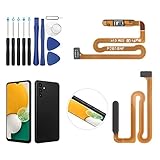
- ✨Compatibility--- The Power Button Fingerprint Sensor Flex Cable only for Samsung Galaxy A13 5G SM-A136U(Not For A135F,A135U) replacement. Please make sure your phone model before purchase.
- ✨Application--- When your A136U Power Button Fingerprint Sensor Flex Cable does not working or defective、can't turn on/off、can't unlock、fingerprint not normal, etc.
- ✨Quality Guarantee & Warranty--- All Power Button Fingerprint Sensor Flex Cable for Samsung Galaxy A13 5G A136U(Not For A135F A135U) have passed strictly QC double tested and 100% in good condition before shipment. We provide 6 months warranty for Samsung Galaxy A03s A037U(Not For A037F A037M A037A A037W A037G) Power Button Fingerprint Sensor(non-human damage.)
- ✨Easy to Install--- Necessary professional repair tools are included. Professional repair tools make it easier to replace. A136U Power Button Fingerprint Sensor Flex Cable replacement part of Instruction manual are not included. There are many guides are available on YouTube for your reference. Just search A037U Power Button Fingerprint Sensor Flex Cable replacement and follow the video to replace. You can install it successfully.
- ✨Customer Service--- If you have any problem about the A13 5g Power Button Fingerprint Sensor Flex Cable, please feel free to contact us, we will reply you with 24 hours.
Rank #4
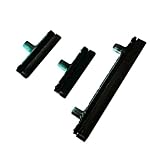
- Contents: 1 Set Power On Off Volume Button
- Fix Problem: Replace your worn-out or damaged Power Volume Button Key /Power On Off /Volume Button with this high-quality replacement set.
- Compatible Phone Models: For Galaxy S8 / S8 Plus.this replacement set ensures a perfect fit and functionality. Please check the Model Number of your device before purchasing this Item. You can find the Model type of your device on your device and / or in the settings
Rank #3

- 100% Brand New, OEM, High Quality
- This product are tested before shipping
- Compatible with Samsung Galaxy s9/ s9 plus
- Disassembly instruction isn't include, you may can search it via Internet.
Product prices and availability are accurate as of the date/time indicated and are subject to change. Any price and availability information displayed on Amazon at the time of purchase will apply.