A black tablet screen can mean a drained battery, a frozen system, a faulty charger or port, or a failed display. The symptom alone can’t tell you which. The manufacturer guides don’t rank the causes by how common they are. The way to find the cause is to work through a short sequence of checks using your brand’s own steps: inspect, charge, force restart, look for signs of life, then get service.
Step 1: Identify your exact model
Restart button combinations and charging requirements differ between iPads, Samsung Galaxy tablets and the Pixel Tablet. A sequence that works on one can do nothing on another. Find your model name before you press anything. It is usually on the back or in the manufacturer’s support pages.
As an Amazon Associate I earn from qualifying purchases.
Step 2: Check the tablet and the charging setup
- Look for damage. Check for cracks, dents, bent edges or signs of liquid exposure. Samsung advises checking the tablet, charger and cable for physical or liquid damage.
- Remove the case or accessories. A case or keyboard cover can press the buttons or block the port.
- Inspect the charging port by eye. Google advises checking the Pixel Tablet’s USB-C port for debris, looseness, burning, melting or corrosion. Don’t poke inside with metal or force a damaged connector.
- Swap in known-good parts. Try a different working outlet, a compatible adapter and a different cable. This separates a bad accessory from a bad tablet.
Step 3: Charge long enough
A deeply discharged battery can leave a tablet black with no response at first. The wait times below come from each brand and aren’t universal.
| Brand | What the manufacturer says |
|---|---|
| Apple iPad | Charging may be needed for up to an hour. |
| Samsung (US support guide) | Charge with the appropriate charger for at least one hour. The charging indicator may take up to 10 minutes to appear on the display. |
| Google Pixel Tablet | Connect a working USB-C cable and an adapter of at least 15 W, then wait one minute. If a battery icon appears, keep charging until the level rises. For best performance Google recommends adapters and cables that support 15 W USB Power Delivery. Some steps on Google’s page apply only to Android 14 and later. |
The 15 W figure is Google’s requirement for the Pixel Tablet. Check the charger recommended for your own model. Also, a missing charging indicator doesn’t prove the tablet is dead or not charging, because indicator behavior varies.
#1 Best Overall

- ➤【Parameters】For Samsung Galaxy Tab Tab A9+ screen (not for Samsung Galaxy Tab A9) replacement, 11.0 inches, 1200x1920 pixels, please confirm your phone model before purchasing.
- ➤【Strict Quality Control】All for sm-X210 screen replacement are strictly QC tested before shipment, 100% intact. Make sure for sm-X210 lcd replacement are no scratches, no dead zones, no dot pixels or lines on the screen. High color saturation, high resolution, wide color gamut and smooth hand feel.
- ➤【Perfect Quality Screen】For The samsung galaxy tab A9+ lcd display has high brightness, high pixel, bringing you a clearer and more colorful screen world, and enjoy the original visual experience.
- ➤【Application】Used to replace the defective LCD display touch screen digitizer assembly for Tab A9+ . Examples include incorrect screen response, display issues, pixel distortion, cracked LCD screen, wrong colors, old or frozen LCD.
- ➤【Installation and Service】 Please test the Screen Replacement for Samsung Galaxy Tab A9+ before installation to ensure the normal use of the sm-X210 lcd. Non-professional installation is not recommended. If you need help and screen replacement for samsung A9+ sm-X215 lcd Installation instructions video, please contact us and we will get back to you within 24 hours, or find the installation video on YouTube.
Step 4: Force restart the right way
A frozen tablet can look exactly like a powered-off one. A force restart is safe and doesn’t erase your data.
iPad without a Home button
- Press and quickly release the volume button nearest the top button.
- Press and quickly release the other volume button.
- Press and hold the top button until you see the Apple logo.
iPad with a Home button
Hold the Home button and the top button together until the Apple logo appears.
Rank #2

- Suitable for Fire HD 8 tablet (12th generation - 2022/2024 release),including Fire HD 8 tablet (R2SP8T R24SB8) , Fire HD 8 Plus tablet , Fire HD 8 Kids tablet .This screen kit is not compatible with Kindle Fire HD 8 2020 (released in 2020)
- We have provided a tutorial video on the Amazon product page. Replace the screen after watching the video.
- Note: This kit is only suitable for 8-inch tablets. If your tablet is 7 inches or 10 inches, please do not purchase it.
- Only touch screen(front glass),No LCD display.
- You can contact us through the after-sales email for any quality issues. To provide you with 100% satisfactory support.
Samsung Galaxy tablet
Hold the Power (Side) key and Volume Down together for 20 seconds, according to Samsung’s guidance.
Google Pixel Tablet
If it won’t turn on or the screen is blank, hold the power button for five to seven seconds.
Rank #3

- Compatibility Check: Ensuring the perfect fit for your device for Samsung Galaxy Tab A9 Plus 11.0" (SM-X210, SM-X215, SM-X216B), verify compatibility before ordering.
- Model Note: Not for Samsung Tab A9
- Repair Scope: Engineered to address problems such as cracked or broken screens, aging display, color distortion, non-functional or slow touch respons on your device.
- Quality Support: Each LCD digitizer screen replacement undergoes rigorous testing prior to shipping. In the event of any quality concerns, feel free to reach out, and we will promptly provide a satisfactory resolution.
- Kit Contents & Prep: Includes 1x LCD Digitizer Assembly Screen Replacement. Prior to any testing or installation, ensure the cable is neatly folded or securely adhered in place.
A force restart won’t rescue every black screen. If nothing happens, return to charging, then continue below.
Step 5: Look for signs the tablet is running
If the tablet seems to be working but the display stays blank, a display fault becomes more plausible. Examples are sounds, vibration, or a charging response. Google’s phone guidance uses a “ring test”: after rebooting, call the phone. If it rings but the screen stays blank, contact an authorized repair center. That page covers phones, so treat it only as a general idea. A tablet that responds with a dark screen suggests a display problem, but one clue doesn’t prove it.
Rank #4

- Suitable for Fire HD 8 tablet (10th generation - 2020 release),including Fire HD 8 tablet (K72LL4), Fire HD 8 Plus tablet (K72LL3), Fire HD 8 Kids tablet (K72LL4).This screen kit is not compatible with Kindle Fire HD 8 2022 (released in 2022)
- We have provided a tutorial video on the Amazon product page. Replace the screen after watching the video.
- Note: This kit is only suitable for 8-inch tablets. If your tablet is 7 inches or 10 inches, please do not purchase it.
- Only touch screen(front glass),No LCD display.
- You can contact us through the after-sales email for any quality issues. To provide you with 100% satisfactory support.
Step 6: If the iPad is stuck at startup
Apple’s iPad guide also covers a device that stays stuck while starting up, with recovery-mode update steps. Follow Apple’s current instructions for your model if you see a logo or progress bar that never finishes. That is a different situation from a fully black screen.
Recommended Free Tools
When to get repair or support
- You have visible damage, liquid exposure, or a burnt, melted, corroded or loose port.
- Your brand’s restart and charging steps have failed. Apple says an iPad that stays unresponsive may need service. Samsung says a screen that still won’t turn on after its steps needs service. Google directs unresolved Pixel Tablet power or charging problems to its support team.
- The tablet gives signs of life but never shows an image.
Use the manufacturer or an authorized repair provider. Check your warranty first.
Quick Recap
Best Value
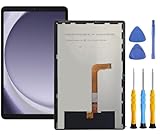
- This screen replacement For Samsung Galaxy Tab A9+ Plus SM-X210 SM-X215 SM-X216.please confirm the model before purchasing.
- This replacement screen has no frame. Equipped with a screen protector and a complete repair kit.
- Replacing old, cracks, dead spots, damage, touch not working properly or touch response problems on the screen.
- It’s highly recommended to install the screen with the guidance of the tutorial videos on YouTube. You can search " Tab A9+ Plus Screen Replacement" on YouTube for a tutorial videos of how to do the replacement.
- We provide the best service to our customers.please contact us immediately via Amazon message if you need any assistance.
What to avoid
- Factory reset as a first fix. It can erase your data and does nothing for a hardware fault. It also usually needs a working screen.
- Opening the tablet. Don’t do this, or order a model-specific screen part, without the exact model and a confirmed diagnosis.
- Forcing connectors or probing ports with metal objects.
Product prices and availability are accurate as of the date/time indicated and are subject to change. Any price and availability information displayed on Amazon at the time of purchase will apply.




