A notebook that ran successfully once is not necessarily reproducible. Results can depend on hidden kernel state, cell execution order, missing dependencies, undocumented data sources, or outputs saved from an earlier version of the code. To make a notebook useful beyond its first session, record what it needs, verify a clean run from top to bottom, and make changes reviewable and repeatable.
Why a notebook that worked once can fail later
A notebook brings code, explanation, metadata, and saved outputs together. That makes it effective for exploration and sharing an analysis, but it can also make a successful-looking page misleading: displayed results may not match the current code, and the current code may rely on cells that were run earlier in a particular order.


As an Amazon Associate I earn from qualifying purchases.
Hidden state is a common trap. A variable may still exist in the kernel from an earlier experiment even though the cell that creates it was deleted or changed. A cell can appear to work when run on its own because another cell was run first, while a fresh, top-to-bottom execution fails. Stale outputs can further obscure the mismatch.
Dependencies, data access, and platform assumptions matter too. A colleague may not have the same package versions, files, permissions, or execution environment. These are recognized reproducibility concerns, not a claim that every notebook fails for one universal reason. A 2021 peer-reviewed article on notebook quality discusses such challenges and reports that prior work examined 1.4 million GitHub notebooks; that figure describes the earlier study corpus, not a current count or a failure rate. Read the 2021 study.
#1 Best Overall
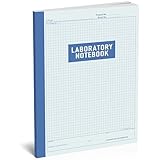
- 【Ideal for Laboratory】 This lab notebook is designed for professionals and students alike, Perfect for recording experiment data, research notes, and scientific observations, helping you stay organized throughout your experiments.
- 【High-Quality Paper】The laboratory notebook With 105 pages of thick, high-quality paper, this notebook prevents ink bleed-through, ensuring your notes stay neat and legible.
- 【Durable and Practical】Bound with a strong, flexible cover that can withstand daily use in any lab environment, ensuring long-lasting durability.
- 【Versatile Layout】 Features a blank grid format, providing you with plenty of space for detailed observations, sketches, and calculations.
- 【Standard size】 8.5 x 11 Inch, 5 x 5 grid ruled (5 squares per inch) , Easy to carry in backpacks or lab bags, this chemistry laboratory notebook is an ideal choice for scientists, researchers, and students.
Build a notebook someone else can reconstruct
Record the environment and platform assumptions
Document the software dependencies needed to run the notebook, along with relevant platform context. Include enough detail for a reader to understand what environment the analysis expects; do not assume that naming the programming language alone identifies the setup.
Explain the data and its provenance
State where the input data came from and when it was obtained, and describe how to access it. If data is sensitive, restricted, or too large to publish, do not expose it just to make the notebook appear self-contained. Instead, explain the access constraints and give readers sufficient provenance and instructions to obtain an authorized copy. The Jupyter Guide example repository illustrates documenting required data, its download location, and the date.
Make the intended result and run conditions clear
Explain what the notebook does and what inputs or assumptions matter to its result. Google Cloud’s 2019 guidance frames the goal as enabling a teammate to rerun a notebook with the same inputs and produce the same outputs. That is a useful standard for reproducibility, rather than a guarantee that every external system or changing data source will remain identical. Google Cloud’s notebook guidance also recommends documenting dependencies and platform context.
Verify a clean run before sharing
The most direct check for hidden state and execution-order assumptions is to restart the kernel and execute every cell in order. Treat this as a final correctness check, not an optional cosmetic step.
Rank #3

- PROFESSIONAL DESIGN - Lab notebook each page features 1/4 grid and signature blocks. Pages printed front and back, perfect for precise drawings and detailed notes.
- DURABLE COVER - LABORATORY NOTEBOOK is printed on the flexible cover. The flexible cover design ensures your notebook can withstand daily use and transport. Sturdy spiral-bound binding allows the notebook to lay flat, making it easy to write and view.
- FEATURES - 8" x 10"|User Data|Documentation Guidelines|Table of Contents|Project Pages|.
- LARGE CAPACITY - Contains 120 pages, providing ample space for all your important notes. Whether you are an engineer, student, researcher, or inventor, our high-quality engineering notebook is the perfect choice for recording and organizing critical information.
- PREMIUM PAPER - This laboratory log book with thick 100gsm acid-free paper, ensuring your notes are preserved without fading or yellowing over time and prevent ink bleed-through.
- Save the notebook and ensure the required input data is available in the documented location.
- Restart the notebook’s kernel, clearing variables and other session state.
- Run every cell from the first to the last without skipping ahead.
- Investigate errors, missing dependencies, unavailable inputs, and results that differ from the intended analysis; update the notebook or its setup instructions, then repeat the clean run.
The PLOS rules for computational analyses explicitly recommend restarting the kernel and running all cells as a final check. Google Cloud likewise recommends that notebooks execute from top to bottom. A clean run helps reveal missing dependencies, stale outputs, and undocumented assumptions about cell order. PLOS: “Ten simple rules for writing and sharing computational analyses in Jupyter Notebooks”.
Make notebook changes easier to review
Use version control and code review when notebooks are shared or maintained over time. A notebook’s stored structure and metadata can make ordinary Git diffs noisy, making it harder to see what changed in code or results. Notebook-aware tools such as nbdime can display notebook diffs and merges in a way that exposes notebook structure.
Rank #4

- Python Data Science Handbook
Google Cloud’s 2019 article also names jupyterlab-git as an example of Git workflows within JupyterLab. Treat it as an example from that article, not as a statement about its current compatibility or maintenance. Whatever tools a team chooses, reviewers should be able to identify meaningful changes and decide whether the analysis still makes sense.
Turn repeated analysis into a workflow
Parameterize runs instead of editing cells by hand
If the same analysis needs to run with different dates, options, or inputs, define those values as parameters rather than manually changing scattered cells. Papermill is cited by both the PLOS rules and Google Cloud as a way to parameterize and execute notebooks. This can make repeated runs more consistent, provided the inputs and expected outputs are documented.
Best Value
Split long workflows when it improves clarity
For a workflow with distinct stages, consider shorter notebooks with clear responsibilities and serialized intermediate outputs. This can make it easier to understand where a result comes from and to rerun a specific stage. Splitting is useful when it improves comprehension or execution; it is not a requirement to turn every exploratory notebook into a multi-file pipeline.
Automate checks when a team depends on the notebook
Where a notebook is important to a team’s work, run automated execution checks or tests after changes. A clean execution can verify that cells still run in order, while tests can check important assumptions or results. Choose checks that fit the notebook’s role and data access constraints.
Choose improvements by the failure you need to prevent
There is no quantitative ranking of notebook tools or platforms in the cited guidance. To decide what to improve first, assess the notebook against the problems it is meant to solve:
The Tool Desk
Outbyte Driver Updater FREEFix the driver behind crashes, sound loss and screen glitchesFind Drivers →Outbyte PC Repair FREERepair Windows errors before they cause bigger problemsFix Now →- Reproduction: Does a clean execution produce the intended result?
- Reconstruction: Are dependencies, data provenance, and platform assumptions clear?
- Review: Can collaborators inspect and merge meaningful changes?
- Repeatability: Can runs be parameterized and automated where needed?
- Readability: Is the notebook understandable to its intended audience?
These checks help distinguish an exploratory artifact—which may be valuable for its original author—from a notebook that is ready to be shared, reviewed, or used repeatedly.
Quick Recap
Product prices and availability are accurate as of the date/time indicated and are subject to change. Any price and availability information displayed on Amazon at the time of purchase will apply.




