Start in Settings > System > Power & battery. Choose a power mode that fits how you use the laptop, then review Energy saver, idle timeouts, and battery use by app. After that, check whether your essential apps support Windows on Arm and make deliberate choices about Windows Backup. These are Windows 11 settings, not a universal Snapdragon tuning preset; options vary by device and how you work.
1. Choose a power mode for battery or plugged-in use
Go to Settings > System > Power & battery and review Power mode. Windows lets you choose separately for battery and plugged-in use, so you can favor efficiency on the go without giving up performance when connected to power.
As an Amazon Associate I earn from qualifying purchases.
| Power mode | When it fits | Trade-off |
|---|---|---|
| Best power efficiency | Working unplugged when extending runtime matters most | Prioritizes energy efficiency over peak performance |
| Balanced | Mixed everyday work | Balances energy use and performance |
| Best performance | A demanding workload that needs more performance | Can use more energy |
These choices affect energy use and performance, but Microsoft does not give a Snapdragon-specific estimate of how many extra hours a setting will provide. Results depend on the laptop, workload, and configuration. See Microsoft’s Power settings in Windows 11.
2. Review Energy saver and idle timeouts
In Settings > System > Power & battery, check Energy saver and the screen, sleep, and hibernate timeouts. Shorter idle intervals help avoid spending power on a screen or laptop left unattended. If you run long tasks while plugged in, consider a less aggressive plugged-in timeout so the device does not sleep before the work finishes.
#1 Best Overall
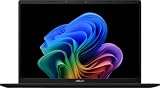
- DISPLAY: 14-inch FHD+ screen with 1920 x 1200 (WUXGA) resolution delivers crisp, clear visuals for work and entertainment.
- POWERFUL PERFORMANCE: Snapdragon X processor with Qualcomm Adreno GPU and 16GB RAM ensures smooth multitasking and efficient computing for Copilot+ PC capabilities.
- AMPLE STORAGE: 512GB SSD provides fast boot times, quick file access, and generous space for documents, media, and applications.
- OPERATING SYSTEM: Pre-installed Windows 11 Home offers the latest features, enhanced security, and intuitive user interface.
- WARRANTY INCLUDED: Comes with 1-year manufacturer warranty covering both parts and labor for peace of mind with your purchase.
Windows also offers an option to lower screen brightness while Energy saver is active. The exact controls can vary with the Windows version and device. Microsoft’s battery-saving tips cover these general Windows options.
3. Find apps using battery in the background
Open Settings > System > Power & battery and look for Battery usage by app. If Windows provides background-activity controls for an app, restrict activity selectively for apps that do not need to keep working when you are away.
Rank #2

- Step Up to Next-Level Performance - Redefine your laptop experience with the Acer Aspire 16 AI. Powered by the Snapdragon X X1-26-100, a premium integrated GPU with up to 1.7 TFLOPs and NPU with 45 TOPs for optimized processing across CPU, GPU, and NPU workloads and delivering best-in-class performance and power efficiency.
- New AI Superpowers - Discover the power of Recall (preview), improved Windows search, and Click to Do (preview) on Copilot+ PCs. Effortlessly locate past content, perform natural searches, and interact with text and images – all while ensuring your data remains private and you stay productive*.
- Built on Brilliant AI Foundations - The Acer Aspire 16 AI harnesses the industry-leading Qualcomm AI Engine with an integrated Qualcomm Hexagon NPU, delivering transformative experiences for creativity, video conferencing, security, and productivity assistants. The Qualcomm AI Engine supports Windows Studio Effects and many other AI-accelerated applications and experiences, to make possibilities endless.
- Screens that Speak to Your Senses - Immerse yourself in a world of vibrant visuals. Enjoy stunning clarity, rich 100% sRGB colors, and sharp detail on the 16" 120Hz WUXGA ultra-high-resolution touchscreen display – acting as a panoramic playground for entertainment, artistic expression, and engaging AI experiences that dazzle the eye.
- Streamline Your Settings with AcerSense - Intelligent Acer AI solutions are at your fingertips. Effortlessly get answers, streamline settings, optimize your video presence, and elevate communication. Experience intuitive AI that’s easy to use and seamlessly enhances your productivity.
Avoid disabling background activity across the board: some apps rely on it for useful notifications or syncing. The available per-app controls depend on the app and Windows configuration.
Quick wins for a faster PC:
Repair Windows errors before they cause bigger problemsFix Now →Scan for outdated or missing drivers - takes under a minuteDriver Scan →Clear out junk files and repair common Windows errorsFree Scan →4. Make secondary display and wireless adjustments only when they fit
- Dynamic refresh rate: If your display supports it, Windows may lower the refresh rate for static content. This option is not available on every Snapdragon laptop.
- Dark mode: It may reduce display power use, especially on an OLED screen; the benefit depends on the display technology.
- Wi-Fi and Bluetooth: Turn either off when you do not need it, but there is little reason to sacrifice a connection you rely on.
These are optional refinements, not required Snapdragon-specific changes. Microsoft’s Windows power-settings guidance describes available power options, but the display features depend on your hardware.
Rank #3

- THE SMARTER CHOICE FOR MOBILITY – Get projects done on a device with the most capable AI platform available with the expansive 15" WUXGA 16:10 display that brings all-day battery life, and a durable metal chassis.
- ELEVATED VISUAL DISPLAY – The 15.3" 16:10 display brings elevated visuals and more screen space for work and play. Vivid colors, deep blacks, and sharp contrast make every detail shine, whether you’re streaming, gaming, or creating.
- YOUR PC, YOUR PRIVACY –The physical webcam shutter lets you stay in control of who’s watching and a fingerprint reader offers faster, safer logins. Plus, the Enhanced Security Suite adds extra protection to keep your data private and your PC secure.
- PREMIUM DURABILITY – The IdeaPad Slim 3x is built with a premium-grade metal chassis that offers supreme durability from military-grade MIL-STD 810H tests. It delivers strong, dependable performance with a premium design. Ready for whatever, wherever.
- BUILT FOR AI – Powered by a 45 TOPS NPU, this AI-driven Copilot+ PC crushes multitasking, smooths video calls, and lasts all day.
5. Check Arm support for apps you rely on
Most Windows apps run on Windows on Arm PCs, but compatibility with a particular app, device, or specialized workflow should be checked rather than assumed. When choosing or troubleshooting an essential app, check its publisher’s current Windows-on-Arm support and use a native Arm64 build if one is available. Microsoft says, “Apps rebuilt for Windows Arm-based PCs have the best performance.”
Windows 11 version 24H2 includes Prism emulation for apps without an Arm build. Emulation broadens the range of apps that may run; it does not guarantee every app feature, peripheral, driver, or specialist workflow will work. Verify the exact dependencies you need with the app or device publisher. Microsoft’s Windows Arm-based PCs FAQ explains app support and emulation.
Rank #4

- 2K OLED DISPLAY - Experience rich colors and crisp visuals for your everyday productivity with an OLED display, 1920x1200 resolution, and up to 300 nits of brightness
- SNAPDRAGON X X1-26-100 PROCESSOR - Perfect for on-the-go productivity, this processor delivers essential performance, AI capabilities, and long-lasting battery life; Stay efficient and connected all day, every day
- ENJOY UP TO 41 HOURS AND 45 MINUTES OF BATTERY LIFE - HP Fast Charge restores battery from 0 to 50% in approximately 45 minutes
- Qualcomm Adreno GPU - Experience high performance graphics and rich user experiences while optimizing power consumption; Elevate your mobile UI, games and advanced graphics applications with fast responsiveness and superior mobile connectivity
- STORAGE AND MEMORY - 256 GB PCIe Gen4 NVMe M.2 SSD offers fast speed and efficient storage; and 16 GB LPDDR5x RAM memory boosts performance with higher bandwidth
6. Decide what Windows Backup should sync
Go to Settings > Accounts > Windows backup. Choose whether to sync selected user folders through OneDrive and whether to remember apps or Windows preferences. These are optional account and data choices: consider which account you want to use, available storage, privacy preferences, and any work or school rules that apply.
Free tools Windows power users keep installed
One-click scans. No signup required.
OneDrive’s ARM64 version is automatically installed on Windows on Arm devices, so you do not generally need to find a different architecture installer. For details, see Microsoft’s guidance on Windows Backup and OneDrive system requirements.
7. Treat S mode as a separate, optional decision
Check whether your laptop is actually running Windows in S mode before considering a change. Leaving S mode is a one-way decision, not a routine setup step. Snapdragon Windows 11 PCs use ARM64, but S-mode restrictions matter here only if the device is in S mode. Microsoft’s S mode FAQ explains the limits and what switching out entails.
Quick Recap
A practical order for a new laptop
- Set battery and plugged-in power modes in Settings > System > Power & battery.
- Review Energy saver and screen, sleep, and hibernate timeouts.
- Check Battery usage by app and adjust background activity only where the option is available and appropriate.
- Confirm Arm64 support for apps and devices you depend on.
- Choose Windows Backup and OneDrive settings to suit your account, storage, privacy, and work or school requirements.
- Consider display, wireless, or S mode changes only if they apply to your hardware and preferences.
Product prices and availability are accurate as of the date/time indicated and are subject to change. Any price and availability information displayed on Amazon at the time of purchase will apply.




