The Tool Desk
Outbyte Driver Updater FREEScan for outdated or missing drivers - takes under a minuteDriver Scan →Outbyte PC Repair FREEClear out junk files and repair common Windows errorsFree Scan →There is no Windows switch that universally makes headphones sound better. The most reliable approach is controlled troubleshooting: select the correct output, verify every volume control, then test enhancements, audio format, spatial sound, and Bluetooth behavior one at a time. Replay the same familiar content after each change and keep a setting only when it solves a problem or produces a sound you prefer.
Start by making sure Windows is using the headphones
A surprising number of “bad headphone sound” reports are caused by Windows sending audio to a monitor, dock, speakers, or a different headset. Fix the signal path before judging sound quality.
As an Amazon Associate I earn from qualifying purchases.
Select the intended output in Windows 11
- Open Settings > System > Sound.
- Under Output, select the headphones you are actually wearing.
- Confirm the device is not muted and raise its volume to a sensible level.
- Open Volume mixer and check both the main Windows volume and the slider for the affected app. A browser, game, or media player can be turned down independently.
If you have several similarly named devices, play a short track while selecting each one until you identify the physical headphones. Bluetooth headsets may expose separate playback or communications entries; choose the playback entry intended for listening unless you specifically need the microphone mode described later.
PC Slower Than It Used to Be?
A free scan shows the junk files, broken settings and background clutter dragging Windows down - then fixes them in one click.Free scan · Windows 10 & 11Crashes, No Sound, or Screen Glitches?
Random freezes, missing sound and display glitches usually trace back to one bad driver. Find and replace yours safely.Free scan · under a minuteCheck the connection and device status
- For wired headphones, reseat the plug and inspect the cable. If the headset uses USB, try another USB port.
- For wireless headphones, confirm they are powered on, paired, and selected as the output.
- If the device is missing, Windows may have a missing, outdated, disabled, or failing driver. Device detection must be fixed before format or enhancement settings can help.
- When Windows 11 reports no sound, run the audio troubleshooter from the Get Help app.
These checks address silence and unexpectedly low level; they do not change the headphone’s physical tuning.
#1 Best Overall

- Digital Stereo Sound: Fine-tuned drivers provide enhanced digital audio for music, calls, meetings and more
- Rotating Noise Canceling Mic: Minimizes unwanted background noise for clear conversations; the rotating boom arm can be tucked out of the way when you’re not using it
- Handy In-line Controls: Simple in-line controls on the headset cable let you adjust the volume or mute calls without disruption
- Plug-and-Play USB Computer Headset: Simply plug the USB-A connector into your computer and you’re ready to talk or listen without the need to install software
- Padded Comfort: Comfortable headphones with adjustable headband features swivel-mounted, leatherette ear cushions for hours of comfort and is easy to clean
Test Audio enhancements by turning them off
Audio enhancements apply processing supplied by Windows, the driver, or the device manufacturer. Processing can be useful or enjoyable, but Microsoft notes that enhancements can also contribute to low volume, distortion, or crackling on some devices. Turning them off is therefore a reversible diagnostic, not a universal fidelity recommendation.
Windows 11 path
- Open Settings > System > Sound.
- Select the playback device under Output.
- Find Audio enhancements and set it to Off.
- Replay the same section of music, speech, game audio, or film that exposed the problem.
If the control is not shown in the modern Settings page, open the device’s additional or legacy properties. Depending on the driver, an Enhancements or Advanced tab may contain equivalent controls. Manufacturer utilities can also add processing that Windows does not label as Audio enhancements.
How to interpret the result
- If crackling, pumping, muffled speech, or unexpectedly low output disappears, leave enhancements off while you troubleshoot the driver or application.
- If the unprocessed sound is less pleasant but stable, you can re-enable the processing and treat it as a preference.
- If nothing changes, restore the original setting and continue to the next test rather than assuming enhancements are the cause.
Try another device-supported default format
Windows exposes a default audio format when the driver provides one. Microsoft recommends trying another available format when sound is too quiet or distorted. This instruction is a troubleshooting method; it does not establish that the highest displayed sample rate or bit depth always sounds better, or that every change will be audible.
Find the format control
In Windows 11, select the headphones in Settings > System > Sound, open the device’s advanced properties, and locate the Default format control. The exact wording and available choices depend on the driver and hardware.
Rank #2

- Superior Sound and Lightweight : AIAUXAI USB headphones with Microphone is more compact and lightweight than traditional USB headset,adopt the latest innovative technology DAC digital decoder chip,for PC deliver clear audio and effective noise isolation, ideal for office work,business calls, online meetings, gaming, etc
- Comfort Wear : This USB Earbuds with microphone for PC with lightweight design ensures comfort even during long sessions, reducing ear fatigue and providing an excellent in-ear fit.And semi in ear Earphones can keep the ear canal and earphone clean without pain and reduce hearing damage
- Clear Call with In-Line Control : This USB Computer Headphones with an integrated microphone an multi-function button that captures your voice with clarity, ensuring clear communication during calls and conferences.The in-line control button allows you adjust play, pause,volume, mute the mic and other function
- Extra long 2.3M/7.5FT Cable : The 7.5FT earphone cable offer flexibility and freedom of movement,can reach the USB port of desktop PC under desk,and allows you can moving freely while sitting in front of the computer,enough to extend your range of motion in your bedroom, office, living room
- Wide Compatibility : usb earphones for PC compatible with a variety of USB A port devices, including most computers, laptops, gaming consoles, and more.No need for adapters or drivers Just plug the USB headphone in any USB port Computer and enjoy instant connectivity,and they support for Windows 10/Win 11/8.1/8/7 XP,for Mac OS, for Chrome OS,for Linux and other systems,such as for Google Chromebook,for DELL,for HP,for Acer,for ASUS,for Windows Surface 3 pro with a USB A conector
On Windows 10, the common route is Sound Control Panel > Playback > select the device > Properties > Advanced. Windows 10 support ended on October 14, 2025, according to Microsoft Support, so Windows 11 is the safer baseline for current troubleshooting instructions.
Run a controlled format test
- Write down the current format so you can restore it.
- Choose one other format that the device itself lists as available.
- Replay the identical passage at matched volume.
- Check for changes in clarity, dropouts, distortion, or application compatibility.
- Keep the alternative only if it resolves a specific fault or sounds better to you; otherwise restore the original.
Do not select a format merely because its numbers are larger. A displayed option is not a guarantee of better conversion, lower latency, or audible improvement, and the source guidance does not provide a universal optimal setting.
Compare spatial sound with the effect turned off
Spatial sound changes the presentation by processing channels for a more surrounding or positional effect. Microsoft describes Windows Sonic as “a spatial sound solution in Windows that can enhance your movie or gaming experience.” That positioning matters: spatial processing is a listening choice, not a blanket upgrade for music fidelity.
Turn on Windows Sonic for Headphones
- Open Settings > System > Sound.
- Select the playback device.
- Open Device Properties.
- Find Spatial sound, choose Windows Sonic for Headphones, and select Apply if the button appears.
The same general path is documented for Windows 10 and Windows 11, although labels can vary by update and driver. Microsoft also names Dolby Access and DTS Sound Unbound as additional spatial-audio options available through Microsoft Store. Their performance, licensing, and current prices are not established by the cited guidance, so compare them only if you choose to install them.
Rank #3

- Enjoy expansive cinematic sound. Big 50 mm audio drivers deliver an incredible sound experience
- Hear Enemies From All Sides. DTS Headphone:X 2.0 surround sound(1) lets you hear enemies sneaking behind you, special ability cues, and immersive environments. It’s positional clarity that can make the difference between victory and defeat. Experience three-dimensional audio that goes beyond 7.1 channels to make you feel like you’re right in the middle of the action. (1) DTS Headphone:X 2.0 requires Logitech G HUB Software.
- Be Heard Loud and Clear. The big 6 mm boom mic makes sure you’re heard by gaming partners and mutes when flipped up.
- Use One Headset For Most Game Platforms. Your headphones work with your PC or Mac via USB DAC or 3.5 mm cable, mobile devices with 3.5 mm cable or with gaming consoles including PlayStationⓇ 5 and PlayStationⓇ 4 (USB wireless stereo sound only), Nintendo Switch (wireless stereo sound when docked)
- Game for Hours in Comfort. Everything about these headphones is about comfort: The deluxe lightweight leatherette ear cups and headband are made to keep pressure off your ears. Ear cups rotate up to 90 degrees for convenience.
Use content that can reveal the difference
- For a film, compare dialogue position and whether effects feel artificially widened.
- For a game, compare positional cues such as footsteps and environmental sounds.
- For music, check vocal focus, bass balance, and whether the effect introduces a hollow or distant character.
Use the same scene or track with spatial sound off, then on. Keep it enabled only when the presentation suits the content and your preference. If voices become less focused or music sounds processed, turn it off.
Understand Bluetooth stereo when the microphone is active
Bluetooth headphone behavior can change when an app opens the headset microphone. The stereo-while-microphone-in-use capability described by Microsoft is conditional, not a feature available to every Bluetooth headset or PC.
Conditions for the Windows 11 feature
Microsoft’s Bluetooth LE Audio guidance specifies Windows 11 version 24H2 or newer, build 26100.4484 or newer in the updates it describes, current PC-manufacturer Bluetooth drivers, integrated Bluetooth LE support supplied by the PC manufacturer, and headphones that support Bluetooth LE Audio. On a compatible system, Windows defaults to stereo while the microphone is used.
Quick wins for a faster PC:
Scan for outdated or missing drivers - takes under a minuteDriver Scan →Clear out junk files and repair common Windows errorsFree Scan →Bluetooth Classic support alone does not establish LE Audio support. A headset can be marketed as Bluetooth without meeting the requirements above, and a USB Bluetooth adapter may not provide the same capability as factory-integrated hardware.
Rank #4
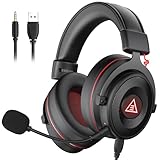
- 【Removable Dual Interfaces Wired Design】 Both USB and 3.5mm audio interfaces with two removable audio cords offer several alternatives and diverse sounds. The wired gaming headset is compatible with most mobile devices, PC, PS4, PS5 and Xbox One. (Note: 7.1 surround sound is only available on PC with a USB cable.)
- 【Immersive 7.1 Virtual Surround Sound】 The 7.1 surround sound creates an immersive gaming experience. Every subtle sound, music, and effect from various directions in the game is more pronounced and detailed for you to identify enemy positions, avoid surprise attacks, and defeat the enemy easily. You're practically immersed in a world of your own.
- 【Detachable Noise-Cancelling Microphone】High-sensitive, unidirectional noise-canceling microphone can effectively reduce background noise and pick up your voice clearly. EKSA E900 Pro gaming headphones for PS4/PS5 console also features a user-friendly one key mic mute switch and volume adjustment for smooth gaming operations. This noise-canceling mic provides specific sound imaging and is great for in-game chat, skype, working, and studying.
- 【All-Day Comfort】The adjustable headband is designed for your comfort in a way that balances weight distribution and reduces clamping force on your head. The soft memory protein earmuffs also help to take away all discomfort that might be associated with lengthy gaming sessions. You won't feel a thing wearing this 7.1 gaming headphone for hours on end.
- 【2-Year Warranty】EKSA gaming headsets are tailored specifically to satisfy our customers. Everything we do is to ensure you have a memorable shopping experience. We offer a 2-Year warranty and an unconditional 30-day money-back guarantee. If you have any requests or suggestions for our products, please do not hesitate to contact us.
What to do when microphone use causes glitches
- Confirm that both the PC and headphones support Bluetooth LE Audio.
- Install the current Bluetooth driver offered by the PC manufacturer and verify the Windows build.
- Re-test a call, game chat, or recording while listening to the same audio.
- If the compatible feature offers a stereo/mono choice and stereo produces glitches, change it back to mono as Microsoft suggests.
Mono can be more stable in a problematic setup, but it sacrifices left-right separation. This is a compatibility trade-off, not a general sound-quality setting.
Use Mono audio only when you need one-channel listening
Windows includes Mono audio under Settings > Accessibility > Audio. It combines a stereo signal into one channel so a listener using one headphone can hear material that would otherwise be assigned to the other side.
- Open Settings > Accessibility > Audio.
- Turn on Mono audio when you are listening with one ear or one headphone.
- Turn it off when using both sides and you want normal stereo separation.
Mono audio is an accessibility function, not an enhancement for clearer or higher-fidelity headphone playback. The same Audio page also includes visual flashing for audio notifications, which is useful for notification access but unrelated to headphone tonal quality.
Free tools Windows power users keep installed
One-click scans. No signup required.
Follow the symptom-specific troubleshooting path
| Symptom | Order of checks | Next recovery step |
|---|---|---|
| Too quiet | Check the selected output, mute state, Windows volume, and the affected app’s Volume mixer slider. Test Audio enhancements Off, then try another available Default format. | Update or reinstall the audio driver from the PC or device manufacturer. |
| Crackling or distortion | Replay the same passage with enhancements Off. Test one other device-supported Default format. | Update or reinstall the driver. If the problem remains, restart the Windows Audio and Windows Audio Endpoint Builder services. |
| No sound | Verify output selection, mute state, cable or wireless connection, port, and device enablement. | Run the Windows 11 Get Help audio troubleshooter and investigate driver detection if the device is absent. |
| Bluetooth playback degrades when the microphone is used | Check LE Audio support on both devices, Windows 11 version/build, and manufacturer Bluetooth drivers. | On a compatible setup, try mono if stereo produces glitches. Do not assume the control applies to Bluetooth Classic equipment. |
Use a repeatable listening method
Small level differences can make a setting seem better even when the processing is not helping. Use a short, familiar reference: a vocal passage, a dense game scene, or a film section containing both dialogue and effects.
Best Value

- [Wide Compatibility] This professional gaming headset for PC gamers is compatible with PC (Windows 7/8/10), PS4/PS5 console, laptops, and other devices with a USB audio port.(Note: EKSA E1000 is not compatible with game controllers.)
- [Driver-free 7.1 Surround Sound] Enjoy an instant immersive gaming experience with its 7.1 surround sound. EKSA PC gaming headset has a built-in USB audio sound chip and 50mm magnetic neodymium driver that gives you a vivid surrounding sound field. No extra downloads or hassle to get the best experience, just plug and play.
- [Noise Cancelling Microphone] The EKSA gaming headset for PS5 reduces distracting background noise and guarantees loud and crystal-clear communication with its 120° adjustable high-sensitive microphone. The headset’s omnidirectional noise reduction tech allows you to enjoy quality sound when gaming or in-game chats.
- [Comfortable Ergonomic Design] Premium soft memory protein earmuffs ensure ultimate comfort even for a prolonged period. In addition, there’s absolute comfort during lengthy gaming sessions with an adjustable headband designed for balanced weight distribution and reduced clamping force. Short cables are also not your problem anymore as its 2.2m extremely durable cable allows you to enjoy your game with no boundary.
- [2 Years Warranty] EKSA gaming headsets are under strict quality inspection on each production line. We offer 24-hour customer support and a 2-year warranty. We will make our most incredible effort to take responsibility for your shopping experience.
- Set a comfortable volume without changing it during the comparison.
- Change one setting only: enhancements, default format, spatial sound, or the Bluetooth stereo/mono mode.
- Replay the same timestamp or musical phrase several times.
- Write down the symptom and the result, including whether the change affected clarity, bass balance, channel separation, glitches, or volume.
- Restore the previous value before testing the next setting.
| Comparison | Question to answer | Keep the change when… |
|---|---|---|
| Enhancements On vs Off | Does processing cause or remove low level, distortion, or crackle? | The fault is reduced, or you prefer the processed presentation without new problems. |
| Current format vs another available format | Does the alternative resolve a specific fault? | The device remains stable and the same reference sounds better to you. |
| Spatial sound Off vs Windows Sonic or another option | Does positional spaciousness help this game or film? | The effect improves the content you actually watch or play without unwanted coloration. |
| Bluetooth stereo vs mono during microphone use | Does stereo remain stable on this LE Audio setup? | The selected mode avoids glitches while preserving the separation you need. |
What these settings cannot fix
Windows controls cannot repair a damaged cable, a failing headphone driver, a blocked ear pad, or a hardware fault. They also cannot make an undetected device produce audio until its connection and driver are working. If the device disappears from Sound settings, focus on ports, pairing, enablement, and the manufacturer’s driver before experimenting with effects.
Driver and manufacturer software may expose controls that are absent from Windows Settings. UI labels can therefore differ by Windows update, audio chipset, USB device, Bluetooth implementation, and headset utility. Treat each visible control as a testable option, record the original value, and avoid changing several processing layers at once.
A practical order for most listeners
- Select the physical headphones in Settings > System > Sound and verify system and app volume.
- Resolve connection, mute, enablement, and driver detection problems.
- Test Audio enhancements: Off if output is quiet, distorted, or crackling.
- Try one other listed Default format only when a specific issue remains.
- Compare spatial sound off with Windows Sonic on content where positioning matters.
- For Bluetooth microphone problems, verify the LE Audio requirements before changing stereo or mono.
- Enable Mono audio only when one-channel listening is the reason you need it.
This sequence separates basic routing failures from processing preferences and keeps every change reversible. The best final settings are the ones that leave your particular headphones stable and pleasing with the content you actually use.
Quick Recap
Product prices and availability are accurate as of the date/time indicated and are subject to change. Any price and availability information displayed on Amazon at the time of purchase will apply.




