Do these 3 things before closing this tab:
1Repair Windows errors before they cause bigger problems2Fix the driver behind crashes, sound loss and screen glitches3Clear out junk files and repair common Windows errorsFor movies and scripted shows, start with Movie or FILMMAKER MODE if your TCL TV offers it. Set the TV’s overall light output for the room, keep motion smoothing low or off for a cinematic look, and change other controls only when you can see a specific problem. TCL’s menus and available settings vary by model, software, input, picture mode, and content, so there is no reliable universal set of numeric values for every TCL TV.
Start with the picture mode
Picture mode is the quickest way to establish a sensible baseline. TCL describes Movie mode as optimized for movies and a more accurate starting point. FILMMAKER MODE, when available and supported by the content, is intended to present movies and shows closer to the creator’s picture style. TCL’s Google TV settings guide describes FILMMAKER MODE as displaying supported content closer to the creator’s intended style; TCL also recommends Movie as a starting point in its picture setup article.
As an Amazon Associate I earn from qualifying purchases.
| Mode or choice | When it makes sense | Trade-off |
|---|---|---|
| Movie or FILMMAKER MODE | Movies and scripted shows, when the mode is available | A less punchy presentation than enhancement-focused modes, in exchange for a more cinema-oriented starting point |
| Sports | Sports, if its brighter, motion-forward presentation suits your room | Its look may not be your preference for films or other content |
| Vivid | When you want a deliberately enhanced, punchier image | It is not necessarily the best starting point for faithful color |
| Standard | If you prefer its appearance to the alternatives | Its presentation can differ from one TCL model to another; check the set’s manual |
Mode names and availability depend on the TV. If you watch a mix of content, choose the mode that looks right for the material rather than assuming one setting is best for every program.
Quick wins for a faster PC:
Scan for outdated or missing drivers - takes under a minuteDriver Scan →Clear out junk files and repair common Windows errorsFree Scan →Fix the driver behind crashes, sound loss and screen glitchesFind Drivers →Set overall light output for the room
Adjust the TV’s overall brightness or backlight control to suit the viewing environment: a bright room may need more screen light, while a dark room may be more comfortable with less. TCL uses different labels across menus. Where the TV separates controls, overall light output is not the same as Brightness, which affects black level, or Contrast, which affects white level. TCL’s Roku TV settings guidance covers its picture controls and room-related adjustment advice.
#1 Best Overall

- 【Support TV Models】RC813 remote Only for TCL Google Smart TV 65QM850G 75QM850G 85QM850G 98QM850G 98QM851G 85QM851G 75QM851G 65QM851G 115QM891G 98QM751G 85QM751G 75QM751G 65QM751G 55QM751G 98S550G 43S551G 50S551G 55S551G 65S551G 75S551G 85S551G 75S571G 65S571G 55S571G 43S571G 55S470G 43S470G 50S470G 58S470G 65S470G 70S470G 75S470G 85S470G 43S450G 50S450G 55S450G 58S450G 65S450G 75S450G 85S450G 50S45G 32S370G 40S370G 43S370G 32S250G 55Q750G, 65Q750G 75Q750G 85Q750G 55Q670G 65Q670G 75Q670G 85Q670G 85Q650G 75Q650G 65Q650G 55Q650G 43Q651G 50Q651G 55Q651G 65Q651G 75Q651G 85Q651G 98Q651G 85Q681G 75Q681G 65Q681G 55Q681G 55Q550G 50Q550G 65Q550G 50Q570G 55Q570G 65Q570G 75Q570G etc.
- 【No Pairing Required】Replacement remote control compatible with TCL RC813 remote, no programming and no pairing needed, just put 2*AAA batteries in and it will work immediately. (Note: Batteries and manual are not included) (Not for TCL Roku TVs) (Not for TCL Fire TVs)
- 【Stable & High-Quality】 Strongest signal by Infrared technology further transmission for multi-angle induction. Precisely control far from 12 meters/40 feet.Fastest response not over 0.2 second to your TV, It supports over 120,000 clicks approved test
- 【6 Popular Shortcut Keys】One key quickly access to popular streaming channels --- NFLX, p-video, YouTube, Channel, Dis and Apple TV. Save you searching time and enjoy a good leisure time faster
- We test it before delivery to make sure it's working. If you are caught in some problems when using our products, welcome to contact us at any time. We are committed to providing you with a satisfactory solution promptly.
Make changes while watching a scene you know well. If dark areas lose visible detail or the picture becomes uncomfortable in your room, adjust gradually rather than copying a number from another TV.
Change black level and white level only for a visible problem
The controls called Brightness and Contrast on many TVs affect the dark and bright parts of the picture, respectively. Their names can be confusing: “Brightness” often means black level rather than the overall amount of light from the screen. TCL documents these controls but does not prescribe one universal numeric setting for all models.
- Use a familiar source with clearly visible shadow and highlight detail.
- Make small adjustments only if dark detail looks crushed or bright detail looks lost.
- Recheck the same scene after each change so you can tell whether the adjustment helped.
Choose a color temperature you like
Color temperature shifts the image toward a warmer or cooler appearance. A warmer option is a reasonable cinema-oriented starting point if it is available, but labels and personal preference vary. If skin tones or familiar scenes look unpleasant to you, try another option rather than treating one label as mandatory. TCL explains color-temperature choices in its Google TV settings guide.
Crashes, No Sound, or Screen Glitches?
Random freezes, missing sound and display glitches usually trace back to one bad driver. Find and replace yours safely.Free scan · under a minutePC Slower Than It Used to Be?
A free scan shows the junk files, broken settings and background clutter dragging Windows down - then fixes them in one click.Free scan · Windows 10 & 11Rank #2

- PACKAGE INCLUDED: Pack of 2 remote. Two-pack remote control can solve your home backup remote control needs. Infrared remote no pairing or programming needed. Just Insert 2 Pcs*AAA batteries to get it work (Batteries and manual are not included)
- EXACT COMPATIBILITY: Acoyer universal remote control only for Roku Series TVs, Compatible with TCL Roku TVs, Hisense Roku TVs, Onn Roku TVs, Sharp Roku TVs, Element Roku TVs, Westinghouse Roku TVs, Philips Roku TVs, Insignia Roku TVs, JVC Roku TVs, RCA Roku TVs, Hitachi Roku TVs and Sanyo Roku TVs Series.
- NOT APPLICABLE: TV Remote is NOT Compatible with Roku Stick/Streaming Stick/ Box(1/2/3/4(HD/LT/XS/XD))/ Ultra/ Express/ Premiere/ Player. NOT Compatible with TCL TV, Hisense TV, Onn TV, Sharp TV, Element TV, Westinghouse TV, Philips TV, Insignia TV, JVC TV, RCA TV, Hitachi TV and Sanyo TVs.
- SHORTCUT BUTTONS: Get to favorite apps quickly with shortcut buttons and it have 4 shortcuts buttons. Precisely control far from 10 meters/30 feet and it supports over total 160,000 clicks for all buttons via approved tests.
- AFTER SALE SERVICE: Acoyer remote controls with an unlimited return and refund service in 1-year warranty. If you have any questions or concerns regarding your order, please feel to reach out to us.
Keep sharpness and noise reduction restrained
Sharpness changes edge treatment; noise reduction applies cleanup processing. With clean HD or 4K sources, leave these enhancements restrained unless you can identify a problem. Noise reduction may help with a visibly noisy, low-quality source, but processing is not automatically an improvement for every picture.
Decide how much motion smoothing you want
For film and scripted shows, begin with motion smoothing low or off if you want to retain a more cinematic cadence. If camera pans look uneven, try a small adjustment; if you prefer smoother motion, you can choose more processing. The trade-off is personal, and motion options and their effects differ by model. TCL notes that picture quality and motion depend on the content, delivery, and TV processing in its motion and picture-quality guidance.
Judge motion on the kind of content you watch. A setting that feels comfortable for sports or fast action may look overly smooth on a film.
Rank #3

- 【Compatible with All TCL TVs】Remote Control Compatible with All TCL Android Smart 4K UHD TVs,However, If the buyer is a TV from another brand, including TCL ROKU, the remote control cannot be used directly. - No Voice Search Function
- 【EASY TO USE】Using our remote couldn't be easier since no programming or setup is required. Just insert 2pcs*AAA batteries, and it is ready to go! (⚠ batteries are not included)
- 【2 Hotkeys】Equipped with 2 shortcut keys, NETFLIX/YouTube providing quick viewing experience
- 【HIGH QUALITY】Our remote has been upgraded to give you a greater transmitting distance (over 35 ft) and has a quick response time,The remote control shell is made of ABS material, which is resistant to falling and has no peculiar smell.
- 【AFTER-SALE SERVICE】Our Remote comes with an unlimited return and refund service in 7 days. We maintain a high standard of excellence and strive a 100% satisfaction to customer .
Compare automatic enhancements instead of assuming they help
Dynamic contrast, dynamic color, automatic HDR conversion, and adaptive brightness can alter the image automatically. They may be useful for some content or rooms, but can also change the source’s appearance. Compare each option on and off using the same scene and keep it enabled only if you prefer the result. TCL describes these and other processing controls in its settings guide and motion guidance.
Check framing and avoid unnecessary expert calibration
Aspect ratio and overscan
Use a fitting or auto option where appropriate so the picture preserves the source’s intended framing. Overscan enlarges the image and can crop its edges, including captions or details near the border. Check a program with subtitles or visible edge detail after changing the setting. TCL explains this in its Google TV video settings guide.
White balance and color space
These are expert calibration controls, not necessary steps in a basic setup. TCL describes measurement equipment and software as tools for expert calibration; avoid entering unmeasured white-balance or color-space values copied from a different set. The basic setup does not require buying calibration equipment. See TCL’s calibration discussion.
Rank #4
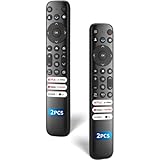
- 【Packing List】There are two remote controls in the package, so you don't have to worry about not being able to use your TV because of a lost or damaged remote.
- 【Compatibility】Replacement remote control for TCL Google TV, compatible for TCL UHD HDR LED QD Mini LED QLED 4K Google TVs, for TCL QM8, QM7, S5, S4, S3, Q7, Q6, Q5 series tvs. Compatible for 65QM850G, 75QM850G, 85QM850G, 98QM751G, 85QM751G, 98S550G, 43S551G, 55S470G, 43S470G, 55Q670G, 65Q670G etc...(Not for Fire or Roku TVs)
- 【Quick-Access Shortcut Keys】This remote control is equipped with 6 dedicated buttons for popular streaming media channels. With just one press, you can instantly access your favorite streaming channels. No pairing or programming required! Simply insert 2 AAA batteries (Not included) to start using immediately.
- 【Enhanced Durability Range】Designed for longevity by over 160,000+ click-tested buttons and an extended (30ft/10m) operating range. Ergonomic design ensures comfortable use from any corner of your home theater.
- 【Full function replacement】Note: No voice control or included batteries/manual, Popular shortcut keys are only compatible with TCL Google TV itself comes with shortcut programs or popular shortcut keys. For old TVs, you cannot use shortcut programs without shortcut programs.
Find the controls on your TCL TV and check each source
TCL Roku TV and Google TV menus do not use identical paths or labels. Roku guidance says advanced picture controls are typically saved per input and picture mode. On Google TV, a menu may offer Apply All Picture Settings to carry changes across inputs. After changing a setting, verify it while using the HDMI input, streaming app, or other source you actually watch. Consult the manual for your exact model before following a menu path: TCL says available options can vary with content, input, picture mode, model, and software.
For platform-specific descriptions, see TCL’s Roku TV adjustment guide and its Google TV video settings guide.
What’s actually slowing this PC down?
Pick the symptom - the matching free tool is one click away.
Quick Recap
Product prices and availability are accurate as of the date/time indicated and are subject to change. Any price and availability information displayed on Amazon at the time of purchase will apply.




