An AI assistant’s “Done” message is not proof that a command ran—or that it changed anything. To find out what happened, inspect the tool’s actual result, locate the first failed step, and then check the machine or application state the command was supposed to change. If that state cannot be verified, treat the outcome as unknown, not successful.
Why can an AI say a command succeeded when it didn’t?
A tool-using assistant works through a handoff: the model proposes an action, the application sends it to a shell, browser, API, or other tool, that environment returns a result, and the model interprets the result before replying. A mismatch at any point can produce a confident message that does not reflect the machine’s state. The model’s wording is a report; the tool’s returned result is evidence of what happened during execution. See the tool lifecycle described in Anthropic’s tool-use documentation and OpenAI’s shell tool guidance.
As an Amazon Associate I earn from qualifying purchases.
This is a debugging pattern, not a quantified failure rate: the platform documentation cited here explains execution, error handling, and diagnosis, but does not establish how often assistants report success incorrectly.
Free tools Windows power users keep installed
One-click scans. No signup required.
Trace the action from request to reported result
Check the chain in order. The first point where the intended action and the recorded evidence diverge is usually the most useful place to investigate.
#1 Best Overall

- Stay present in every scenario: Every conversation is covered, in person, on calls, and online. 4 MEMS + 1 VPU microphones with AI beamforming capture every voice across the room. Smart Dual-Mode Recording switches automatically between phone calls and in-person. The free Plaud Desktop captures online meetings without a bot
- Walk out of every meeting with notes ready to act on: Plaud Intelligence transcribes in 112 languages with speaker labels and turns each recording into action items, decisions, and follow-ups, structured and ready to use. Choose from 10,000+ customizable templates tailored to your role and industry
- AI summary ready before you reach your desk: Auto Transfer moves each recording to the Plaud app automatically, and AutoFlow transcribes and summarizes so your notes are ready before you are back at your desk. Upgrade anytime to Pro (1,200 min/mo) or Unlimited
- Access your AI workspace anywhere: One connected workspace across Plaud Desktop, Plaud Web, and the Plaud mobile app, so your conversations and finished work follow you everywhere
- Your conversations stay private and yours: Compliant with ISO 27001, ISO 27701, SOC 2, HIPAA, GDPR, and EN 18031, with zero data used to train AI models. Trusted by 2.5M+ professionals, including legal, medical, and business professionals handling sensitive information
- Request formation: Did the model produce the right command, target, and arguments? A typo or incorrect path can make a valid command affect the wrong thing.
- Dispatch: Did the application actually send that request to the intended tool? A proposed tool call is not the same as an executed one.
- Execution: Did the shell, browser, or service run it? Inspect the returned status, output, error details, and timeout information. OpenAI’s shell guidance recommends preserving non-zero exit output and returning timeout outcomes with partial output when available: Shell tool.
- Interpretation: Did the model receive the real result, including any error status, or did the integration omit or mislabel it? Anthropic recommends signaling tool errors explicitly and returning useful details rather than a generic failure: Tool use.
- Effect: Did the intended change actually persist? Read back the saved file, setting, record, or application view. A command invocation—and even a successful process exit—does not by itself prove a higher-level outcome.
- Reporting: Does the final response say only what the evidence establishes? If the state cannot be confirmed, the accurate result is “unknown” or “not verified,” not “completed.”
How to check whether an AI agent actually ran a command
- Reproduce only if safe. Before retrying, consider whether the command might create duplicate records, send a message, delete data, or trigger another irreversible effect. Inspect state first when repetition could be harmful.
- Inspect the exact invocation and raw result. Look for the command or tool arguments, whether a call was dispatched, the returned output, exit status or error flag, and any timeout or partial output. A summary written by the assistant is not a substitute for this record.
- Find the first failed step. Check the command and its earliest error, then confirm prerequisites such as the working directory, authentication, dependencies, and service availability. VS Code’s troubleshooting guidance recommends identifying the exact failed command or tool and first error, then checking prerequisites and recovery options.
- Read the target state directly. Inspect the actual file, setting, record, or application view the task was meant to change. Prefer an independent read-back over trusting the same success message that is in question.
- Choose whether to retry, recover, or stop. If you retry, verify the state again afterward. Starting a new agent session does not undo changes an earlier session may already have made; check the existing state before repeating work. See VS Code’s troubleshooting guidance.
- Report the evidence and uncertainty. Separate what was attempted, what the tool returned, what state you verified, and what remains unknown.
For multistep actions, stop at the first failure
When later actions depend on an earlier one, a failure near the start can make the rest of the sequence invalid. For example, if an agent is meant to create a file and then edit it, it should not report the edit as complete if file creation failed. Anthropic’s computer-use guidance says to mark a failed action as an error and dependent later actions as not executed; execute dependent actions sequentially and return a result for each requested action: Computer use.
For debugging, inspect every step and its dependency rather than treating the whole sequence as one success or failure. Distinguish an action that failed from one that was never run.
Rank #2

- YOUR AI PERSONAL ASSISTANT FOR EVERYDAY PRODUCTIVITY: More than a voice recorder, Pocket works as your AI personal assistant to capture, transcribe, and summarize meetings, calls, and ideas instantly. Core features are included out of the box, with optional advanced tools available for power users.
- ONE-TAP RECORDING FOR REAL-LIFE MOMENTS: Capture meetings, phone calls, and in-person conversations instantly with a simple tap, no typing, no interruptions, just effortless note-taking anywhere you go.
- SMART AI INSIGHTS & ORGANIZATION: Pocket automatically turns recordings into clear summaries, key action items and structured conversation maps so you can quickly review what matters without digging through audio.
- TURN CONVERSATIONS INTO ACTION WITH “ASK POCKET”: Don’t just record, understand. Instantly ask questions across your meetings, extract key insights and generate next steps in seconds. All grounded in your recordings, so answers stay accurate and reliable.
- MAGSAFE COMPATIBLE FOR SEAMLESS USE: Easily attach Pocket to your iPhone or other MagSafe compatible devices for convenient, hands-free recording on the go. Perfect for capturing meetings, calls, and ideas without needing to hold your device.
Use traces to locate the break—but verify effects separately
Tracing can connect a request to model activity, tool calls, returned results, and timing, making it easier to identify where the handoff failed. OpenAI describes its tracing view this way: “The tracing dashboard shows what your agent did, including each step’s recorded inputs, outputs, duration, and status.” Its documentation says command execution and web searches appear as tool spans: OpenAI tracing.
Windows Errors? Fix Them Before They Spread
Repair common Windows errors and clear accumulated junk for a smoother, more stable PC - no reinstall needed.Free scan · no reinstallOutdated Drivers Are Slowing You Down
One free scan finds every outdated or missing driver and matches the right update for your exact hardware.Free scan · exact hardware matchGoogle Cloud’s agent observability documentation describes tracing agent reasoning, tool calls, and external interactions to help diagnose failed requests, loops, and latency. These traces can show what an instrumented workflow recorded; they do not, by themselves, prove that a change persisted in the application or real world. Add an application-specific postcondition check—such as reading back the updated record—when that outcome matters.
Rank #3

- YOUR AI PERSONAL ASSISTANT FOR EVERYDAY PRODUCTIVITY: More than a voice recorder, Pocket works as your AI personal assistant to capture, transcribe, and summarize meetings, calls, and ideas instantly. Core features are included out of the box, with optional advanced tools available for power users.
- ONE-TAP RECORDING FOR REAL-LIFE MOMENTS: Capture meetings, phone calls, and in-person conversations instantly with a simple tap, no typing, no interruptions, just effortless note-taking anywhere you go.
- SMART AI INSIGHTS & ORGANIZATION: Pocket automatically turns recordings into clear summaries, key action items and structured conversation maps so you can quickly review what matters without digging through audio.
- TURN CONVERSATIONS INTO ACTION WITH “ASK POCKET”: Don’t just record, understand. Instantly ask questions across your meetings, extract key insights and generate next steps in seconds. All grounded in your recordings, so answers stay accurate and reliable.
- MAGSAFE COMPATIBLE FOR SEAMLESS USE: Easily attach Pocket to your iPhone or other MagSafe compatible devices for convenient, hands-free recording on the go. Perfect for capturing meetings, calls, and ideas without needing to hold your device.
Protect sensitive data in agent traces
Detailed traces can contain the material needed to diagnose a failure, but also sensitive information. Microsoft’s Agent Framework telemetry documentation notes that prompts, responses, tool arguments, and results may contain sensitive data: Agent Framework observability. Limit access to traces, set appropriate retention, and redact sensitive content where feasible before enabling detailed logging.
Quick Recap
Best Value

- AI-POWERED TRANSCRIPTION & SUMMARIES: Plaud Note Pro is your professional voice transcriber, delivering high-accuracy transcription in 112 languages with auto speaker labels. Powered by top AI models and thousands of templates, Note Pro instantly creates structured summaries, mind maps, To-Do lists, and proposals tailored to your role and industry
- ENHANCED CONTEXT WITH MULTIMODAL INPUT: Capture audio, type notes, add images, and press to highlight key moments for richer context. During recording, instantly mark key moments with a single button press. Simultaneously enrich your audio by snapping photos of important documents or typing in ideas
- CHAT WITH YOUR RECORDINGS USING "ASK Plaud": Unlock deeper insights with this interactive AI. Ask questions, extract key points, draft emails, and get next-step suggestions—all grounded in your original audio for reliable, ready-to-use answers
- INTELLIGENT RECORDING WITH AI DIRECTIONAL AUDIO: Enjoy seamless, intelligent recording with Plaud Note Pro. Its AI automatically switches between call and meeting modes while recording, while directional audio and real-time spatial awareness minimize noise to capture voices with crystal clarity
- Everything Included: Includes Plaud Note Pro, magnetic case, magnetic ring, charging cable, and a free Starter Plan with 300 transcription minutes per month. Upgrade anytime in the Plaud app to Pro Plan (1,200 min/mo) or Unlimited Plan(Up to 24 hours of transcription per user per day)
Rank #4
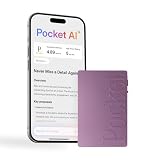
- YOUR AI PERSONAL ASSISTANT FOR EVERYDAY PRODUCTIVITY: More than a voice recorder, Pocket works as your AI personal assistant to capture, transcribe, and summarize meetings, calls, and ideas instantly. Core features are included out of the box, with optional advanced tools available for power users.
- ONE-TAP RECORDING FOR REAL-LIFE MOMENTS: Capture meetings, phone calls, and in-person conversations instantly with a simple tap, no typing, no interruptions, just effortless note-taking anywhere you go.
- SMART AI INSIGHTS & ORGANIZATION: Pocket automatically turns recordings into clear summaries, key action items and structured conversation maps so you can quickly review what matters without digging through audio.
- TURN CONVERSATIONS INTO ACTION WITH “ASK POCKET”: Don’t just record, understand. Instantly ask questions across your meetings, extract key insights and generate next steps in seconds. All grounded in your recordings, so answers stay accurate and reliable.
- MAGSAFE COMPATIBLE FOR SEAMLESS USE: Easily attach Pocket to your iPhone or other MagSafe compatible devices for convenient, hands-free recording on the go. Perfect for capturing meetings, calls, and ideas without needing to hold your device.
Product prices and availability are accurate as of the date/time indicated and are subject to change. Any price and availability information displayed on Amazon at the time of purchase will apply.




