Crashes, No Sound, or Screen Glitches?
Random freezes, missing sound and display glitches usually trace back to one bad driver. Find and replace yours safely.Free scan · under a minuteWindows Errors? Fix Them Before They Spread
Repair common Windows errors and clear accumulated junk for a smoother, more stable PC - no reinstall needed.Free scan · no reinstallTo convert a video successfully, first identify the video and audio streams inside the file, then check what your destination accepts. If the streams already work there and only the container is incompatible, rewrap the file without re-encoding. If the codec or other stream properties must change, transcode with settings chosen for the destination—not just a familiar file extension.
What do “video format” and “codec” mean?
A video file usually has a container—the wrapper that organizes video and audio streams and may also hold subtitles or chapters. The video and audio themselves are encoded with codecs. MP4, MKV and WebM are containers; H.264, HEVC/H.265 and AV1 are examples of video codecs. A container can hold different codecs, so an .mp4 filename alone does not tell you exactly how its video is encoded. HandBrake’s container documentation explains the distinction and notes that containers differ in features and playback compatibility.
As an Amazon Associate I earn from qualifying purchases.
Changing a filename extension does not change the container or streams. A converter either rewraps compatible existing streams in another container or transcodes them by decoding and encoding media again.
The Tool Desk
Outbyte Driver Updater FREEScan for outdated or missing drivers - takes under a minuteDriver Scan →Outbyte PC Repair FREERepair Windows errors before they cause bigger problemsFix Now →How do I choose settings for the destination?
Start with the receiving device, app, website, editor or archive. Check its current requirements for container, video and audio codecs, resolution, frame rate, codec profile, subtitles and color. Adobe’s Premiere export settings reference presents export choices—including format, resolution, frame rate and codec—as decisions tied to the intended playback platform.
#1 Best Overall

- AV TO USB Converter: Capture videos and audios from VHS, VCR, Hi8, DV tapes to a PC, with the help of our USB Video Converter. Save room while digitizing your favorite old memories
- Quality Capture Card: Our USB Video Capture Card converting anolog RCA composite input into HD 720P USB output and capturing audio without any sound card. Advanced signal processing technology provides you with great precision, colors, resolutions, and details.
- Plug and Play: Automatically install the driver once you hook up this RCA to USB Converter to a PC. No external power is needed. User-friendly and easy to operate
- Wide Compatibility: The Video Capture Card can work with video devices with RCA connector or S-Video connector, such as VHS, VCR, Hi8, camcorder, compatible with Windows and Mac OS. Support video formats like NTSC, PAL, and support brightness, contrast, hue, and saturation control
- Note: The Video Converter is used with acquisition software. We recommend OBS Studio or PotPlayer for Windows, and QuickTime Player for Mac. They can be downloaded for free online. Please operate according to the steps in User Manual or contact us if you have any questions
Before converting, inspect the source file and note:
- Container and video and audio codecs
- Resolution and frame rate, including whether the frame rate is variable
- Available audio tracks, including surround sound
- Subtitle tracks and whether they are embedded or separate
Preserve the source resolution and frame rate unless the destination requires a change. Also check the converter’s preset settings instead of relying on its name: a preset can downscale video, cap frame rate, change audio or omit tracks. HandBrake documents presets with different speed, quality and file-size trade-offs; its 720p30 example can turn a 1080p, 60 fps source into 720p at 30 fps. The current HandBrake preset reference describes those settings.
Can I change a container without re-encoding?
Yes, when the destination accepts the existing video and audio streams. A rewrap (also called a remux) changes the container while copying the streams, avoiding a new encode. It will not solve a codec incompatibility: changing MKV to MP4, for example, does not by itself turn an unsupported video codec into a supported one.
Quick wins for a faster PC:
Fix the driver behind crashes, sound loss and screen glitchesFind Drivers →Repair Windows errors before they cause bigger problemsFix Now →Some editing workflows have stricter requirements for copying source data. Adobe says Premiere smart rendering requires the source codec, frame size, frame rate and bit rate to match the export settings exactly for the matching source data to be copied without recompression. See Adobe’s smart-rendering guidance.
Rank #2
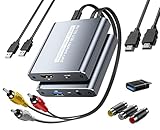
- [Capture & HDMI Loop Out – Record While Watching] This USB video capture card lets you digitize VHS tapes, VCR, DVD players, camcorders, and retro game consoles while simultaneously viewing the video on a larger HDMI TV or monitor. The HDMI loop-out feature allows real-time playback on a big screen while capturing to your computer—perfect for enjoying and preserving old memories.
- [Convert VHS & Analog Video to Digital] Easily convert old VHS tapes and analog AV signals into digital video files on your computer. Capture nostalgic home videos, family events, or retro gaming footage and store them permanently in digital format for easy backup, editing, or sharing.
- [Digitize Your Vintage Home Videos] Preserve your old VHS memories in high-quality digital format. We help restore faded VHS tapes and convert them into clear 1080p digital files for long-term safekeeping and easy sharing. Works with most popular open-source capture software, supporting batch processing, clip editing, and one-click upload to YouTube and Facebook. Perfect for preserving wedding videos, birthday footage, and other precious home movies from the past.
- [Convert Analog to HDMI in Real Time with USB Capture] USB video capture card with HDMI live preview and multi-device compatibility. Stream analog content directly to modern HDMI displays in real time! Convert RCA/AV signals to HDMI with a switchable 720p/1080p output for TVs, projectors, and gaming monitors. Plus, use the HDMI loop-through feature to monitor the digitization process as you capture—no more uncertainty!
- [Retro Tech Revival – Connect Classic Devices to Modern Screens] Retro Tech Revival: Bring Back VCRs, Wii and More Classic DevicesSupports VHS/VCR/DVD players, Hi8 camcorders, PS2, Wii and other RCA-connected devices. Comes with RCA/AV cables and a USB-C adapter. Renew your old equipment easily—stream retro games, digitize video tapes, or connect legacy devices to 4K TVs without hassle!
How do I convert a video to MP4?
- Inspect the source. Find its container, video and audio codecs, resolution, frame rate, audio tracks and subtitles. Do not infer these from the extension alone.
- Check the destination’s requirements. Confirm it accepts MP4 and the source codecs and other stream properties.
- Rewrap if only the container needs to change. Keep the existing streams when they are already supported by the destination.
- Transcode if a stream must change. Choose a compatible video codec, audio codec and other required settings. Retain the original resolution and frame rate unless the destination calls for different values.
- Review track and quality settings. Confirm the converter will retain the audio and subtitles you need. Preview the output and check playback on the intended device or app.
HandBrake uses MP4 for its general presets and recommends AAC for wider player compatibility. Its documentation also describes differences in audio and subtitle support between MP4, MKV and WebM. Those are useful starting points, not a guarantee that every player accepts every stream combination. See HandBrake’s container guidance and preset reference.
How do I change a video format without losing quality?
If the destination supports the existing streams, rewrap rather than re-encode. Copying compatible streams avoids a generation of lossy encoding, although container changes may affect features such as subtitles or chapters. Check the destination’s requirements and verify the resulting file.
If you must transcode, do not assume the conversion will be lossless. Re-encoding can alter picture quality, and reducing file size generally involves a quality trade-off. Keep the source resolution and frame rate when the destination allows it, and choose an encoding quality setting appropriate to your needs. A preset’s speed or size emphasis can affect the result; inspect its actual settings before starting.
How can I make a video file smaller?
First decide how much quality and compatibility matter. A smaller file may require a different codec, a lower resolution or frame rate, or more compression. Those changes are not interchangeable: reducing resolution removes image detail, lowering frame rate changes motion, and stronger compression can introduce visible artifacts. If the destination supports the current streams, rewrapping alone will not provide the same kind of size reduction as a smaller transcode.
Rank #3

- 【1080P 60FPS Video Capture Card】 This HDMI game capture card is based on USB3.0 high speed transmission port, input resolution up to 4K@30HZ, output resolution up to 2K@30Hz or 1920×1080@60Hz. Type c and USB interface can meet most of the devices in daily life. Easily meet the online capture, real-time recording, online meetings, live gaming and other functions, so you have a better visual enjoyment. Note: For capture use only; requires capture software to function and is not intended for direct screen casting to a monitor or TV
- 【Ultra Low Latency Screen Sharing】 HDMI capture card is made of good quality aluminum alloy with strong heat dissipation, allowing you to enjoy ultra low latency while live gaming or video recording or live streaming, avoiding blue screens and lag. This HDMI to USBC capture card supports easy recording of good quality audio or HD video and transferring it to your computer or streaming platform, allowing you to record 60 fps HD video directly on your hard drive and real-time preview
- 【Plug and Play, Easy to Carry】 This HDMI 1080P video capture card does not require any additional drivers or external power supply, just plug and play for fast capture. The capture card is small and lightweight, so you can put it in your bag for emergencies, making it very portable for outdoor live streaming. It's also a great way to share content in game recording, video conference, video recorder and online teaching
- 【Wide Compatibility USB Capture Card】 Easily streams to Facebook, Youtube or Twitch. With the connection, this HDMI to USB C/3.0 video capture devices can be working on several Operating Systems and various software: Windows 7/ 8/ 10, Mac OS or above, Linux, Android, Laptop, Xbox One, PS3/PS4/PS5, Camera, DVDs, Set Top Box, Webcame, DSLR, Switch/Switch 2, TV BOX, HDTV, Potplayer/VLC, ZOOM, OBS Studio etc.
- 【Package Content & Note】 1x HD Audio Capture Card , 1x USB 3.0 to USB C Adapter (A-side 3.0, B-side 2.0), 1x user manual. Please note that you need to restart the OBS Studio software after the audio setup is complete, otherwise it will result in no sound output. When using an adapter, if the device is recognized as USB 2.0, try using the other side with the USB-C port. Simply flip the capture card and reconnect it to be recognized as USB 3.0
Choose a preset only after checking its output resolution, frame-rate limit, audio behavior and quality target. For instance, HandBrake’s documented 720p30 preset can reduce both resolution and frame rate when applied to 1080p, 60 fps footage. Whether that is acceptable depends on the video and where it will be played.
Why might a converted video still not play?
“MP4” or another container label does not guarantee compatibility. The receiving app may reject the codec, profile, frame rate, resolution, audio format or subtitle arrangement inside it. Compare the output’s actual streams with the destination’s current requirements, rather than changing the extension again.
When troubleshooting, check these points:
- Does the destination accept both the container and the codecs inside it?
- Did the export use a supported resolution, frame rate and codec profile?
- Were the required audio track and subtitle format retained?
- Does the file play elsewhere, or is the problem limited to one app or device?
- Did the converter’s preset change settings you meant to preserve?
If a required stream is unsupported, transcode that stream to a compatible format. If only the wrapper is wrong and the streams are supported, use a rewrap instead.
Free tools Windows power users keep installed
One-click scans. No signup required.
How should I choose a converter?
Format support belongs to a particular application, version, build and system—not to the generic category “video converter.” Check the specific tool’s documentation for the source formats it can open and the output formats and codecs it can encode. HandBrake says it uses FFmpeg’s libavformat and libavcodec and can generally open what FFmpeg can, in addition to disc sources; it also documents limitations involving playlists and copy-protected discs. See HandBrake’s supported-source documentation.
Rank #4

- This Video Capture Card Can transfer video and audio from VHS, VCR, DVD, Hi8, DV tapes, camcorders, or other video source devices with RCA or S-Video interfaces to your PC or Mac synchronously.
- Convert analog RCA/S-Video audio and video signal input to high-definition 1080P/30fps USB-A/USB-C output, digitize and save your good memories with your friends and family on your computer, share with your friends and family, leaving precious memories
- Plug and play, easy to operate, just connect the RCA or S-Video interface of your video recorder to the USB-A/USB-C interface of your computer or notebook and it can be used without any driver. Note: It needs to be used with the acquisition software
- Compatible with USB-A/USB-C interfaces, not limited by computer interfaces, compatible with Windows and Mac OS, supports NTSC, PAL and other video formats, and supports brightness, contrast, hue and saturation control
- Note: This video converter needs to be used with capture software, which can be downloaded free of chargge . We recommend OBS Studio or PotPlayer for Windows and QuickTime Player for Mac. Please feel free to contact us if you need technical support.
FFmpeg’s official format and codec reference distinguishes encoding from decoding support and identifies paths that depend on external libraries. A long support list does not mean every format works in every build or that a listed codec is available for both input and output. For a graphical workflow, check the application’s presets and track controls; for a highly configurable workflow, confirm the exact encode and decode paths available in the build you will use.
When does hardware encoding help?
Hardware encoding uses a supported media engine in the system. Availability depends on the hardware, drivers and selected settings, and a hardware path is not necessarily available for every codec or export configuration. Adobe says Premiere defaults to hardware encoding for H.264 and HEVC where supported, but settings can fall back to software encoding when unsupported. HandBrake likewise notes that its hardware presets depend on compatible hardware and current drivers. Consult Adobe’s export reference and HandBrake’s preset documentation for the application-specific behavior.
What if the video is on an analog tape?
A converter needs a digital video file to work on, so analog footage must first be digitized using computer-based recording hardware and software. HandBrake identifies this as a capture step before conversion and gives Blackmagic Design Intensity as an example of capture hardware. This workflow is for tape or other analog sources; it is not needed to convert an existing digital video file. See HandBrake’s source-format guidance.
Quick Recap
Product prices and availability are accurate as of the date/time indicated and are subject to change. Any price and availability information displayed on Amazon at the time of purchase will apply.




