Quick wins for a faster PC:
Repair Windows errors before they cause bigger problemsFix Now →Scan for outdated or missing drivers - takes under a minuteDriver Scan →Clear out junk files and repair common Windows errorsFree Scan →A construction time clock should capture accurate hours even when crews are offline, assign them to the right jobs and cost codes, and send approved time into the payroll workflow your business actually uses. Compare systems by testing those tasks at a real jobsite—not by counting feature checkmarks. The products below illustrate different approaches; their capabilities are vendor-described, not independently tested.
What a construction time clock needs to do
Construction time tracking has to connect field punches to payroll and job costs. A useful system should make it practical to record who worked, when and where they punched, and which job or phase should receive those hours. It should also fit the crew’s access to phones, service, and shared devices.
As an Amazon Associate I earn from qualifying purchases.
Start with your current workflow: how workers clock in, who corrects missed or inaccurate punches, how supervisors approve time, and what payroll or accounting system receives it. Then test whether a candidate handles those steps without creating a parallel process that staff must reconcile manually.
The Tool Desk
Outbyte Driver Updater FREEFix the driver behind crashes, sound loss and screen glitchesFind Drivers →Outbyte PC Repair FREERepair Windows errors before they cause bigger problemsFix Now →Compare the field workflow, not just the feature list
| System | Field access and offline behavior | Location behavior | Job-costing and handoff details described by vendor |
|---|---|---|---|
| WorkMax TIME | Vendor describes offline clock-in/out, task and project changes, breaks, and work-activity recording. | Vendor describes GPS location stamps and geofencing. | Vendor describes task and project tracking and integrations with FOUNDATION and QuickBooks. |
| hh2 Punch Clock | Vendor describes phone, shared-kiosk, and supervisor crew-entry modes, with offline syncing. | Vendor describes GPS, geofencing, and photo capture. | Vendor describes job and cost-code allocation and accounting handoff. |
| OnTheClock | Vendor describes geofenced clock-ins; its page does not establish offline capture behavior. | Vendor says location is checked at clock-in and clock-out. | Vendor describes job/cost-code tracking and payroll-ready reports. Its page names QuickBooks, Gusto, ADP, and Paychex. |
| Chronotek Pro | Vendor describes phone-in clocking for workers without smartphones. | Vendor describes jobsite geofences, optional NFC TimeTiles, and shift alerts. | Vendor describes job costing. The page does not establish a specific payroll integration in the information summarized here. |
| CrewTracks | The cited vendor description does not establish a particular phone, kiosk, or offline workflow. | Vendor describes job-level settings to require an in-boundary punch, warn but allow an outside punch with a reason, or disable geofencing. It says checks occur at arrival and departure, not continuously. | Vendor describes allocating time to jobs, phases, or categories. The cited description does not establish a named payroll integration. |
| Jarrison JT Clock Team | Vendor describes mobile team clocking and offline storage of punches and GPS locations until connectivity returns. | Vendor describes geofencing. | Vendor describes job costing and an optional external USB fingerprint reader. The cited description does not establish a named payroll integration. |
These are product descriptions from vendors, not results from a comparative test. Check current capabilities, compatibility, and integration details with each provider before choosing.
#1 Best Overall
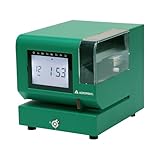
- Tough Enough for Any Job: Built with heavy-duty industrial-grade steel, this time clock withstands dirt, debris, and rugged environments—delivering dependable tracking for small businesses in the harshest conditions.
- Clear Timekeeping, Anytime: Featuring an easy-to-read backlit LCD display, this digital clock ensures visibility in any lighting—streamlining time tracking and stamp tasks without strain.
- Handles High Volume with Ease: With an advanced print head that punches through up to 5 sheets of carbonless paper cards this clock powers through daily use, perfect for businesses with heavy tracking demands.
- Adapts to Your Workflow: Offering 12 or 24-hour formats and 4 customizable print options (e.g., month/date/hour/minutes), this clock fits your needs—setup made simple with the included quick start guide.
- Built Tough, Stays Precise: With a battery backup to maintain accurate time during outages and password-protected settings to prevent tampering, this rugged time clock ensures consistent performance in demanding work environments.
Test offline capture and syncing at a real site
A punch that fails when a worker loses signal is not useful just because an app advertises offline support. WorkMax, hh2, and Jarrison describe offline capture or storage, but the precise workflow and limits may differ. Test with the devices and network conditions your crews encounter.
- At a representative jobsite with weak or no service, record a clock-in and a clock-out using the intended worker or supervisor workflow.
- While offline, change the job, task, or cost code if crews need to make that change in the field.
- Restore connectivity and confirm the punches sync, retain the expected times and location details, and appear in the supervisor’s review or approval workflow.
- Check how the system handles duplicates, edits, and missing or conflicting punches before approving the time.
Ask the vendor what workers see while offline, what data is stored on the device, and what happens if a phone is lost, replaced, or remains disconnected for an extended period. Do not assume all products handle queued punches identically.
Rank #2

- Complete Solution - Includes HN3000 AutoAlign time clock, 100 time cards, rack, ribbon, and keys for instant tracking.
- Precise Punching - AutoAlign technology ensures accurate alignment for error-free payroll records.
- Robust Warranty - Two-year warranty with unlimited customer support (Monday–Friday) guarantees reliable performance.
- Simple Setup - Plug-and-play design with clear instructions enables tracking in minutes.
- Clear Printing - High-quality uPunch ribbons deliver legible, consistent punch punches.
Confirm job and cost-code allocation
Job costing depends on getting the hours assigned correctly in the first place. Before rollout, map the jobs, phases, tasks, and cost codes crews actually use to the options in the time clock. Determine whether workers select a code, supervisors assign it, or the system carries a default—and who checks the result.
- Have a worker clock in, change jobs or tasks during the shift, and record a break if that is part of your process.
- Have a supervisor review and correct a deliberately misallocated punch; confirm whether the system records the correction and approval.
- Check the resulting time report or export to make sure hours land under the intended job and code.
WorkMax describes task and project changes, hh2 describes job and cost-code allocation, and CrewTracks describes allocation to jobs, phases, or categories. Confirm the exact fields and correction controls you need rather than treating “job costing” as a uniform capability.
Rank #3

- STANDALONE & SECURE TIME CLOCK FOR SMALL BUSINESS: The HapAttend time clock is a fully standalone device that works without WiFi, internet connection, or complicated software. It is ideal for workplaces without network access and can be installed anywhere in your business. Keep attendance data private and secure with local storage, and easily export attendance reports via the included USB flash drive in Excel format.
- PLUG & PLAY, READY TO USE IN MINUTES: The HapAttend time clocks for employees small business is designed for simple setup with no technical knowledge or IT support required. Ready to use right out of the box, you can complete the setup and start managing employee attendance within minutes. A step-by-step YouTube tutorial is available to help you get started quickly.
- AUTOMATIC HOURS CALCULATION & PAPERLESS ATTENDANCE: The HapAttend clock in machine for employees automatically calculates working hours, eliminating manual calculations and reducing errors. Say goodbye to paper time cards, ink ribbons, and costly replacement supplies. With a one-time purchase, enjoy full access to all system functions with no monthly subscription fees, recurring costs, or hidden charges. Attendance records are stored digitally for accurate, instant tracking, helping businesses save time and reduce operating expenses.
- MULTIPLE PUNCHES & NIGHT SHIFT SUPPORT: Employees can keep the same punch habits as a traditional time clock—clock in, clock out, start breaks, end breaks, or punch multiple times per day. The HapAttend time clock punch machine supports overnight shifts and automatically recognizes night shifts with simple settings, ensuring working hours are recorded on the correct workday for accurate attendance tracking.
- MULTI-LANGUAGE SUPPORT & WORRY-FREE SERVICE: The HapAttend time card machine supports English, Spanish, German, French, and Italian, allowing you to easily switch to your preferred language. Need a user manual in another language? Contact our support team for assistance. Enjoy worry-free use with a 1-year warranty and lifetime customer support—we’re always here to help when you need us.
Check payroll and accounting handoff
Ask vendors to demonstrate the complete path from field punch to approved payroll time using your actual payroll or accounting product. Confirm which data transfers, whether cost codes are included, how overtime and other pay rules are handled, and whether someone must export or re-enter information.
Vendor pages name different integrations: WorkMax lists FOUNDATION and QuickBooks; OnTheClock lists QuickBooks, Gusto, ADP, and Paychex; hh2 describes accounting handoff without specifying a destination in the summarized product description. Treat integration names as a starting point for verification: availability and supported workflows can depend on the product edition, configuration, and current vendor offering.
Rank #4

- True Standalone Operation, Zero Setup Hassle: Get started in minutes with no WiFi or complex software. Easily export all attendance data via the included USB drive, with ready-to-use Excel reports for instant payroll integration—fully independent time tracking.
- Built to Scale With Your Business: Onboard memory supports up to 500 user profiles and 50,000 punch records. Reliably handles shifts for growing teams without constant maintenance, ideal for expanding small businesses.
- Paperless & Cost-Effective Tracking: Ditch wasteful paper cards and printer ribbons. Our digital system delivers precise, instant records while cutting supply costs—combining accuracy with eco-friendly efficiency.
- Secure, Reliable Data Protection: An internal backup system preserves every punch during unexpected power loss. Your employee records and timesheets stay fully secure and retrievable, with no reset hassle.
- Durable, Versatile Design for Any Workplace: Built with industrial-grade materials for daily durability. Its compact design installs anywhere—warehouses, retail counters, offices, schools, and healthcare facilities—for consistent performance.
Choose a clock-in method crews can use
Not every worker needs an individual smartphone, and not every site suits a single shared clock. hh2 describes individual phone, kiosk, and supervisor crew-entry modes. Chronotek describes phone-in clocking for workers without smartphones. Compare these approaches against how crews arrive, whether supervisors can reliably enter a whole crew, and how you prevent one person’s entry from obscuring another’s hours.
A shared kiosk may suit a fixed site or common crew gathering point. An Android tablet is one possible device category, but the cited information does not establish a required model, operating-system version, ruggedness rating, or mounting setup. Verify the selected software’s device compatibility and the practical needs of the location before buying hardware.
Best Value

- VERSATILE 2-IN-1 SOLUTION: Includes uPunch CR1000 Digital Time Clock and Date Stamp, 50 time cards, one ribbon & 2 keys - perfect for small business time and document management.
- ACCURATE DIGITAL TIMEKEEPING: Eliminate manual errors in employee time tracking with this precise digital clock in machine for employees, easily monitoring arrival, break, lunch, and departure times.
- ADVANCED DATE STAMPING: Simplify document organization with built-in date stamp functionality, featuring preset messages and 3-way printing for efficient proof of receipt and processing.
- USER-FRIENDLY DESIGN: Strategically placed window in the cover allows for easy loading of time cards and documents, enhancing efficiency in daily operations.
- RELIABLE SUPPORT: Enjoy peace of mind with uPunch's commitment to quality, including warranty protection and dedicated customer support for all your time clock needs.
Understand what location features actually do
“GPS” and “geofencing” can mean different things in practice. A location check may record where a punch happened, warn about an out-of-area punch, block it, or continue checking location after clock-in. Those are materially different policies for workers and managers.
For example, OnTheClock says it checks location at clock-in and clock-out. CrewTracks says its geofence checks arrival and departure rather than tracking continuously, and lets a job require an in-boundary punch, warn while allowing an outside punch with a reason, or disable the feature. Chronotek describes jobsite geofences and optional NFC TimeTiles. Ask vendors to show the precise setting behavior and explain it to crews before enabling it; do not infer continuous monitoring from a punch-time location stamp.
How to run a useful selection trial
- List the required workflow. Record crew size and roles, job and cost-code structure, current payroll/accounting software, typical signal conditions, and available devices.
- Shortlist systems by fit. Exclude candidates that cannot support a required access method, offline process, job allocation, or payroll handoff.
- Run the same field scenario in each candidate. Include an offline punch, a job or cost-code change, supervisor review, and the normal payroll export or sync.
- Test location settings explicitly. Verify whether each configuration records, warns, blocks, or continues checking location, and check how exceptions are handled.
- Review the output with payroll and project staff. Confirm approved hours and cost codes arrive in a usable form and that corrections are traceable.
- Get current pricing and terms for your workforce. Compare the actual recurring charges, employee minimums, device or setup costs, and any required add-ons directly with vendors.
This trial tests the work the system must do; it does not establish that a product prevents every timekeeping error or guarantees a particular savings amount.
Which system should you choose?
There is no universal winner among these options based on vendor descriptions alone. A crew needing shared kiosks or supervisor entry should prioritize testing those modes; a business with poor connectivity should verify offline capture and sync at a representative site; and a payroll team should require a successful end-to-end handoff with its own codes and pay rules. Choose the system that passes those tests with the least friction for workers and reviewers.
Quick Recap
Product prices and availability are accurate as of the date/time indicated and are subject to change. Any price and availability information displayed on Amazon at the time of purchase will apply.




