Satellite internet can work for gaming, but “satellite” is a wide category. In 2024, whether it feels great or frustrating mostly depends on latency (how long data takes), jitter (how much it varies), and packet loss (dropped packets).
This guide sticks to true, practical factors you can measure and configure. You’ll learn what to expect from LEO vs GEO service, how to set up your network for the lowest-latency path, and what to do when pings spike mid-match.
As an Amazon Associate I earn from qualifying purchases.
Quick framing: LEO satellite (low Earth orbit) can be playable for many competitive games. GEO satellite (geostationary orbit) is typically a poor fit for fast reaction gameplay due to the physics of the orbit.
What Makes Satellite Internet Tough for Gaming
Gaming isn’t just about download speed. It’s about responsiveness and consistency while packets travel from your console or PC to a server across the internet.
#1 Best Overall
![LUCMO Multi Ports Starlink Ethernet Adapter for Starlink Actuated Gen 2 | Starlink Wired External Network, 2-Port Starlink Ethernet Adapter 1 to 2 [2 Devices Networked Simultaneously] Up to 1 Gbps](https://m.media-amazon.com/images/I/41lWcIMDS1L._SL160_.jpg)
- Compatibility: Our 2 Ports Starlink Ethernet Adapter is specially designed for the Starlink Standard Actuated Generation 2, with optimal connection guaranteed.
- Gigabit Ethernet Support: The adapter features two Gigabit Ethernet (RJ45) ports, allowing you to connect two wired devices directly to your Starlink system, taking full advantage of Starlink’s high-speed internet capabilities.
- Convenience: Just plug in to use, easy to install and no complicated setting up necessary.
- Seamless Performance: Ensures minimal lag and uninterrupted connectivity for demanding tasks, whether for work, entertainment, or smart home management.
- Secure Cable Connections: Features well-designed ports that provide a snug fit, reducing the risk of disconnection and maintaining a stable connection at all times.
Satellite links can add delay and variability because the signal must travel from a dish to a satellite and back. That delay affects input timing, hit registration feel, matchmaking, and how often your connection “stutters.”
Satellite Types in 2024: LEO vs GEO
The biggest truth in 2024 is that satellite systems fall into two performance realities: LEO and GEO.
LEO (Low Earth Orbit): Better latency, still sensitive to conditions
LEO satellites orbit much closer to Earth than GEO. That reduces propagation delay significantly, often making gaming feasible.
What’s actually slowing this PC down?
Pick the symptom - the matching free tool is one click away.
LEO services can still see jitter and temporary degradation when there’s heavy weather, dish obstructions, or busy network routing.
GEO (Geostationary Orbit): High baseline latency by design
GEO satellites stay fixed in the sky relative to a point on Earth, which simplifies aiming. The tradeoff is propagation delay: typical round-trip latency is often in the hundreds of milliseconds.
That baseline delay makes twitch/aim-heavy games feel laggy even if your speed tests look “fine.”
| Satellite Type | Typical Round-Trip Latency (Ping) | Gaming Suitability |
|---|---|---|
| LEO | Often ~20–50 ms best case; can rise with conditions | Can be good for many games; competitive depends on stability |
| GEO | Often ~500–800 ms | Usually poor for competitive; sometimes usable for casual |
Numbers vary by provider, gateway, routing, weather, and your local network. Treat ranges as realistic planning values, not guarantees.
How Satellite Performance Affects Real Games
Here’s what changes when your satellite link isn’t consistent.
Latency vs. jitter: why both matter
Latency is the average delay. Jitter is how much that delay moves around from packet to packet. Competitive games can tolerate a higher average ping if it’s steady, but jitter spikes often feel like “lag bursts.”
Packet loss: the silent match-killer
Packet loss causes retransmissions and out-of-order delivery. Even low “% loss” can create rubber-banding, stutters, and delayed hit confirmation.
Rank #2

- ⚠️ COMPATIBILITY WARNING: Designed EXCLUSIVELY for Starlink Standard Actuated Gen 2. ❌NOT COMPATIBLE with Starlink Gen 3, Flat High-Performance, or any other models. Please verify your dish model before purchase!
- PLUG & PLAY INSTALLATION: Simply connect the adapter between your Gen 2 Starlink router and the cable. No drivers or complex setup needed. Ensure a firm click on both ends for a stable connection.
- ENABLE HARDWIRED SPEEDS & STABILITY: Unlock the full potential of your Starlink by connecting gaming consoles, PCs, and smart TVs directly via Ethernet for lower latency and smoother streaming.
- RELIABLE DATA TRANSFER: Experience lag-free online gaming, 4K video conferencing, and ultra-fast file transfers with a stable, wired internet backbone.
- TROUBLESHOOTING TIP: If not working, first check both connections are secure and restart your Starlink router.
For many online shooters, fighting stutters matters more than achieving peak download speed.
The Tool Desk
Outbyte PC Repair FREERepair Windows errors before they cause bigger problemsFix Now →Outbyte Driver Updater FREEFix the driver behind crashes, sound loss and screen glitchesFind Drivers →Bufferbloat and congestion: games suffer when uploads/downloads spike
Congestion can happen when other devices stream video, when a cloud backup runs, or when downloads saturate your uplink. Satellite connections often have constrained uplinks compared with fiber, so upload congestion can be especially damaging for gameplay.
Provider-by-Provider Reality Check (2024)
Provider performance changes with software updates, gateway capacity, and network engineering. Still, the satellite type gives you a solid first prediction.
Starlink (LEO)
Starlink is widely used for gaming and often delivers low enough latency to make many multiplayer games playable. Real-world results depend heavily on dish visibility (no obstructions), local congestion, and your equipment setup.
During rain or heavy obstruction, you may see jitter increases and brief latency spikes—sometimes noticeable in ranked matches.
Windows Errors? Fix Them Before They Spread
Repair common Windows errors and clear accumulated junk for a smoother, more stable PC - no reinstall needed.Free scan · no reinstallOutdated Drivers Are Slowing You Down
One free scan finds every outdated or missing driver and matches the right update for your exact hardware.Free scan · exact hardware matchHughesNet and Viasat (GEO)
Most HughesNet and Viasat plans operate on GEO and tend to have high baseline latency. That generally conflicts with games that require fast reaction timing and tight input-to-server synchronization.
GEO can still work for slower-paced games, co-op where you’re not chasing frame-perfect timing, and for downloading updates—just not with the same “feel” as low-latency broadband.
Other satellite options
Some regions have additional satellite technologies, but unless you can confirm LEO performance and get reliable measurements (ping, jitter, packet loss), you should assume the gaming experience will be more variable than cable/fiber.
How to Tell If Satellite Is Good for Your Games
Don’t rely only on advertised download speed. Measure what matters for gameplay: ping, jitter, and packet loss to the right targets.
Do these 3 things before closing this tab:
1Clear out junk files and repair common Windows errors2Scan for outdated or missing drivers - takes under a minute3Repair Windows errors before they cause bigger problemsRun the right tests (and interpret them correctly)
- Ping a nearby game server region (where you actually play). If possible, test from a PC on Ethernet.
- Watch for spikes rather than only averages. A stable 40–60 ms with occasional spikes can be “playable,” but frequent spikes can feel broken.
- Check packet loss. Even small loss (for example, 1–3%) can cause rubber-banding depending on the game and route.
For quick diagnostics, many gamers use in-game latency displays, router stats, or tools like ping and packet loss checks on a computer. If you don’t have server IPs, test general internet targets only after you’ve confirmed server regions in your games.
Rank #3
![Multi Ports Ethernet Adapter for Starlink Standard 4X/ Gen 3/ Starlink Mini | For Starlink Wired External Network 4 Ports Ethernet Adapter 1 to 4 [4 Devices Networked Simultaneously] - Up to 1 Gbps](https://m.media-amazon.com/images/I/410vGlCO+8L._SL160_.jpg)
- Compatibility -- Works seamlessly with Starlink Gen3/ Standard 4X and Starlink Mini antenna, suitable for various environments.
- Multi-Device Connectivity -- 4 Gigabit Ethernet ports support multiple devices simultaneously, maximizing Starlink's high-speed internet.
- Reliable Performance -- Tested for 72 hours under full load, ensuring stable performance with no speed drops or interruptions.
- Easy to Use -- Plug-and-play design makes installation quick and hassle-free.
- High-Speed Stability -- Whether for work, entertainment, or smart home management, this adapter delivers fast, stable, and convenient networking performance. Upgrade your network setup today
Do a “real match” test
Join a match you can’t win quickly—like a training arena, a warm-up match, or a mode you play routinely—and observe how the connection behaves over 10–20 minutes.
Satellite issues often show up after the link settles into a pattern: congestion, routing changes, or weather effects.
Best Setup for Gaming on Satellite (Step-by-Step)
You’ll get better results by optimizing the last mile inside your home. Satellite latency may be physics-limited, but jitter and congestion are often fixable.
1) Position the dish correctly
Obstructions (trees, buildings, even seasonal leaves) can cause intermittent signal quality drops. For LEO, this shows up as latency and jitter changes mid-session.
Follow your provider’s aiming guidance exactly. If you’re unsure, ask for a professional installation or use the provider’s app diagnostics to verify signal stability across times of day.
2) Use Ethernet and a capable router
Wi-Fi adds variability. If you’re serious about competitive play, wire your gaming device using Ethernet (PC, console, or a small dedicated gaming switch).
Pick a router that supports advanced traffic management (QoS, bufferbloat controls, and stable Wi-Fi). Don’t rely on the “basic” router your ISP bundled if it lacks prioritization features.
Free tools Windows power users keep installed
One-click scans. No signup required.
3) Turn on the right QoS / prioritization
QoS doesn’t increase your maximum speed; it reduces the chance that your game packets get buried behind bulk traffic. The result is often lower perceived lag during uploads or downloads.
If your router supports it, enable traffic prioritization for gaming platforms and “low-latency” modes. Some setups work best with a simple rule: prioritize your gaming device over video streaming and background sync.
4) Reduce bufferbloat
Bufferbloat happens when the network buffers too much queued traffic, turning short congestion into large latency jumps. This is common when uploads saturate your upstream.
Rank #4
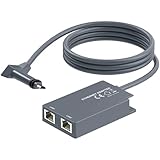
- 【Dual-Port Connection】For Starlink Gen2 Ethernet Adapter simplifies wiring with two ports.Connect devices like a PC+game console or NAS + smart TV simultaneously.Overcome your Starlink Gen2 router's limit for a reliable wired network — ideal for streaming,gaming,and remote work.
- 【Optimized for Starlink Gen2 Routers】Optimized for Starlink Gen2 satellite router, this adapter delivers broad compatibility — seamlessly works with Starlink Gen2 routers paired to Enterprise, mobile HP-Flat High Performance Kit (Gen2), High Performance (Gen1), and Standard Actuated (Gen2) systems.
- 【Multi-Device Compatibility】This Ethernet Adapter supports diverse third-party devices — including PCs, Macs, PS5, Xbox, Smart TVs, NAS, mesh routers, and security systems. It automatically optimizes network performance for reliable connectivity.
- 【High-performance network speed】Support Gigabit wired transmission, provide low-latency, high-bandwidth network, perfect for 4K/8K streaming media, online games, large file downloads, network speed up to 1Gbps say goodbye to wireless lag
- 【Enhanced Reliability:】Features gold-plated ports, energy-efficient chips, and ABS housing with IP65 rating in a compact design. Validated by 72-hour industrial stress testing — rated for 24/7 operation in multiple environments.
If your router supports SQM (Smart Queue Management) or similar features, set an upload/download limit slightly below your measured capacity. This keeps queues short and pings steadier.
Quick wins for a faster PC:
Repair Windows errors before they cause bigger problemsFix Now →Scan for outdated or missing drivers - takes under a minuteDriver Scan →Practical target: run a speed test to measure your real throughput, then cap your WAN rate around 90–95% of what you consistently get, especially for upload. Then retest during peak usage.
5) Set up stable Wi-Fi where you must use it
If you can’t use Ethernet, minimize variability: use the 5 GHz band (or 6 GHz if available), place the router centrally, and keep the gaming device within a strong signal zone.
Disable “smart” Wi-Fi features that aggressively roam clients if you notice ping spikes when moving rooms.
Independent reader supportYour contribution helps us test, update, and keep practical guides available for everyone.Common Problems and Troubleshooting
If satellite gaming feels bad, you need to isolate whether it’s the satellite link, your home network, or the game server path.
Recommended Free Tools
High latency spikes
What it looks like: your ping average is okay, but you see sudden jumps during matches.
- Check for dish obstructions and weather effects (especially with LEO).
- Verify your router isn’t switching WAN routes or restarting services.
- Look for background uploads (cloud sync, OS updates). They can spike latency when uplink is busy.
Packet loss and rubber-banding
What it looks like: teleporting movement, delayed hit registration, or “micro-freezes.”
- Test packet loss to your game server region (not just to a random public host).
- Check cabling and Ethernet ports if you use wired.
- Disable temporary VPNs or experimental routing. If you must use a VPN, test different locations and pick the one with the best ping to your game servers.
Jitter during rain or obstructions
What it looks like: gaming is fine on clear days, then gets worse in bad weather.
- Re-check dish alignment and whether anything intermittently blocks the view.
- Use the provider app to monitor link quality while it rains (or at times you’ve seen problems).
- If the system offers an alternate mount angle or cable routing guidance, make sure it follows the official recommendations.
Double NAT / strict NAT issues
What it looks like: parties won’t connect, voice chat fails, or you see NAT warnings on PlayStation, Xbox, or PC launchers.
- Check the router and satellite modem/router mode. If the satellite unit is also routing, you may need to enable bridge mode or place one device into access point mode (if supported).
- Use port forwarding only if you understand the implications. For many games, NAT behavior matters less than you think if the platform uses modern relays.
Game downloads fine, matches laggy
This mismatch is common. Download speed tests often look good while real-time traffic suffers due to buffering, upload contention, or QoS misconfiguration.
Best Value

- Extend a Network Port for Your Devices: This for Starlink Ethernet Adapter seamlessly integrates your new for Starlink system into your existing business or home network, maximizing throughput from your outdoor dish. It’s an affordable solution for adding or replacing an RJ45 port on your devices, perfect for connecting to a wired network when your device lacks a network port or has a faulty one.
- Improved Speeds: This for starlink adapter ethernet enabled to connect for Starlink dish to existing home mesh Wi-Fi system, significantly boosting the speed. And can extend network to previously unreachable areas of your house due to numerous walls. The direct connection to PC significantly improve internet speeds, providing a more reliable and faster network experience throughout your home.
- 1000Mbps Hyper Speed: The for starlink v2 ethernet adapter is designed to connect a device directly to the for Starlink Router for a reliable wired connection. It supports speeds of up to 1 Gbps, ensuring fast and stable internet performance. Perfect for enhancing your online working, meeting, classing, gaming, HD video streaming, upload, download, and more.
- Easy Installation: for Starlink to RJ45 Gigabit Ethernet Adapter is driver-free. (Installation Way: 1. Turn off the for Starlink router by unplugging its AC power cord from the wall outlet. 2. Unplug the for Starlink antenna cable from the bottom of the router. 3. Insert the for Starlink Ethernet Adapter into the port on the router where the for Starlink antenna cable was previously connected. 4. Connect the for Starlink antenna cable to the connector on the for starlink adapter ethernet. 5. Power everything back on by plugging the router's AC power cord back into the wall outlet )
- Compatible with the for Starlink Standard Actuated Kit V2, this adaptador ethernet for starlink v2 is highly recommended for rural areas. It dramatically enhances internet performance, nearly doubling speeds and reducing latency, making it perfect for browsing, streaming, and gaming.
- Pause large downloads and background backups during a match test.
- Prioritize the gaming device traffic in your router.
- Verify your router upload setting caps are correct to prevent queue buildup.
Alternatives to Consider (When Satellite Is Not Enough)
If you’re playing high-ranked competitive games, you may want a path with more consistent low latency than satellite can reliably offer.
- Fiber-to-the-home: best consistency and typically the lowest latency.
- Cable internet: often good latency but can vary during peak hours.
- Fixed wireless (LTE/5G home): can be faster and lower latency than GEO in many areas; performance depends heavily on tower congestion and signal quality.
- Hybrid plans: some setups combine cellular backup with a primary broadband source to reduce downtime—useful if your satellite link is your only option.
If you’re only choosing between satellite providers, favor LEO for gaming unless you have a measured reason GEO will work for your tolerance level.
FAQs: Satellite Internet and Gaming
Is satellite internet good for FPS games like Valorant, Call of Duty, or Counter-Strike?
LEO satellite can be playable for many players if ping and jitter are stable. GEO satellite is usually a poor experience because the baseline latency is typically several hundred milliseconds, which affects reaction timing and “feel.”
Will I get high ping even with a fast satellite plan?
Yes, you’ll still have a higher ping than fiber in many cases. What you should aim for is not just low average ping, but low jitter and low packet loss during matches.
Does Wi-Fi make satellite gaming worse?
Often, yes. Wi-Fi adds extra variability and can struggle with consistent throughput under load. Ethernet for your gaming device is one of the highest-impact improvements you can make.
Can I fix satellite latency with settings or hardware?
You can’t fully beat physics (especially with GEO), but you can reduce spikes by improving dish alignment, eliminating obstructions, capping upload to reduce bufferbloat, and prioritizing your game traffic.
What ping number should I treat as a target?
As a planning guide: the best experience tends to come from low, consistent latency. If your matches regularly show large spikes or packet loss, you’ll feel it even if your average ping looks acceptable.
The Tool Desk
Outbyte Driver Updater FREEFix the driver behind crashes, sound loss and screen glitchesFind Drivers →Outbyte PC Repair FREERepair Windows errors before they cause bigger problemsFix Now →Do game downloads matter less than gameplay?
Downloads are more tolerant of delay. Real-time matches care about latency, jitter, and loss, plus how congestion affects upload queues. A strong download speed test doesn’t guarantee smooth matches.
Final Thoughts
Satellite internet can be good for gaming in 2024—but the “good” depends on which kind of satellite service you’re using and whether your connection stays stable during real matches. LEO can be genuinely playable for many players when the dish has clear visibility and your home network is configured to prevent congestion and jitter.
If you’re on GEO, expect a tough tradeoff for competitive play. Your best move is to measure ping stability to your game servers, optimize router QoS and bufferbloat, and only then decide whether satellite is right for your play style.
Quick Recap
Product prices and availability are accurate as of the date/time indicated and are subject to change. Any price and availability information displayed on Amazon at the time of purchase will apply.
Quick wins for a faster PC:
Clear out junk files and repair common Windows errorsFree Scan →Fix the driver behind crashes, sound loss and screen glitchesFind Drivers →



