To connect a compatible Samsung washer, add it in the SmartThings app using the Samsung account and follow the pairing instructions shown for your specific model. First confirm that your washer supports Wi-Fi: a Smart Care button alone is not evidence that it can connect.
Check whether your washer supports Wi-Fi
Wi-Fi and SmartThings availability depends on the washer model. Look for a Smart Control or Smart Monitor control, or a Wi-Fi symbol, then confirm the model in its manual. Samsung notes that Smart Care is a diagnostic feature; its presence alone does not establish Wi-Fi support. You can also check the supported-device list in SmartThings and search for your model or its manual on Samsung’s washer support page. See Samsung’s guide to Smart Care on washers and dryers for the distinction.
As an Amazon Associate I earn from qualifying purchases.
Add the washer in SmartThings
- Install SmartThings on your phone or tablet and sign in to your Samsung account, or create one. Samsung states that “A Samsung account is needed.”
- In SmartThings, open Devices, tap Add, then choose Add device.
- Select the Samsung appliance option and follow the app prompts to find and add the washer. If the usual discovery flow does not find it, try the app’s Search, Scan QR code, or Scan nearby options.
- Follow the pairing instructions displayed for your washer. The required control-panel action differs by model, so use the manual rather than copying a button sequence from another washer.
- After setup, open the washer’s device card to see which controls and notifications that model supports.
Samsung’s washer-monitoring instructions for SmartThings describe the app flow and connected features. App labels can vary with app and software versions; Samsung’s SmartThings appliance-connection troubleshooting guide notes that menus may differ.
Outdated Drivers Are Slowing You Down
One free scan finds every outdated or missing driver and matches the right update for your exact hardware.Free scan · exact hardware matchWindows Errors? Fix Them Before They Spread
Repair common Windows errors and clear accumulated junk for a smoother, more stable PC - no reinstall needed.Free scan · no reinstallWhat you can do after connecting
Depending on the washer model, SmartThings may show cycle-completion or error notifications and provide remote monitoring. Available features vary, so check the device card and the model’s manual rather than assuming every connected washer offers the same controls.
Quick Recap
Rank #3

- DUAL BAND SUPPORT: network adapter supports 2.4G and 5G dual band, providing up to 300Mbps rate, let you enjoy a smoother network experience.
- SUPPORT OS: USB adapter is suitable for 7/8/10/11 operating system, strong compatibility, can be used on a variety of computers and devices.
- COMPATIBILITY: adapter supports for for WIS09ABGN series, including B, C, D, E, , ES series. You can conveniently connect your for to the network, allowing you to enjoy more online content and support some home theater systems.
- STABLE CONNECTION: Dual band network adapter supports 802.11a/b/g/n protocol for more stable connection.
- EASY TO INSTALL: USB network adapter can be used by simply plugging it into the USB port, no need for tedious installation procedure, convenient and fast.
Rank #2
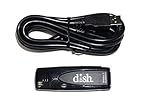
- Allows wireless internet connectivity for Dish Network Models 722, 722k, 622, 222, 222k and 922 Sling Loaded receivers to the Internet without having to run any cables
- place wifi adapter in USB port of your receiver and follow prompts on the screen.
#1 Best Overall

- OEM Replacement for Samsung Washer WiFi Module 4709-002530 - This OEM Part is Recycled & Inspected
- 𝐂𝐨𝐦𝐩𝐚𝐭𝐢𝐛𝐥𝐞 𝐌𝐨𝐝𝐞𝐥𝐬 - WV55M9600AV/A5-00
- 𝐌𝐨𝐝𝐞𝐥 - Replacement for Samsung 4709-002530
- 𝐌𝐏𝐍 - 4709-002530
If SmartThings cannot find or connect to the washer
- Recheck passwords: Confirm the Samsung account, device-connection, and home Wi-Fi passwords. A mistyped home-network password is a common setup problem described in Samsung’s connection troubleshooting guidance.
- Check Wi-Fi signal where the washer is installed: Weak signal can prevent connection. Try improving router placement first; Samsung also suggests a repeater to increase signal strength when needed.
- Follow the model’s network requirements: Samsung says requirements vary by device, so consult the manual for the washer’s specifications. A separate Samsung page specifies 2.4 GHz for the listed washer software-update process; that instruction applies to that update context, not automatically to every washer setup. See Samsung’s software-update instructions.
- Check whether someone else registered the washer: If it is already associated with another person’s account, Samsung says you may need to take control of the device or ask the current owner to invite you.
Product prices and availability are accurate as of the date/time indicated and are subject to change. Any price and availability information displayed on Amazon at the time of purchase will apply.




