To hard reset a Samsung Galaxy A11, perform a factory reset: use Settings > General management > Reset > Factory data reset > Reset, then follow the prompts. A factory reset erases the phone’s local data, so back up anything you need and make sure you can sign in to the Google Account already used on the device before you begin.
What a hard reset does to a Galaxy A11
In this context, “hard reset” means a factory reset, not simply restarting the phone. The Samsung Galaxy A11/A21 user manual says a factory reset permanently erases account settings, system and app data and settings, downloaded apps, music, photos, videos, and other files stored on the device. Data on an external SD card is not affected according to that manual.
As an Amazon Associate I earn from qualifying purchases.
A reset can be useful when you are preparing a phone for a new owner or when other troubleshooting has not fixed a problem. If your aim is only to solve a glitch, Samsung advises trying less destructive troubleshooting first; a reset removes data rather than merely restarting the phone.
What’s actually slowing this PC down?
Pick the symptom - the matching free tool is one click away.
Before you reset: protect your data and account access
- Back up and verify the backup. The A11/A21 manual advises transferring information you want to keep before resetting. Google says backed-up data associated with your Google Account may be restored, but apps and their data are uninstalled during a reset. Check that important photos, files, and other information are somewhere you can access them.
- Confirm your Google credentials. Make sure you know the Google username and password previously used on this phone. Google Device Protection may require that account information to verify your identity after a reset, including one performed with buttons.
- Check the phone’s power and connectivity. Google’s general Android guidance, accessed 2026-10-07, recommends at least 70% battery charge before resetting and network access for signing in afterward. Google gives up to an hour as a general Android reset estimate; that is not an A11-specific measured time.
- If you recently changed your Google password, wait. Google advises waiting 24 hours after a password change before performing a factory reset.
Choose the reset method that fits your situation
| Method | When it fits | What you need |
|---|---|---|
| Settings | The phone turns on and you can unlock it | Access to Settings and your account credentials for setup afterward |
| Recovery menu | You cannot open Settings, such as when locked out | A computer connection by USB and the correct button sequence for your exact device variant |
| SmartThings Find | You want to erase the phone remotely | The phone must be online, signed into a Samsung Account, and have remote control and remote unlock enabled |
Reset the A11 from Settings
- Open Settings.
- Tap General management, then Reset.
- Tap Factory data reset.
- Review the information shown, tap Reset, and follow the on-screen prompts to confirm.
These labels and locations are specified in the Samsung Galaxy A11/A21 manual. They can vary with the phone’s operating-system version. When the reset finishes, set up the phone and sign in as prompted.
#1 Best Overall
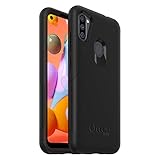
- Trusted OtterBox Quality: With OtterBox, you're not just buying a case; you're investing in peace of mind. Our limited warranty covers material and workmanship defects
If you cannot unlock the phone
Samsung’s general smartphone guidance describes using Android Recovery to erase a phone: turn it off, connect it to a computer by USB, open the recovery menu using the buttons for that specific device, choose Wipe data/factory reset, confirm, then choose Reboot system now. The button combination varies by model. Samsung’s general guidance does not establish the exact sequence for every A11 variant, so do not assume that a sequence shown for another Galaxy phone applies to yours. Check instructions for your exact A11 model before attempting this route.
A button reset does not necessarily remove Google Device Protection. If the phone asks for the Google Account previously used on it during setup, provide those credentials to verify ownership.
Rank #2
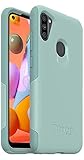
- Compatible with Samsung Galaxy A11
- Soft inner and hard outer layers absorb and deflect impacts
- Thin profile slips easily in and out of pockets
- Open access to ports and speakers
- Includes OtterBox limited lifetime warranty (see website for details)
Erase the A11 remotely with SmartThings Find
Samsung says SmartThings Find can erase a phone remotely when it is online, signed into a Samsung Account, and remote control and remote unlock are enabled. In SmartThings Find, select the device, choose Erase data, and confirm. If the phone is offline or those settings were not enabled, this remote route may not be available.
Quick wins for a faster PC:
Scan for outdated or missing drivers - takes under a minuteDriver Scan →Clear out junk files and repair common Windows errorsFree Scan →Fix the driver behind crashes, sound loss and screen glitchesFind Drivers →Preparing the phone for someone else
If you are transferring the A11, remove your Google Account from the phone before resetting it. Samsung says this removes Factory Reset Protection for the next user. On the A11/A21 manual’s route, go to Settings > Accounts and backup > Manage accounts, select the Google Account, and tap Remove account. Then use the Settings reset steps above.
Quick Recap
Rank #3

- Compatibility: Exclusively designed for Samsung Galaxy Tab A11 Plus (A11+) 2026 11inch. (Model: SM-X230/X236/X238) / Tab A11+ 5G 11". NOTE: Not for A9 Plus (A9+) !!!
- With Screen Protector: This galaxy tab a11 + 5g case with screen protector which is made of durable hard pc & upgraded thickened soft silicone to protect against the impact of accidental drop)s. 3-layer shockproof design provides full protection from daily bumps and scratches with a comfortable non-slip grip.
- Rotating Stand & Pencil Holder: The tab a11 plus tablet case built-in Apple Pencil holder makes it easy to carry or store your pen wherever you go. (Apple Pencil not included!) . 360 rotating stand provides multiple viewing angles for more comfortable typing, drawing or watching videos.
- Adjustable Shoulder Strap: The detachable and adjustable shoulder strap allows you to carry your case for samsung galaxy tablet a11+ 5g more comfortably or hang it securely wherever you need it-ideal for work, school, or travel.
- Precise Cutouts: The galaxy a11+5g tablet case allows easy access-to all buttons, controls and ports without taking your tablet out of the case. It's also a nice and practical gift for your kids, elder & friends.
Product prices and availability are accurate as of the date/time indicated and are subject to change. Any price and availability information displayed on Amazon at the time of purchase will apply.




