Quick wins for a faster PC:
Scan for outdated or missing drivers - takes under a minuteDriver Scan →Repair Windows errors before they cause bigger problemsFix Now →Download the driver from NVIDIA’s official driver selector, set the product to GeForce RTX 2060 SUPER, choose Windows 10 64-bit, and select the branch that matches your work: Game Ready for games or Studio for creative applications. The RTX 2060 SUPER is supported by both branches. Before installing, confirm that Windows 10 is version 1809 (November 2018) or newer and that the computer has an internet connection. Because Windows 10 version 22H2 reached end of support on October 14, 2025, a supported Windows 11 upgrade or an eligible Extended Security Updates plan is now the safer long-term operating-system choice.
What the RTX 2060 SUPER driver does
A graphics driver is the software layer that lets Windows and applications communicate with the RTX 2060 SUPER. It controls display output, 3D acceleration, video features, power states and application profiles. A correct driver can resolve missing resolutions, poor game performance, application crashes and messages such as “display driver stopped responding.” It cannot repair a physically damaged card, inadequate power supply or overheating caused by dust or a failed fan.
As an Amazon Associate I earn from qualifying purchases.
NVIDIA publishes separate driver branches for the same GPU. Both the Game Ready result page (for example, package 552.22) and the Studio result page (for example, package 516.93) list GeForce RTX 2060 SUPER support for Windows 10 64-bit and Windows 11. Those numbers are dated examples, not a claim that they are the newest releases. NVIDIA’s live selector should be the authority for the package available when you read this.
What’s actually slowing this PC down?
Pick the symptom - the matching free tool is one click away.
Check Windows 10 and hardware compatibility first
Confirm the Windows edition and architecture
- Press
Windows+R, typewinver, and press Enter. Note the Windows 10 version and build. - Open Settings > System > About and check System type. The package required here is for Windows 10 64-bit, not 32-bit Windows.
- NVIDIA’s RTX 2060 SUPER guide specifies Windows 10 64-bit version 1809 (November 2018) or later. If your version is older, update Windows before attempting the graphics-driver installation.
Understand Windows 10’s support date
Microsoft states that Windows 10 version 22H2 reached end of support on October 14, 2025. Regular security updates and technical support ended on that date. The NVIDIA package may still install on compatible Windows 10 systems, but an operating system without normal security maintenance has increasing risk. Check whether the PC can move to Windows 11; if it cannot, investigate Microsoft’s eligibility rules for an Extended Security Updates plan rather than treating a graphics-driver update as a complete security solution.
#1 Best Overall

- Enhanced Performance: The RTX 2060 Super delivers exceptional gaming performance with 8GB of GDDR6 memory and a boost clock speed of up to 1650 MHz. It efficiently handles modern gaming titles at high settings, making it ideal for gamers seeking an immersive experience.
- Real-Time Ray Tracing: Equipped with Turing architecture, the RTX 2060 Super supports real-time ray tracing technology. This feature allows for realistic lighting, shadows, and reflections, enhancing visual fidelity in supported games and applications.
- VR Ready: The RTX 2060 Super is optimized for virtual reality (VR) experiences, providing low-latency and high-performance rendering. Gamers can enjoy an immersive VR environment with smooth graphics and responsive gameplay.
- DLSS Support: The graphics card supports Deep Learning Super Sampling (DLSS), which utilizes AI rendering to produce sharp images and increase frame rates without compromising quality. This technology ensures smoother gameplay, particularly at higher resolutions.
- Multiple Display Outputs**: With support for up to three displays, the RTX 2060 Super offers versatile connectivity options. It includes DisplayPort 1.4 and HDMI 2.0b outputs, enabling multi-monitor setups for enhanced productivity or gaming immersion.
Check whether the card is in a laptop or prebuilt PC
For a retail desktop card, NVIDIA’s package is normally the starting point. If the RTX 2060 SUPER is inside an OEM laptop or prebuilt system, also check that manufacturer’s support page. Firmware, a customized display stack or a model-specific installation sequence can make the OEM package preferable. There is no universal OEM rule, so use the instructions for the exact model.
Game Ready or Studio: which branch should you install?
Choose according to the applications that matter most, not according to the age of the GPU. You can change branches later by installing the other package.
Rank #2

- Chipset: NVIDIA GeForce RTX 2060 Super
- Boost Clock: 1665 MHz
- Video Memory: 8GB GDDR6
- Memory Interface: 256-bit
- Output: DisplayPort x 3 (V1. 4)/ HDMI 2. 0B x 1
| Driver branch | Best fit | Release emphasis | RTX 2060 SUPER on Windows 10 |
|---|---|---|---|
| Game Ready Driver | People who primarily play games or want updates around new game releases | Game compatibility and day-one or near-release support | NVIDIA’s 552.22 result page lists Windows 10 64-bit/Windows 11 and the RTX 2060 SUPER; verify the current version in the live selector |
| Studio Driver | People whose priority is reliability in video, 3D, photography, design or other creative applications | Validation across creator workflows and application stability | NVIDIA’s 516.93 WHQL result page lists Windows 10 64-bit/Windows 11 and the RTX 2060 SUPER; verify the current version in the live selector |
NVIDIA describes Studio Drivers as providing artists, creators and 3D developers with performance and reliability when working with creative applications. That does not mean Studio is “slower” for every game or that Game Ready is unsafe for creative work; it means the testing and release priorities differ. If one program is unstable, check its published driver recommendations and test the other branch after recording your current version.
Download the correct RTX 2060 SUPER package
- Open NVIDIA’s official driver-download page from a trusted bookmark or by typing NVIDIA’s address yourself. Avoid third-party driver mirrors and “driver updater” download buttons that do not identify the publisher.
- In Manual Driver Search, set Product Type to GeForce.
- Set Product Series to the GeForce RTX 20 Series. On a notebook, select the notebook series only if the card is identified as a laptop GPU; do not substitute a desktop RTX 2060 SUPER package for an OEM notebook model without checking the manufacturer.
- Set Product to GeForce RTX 2060 SUPER.
- Set Operating System to Windows 10 64-bit. Do not choose Windows 7, Windows 8.1 or a 32-bit option just because it appears in an older result.
- Choose Game Ready Driver or Studio Driver, then submit the search.
- Read the result page before downloading. Confirm the GPU name, operating system, driver branch, WHQL status where shown, release date and supported products. NVIDIA’s archived result pages can be older than the current release, so use the live selector’s result rather than assuming 552.22 or 516.93 is current.
- Download the Windows installer and keep the file until the installation has completed and you have verified the new version.
NVIDIA’s installation guide states that an internet connection is required for driver installation. Keep the PC online, particularly if the installer needs to retrieve components or validate the package.
Rank #3

- Powered by the NVIDIA GeForce RTX 2060 SUPER graphics processing unit (GPU) with a 1470 MHz clock speed and 1650 MHz boost clock speed.
- 8GB GDDR6 (256-bit) on-board memory plus 2176 CUDA processing cores and up to 448 GB/sec. of memory bandwidth.
- PCI Express 3.0 interface / Real-Time Ray Tracing / GeForce Experience / NVIDIA Shadowplay / NVIDIA Ansel.
- NVIDIA G-SYNC and HDR/ Microsoft DirectX 12/ OpenGL 4.5 Support/ Vulkan API/ VR Ready.
- DisplayPort / HDMI / DVI-DL Support.
Prepare Windows before installing
- Save open work and close games, video editors, 3D software, browsers playing hardware-accelerated video and monitoring utilities. These applications can keep driver files in use.
- Record the current version. Open NVIDIA Control Panel > Help > System Information, or open Device Manager > Display adapters > NVIDIA GeForce RTX 2060 SUPER > Properties > Driver and note the provider, date and version.
- If the current driver is working, create a restore point through Control Panel > System > System protection > Create. A restore point is a fallback for configuration changes; it does not restore a failed graphics card.
- Connect the computer to AC power. On a desktop, make sure the monitor cable is connected to the graphics card rather than the motherboard video output.
- Temporarily pause work that could restart the PC during setup, such as large file transfers. Do not delete driver folders or use a cleanup utility merely because an update is available; NVIDIA’s cited guide requires internet access but does not make a particular cleanup tool mandatory.
Install the driver manually
- Double-click the NVIDIA installer you downloaded. Allow Windows to approve the installer if User Account Control asks.
- Let the package extract, then accept the NVIDIA software license.
- When offered an installation choice, use the standard option for a normal update. Choose the custom option only when you need to select components or the installer’s clean-install setting for a specific troubleshooting reason; read each checkbox instead of accepting every optional component automatically.
- Keep the display connected while the screen flickers or goes black briefly. That behavior is normal during driver replacement. Do not power off the PC while the installer is working.
- Restart when prompted, even if Windows does not require an immediate restart. A reboot loads the new display service and kernel components.
If setup reports that no compatible hardware was found, stop and recheck the selector choices, Windows architecture and the card’s identity in Device Manager. A package for the RTX 2060, RTX 2060 SUPER Mobile or a different operating system is not interchangeable simply because the names look similar.
Verify the update after reboot
- Open NVIDIA Control Panel > Help > System Information and confirm the installed driver version and branch.
- In Device Manager, expand Display adapters. The RTX 2060 SUPER should appear without a yellow warning icon. Open Properties > General and check that Device status says the device is working properly.
- Open Settings > System > Display and confirm that the expected resolution and refresh rate are available.
- Launch one representative game or creative application. Check for the specific problem that prompted the update rather than relying only on an installer success message.
Keep the downloaded installer and your recorded old version for a short period. If a particular application becomes less stable, you will know exactly which package was installed and can use NVIDIA’s older-driver listings or the previous installer to roll back.
Rank #4

- NVIDIA Ampere Streaming Multiprocessors
- 2nd Generation RT Cores
- 3rd Generation Tensor Cores
- Powered by GeForce RTX 3050
- Integrated with 6GB GDDR6 96-bit memory interface
Troubleshoot common installation and display problems
The installer fails or says the package is incompatible
- Run
winveragain and confirm Windows 10 64-bit is at least version 1809. - Return to NVIDIA’s selector and verify all five choices: GeForce, the correct RTX 20-series family, GeForce RTX 2060 SUPER, Windows 10 64-bit and the intended branch.
- Close every GPU-using application and retry after a reboot.
- For an OEM laptop or prebuilt, compare the NVIDIA package with the system maker’s driver and model notes.
- If Windows reports that another installation is pending, restart Windows and run the installer once more rather than launching multiple copies.
Black screen, flicker or wrong resolution after reboot
- Wait several minutes once; Windows may still be completing device setup.
- Check the monitor cable and input, then press
Windows+Ctrl+Shift+Bto reset the graphics driver. The screen may flash and a notification sound may play. - If the desktop remains unusable, start Windows in Safe Mode, open Device Manager > Display adapters, open the RTX 2060 SUPER’s driver properties and use Roll Back Driver when that option is available. Otherwise uninstall the device from Device Manager, restart, and install the known-good package again.
- Test another cable, display input and monitor if possible. A driver update cannot correct a failed cable, monitor or power connection.
Games crash while the desktop works
Check whether the crash is limited to one game or affects all 3D applications. Install the latest patch for the game, remove temporary overclocking, restore the application’s graphics settings to defaults and test the other NVIDIA branch. A Game Ready package is the logical first choice for a new-release game; Studio is the logical first test when a creative application’s stability is the priority. Record the result so you can return to the branch that behaves better.
The Tool Desk
Outbyte Driver Updater FREEFix the driver behind crashes, sound loss and screen glitchesFind Drivers →Outbyte PC Repair FREEClear out junk files and repair common Windows errorsFree Scan →Device Manager shows an error code
Open the device’s Properties and read the exact code. Restart once, check the card’s auxiliary power connector and confirm that the power supply and cooling fans are operating. If the same code returns with multiple known-good driver versions, test the card in another compatible system or have the hardware inspected. Repeated driver reinstalls are unlikely to fix a physical fault.
Best Value
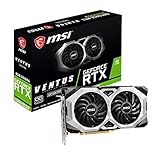
- Chipset: NVIDIA GeForce RTX 2060 Super
- Boost Clock: 1665 MHz
- Video Memory: 8GB GDDR6
- Memory Interface: 256-bit.Avoid using unofficial software
- Output: DisplayPort x 3 (V1. 4)/ HDMI 2. 0B x 1
When replacing the card is more sensible than updating drivers
Consider hardware diagnostics when the RTX 2060 SUPER disappears from Device Manager, produces artifacts before Windows loads, crashes under every driver branch, or fails in another compatible computer. Shut down before reseating a desktop card, disconnect AC power, and follow the case and motherboard instructions. A replacement purchase makes sense only after checking the card, power supply, slot, display cable and temperatures; a driver download cannot revive a failed GPU.
Keep the update decision clear after Windows 10’s end of support
Continue to obtain graphics packages from NVIDIA and keep the branch aligned with your workload, but separate that task from operating-system maintenance. Windows 10 22H2 no longer receives normal security updates after October 14, 2025. If the hardware meets Windows 11 requirements, plan the upgrade and confirm that your applications and OEM firmware are compatible. If it does not, review Microsoft’s current Extended Security Updates eligibility and limitations. A current RTX 2060 SUPER driver improves device compatibility; it does not extend Windows 10’s support lifecycle.
Quick Recap
As an optional shortcut after you have identified the correct GPU and Windows edition, Outbyte Driver Updater can scan more than 100 devices, identify outdated, corrupted or missing drivers, install official drivers, show current and recommended versions, create backups and restore points for drivers, and schedule scans. It supports Windows 11, 10, 8 and 7 and offers a two-day free trial without a credit card before a subscription; results vary, and no tool repairs every crash.
Do these 3 things before closing this tab:
1Fix the driver behind crashes, sound loss and screen glitches2Clear out junk files and repair common Windows errors3Scan for outdated or missing drivers - takes under a minuteProduct prices and availability are accurate as of the date/time indicated and are subject to change. Any price and availability information displayed on Amazon at the time of purchase will apply.




