If your Ring doorbell sends phone alerts but the indoor chime stays silent, first check that the Ring app’s chime setting matches your actual chime, then confirm your doorbell model supports it. Do not start by changing wires: some Ring models cannot ring certain in-home chimes, and wiring or transformer requirements vary by model.
Start with the doorbell and chime you have
Identify the exact Ring doorbell model in the Ring app, and note whether it is battery-powered or wired. Then identify what should make the sound indoors:
As an Amazon Associate I earn from qualifying purchases.
- Mechanical chime: Uses a bell and moving hammer to make a traditional ding-dong.
- Digital chime: Plays electronic tones through a speaker.
- No in-home chime: The home may have no chime, or its existing chime may be bypassed. A plug-in accessory or another alert device may be the intended indoor notification.
The chime’s make and model, and sometimes its power information, may be printed inside its cover. Do not remove the cover or inspect wiring while the circuit is powered.
Check the Ring app’s in-home chime settings
Open the Ring app, select the doorbell, then go to Device Settings > In-home Chime Settings. The available controls differ between battery-powered and wired models.
#1 Best Overall
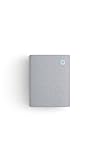
- Hear when someone's there — Receive notifications when motion is detected by your cameras or someone rings your doorbell.
- Real-time alerts, clear as a bell — With an upgraded speaker, get notified throughout your home with louder, clearer alerts.
- Set up in a snap — Simply plug Chime (3rd Gen) into a standard wall outlet for easy setup.
- Sleek, elegant design — Curved edges and slim profile create a modern look that fits your space.
- Customizable sound profiles — Personalize tones, volume, and snooze settings.
For a battery-powered doorbell
If the option is available, try Automatic Chime Detection. Otherwise, use the advanced settings to select the actual chime type. Ring’s manual choices include None, Mechanical, Digital Type 1 and Digital Type 2. Save the selection and test the doorbell. If it rings only partly or does not ring, follow any prompts in the app to adjust the setting.
For a wired doorbell
Select the installed chime type—Mechanical, Digital or None—and make sure the in-home chime control is enabled when applicable. Save the change, allow the app setting to update, and test again. The labels and available options may vary by model.
For Ring’s model-specific instructions, see Configuring and troubleshooting your in-home chime.
Rank #2
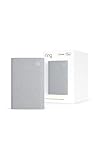
- Sound the alarm on all your devices — Sync Chime Plus with Ring sensors built on Amazon Sidewalk, cameras, and doorbells for comprehensive security you can hear from anywhere. (Coverage may vary by location and is subject to change or interruption.) (Chime Plus is designed to integrate with Ring Sensors connected to Amazon Sidewalk. Please verify your Ring device compatibility before purchase.)
- Set custom schedules for Chime audio alerts and lighting — Control when you hear alerts and when the night-light activates to match your daily routine.
- Personalized tones. Precision audio alerts. — Set a custom tone for each of your Ring devices so you know exactly which one was triggered the moment your Chime Plus sounds.
- Enhanced audio for true sound — Hear every alert no matter where you are with improved audio for crisp clarity and loudness.
- A guiding light that’s easy on the eyes — Illuminate hallways, rooms, and more with the built-in night-light.
Confirm your Ring model supports the chime
If the setting matches your physical chime but it still does not sound, check Ring’s compatibility information for your exact doorbell model and region. Some Ring doorbells do not support an in-home chime; changing the app setting cannot make an unsupported combination work. Compatibility also depends on the chime kit and power supply, so do not assume that a chime that worked with an older doorbell will work with the Ring device.
Use Ring’s in-home chime compatibility list to check the applicable model family. Ring warns that an incompatible transformer or in-home chime kit could damage devices.
If it is compatible, consider power and wiring
A correctly selected app setting and a supported chime narrow the problem to the installation, the chime mechanism or the power supply. Ring publishes these broad ranges for troubleshooting hardwired doorbells:
Rank #3

- Hear doorbell alerts throughout your home — Bundle Battery Doorbell (2nd Gen), Speckled Gray and Chime (3rd Gen), White, to get notified inside when someone rings your doorbell or motion is detected.
- Retinal 2K with up to 6x Enhanced Zoom — From wide views to tighter focus, clarity stays intact with every pinch and zoom.
- Connect to who’s there — See, hear, and speak to anyone at your front door in real time with Live View and Two-Way Talk.
- Easily recharge your front door security — Simply insert the included removal tool to detach your Battery Doorbell (2nd Gen) from the wall, then recharge the built-in battery via USB-C.
- Real-time alerts, clear as a bell — With Chime’s upgraded speaker, get notified throughout your home with louder, clearer alerts.
| Setup | Ring-published range |
|---|---|
| Wired doorbell | 16–24 VAC; 10–40 VA |
| Battery-powered doorbell connected to wiring | 8–24 VAC; 5–40 VA |
| Multiple doorbells | 16 VAC; 30 VA |
These are Ring Support’s published guidance, not universal specifications. Check the requirements for your exact doorbell and chime before making any change; a transformer or chime outside those requirements may prevent proper operation or damage devices. See Ring’s hardwired doorbell power troubleshooting guidance.
Quick wins for a faster PC:
Fix the driver behind crashes, sound loss and screen glitchesFind Drivers →Repair Windows errors before they cause bigger problemsFix Now →For a mechanical chime, Ring also advises checking that wires or accessories do not obstruct the moving hammer. Wiring layouts differ, so use the diagram for your specific setup rather than guessing: Ring provides wiring diagrams for battery doorbells.
Independent reader supportYour contribution helps us test, update, and keep practical guides available for everyone.Keep wiring checks safe
Ring instructs users to switch off power at the circuit breaker or fuse box before working on doorbell wiring. Local laws or building codes may require a qualified electrician. If you are unsure about the wiring, transformer rating or chime configuration, stop and get professional help.
Rank #4

- Hear doorbell alerts throughout your home — Bundle Battery Doorbell (2nd Gen), Matte Mocha and Chime (3rd Gen), White, to get notified inside your house when someone rings your doorbell or motion is detected.
- Retinal 2K with up to 6x Enhanced Zoom — From wide views to tighter focus, clarity stays intact with every pinch and zoom.
- Connect to who’s there — See, hear, and speak to anyone at your front door in real time with Live View and Two-Way Talk.
- Easily recharge your front door security — Simply insert the included removal tool to detach your Battery Doorbell (2nd Gen) from the wall, then recharge the built-in battery via USB-C.
- Real-time alerts, clear as a bell — With Chime’s upgraded speaker, get notified throughout your home with louder, clearer alerts.
Do not bridge the doorbell terminals as a generic test. Ring specifically excludes that test when the in-home chime has been bypassed or the doorbell is wired directly to a transformer. Its guidance for battery-powered doorbell wiring is available at Hardwiring your battery-powered Ring doorbell.
Choose another indoor alert if the chime cannot be used
If your model does not support the existing chime, or you want a separate indoor notification, Ring identifies Ring Chime, Chime Pro and supported Amazon Echo devices as alternatives. Check compatibility and the alert behavior for your specific doorbell and accessory before choosing one. Replacing a transformer is not a first-line fix: do it only after confirming the exact doorbell and chime requirements.
Crashes, No Sound, or Screen Glitches?
Random freezes, missing sound and display glitches usually trace back to one bad driver. Find and replace yours safely.Free scan · under a minutePC Slower Than It Used to Be?
A free scan shows the junk files, broken settings and background clutter dragging Windows down - then fixes them in one click.Free scan · Windows 10 & 11Quick Recap
Product prices and availability are accurate as of the date/time indicated and are subject to change. Any price and availability information displayed on Amazon at the time of purchase will apply.




