The Tool Desk
Outbyte Driver Updater FREEFix the driver behind crashes, sound loss and screen glitchesFind Drivers →Outbyte PC Repair FREERepair Windows errors before they cause bigger problemsFix Now →For an OCuLink external-GPU (eGPU) setup, you need a computer that explicitly supports OCuLink or a documented compatible expansion route, a cable with the correct connectors at both ends, an OCuLink graphics dock, a supported desktop graphics card, and the required power and display connections. Check the manuals for the exact computer and dock before buying parts: a cable cannot add OCuLink support to an otherwise incompatible computer.
OCuLink can also connect other PCIe devices, including storage equipment. This guide focuses on the common consumer question: what is needed to connect an external graphics card.
As an Amazon Associate I earn from qualifying purchases.
What you need for an OCuLink eGPU
- A compatible host computer. Confirm the exact model has an OCuLink port, or that its documentation supports the specific slot or adapter route you plan to use. USB-C, Thunderbolt, M.2, and an ordinary PCIe slot do not, by themselves, establish OCuLink compatibility.
- A cable that matches both devices. Check the connector type and role required by the computer and dock. “OCuLink cable” is not a complete compatibility specification: for example, CRU’s QX310 adapter arrangement calls for an SFF-8611-to-SFF-8643-Male cable, but that is an example, not a universal cable choice. See CRU’s adapter guide.
- An OCuLink eGPU dock or enclosure. It must accept the cable and support the graphics card you intend to install. Confirm the dock’s interface and card compatibility in its own documentation; the existence of OCuLink docks does not establish compatibility for any particular combination. The OCuLink device inventory lists examples of this product category.
- A supported graphics card and appropriate power. Check the dock’s documentation for card dimensions, power connectors, and power limits. There is no single card or power specification established for all OCuLink docks.
- Power and a display connection. Determine what powers the dock and graphics card, and whether the display should connect to the card or the host. These details depend on the hardware.
- The setup instructions for your exact devices. Do not assume you can connect or disconnect the dock while powered. Follow the computer and dock makers’ instructions; there is no universal hot-plug rule established for consumer OCuLink setups.
How to check compatibility before buying
- Identify the exact computer model. Check its official specifications or manual for OCuLink support. If you plan to use an adapter or expansion slot, verify that the documented route supports the intended OCuLink device.
- Identify the dock’s required cable ends. Match the host-side and dock-side connectors, not just the OCuLink name. A connector example in one adapter guide may not apply to another host or dock.
- Compare the link details. Check the PCIe generation and lane configuration stated for both ends. Actual throughput depends on the host, device, lanes, and generation; a stated link rate is not a promise of particular game performance.
- Verify the physical and electrical fit. Confirm the dock supports your card’s dimensions, power connectors, and power requirements, and check how the display should be connected.
- Read the setup procedure. Use the manufacturers’ instructions for power-up, connection, and disconnection rather than assuming the system supports hot-plugging.
What OCuLink means—and what it does not
OCuLink is a PCIe connection standard. PCI-SIG lists PCI Express OCuLink Specification Revision 1.1, dated 2020-07-21, as its “Current Approved Specification.” That defines the standard; it does not mean every computer with a PCIe-related connector can use an OCuLink dock.
OCuLink products use different connector types, including SFF-8611 and SFF-8612, with roles determined by the implementation. PCIe generation and lane count also matter. Treat product link-rate figures as descriptions of the connection, not as direct predictions of application or gaming performance.
#1 Best Overall

- 1) When your device has an Oculink SFF-8612 interface, you can use this adapter to connect an eGPU and add an external graphics card and SSD to your computer device.
- 2) It offers higher bandwidth, lower cost, and better performance for external graphics cards & SSD.
- 3) The card transmits PCI Express 4x signals using the NVMe protocol.
- 4) Data transfer rate up to 32 Gbps,Supports NVM Express (NVMe) 1.2
- 5) Package includes: one OCuLink to NVME (M.2 M-Key) adapter, one Oculink cable, one OCuLink to PCI-E X16 adapter.
What the device count tells you
An OCuLink/ChargerLAB inventory counted 41 OCuLink-related devices across 16 companies as of mid-November 2024: 12 mini PCs, eight gaming consoles, eight graphics docks, seven laptops, four connectors, one SSD, and one chip. This is a dated industry inventory, not a complete or current market census, and the count cannot establish whether a particular computer, cable, and dock work together. See the inventory.
Quick Recap
Best Value

- Package Include: 1PCS OCuLink SFF-8612 Female to PCIe x16 Enclosure Dock, 1PCS SFF-8611 50cm/19.7 IncH Male-to-Male Cable. Note: Graphics Card and Power Supply are NOT Included.
- Strong expansion and high bandwidth design: this OCuLink external GPU dock upgrades graphics performance for laptops and mini PCs. It features PCIe 4.0 x4 64Gbps bandwidth and OCuLink to PCIe x16 conversion, delivers desktop-grade GPU performance for compact devices. Built with native PCIe passthrough technology, it offers higher bandwidth and lower latency than Thunderbolt.
- Broad GPU Compatibility & Multi-Scenario Use: this OCuLink eGPU dock supports mainstream NVIDIA and AMD graphics cards, such as RTX 4090 and RX 7900. It fits both gaming and professional GPUs perfectly. Ideal for daily gaming, 3D modeling, graphic rendering and AI computing tasks, it is an ideal external GPU expansion solution for laptops and mini PC upgrades.
- Shielded Cable & Stable Structure: it comes with a 50cm SFF-8611 male to male OCuLink flexible cable. Full shielding and EMI shielding design effectively reduce signal interference and loss, ensuring stable operation for long-hour gaming and rendering. The built-in side bracket firmly secures ATX power supplies and graphics cards to prevent shaking. Open-frame design supports GPUs in different sizes for easy and flexible installation.
- Practical Indicators & Reliable Design: Multiple LED indicators clearly show the real-time working status. It supports auto start to sync power on/off with your computer, plus a forced start mode for manual control. Important Notes: ①Do not hot-plug any cables; all connections must be made with the power off. ②Only use an ATX power supply, and choose a PSU with wattage 40% higher than your GPU full-load power. ③Please install dedicated GPU drivers before first use for stable display and normal operation.
Rank #4

- [OCuLink PCIe Adapter] RIITOP OCuLink eGPU Adapter adds a desktop graphics card to your lightweight laptop or Mini PC, transforming it into a powerful gaming machine or AI workstation
- [Hardware Requirement] 1. 1x Available OCuLink SFF-8612 Female Port on your laptop, Mini PC, or motherboard (if not, it needs an NVMe to Oculink Adapter which not including) 2. 1x Desktop Graphics Card or any other PCIe x16, x8, x4device you want to connect. Both NVIDIA and AMD GPU are supported. 3. 1x External 24-Pin Power: RIITOP PCIe OCulink Board requires a standard ATX 24-pin power supply to operate. However, the board itself does NOT supply power to the graphics card — so the GPU also needs powers separately from the PSU 4. Power supply sizing tip: Choose a PSU rated at least 100W higher than your GPU's listed TDP
- [PCIe 4.0 x4 64Gbps Ultra-Fast Speed – No Bottleneck] Powered by PCIe 4.0 x4 interface, this OCuLink adapter delivers a full 64Gbps bidirectional bandwidth —no stuttering in games, no lag in GPU rendering, and no wasted potential from your high-end graphics card. Ensure faster token generation of AI/LLM inference
- [Plug & Play and Important Safety Note] 1. No additional drivers are required for RIITOP OCULINK EGPU Dock itself, but Standard GPU needs drivers 2. Important: OCuLink does NOT support Hot Plugging. Always shut down your computer completely before connecting or disconnecting the cable to prevent hardware damage or data loss 3. The oculink cable in package is for external GPU applications. Not compatible with standard internal OCuLink server cables on market
- [Wide GPU & ATX PSU Compatibility] Designed for DIY flexibility, this open-frame card fits full-size graphics cards like RTX 4090 or RX 7900 XTX with no length restrictions. Crucially, it supports Standard ATX Power Supplies. GPU and PSU are not including
Rank #3
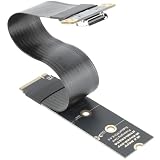
- M.2 NVMe to OCuLink Adapter: the SFF-8612 to NVMe riser card allows you expand an OCuLink SF-8611 4i Host via M.2 PCIe NVMe Socket, to connect eGPU or U.2 U.3 SSD,It comes with 15cm FPC Circuit Board
- Hardware Requirement: your computer must support PCIe x4 NVMe.Please Note: Incompatible with PCIe x2 slots and all SATA-based M.2 sockets.No cable is included. you will need to prepare the correct cable to connect your device. One end of the cable must be an SFF-8611 4i connector (please ensure it is the 4i version, not the 8i).
- The M.2 NVMe to OCuLink Adapter supports PCIe 4.0/3.0/2.0 x4 with a data transfer rate of up to 64 Gbps, ensuring no speed limitations.
- Please Note: Some Laptops does not support NVMe Socket to expand to connect eGPU, please check the protocol of NVMe Socket on the user manual from brand website first
- Package Include: 1x NVMe to OCuLink SFF-8612 Adapter 5.9inch; 1x Scredriver; 1x Screws
Rank #2

- Package Include: 1PCS OCuLink SFF-8612 to PCIe x16 Dock, 1PCS SFF-8611 60cm/19.7 inch Male-to-Male Cable. 🔺Note: This dock only works with the matched attached OCuLink cable. The cable is custom-designed exclusively for this dock and incompatible with ordinary third-party cables on the market
- PCIe Gen4 x4 Full Bandwidth Transmission: Equipped with dedicated SFF-8612 OCuLink interface, supporting PCIe 4.0 x4 transmission with a theoretical bandwidth up to 64Gbps. The PCIe x16 slot is compatible with x1/x4/x8/x16 PCIe devices such as external graphics cards, meeting high-speed data transfer demands for GPU docking
- Universal 24Pin ATX Power Supply Support: Comes with standard 24Pin power input port, widely compatible with ATX, mATX and FLEX small chassis power supplies. We recommend selecting a PSU at least 100W higher than the power draw of your PCIe device for stable operation under full load
- 3-Mode Power Switch: Built-in ON/OFF/AUTO toggle switch. The AUTO mode enables synchronous power on/off with your host PC; switch to ON/OFF to control the dock power manually as needed, bringing flexible power management.
- This product is not a hot-swappable device. Always power off all devices before connecting or disconnecting the dock, PCIe card, OCuLink cable, or power cable
Common buying mistakes
- Buying a cable before confirming that the computer supports OCuLink.
- Assuming USB-C, Thunderbolt, M.2, or a PCIe slot automatically means OCuLink compatibility.
- Choosing a cable by its name without checking both connector ends.
- Expecting the cable to power the dock or graphics card; check the dock’s power requirements.
- Reading a maximum link rate as a guarantee of game or application performance.
- Connecting or disconnecting powered equipment without checking the manufacturers’ instructions.
Product prices and availability are accurate as of the date/time indicated and are subject to change. Any price and availability information displayed on Amazon at the time of purchase will apply.




